Why Your Invoice PDFs Render Badly in Cyrillic, Arabic, and Chinese — And How to Fix It
By the InvoiceFlow team — published 26 May 2026 — 13 minute read
You type a client's name in Cyrillic. The app shows it correctly. You generate the PDF. You open it. The client's name is now a row of square boxes that look like prison windows. You send it anyway, embarrassed. The client politely emails back asking if you meant to attach something else.
If you have ever experienced this, you have experienced what is, by some distance, the most common technical failure in international invoicing software. It is not your typing. It is not your phone. It is the result of a very specific mismatch between three layers of technology that almost nobody talks about and almost everybody is affected by.
This article explains why this happens, what's actually going wrong under the hood, and how the fix works. The explanation is technical enough to be useful and non-technical enough to read on a Sunday morning.
The three layers and why they don't agree
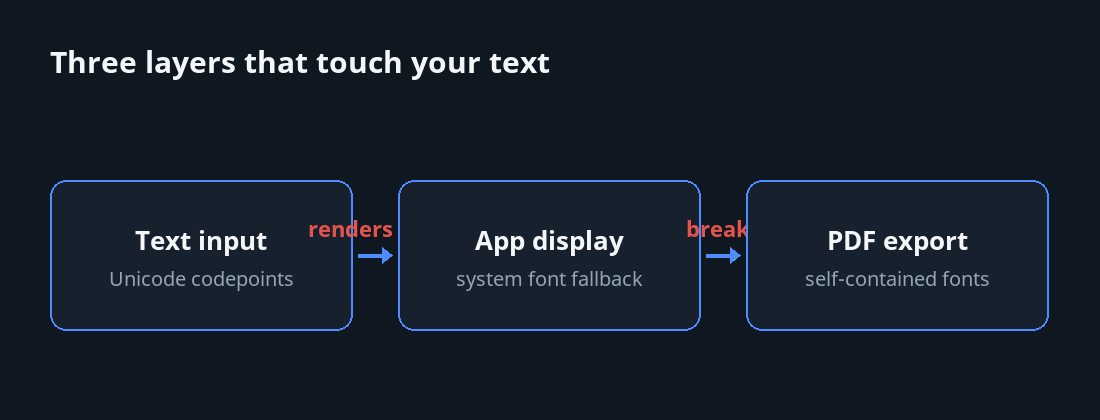
When you create an invoice in any modern app, three pieces of software touch your text before it reaches a PDF:
Layer 1: The text input system
Your phone's keyboard is Unicode-aware. When you type "Москва" (Moscow), each character is stored as a Unicode codepoint — a numeric identifier in a globally agreed-upon table. The phone handles this seamlessly because every modern operating system supports Unicode natively.
Layer 2: The app's display system
The app shows your text on screen using the phone's built-in fonts. Android, iOS, and modern browsers ship with massive font fallback systems — if the default font doesn't have a glyph for a character, the operating system finds a font that does and uses that. This is why you can see Chinese, Arabic, Cyrillic, Thai, and emoji all rendered correctly in the same WhatsApp message.
Layer 3: The PDF rendering system
This is where everything goes wrong. PDFs are self-contained. A PDF must include — embedded inside itself — the fonts needed to display its text. If a PDF tries to render a Cyrillic character using a font that doesn't have a Cyrillic glyph, you get a tofu box (the technical term for those empty rectangles). The PDF reader doesn't fall back to a system font; PDFs don't work that way.
Most invoicing apps include exactly one font in their PDF templates: Helvetica or a Helvetica-like sans-serif. Helvetica only covers Latin characters with a small extension for Western European accents. Anything beyond that — Cyrillic, Greek, Arabic, Hebrew, Chinese, Japanese, Korean, Thai, Vietnamese with full tone marks, Indian scripts, anything — fails silently or renders as boxes.
This is the root cause. The app shows your text correctly. The PDF can't display it. The mismatch happens at the moment of export.
The symptoms by script
Cyrillic
Most common visible failure mode: every Cyrillic character is replaced with a box. Sometimes Latin lookalike characters appear instead — a Russian "Н" might appear as a Latin "H" — which is worse than boxes because it's not obviously broken.
Arabic and Hebrew
Twin failures. First, the characters may be missing entirely. Second, even if characters exist in the font, Arabic and Hebrew text is right-to-left, and many PDF generators get the text direction wrong. The result is correctly-shaped characters in wrong reading order.
Chinese, Japanese, Korean (CJK)
Boxes. Almost universally. CJK character sets are enormous (Chinese alone has 70,000+ characters in unified Han). Embedding a full CJK font in every PDF makes file sizes huge, so most invoicing apps simply don't.
Thai, Khmer, Burmese, Tibetan
Boxes, plus broken vowel positioning. Thai characters combine with vowel marks above, below, and around the base character. Even when the font has the glyphs, getting the positioning right requires a shaping engine, which most PDF libraries don't include.
Indian scripts (Devanagari, Tamil, Bengali, etc.)
Worst case in many ways. Indian scripts use complex conjuncts where two consonants combine into a third visual form. Even with the correct font and a shaping engine, getting "क्ष" (ksha) to render correctly instead of "क" + "्" + "ष" as three separate things requires careful PDF setup.
Vietnamese
Often partially works. Latin characters render. The tone marks (acute, grave, hook, tilde, dot below) often render in wrong positions or disappear. "Việt Nam" becomes "Viet Nam" or "Vi̇ệ̀t" with stacked accents in the wrong order.
Why "just use a Unicode font" isn't enough
The intuitive fix — use a font that covers everything — runs into three problems.
1. No single font covers everything
The most comprehensive Unicode font, Noto Sans, is actually a family of dozens of fonts (Noto Sans Latin, Noto Sans Cyrillic, Noto Sans Arabic, Noto Sans CJK, Noto Sans Thai, etc.). Loading them all into every PDF would create 50-100 MB invoice files, which nobody wants to email.
2. PDF readers handle font fallback poorly
Even if you embed multiple fonts in one PDF, getting the reader to switch between them mid-line is fragile. Many PDF generators don't emit the necessary instructions correctly, so even a correctly-embedded multi-font PDF renders incorrectly in some readers.
3. Shaping engines vary
Even with the right font, Arabic, Indian, and Thai scripts need text-shaping logic at render time. Different PDF libraries support shaping at different levels of completeness.
The actual fix: script-aware font subsetting
The approach that works — and that InvoiceFlow implements — has four parts:
1. Detect the scripts in the invoice text
Before generating the PDF, scan all the text fields. Identify which Unicode scripts are present: Latin? Cyrillic? Arabic? CJK? Multiple at once?
2. Load the appropriate Noto Sans subset(s)
For each detected script, load only the relevant Noto Sans variant. A Russian invoice loads Noto Sans + Noto Sans Cyrillic. A Japanese invoice loads Noto Sans + Noto Sans CJK Japanese. An invoice in Arabic with English line items loads Noto Sans + Noto Sans Arabic, plus a right-to-left text-direction marker.
3. Subset the fonts
Fonts are huge. A full Noto Sans CJK font is 10+ MB. But your invoice only uses 200-500 characters. Font subsetting strips out everything except the glyphs you actually used. The Japanese invoice goes from 10 MB to perhaps 80 KB.
4. Run text shaping at render time
For Arabic, Indian, and Thai scripts, run a proper shaping pass — turning the sequence of input characters into the correctly-positioned, correctly-combined glyphs that the script requires. This is HarfBuzz territory in technical terms; the user-facing effect is that "Việt Nam" looks right and "मुंबई" (Mumbai) renders as a single word, not three.
The clean font name problem (a sub-bug)
One subtle related issue: PDF readers expect font names to follow specific naming conventions. If your app embeds a font called "Noto Sans Devanagari Regular" but the PDF metadata refers to it as "NotoSansDevanagari-Regular" or "Noto-Sans-Devanagari", some readers will fail to use it even though it's embedded correctly. The font name must be cleaned to match exactly.
This sounds trivial. It causes a non-trivial percentage of "looks fine on my phone but broken on the client's PDF reader" complaints.
What this means for you
If you're a freelancer or small business that occasionally invoices in non-Latin scripts:
Test with the actual script you'll use
Don't assume your invoicing app handles all scripts equally. Generate a test PDF with the script you'll actually use — Cyrillic, Arabic, Thai, whatever — and open it in at least two different PDF readers (Adobe Acrobat, a phone's built-in reader, a web browser). If it renders correctly in all of them, you're fine. If any reader shows boxes, the app's font handling is incomplete.
Test mixed-script invoices
The hardest case is mixed-script text — a Russian client's name in Cyrillic and a Latin product description in the same invoice. Some apps handle pure single-script invoices fine and fail at mixed scripts. Test both.
Test on phone-rendered PDFs
Many of your clients will open the PDF on a phone. Mobile PDF readers are sometimes worse at multilingual rendering than desktop ones. Make sure your test includes a mobile reader.
The wider point about invoicing software
The font issue is a perfect example of a feature that costs almost nothing if it works and costs you a client if it doesn't. You won't notice it during evaluation; it only matters the first time you need it. By then, you've migrated your data and switching is painful.
If you operate in a multilingual market — and if you're a freelancer reading this in 2026, you probably do — script-aware PDF rendering is the kind of thing you should check for before you commit. Most apps will not tell you they don't support it. Most apps will not tell you they do, either, because their marketing teams don't know what it means. You have to test.
For what it's worth, InvoiceFlow ships with Noto Sans variants for every script we've encountered, full HarfBuzz-based shaping, and on-device font subsetting so even Japanese or Chinese invoices stay under 200 KB. Your test will tell you if that's true. We hope it does.