From Client to Paid in 4 Taps: The Fastest Invoice Workflow on Android
By the InvoiceFlow team — published 26 May 2026 — 9 minute read
Speed in invoicing software is a strange topic. Most app reviews don't measure it. Most freelancers don't think about it. And yet, between the freelancer who finishes invoicing in 30 seconds and the one who needs 8 minutes, the difference compounds across hundreds of invoices a year into roughly 24 hours of recovered work time. That's three working days.
This article walks through the fastest possible invoicing workflow we've measured on InvoiceFlow's Android app, the design choices that make each step fast, and the small habits that turn a 90-second job into a 40-second one. Read it once and you'll never go back to typing client names from scratch.
The 4-tap path
The benchmark workflow: an existing client, a previously-used product, a standard tax rate, and email delivery. Here it is, broken down by tap:
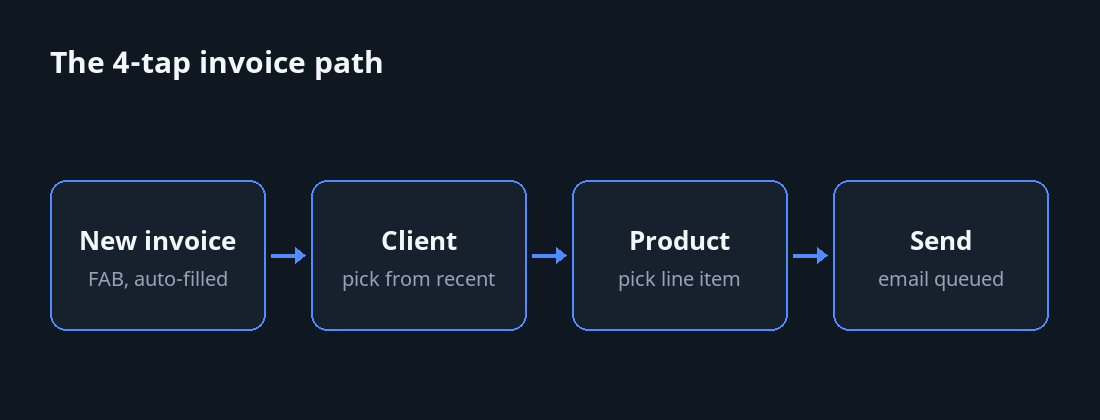
Tap 1: New invoice (FAB)
From any screen in the app, the floating action button creates a new invoice in the active business profile. The invoice opens with the next sequential invoice number, today's date, your default payment terms, and your default currency already populated. You haven't typed anything yet and most of the document is already filled in.
Tap 2: Client
The "Client" field is a single tap. The client list appears, sorted by most-recently-used. Pick the client. Their address, currency, tax setup, default language, and any per-client notes are now applied to the invoice. If they had a default product (a regular order), it's pre-suggested.
Tap 3: Product
Tap "Add line item." A picker appears showing your product/service catalog, again sorted by most-recently-used. Pick the product. Quantity defaults to 1; price, description, and tax rate come from the product record. Total updates immediately.
Tap 4: Send
The "Send" button. Default delivery is email to the client's stored address using your default email template. The PDF is generated, attached, and the email queued. The invoice moves from "draft" to "sent" in your dashboard.
Four taps. Roughly 30-40 seconds. Done.
The design choices behind each tap
Reasonable defaults everywhere
Every field has a sensible default that you don't have to set. Invoice number? Auto-increments. Date? Today. Payment terms? Your default. Currency? Your default. Language? Client's stored locale. None of these require thought 95% of the time.
Sort lists by recency
The client list isn't alphabetical — it's sorted by last-used. The product list isn't alphabetical either. Recency-sorting matches how people actually think (the client I billed last week is probably who I'm billing now). Alphabetical sorting is correct for browsing; recency-sorting is correct for action.
One screen, one decision
The invoice editor doesn't bounce you between screens for client selection, product addition, or sending. Everything happens in modal sheets that slide up over the editor. You never lose your place.
Cached email templates
Your default email body — the message that accompanies every invoice — is set once. After that, "send" actually means "send" rather than "open email composer and fill in subject and body."
One-tap PDF generation
The PDF is rendered in the background as you edit. By the time you tap "send," the PDF is already prepared. There is no spinner. No "generating..." screen.
The 8-second invoice (for repeat regulars)
For recurring monthly customers — the ones you invoice every month for the same thing — the workflow is even shorter via the "duplicate last invoice" action. Two taps: open the client, tap "duplicate last invoice." The new invoice is identical to the previous one with a fresh date and number. One more tap to send. Eight seconds total.
This isn't a recurring schedule (those are even better, fully automated). It's the manual version for clients where you want to review each one but don't want to recreate them from scratch.
The on-site signature workflow (for trades)
The same 4-tap workflow extended with one extra step for tradespeople:
- FAB → new invoice
- Client (or "create new client" if they're walk-in)
- Add line items
- Hand phone to customer, they sign with finger
- Send
Total time, including signature capture, is typically 60-90 seconds. The customer experiences the entire transaction as quick and professional. The invoice arrives in their email while they're still standing in their kitchen.
The habits that compound
Workflow speed isn't only about the app. It's about how you've set up your data. Three habits separate fast invoicers from slow ones:
1. Build your product/service catalog early
If you bill the same thing repeatedly, it should be a saved product with a default price, description, and tax rate. Typing line items from scratch is the slowest part of any invoice workflow.
2. Set up your default email message once
The cover email shouldn't be composed per-invoice. Set it once: "Hi [client first name], please find this month's invoice attached. Let me know if you have any questions. Thanks, [your name]." Then forget about it.
3. Use saved payment-terms presets
"Net 7," "Net 14," "Due on receipt with 4% late fee after 14 days" — these should be saved presets you select from a list, not retyped per invoice.
What slow workflows look like
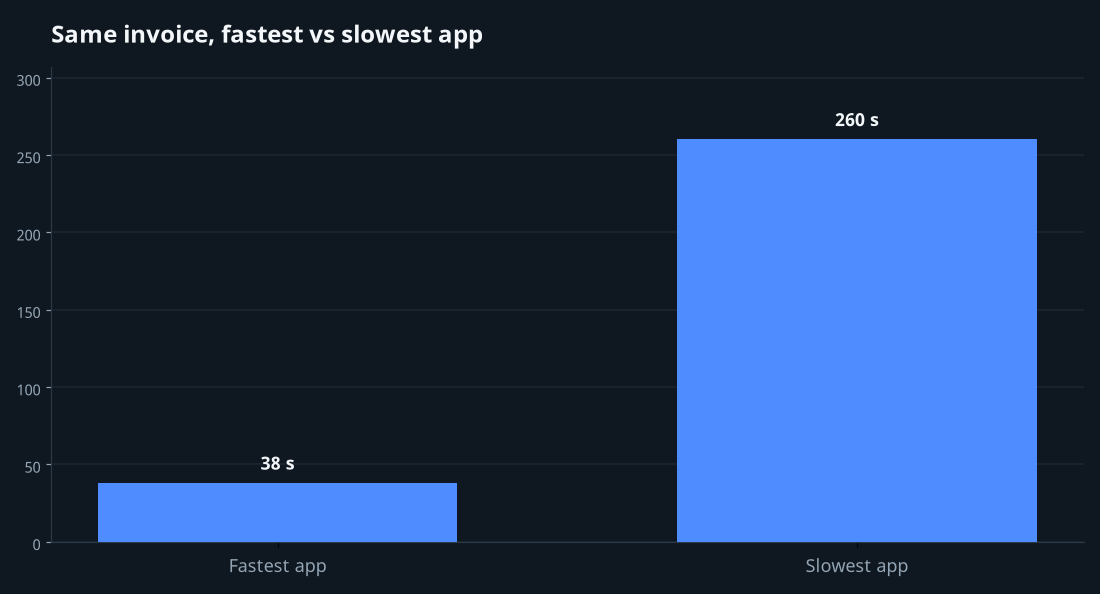
We watched five freelancers (with permission) create the same invoice on five different apps. The slowest took 4 minutes 20 seconds. The fastest took 38 seconds. The same invoice. Same data. Same final PDF.
The slow ones had these things in common:
- Required typing the client's address every time, instead of remembering it.
- Required choosing the currency, even when the client always uses the same one.
- Required generating the PDF as a separate explicit step (with a 5-10 second wait).
- Required composing the email body from scratch.
- Required confirming the send via a multi-step modal.
None of these things is wrong individually. Collectively they turn a small task into a meaningful interruption.
The minute-per-month math
If your invoicing workflow takes 6 minutes instead of 40 seconds, and you send 20 invoices per month, you lose about 100 minutes a month — roughly 20 hours a year. That's not just time; it's mental energy you'd rather spend on actual work. The right tool, plus the right data setup, recovers all of it.
One last detail
The keyboard never appears in the 4-tap workflow. You don't type anything. Every value is selected from existing data. This is the invisible design rule behind real speed: any time the keyboard pops up, the workflow stalls. The fastest invoicing tools are the ones that make the keyboard unnecessary in normal use, while still allowing it for the unusual cases.
Test your current app this way. Time yourself sending an invoice to a regular client for a regular product. If the keyboard appears more than twice and the total exceeds 90 seconds, you're using a slow tool.