How to Organize a 200-Client Base So Invoicing Takes Seconds, Not Minutes
By the InvoiceFlow team — published 16 June 2026 — 12 minute read
There is a moment most growing businesses hit without noticing. One day your client list is a tidy column of fifteen names you know by heart. Eighteen months later it's two hundred and forty entries, and you're scrolling past "Acme (do not call before noon)" looking for a customer whose name you half-remember while they wait on the phone. The list still works. It just stopped being fast.
The fix is not a bigger screen or a better memory. It's structure. A client base organized into groups and categories — and searchable with real filters — turns a long flat list into a database you can query in two taps. This guide walks through a complete system for organizing a large client base in InvoiceFlow: how to tag clients by type, region and status, how parent and child categories roll up, how the advanced filters narrow two hundred clients to the seven you care about right now, and why the half-hour you spend setting this up pays itself back every single week.
Why a flat client list breaks at scale
A flat list has exactly one axis: alphabetical order. That's fine when you can hold the whole list in your head. It fails the moment you need to answer questions that aren't "what's this client's name." Real questions sound like:
- "Which of my retainer clients haven't I invoiced this month?"
- "Show me every wholesale account in the north region so I can send the new price list."
- "Who are my dormant clients — the ones I haven't billed since last year?"
- "Which clients are on the higher late-fee terms, and which are exempt?"
None of these are answerable by scrolling. They're answerable by segmenting. And segmentation needs two things the flat list doesn't have: a way to label clients along several dimensions at once, and a way to filter on those labels. That's exactly what groups, categories, and the advanced filters provide.
Groups and categories: the two-layer system
InvoiceFlow lets you organize clients with client groups and categories, and crucially those categories support parent-to-child sub-categories. That second detail is what makes the system scale instead of sprawl. You don't end up with forty flat tags competing for attention. You end up with a small number of parent categories, each holding the sub-categories that belong under it.
Think of it as folders with sub-folders. A useful starting structure for a service business with two hundred clients might look like this:
- By type (parent) → Retainer · One-off · Wholesale · Referral partner
- By region (parent) → North · South · Central · International
- By status (parent) → Active · Dormant · VIP · On hold
A single client can sit under several of these at once. "Northgate Bakery" might be Wholesale (type), North (region), and VIP (status) all at the same time. That's the point — each dimension answers a different question, and overlapping them is how you slice the base in ways a single label never could.
Designing categories you'll actually use
The most common mistake is over-categorizing on day one. You invent twenty sub-categories, populate three of them, and the rest become noise. A better approach is to start from the questions you actually ask. If you've never once needed to find clients "by acquisition channel," don't make that category. If you constantly need "who's on the weekly cleaning plan versus the one-off deep-clean," that's a real category — build it.
A practical rule: a category earns its place if you can name a concrete action it would trigger. "Region: North" earns its place because you'd send the north price list, or route a local visit. "Favorite color" does not. Three or four parent categories with a handful of children each is plenty for most businesses — and far easier to keep clean than a sprawl of flat tags.
Creating categories and sub-categories inline
You don't have to plan the whole taxonomy in advance. In InvoiceFlow you assign categories while creating or editing a client, and you can create a new category — or a sub-category under an existing parent — inline right from the client editor. So the workflow is natural: you're adding "Riverside Café," you realize you want a Hospitality sub-category under your By type parent, you create it on the spot, assign it, and move on. The structure grows out of real work instead of a whiteboard session that never gets finished.
The dedicated client-groups management screen
Assigning categories one client at a time is fine while you're working. But when you want to step back and see the whole structure — rename a category, reorganize the hierarchy, see what exists — InvoiceFlow gives you a dedicated client-groups management screen. You reach it from the Clients screen via the groups button.
This is where you do the housekeeping that keeps the system honest. Over months, taxonomies drift: you end up with both "Wholesale" and "Wholesale accounts," or a sub-category that turned out to belong under a different parent. The management screen is the single place to fix all of that, instead of hunting through individual client records. Treat it like the index of a book — a few minutes there every quarter keeps two hundred clients legible.
Advanced filters: turning labels into answers
Categories are only half the system. The other half is the advanced filters on the Clients screen, which is what turns your labels into instant answers. InvoiceFlow's client filters work along two distinct axes:
- By relationships / facets — narrow the list based on how clients relate to your groups and categories.
- By attributes — narrow on the data fields stored on the client record itself.
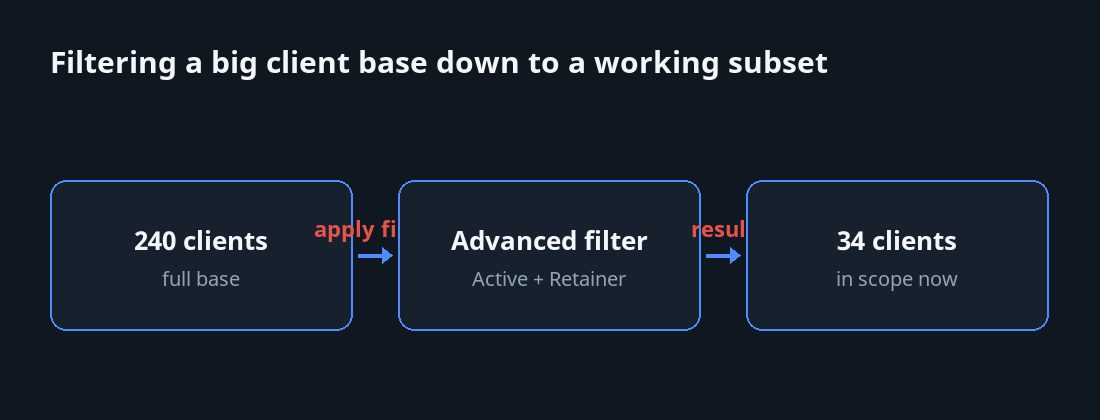
You open the filter from the filter button on the Clients screen, pick your conditions in the filter sheet, and the list collapses to just the matching clients. Two hundred and forty entries become seven. That's the whole game: instead of scrolling, you describe what you want and the list obeys.
The parent-to-child roll-up
Here's where the hierarchy earns its keep. When you filter on a parent category, the results roll up its children automatically. Filter on the By type parent and you can pull everything beneath it; filter on a specific child like Wholesale and you get just that slice. So the same structure answers both the broad question ("all my typed clients") and the narrow one ("only wholesale") without you maintaining two separate sets of labels. You tag once at the right level; the roll-up does the rest.
Worked example: the Tuesday follow-up routine
Concrete beats abstract. Say you run a regional cleaning company with around 210 clients. Every Tuesday morning you do follow-ups. With a flat list, that's twenty minutes of scrolling and guessing. With the system in place, it's this:
- Open Clients, tap the filter button.
- Filter by relationship to your Status: Active category and your Type: Retainer category.
- The list drops from 210 to maybe 34 active retainer clients.
- Now you know exactly who's in scope. You invoice the ones due, send the price-list note to the wholesale subset, and you're done before your coffee's cold.
The same machine handles the opposite job: finding dormant accounts. Filter to Status: Dormant, and you've got your win-back list in two taps — the clients worth a "we miss you" message and a small re-onboarding discount.
Per-client settings: organization isn't only about labels
Grouping is about finding clients fast. But organizing a big base also means clients aren't all on the same terms — and InvoiceFlow lets you store that on the client record itself. Per-client settings include things like the client's currency and late-fee overrides.
This matters more than it sounds. If "Munich Office Supplies" should always be invoiced in euros while the rest of your base is in dollars, you set that once on their record and every invoice you create for them defaults correctly — no manual switching, no embarrassing currency mistakes. If your VIP clients are exempt from late fees while standard accounts accrue them, you set a per-client late-fee override rather than remembering case by case. Organization, in other words, isn't only about where a client sits in your taxonomy — it's also about the rules that travel with them.
Why the investment pays off
Setting up groups, categories, and a sensible filter habit takes maybe half an hour for a base you already have. Here's the return.
Faster invoicing
The single biggest time sink in invoicing a large base isn't writing the invoice — it's finding the client and remembering their terms. With filters, the right subset is in front of you in two taps, and with per-client settings the currency and fee rules are already correct. The act of invoicing shrinks to the part that actually matters.
Segmented reporting
Once clients are categorized, "how's the business doing" becomes "how's this segment doing." Which is the question that actually drives decisions. You start seeing whether your wholesale accounts or your retainer clients carry the business, whether the north region is pulling its weight, whether VIPs justify the attention. Categories are the lens that turns a single revenue number into a story you can act on.
Targeted follow-up
Generic "checking in" messages get ignored. Targeted ones land. A note to your dormant clients, a price update to wholesale only, an early-access offer to VIPs — each lands because it's relevant, and each is only possible because you can isolate exactly that group in seconds. The clients feel seen; you spend your follow-up energy where it converts.
A 30-minute setup plan
If you're staring at a long flat list right now, here's the order of operations that gets you organized fastest:
- Decide your parent categories first. Three or four max. Type, region, status is a strong default for service businesses; adjust to your reality.
- Sketch the children under each. Keep it to what you'd act on. You can always add more inline later.
- Pass through your top 20% of clients first. The accounts that drive most of your revenue deserve accurate tags immediately. Tag the long tail opportunistically as you touch each one.
- Set per-client overrides where they exist. Foreign-currency clients, fee-exempt VIPs — set those as you go.
- Try one real filter. Run your actual Tuesday-morning query. If it returns the right people, the system works. If it doesn't, your categories need a tweak — fix them on the management screen.
You will not get the taxonomy perfect on the first pass, and that's fine. The structure is meant to evolve. The management screen exists precisely so you can reorganize without redoing everything. What matters is crossing the line from "a list I scroll" to "a base I can query" — because everything downstream, the invoicing speed, the segmented reports, the follow-ups that actually convert, depends on that one shift.
The wider point
A flat client list is a symptom of a business that hasn't yet had to think about its clients as a portfolio. Once you do — once you can ask "which segment, which region, which status" and get an answer in seconds — you stop reacting to your client base and start managing it. The groups, the categories, the roll-up, the filters and the per-client rules aren't busywork. They're the difference between a list that holds your clients and a system that helps you grow them.