 EN
EN  العربية
  Български
  Čeština
  Dansk
Dansk  Deutsch
  Ελληνικά
  Español
  Suomi
Suomi  Français
  עברית
עברית  हिन्दी
  Bahasa Indonesia
  Italiano
  日本語
日本語  한국어
한국어  Bahasa Melayu
  Nederlands
  Norsk
Norsk  Polski
  Português
  Română
  Русский
  Svenska
  Kiswahili
  ไทย
ไทย  Türkçe
  Українська
  Tiếng Việt
  中文
中文 User guide
PDF templates, colour palettes and fonts
Choose one of twelve invoice designs, recolour it with a built-in or custom palette, switch the layout for mixed VAT rates and set the fonts your PDFs use.
Every invoice, estimate or delivery note you generate in Invoice Flow is drawn from the same data by one of twelve built-in page designs. The design decides where the logo, the title, the addresses and the totals sit; a colour palette decides what colour the header bar, table header and labels take; and a separate font setting decides the typeface and the weight of the title, table headers, body text and notes. All three are independent, so you can keep one design and change only its colours, or keep the colours and try a different design, without touching the invoice itself.
This guide follows Mara Vos of Vos & Linden Architecten, a two-person architecture studio on the Herengracht in Amsterdam. Her invoice VL-2026-031 bills Brouwer Vastgoed B.V. for the second phase of a canal-house renovation, in euros with 21% VAT. You will see that one invoice rendered four times, so the differences between designs and palettes are easy to compare.
What you see on the screen
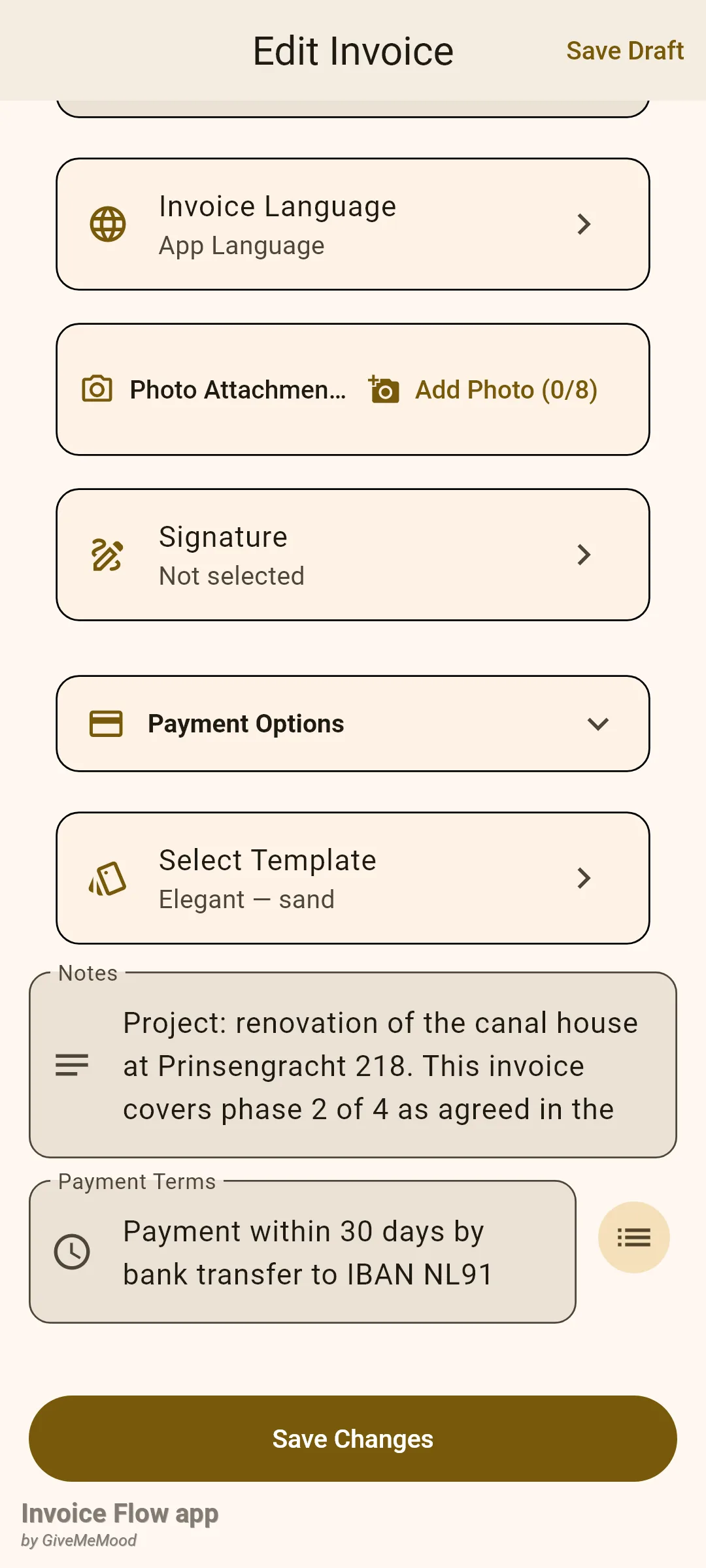
Design choices live in two places. The choice for a single document is made in the invoice editor: scroll below the Payment Options card and you find a card titled Select Template whose subtitle shows the current design and palette, for example Elegant — sand. Tapping it opens the Select Template screen with three sections: Design, Color Palette and Layout, and a Save button in the top-right corner. Just above it sits the Invoice Language card, which changes the language of the printed labels for this one document.
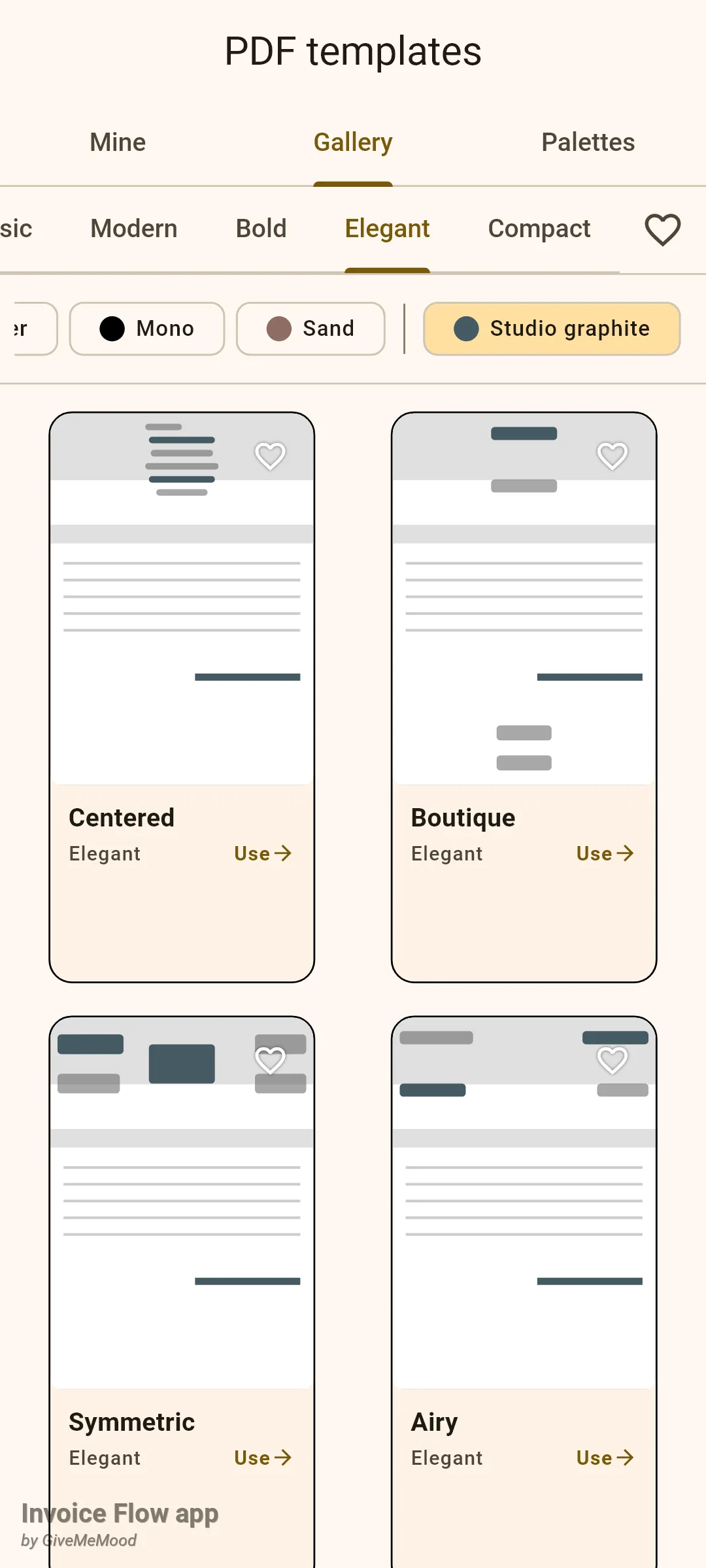
The second place is Settings. The PDF templates row (subtitle “Build and manage your own layouts”) opens a screen with three tabs: Mine for layouts you built yourself, Gallery for 25 starter layouts you can preview in any palette and open in the custom editor, and Palettes where you create your own colour sets. The Fonts row (subtitle “Interface and document typography”) opens a screen with an Interface tab for the app itself and a Documents tab for PDFs.
One distinction matters before you start. The twelve designs in the Select Template screen are fixed renderers; you pick one and recolour it. The 25 cards in the Gallery tab are seeds for the custom template editor, which is a different feature covered in its own guide. Choosing a palette in the gallery only recolours the previews there; it does not change the palette of any invoice.
How to pick a design and a palette for an invoice
- Open the invoice in the editor and scroll down to the Select Template card, then tap it.
- Under Design, tap one of the twelve cards. The selected card gets a thick border and a check mark, and the palette below jumps to that design's default colours.
- Under Color Palette, tap any of the ten chips to override the default. The chosen chip shows a white check inside its colour circle.
- Under Layout, leave Standard selected unless the invoice mixes VAT rates (see the next section).
- Tap Save in the top-right corner. Back in the editor the card subtitle updates, for example to Elegant — sand.
- Save the invoice with Save Changes (or Save Draft); the design is stored on the invoice and used every time you preview or share it.
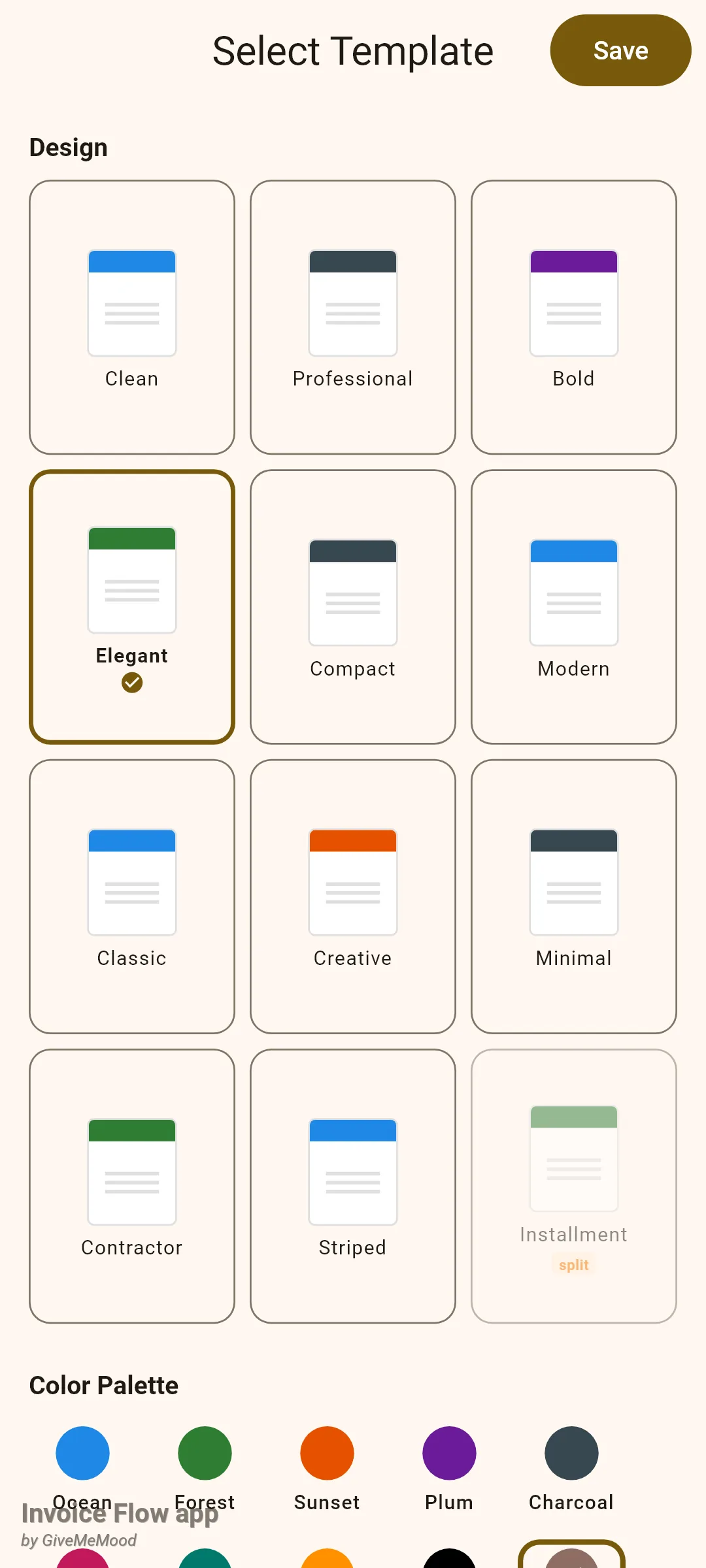
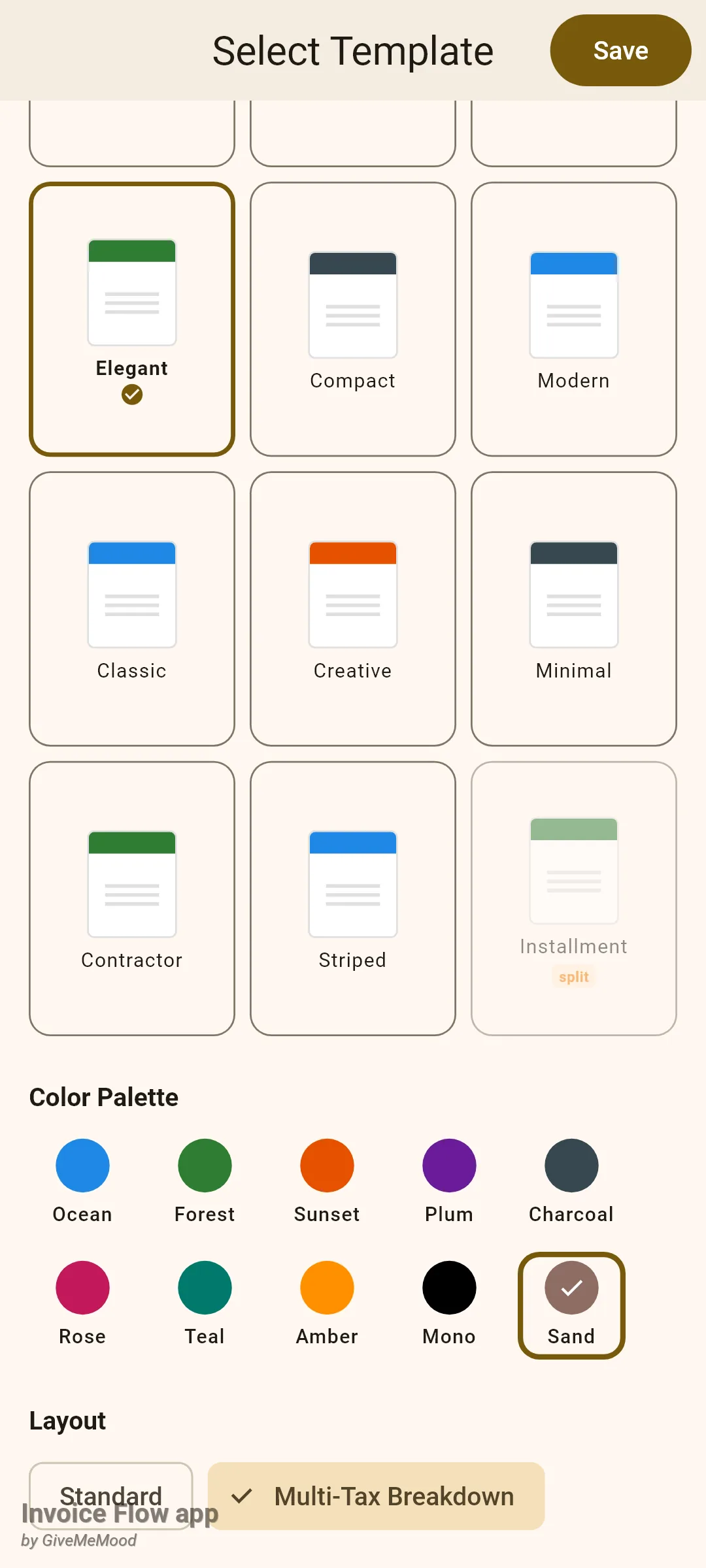
Each card in the grid is a miniature page with a header band in the design’s default colour. When a card is drawn at half opacity with a tiny split or single badge, the design is tuned for the other payment mode. Only Installment carries such a badge; every other design suits both single and split payments. A dimmed card is still selectable.
The four PDFs below are the same invoice VL-2026-031 with nothing changed except the design and palette.
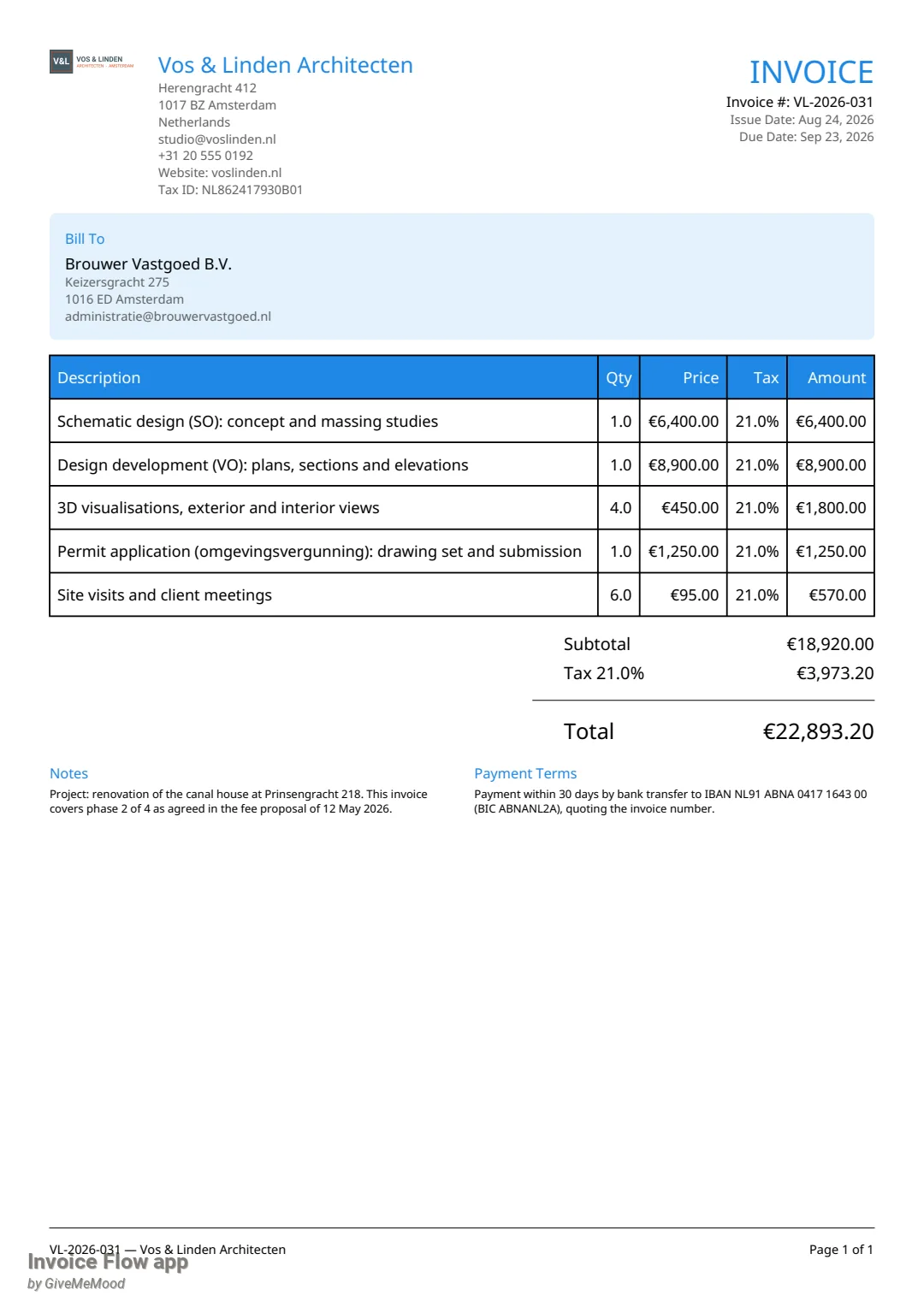
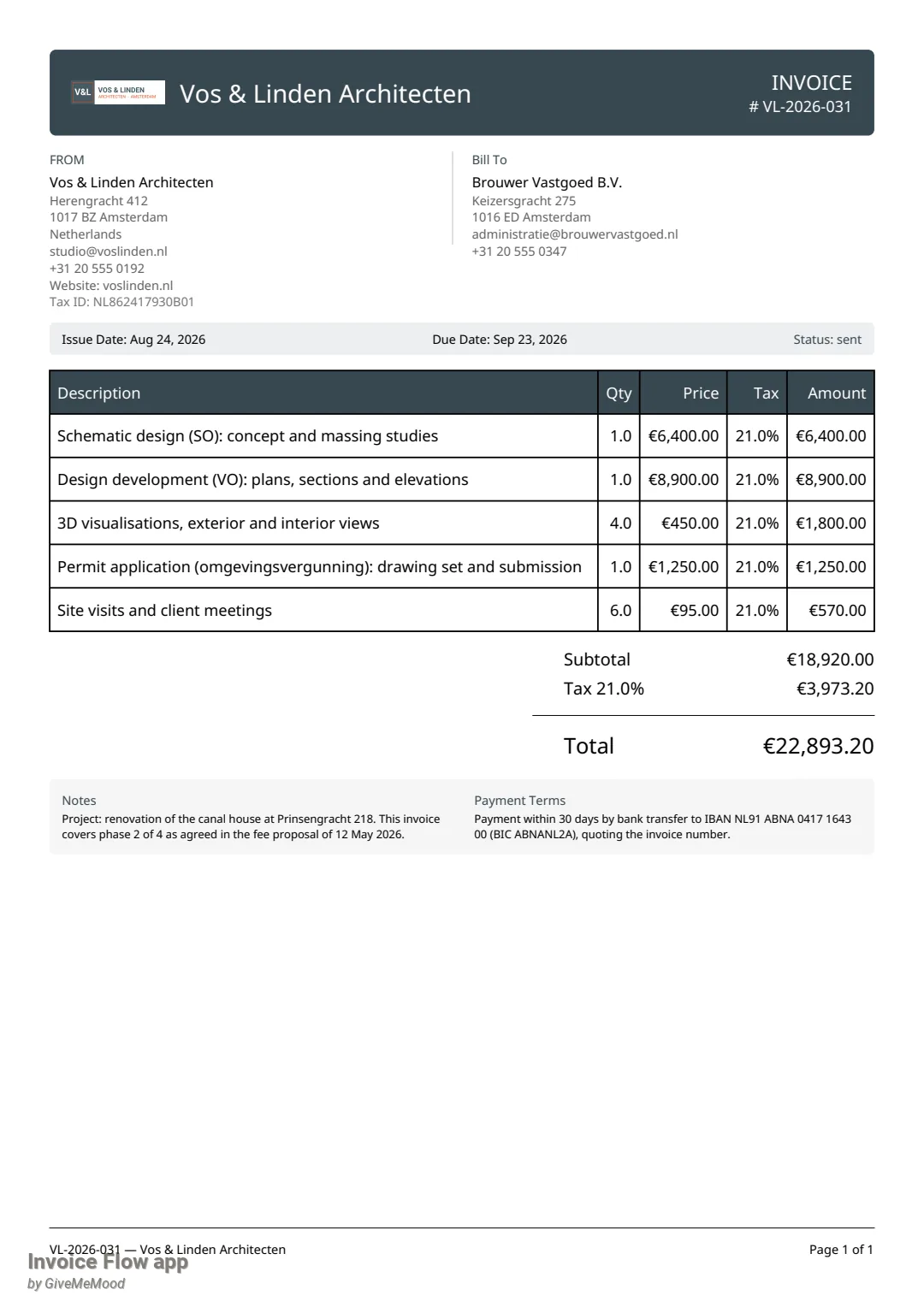
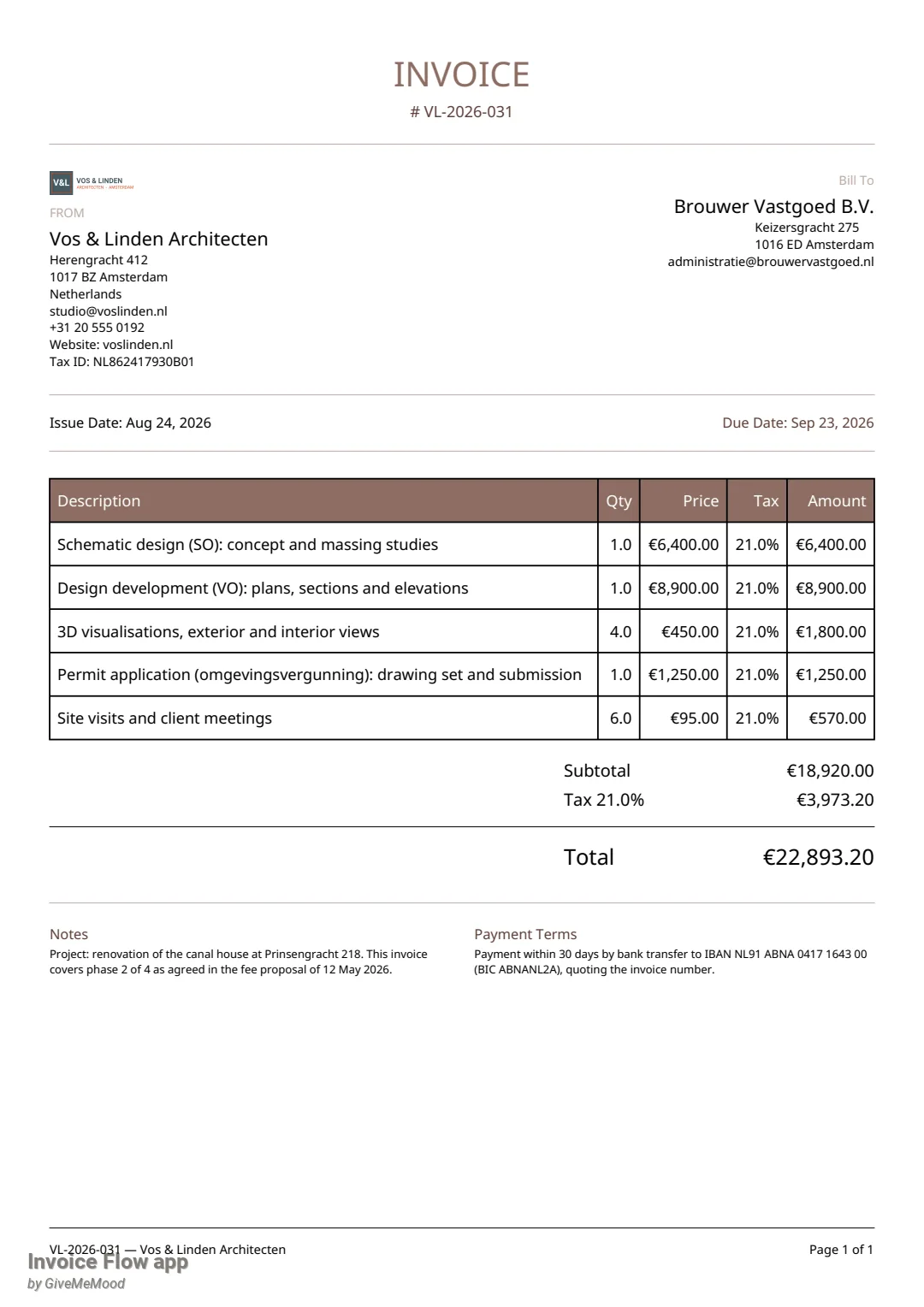
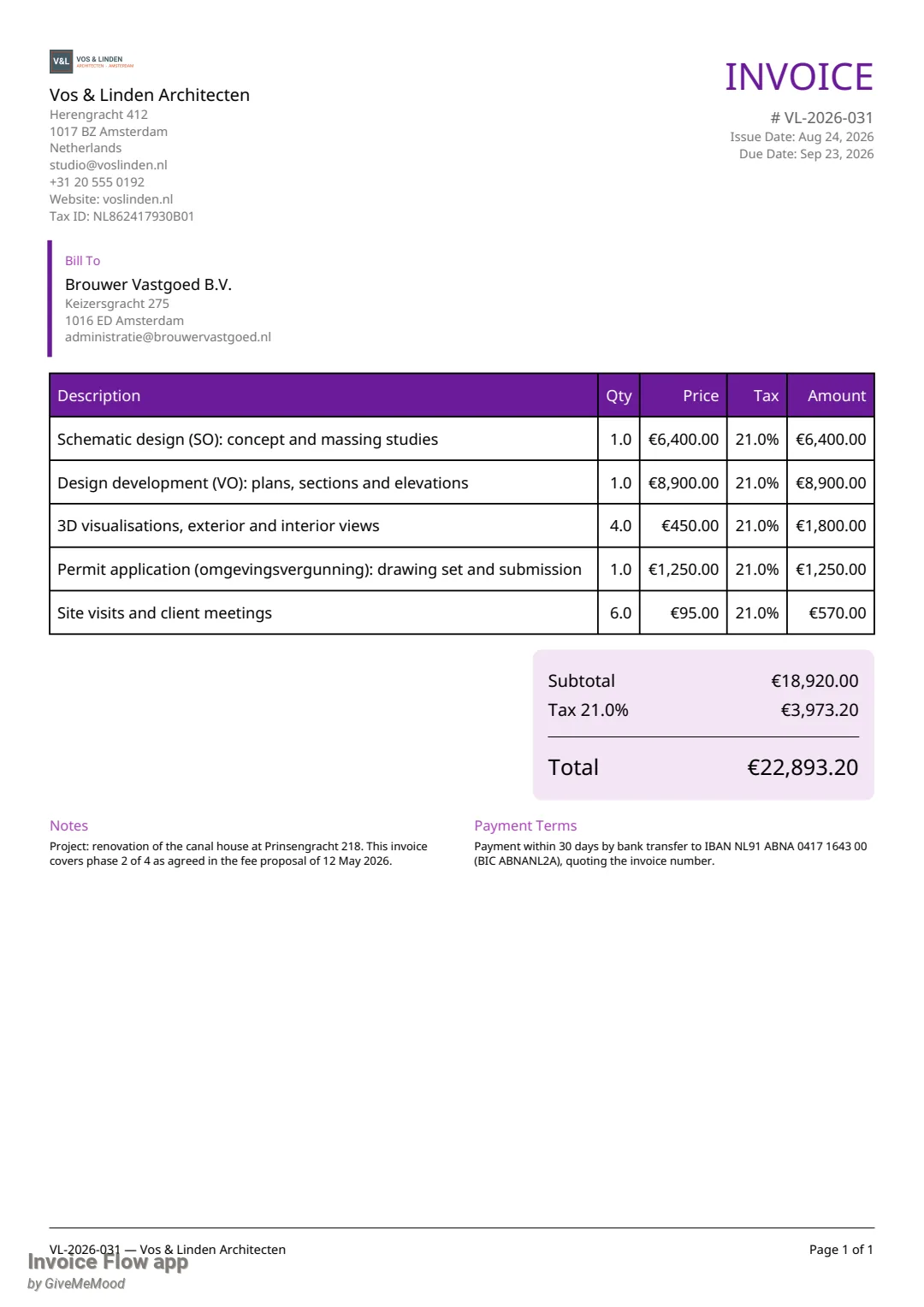
The table below describes each design as it actually renders with its default palette.
| Design | Default palette | What it looks like on the page |
|---|---|---|
| Clean | Ocean | Logo and company block top-left, large coloured INVOICE title with number and dates top-right, tinted Bill To box, coloured table header. |
| Professional | Charcoal | Full-width dark header bar carrying the logo, company name and invoice number; FROM and Bill To side by side; grey strip with issue date, due date and status. |
| Bold | Plum | Large filled, rounded header block with the company details printed in white inside it; Bill To under a coloured rule; thick coloured rule below the totals. |
| Elegant | Forest | Centred INVOICE title with the number beneath and a rule under it; sender left, client right-aligned; a dates row between thin rules; notes and terms in two columns. |
| Compact | Charcoal | Two-line header with only email and phone; small FROM and Bill To columns; smaller type throughout so long invoices fit on fewer pages. |
| Modern | Ocean | Big coloured INVOICE title on the right, a coloured bar on the left edge of the Bill To block, and the totals inside a rounded tinted box. |
| Classic | Ocean | Centred title above a double rule, a dates row, FROM and Bill To in framed boxes, notes and terms in a grey box. |
| Creative | Sunset | Coloured vertical strip down the left margin, INVOICE printed as a badge, issue and due dates stacked on the right, framed totals box, coloured bar beside the notes. |
| Minimal | Charcoal | Very large company name, small grey contact lines, thin grey rules and no colour except the table header. |
| Contractor | Forest | Title reads CONTRACTOR INVOICE; a tinted strip holds Invoice #, Issue Date, Due Date and the payment terms; Bill To with a coloured left bar. |
| Striped | Ocean | Rounded coloured header block with a thin accent line under it; small tinted FROM and Bill To tags; accent line under the table; tinted notes box. |
| Installment | Forest | Same shape as Clean with a compact header; built for split payments, where the payment schedule and its badges are printed before the notes. |
How to use the multi-tax layout
Every design has two layout variants. Standard prints one tax line in the totals. Multi-Tax Breakdown prints one line per distinct rate plus a Total Tax line, which is what an accountant expects when an invoice mixes, say, 21% services and 9% goods.
- In the Select Template screen scroll to the Layout section.
- Tap Multi-Tax Breakdown; the chip fills and shows a check mark.
- Tap Save, then save the invoice.
- Open Preview PDF from the invoice to check the totals block.
You do not strictly need this switch: whenever the line items carry more than one distinct tax rate, the breakdown table is printed anyway, even with Standard selected. Choosing Multi-Tax Breakdown forces the breakdown for invoices with a single rate too, which some clients prefer for consistency.
How to build your own palette
The ten built-in palettes cover most brands, but a studio with its own colours can define a palette from six roles: Primary, Secondary, Accent, Header background, Header text and Subtle background. Creating a palette is a Pro feature; the plus button opens the paywall on a free account.
- Open Settings, tap PDF templates, then the Palettes tab.
- Tap the + button. The Edit palette sheet opens with the Ocean colours and the name My palette filled in.
- Replace the name in Palette name.
- Tap the square swatch next to a role, for example Primary, and pick a colour in the Pick color dialog. The hex value under the label updates.
- Repeat for the other roles you want to change, then tap Save.
- To change it later, tap the palette row; to remove it, tap the bin icon on the row.
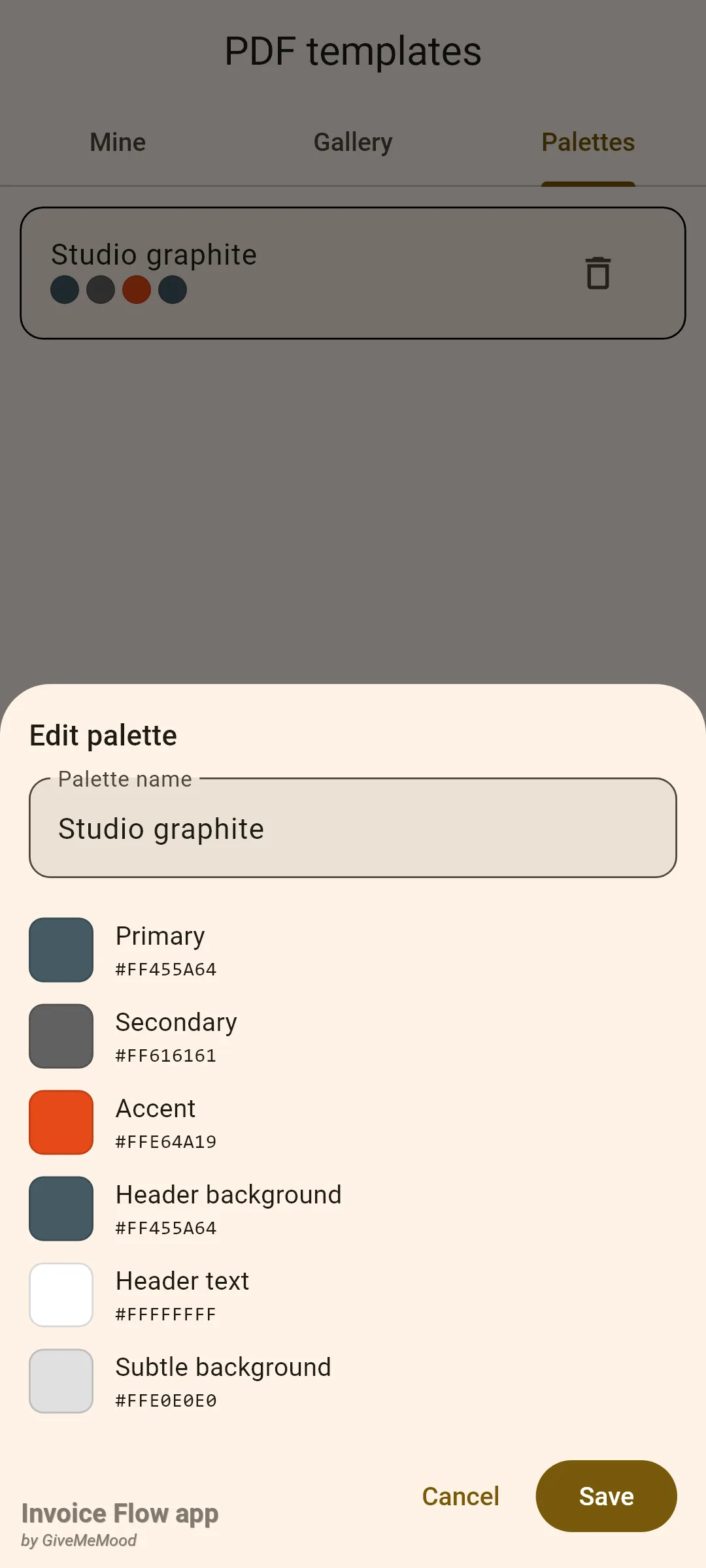
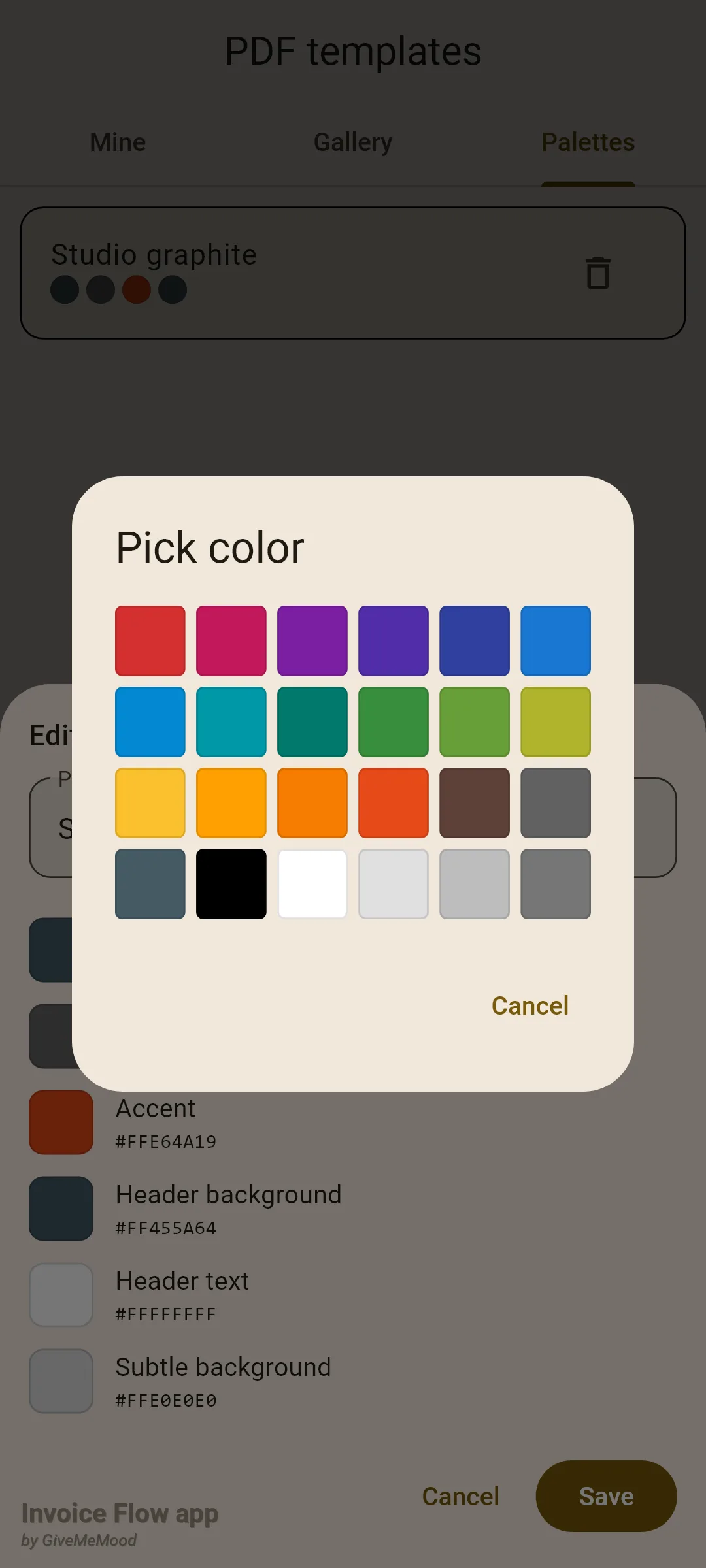
Mara’s “Studio graphite” palette uses a blue-grey primary, a mid-grey secondary and a burnt-orange accent that matches the studio logo. Once saved, it appears at the end of the palette strip in the Gallery tab, after a thin divider that separates it from the ten built-ins. Tap it there and every starter layout is redrawn in your colours, which is the quickest way to judge how a brand colour behaves on a page before you commit to a custom layout.
How to change the fonts in your PDFs
Fonts are a global setting, not a per-invoice one: whatever you choose under Documents applies to every PDF you generate from then on, with any design and palette.
- Open Settings, tap Fonts, then the Documents tab.
- Under Font Family tap one of the eight rows: System Default, Noto Sans, Noto Serif, Roboto, Open Sans, Lato, PT Sans or Merriweather. Each row is printed in its own typeface and the selected one shows a check mark.
- Scroll to the Invoice Title card and drag the Scale slider; the percentage on the right and the INVOICE preview change as you drag.
- Tap the B, I, U or S toggles to add bold, italic, underline or strikethrough to that text role.
- Do the same in the Table Headers, Body Text and Notes & Terms cards. Changes are saved as you make them; there is no Save button.
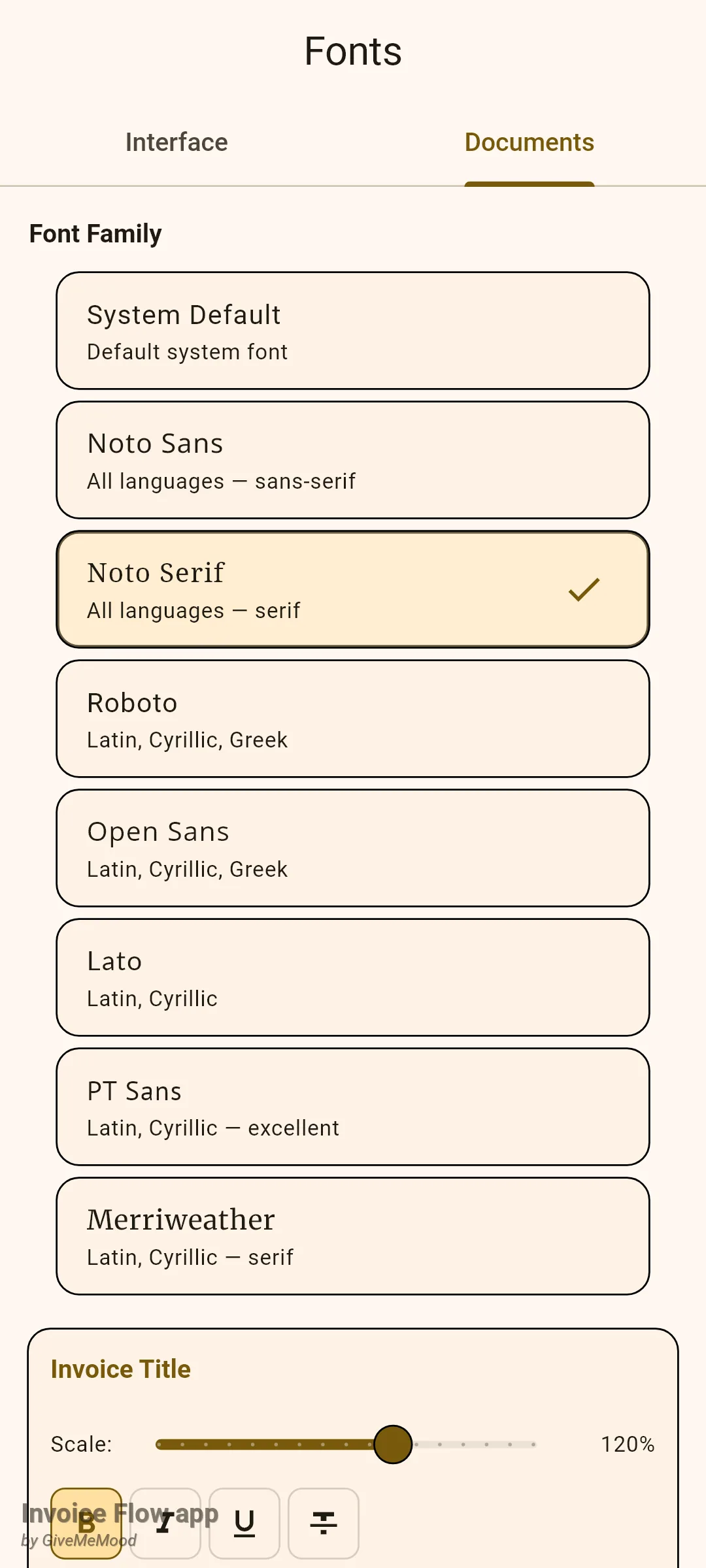
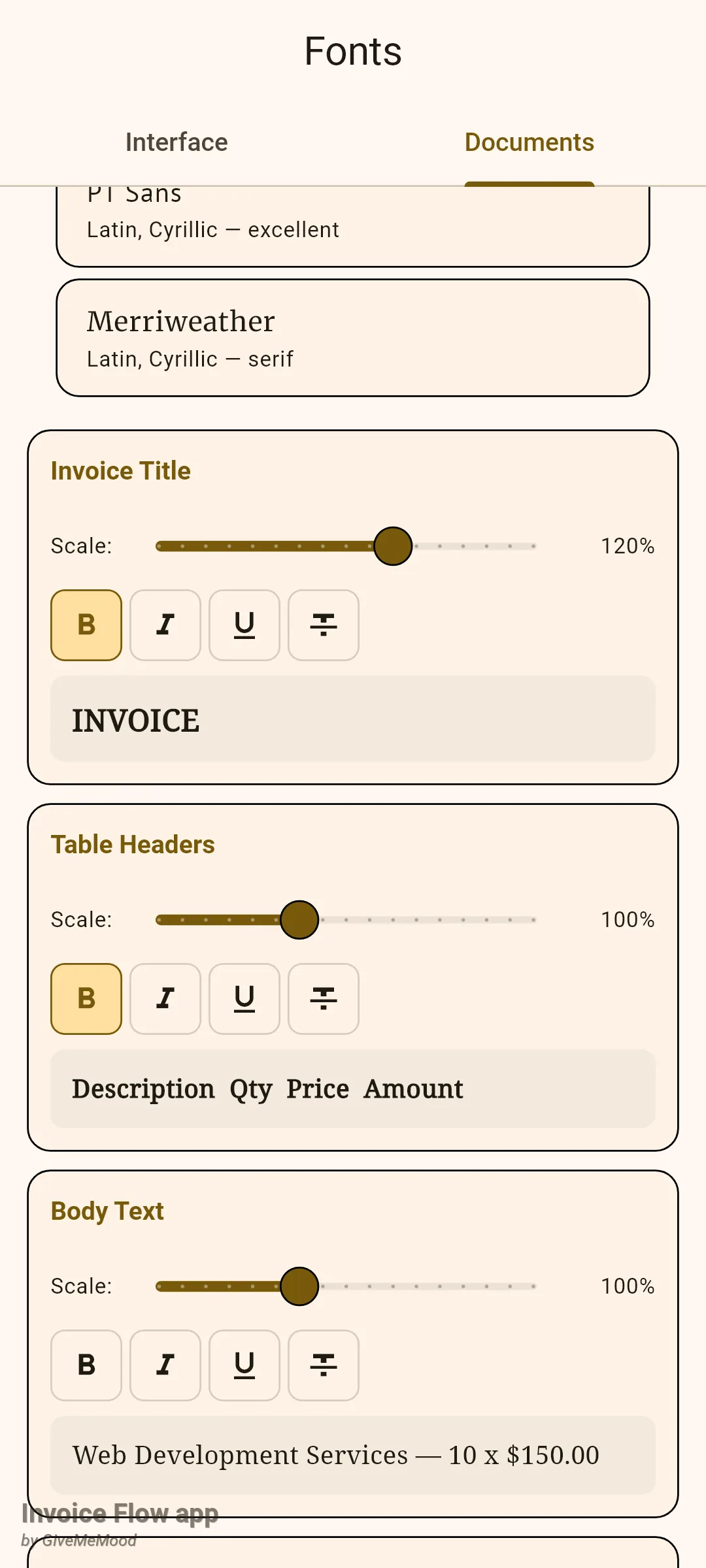
The four roles have sensible defaults: the title and table headers are bold at 100%, body text is regular at 100%, and notes and terms are italic at 90%. The scale sliders run from 70% to 150% in the document cards. The Interface tab is separate; its family list is the same, but its Scale and Icon Size sliders only affect the app screens and never the PDF.
Rules and details
- The design, palette and layout are saved on the invoice itself (fields for template, palette and layout variant). Changing them on one invoice never affects another. Duplicating an invoice and converting an estimate into an invoice copy all three fields, together with the invoice language; a recurring schedule has its own template setting.
- A new invoice starts as Clean with the Ocean palette and the Standard layout. Tapping a design in the grid resets the palette to that design’s default; pick the palette after the design.
- If an invoice references a palette or design that no longer exists, the renderer falls back to Ocean and Clean rather than failing.
- Choosing a design and palette is free. Creating a custom palette requires Pro. On a free account, or after the trial has ended, every PDF page carries a diagonal grey watermark reading “Invoice Flow APP — FREE VERSION” when previewed or shared.
- All ten built-in palettes use a white header text and the primary colour as header background; they differ in primary, secondary, accent and the tint used for boxes.
- A custom palette gets a unique id and is stored in the app’s preferences, not in the database. Font settings are stored the same way. Neither is included in a backup export (only the database and the inventory automation setting are), and deleting it from the row’s bin icon is immediate with no confirmation and no undo.
- The colour picker has no hex entry field; only the 24 swatches can be chosen. The hex shown under each role is in AARRGGBB form, so
#FF455A64is the opaque colour 455A64. - Font families other than System Default and Noto Sans are downloaded the first time a PDF uses them, with real bold and italic faces. If the download fails, for example offline, the PDF silently uses the bundled Noto Sans instead; the font setting itself is kept.
- Whatever family you pick, Arabic, Devanagari, Chinese, Japanese and Korean characters are always drawn from bundled Noto fonts, so mixed-script invoices never show missing glyphs.
- The Invoice Language card in the editor offers App Language plus 16 languages (English, Russian, German, French, Spanish, Italian, Portuguese, Dutch, Polish, Japanese, Korean, Chinese, Arabic, Hindi, Turkish and Ukrainian). It translates the printed labels such as Bill To, Subtotal and Payment Terms, and country names in addresses; dates keep the app’s own format.
- The Multi-Tax Breakdown table appears whenever the layout is set to it or the items have more than one distinct tax rate.
- An invoice that uses a custom layout from the Mine tab ignores the design and palette chosen in Select Template; its editor card then reads Custom template.
Tips
Related guides
- Custom template editor for building a layout of your own from the Gallery starters.
- PDF preview, sharing and the PDF editor for what happens after the design is chosen.
- Logo: square and wide variants because the header logo a design prints depends on the wide-logo variants you uploaded.