 EN
EN  العربية
  Български
  Čeština
  Dansk
Dansk  Deutsch
  Ελληνικά
  Español
  Suomi
Suomi  Français
  עברית
עברית  हिन्दी
  Bahasa Indonesia
  Italiano
  日本語
日本語  한국어
한국어  Bahasa Melayu
  Nederlands
  Norsk
Norsk  Polski
  Português
  Română
  Русский
  Svenska
  Kiswahili
  ไทย
ไทย  Türkçe
  Українська
  Tiếng Việt
  中文
中文 User guide
PDF preview, sharing, View as client and the PDF editor
Preview an invoice as a finished PDF, print or share it, mark a draft as sent, check what the client sees, and correct words or properties in any imported PDF.
Once an invoice is written, three questions remain: what does the finished page look like, how does it get to the client, and what does the client actually see. Invoice Flow answers them with the Preview PDF screen, which renders the document as the recipient will get it and holds the print and share actions, and with View as client, a plain summary of the same invoice from the recipient’s side. A separate tool, the PDF Editor, opens any PDF on the phone, not only invoices, and lets you replace individual words, swap fonts or change the file’s embedded properties.
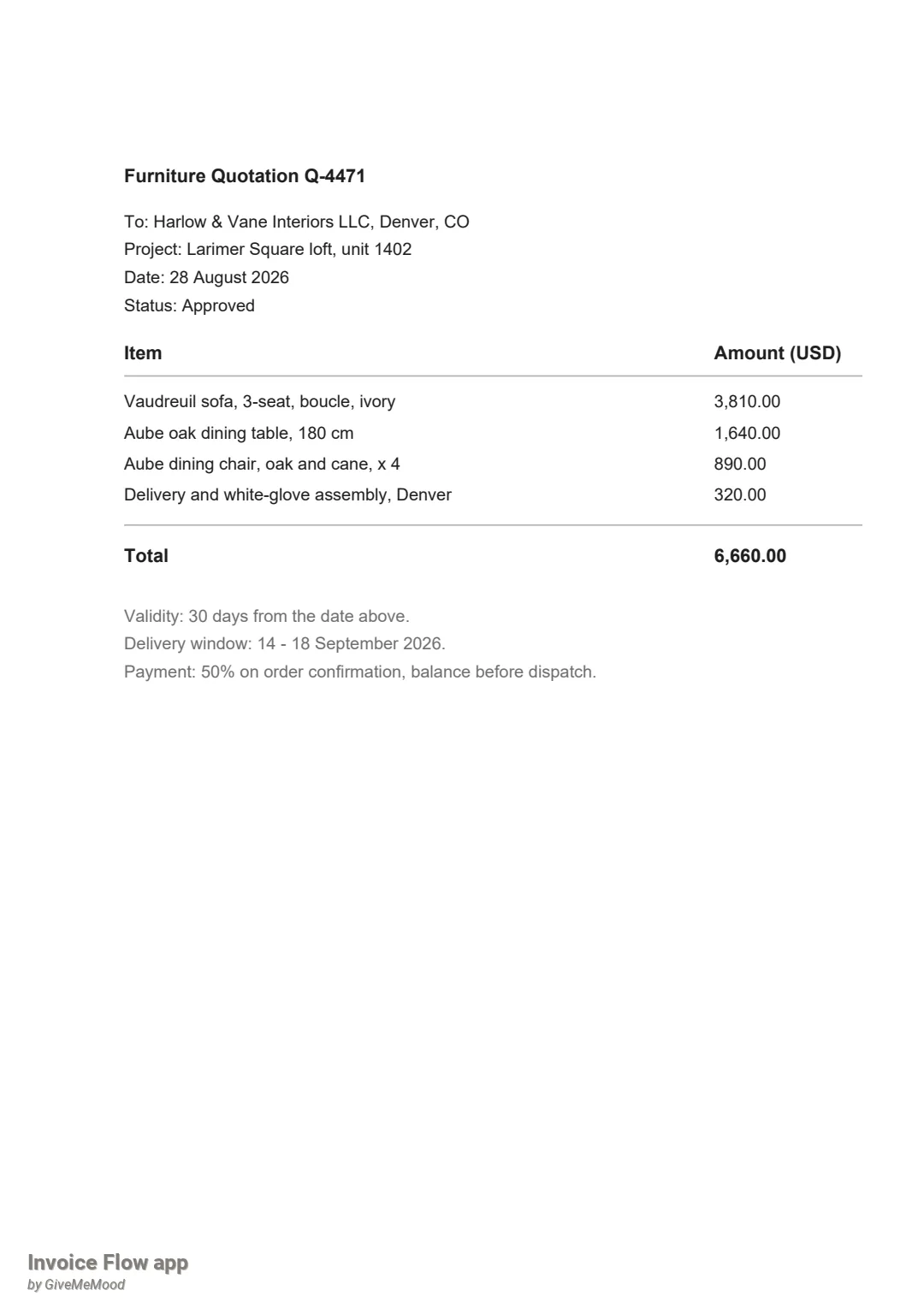
This guide follows Odette Harlow of Harlow & Vane Interiors LLC, an interior-design studio in Denver. Her invoice HV-2026-031 bills Brennan Holdings for furnishing a loft on Larimer Square, 11,250 dollars in total, of which a 4,000 dollar deposit is already paid. A second, still-draft invoice HV-2026-032 covers an optional art-and-accessories add-on. In the PDF editor she has a furniture quotation from her supplier, Maison Ferrand, whose status line must change from “Draft” to “Approved” before she forwards it.
What you see on the screen
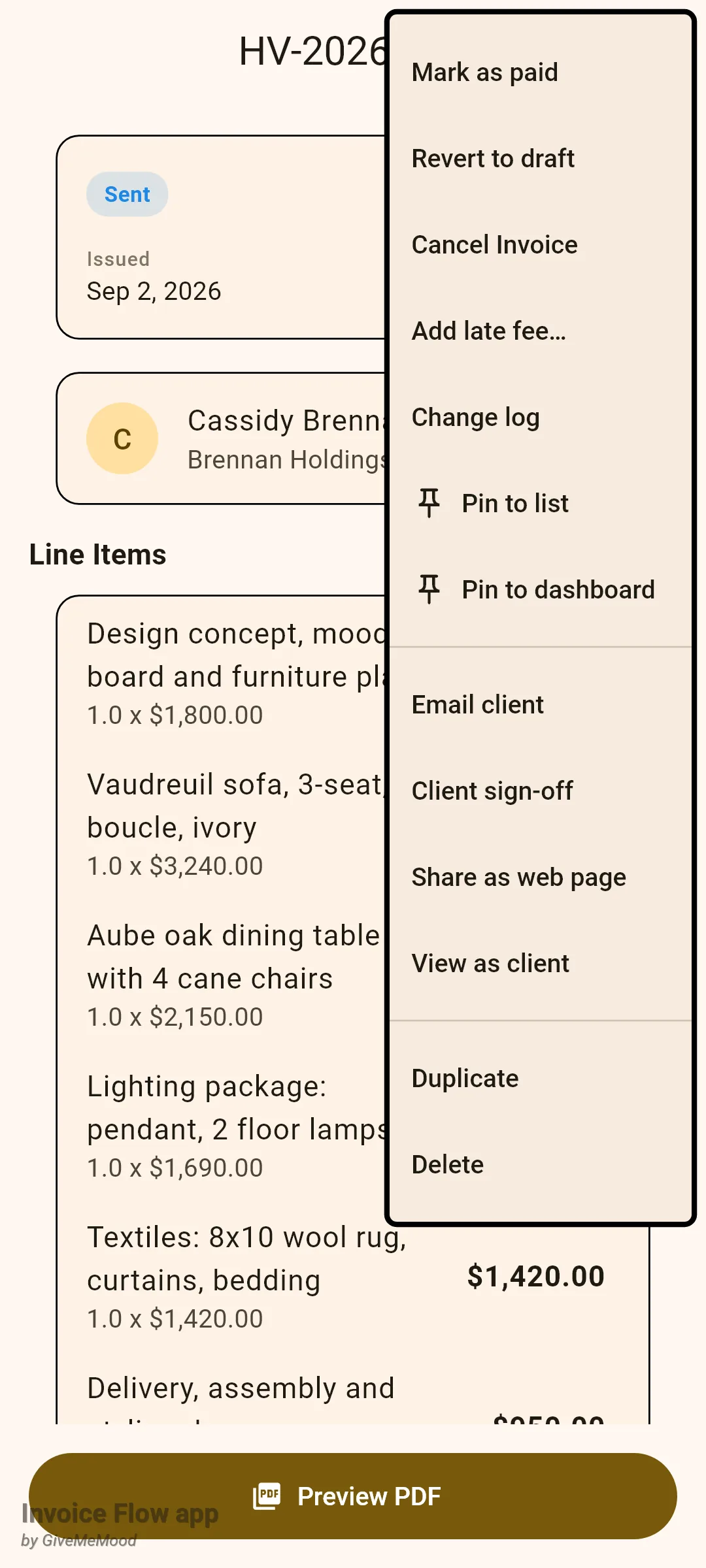
Open any invoice from the Documents tab and you land on its detail screen. The wide button pinned to the bottom, Preview PDF, opens the preview. The top-right overflow menu (three dots) of the same detail screen holds View as client, together with status actions such as Mark as paid and Email client.
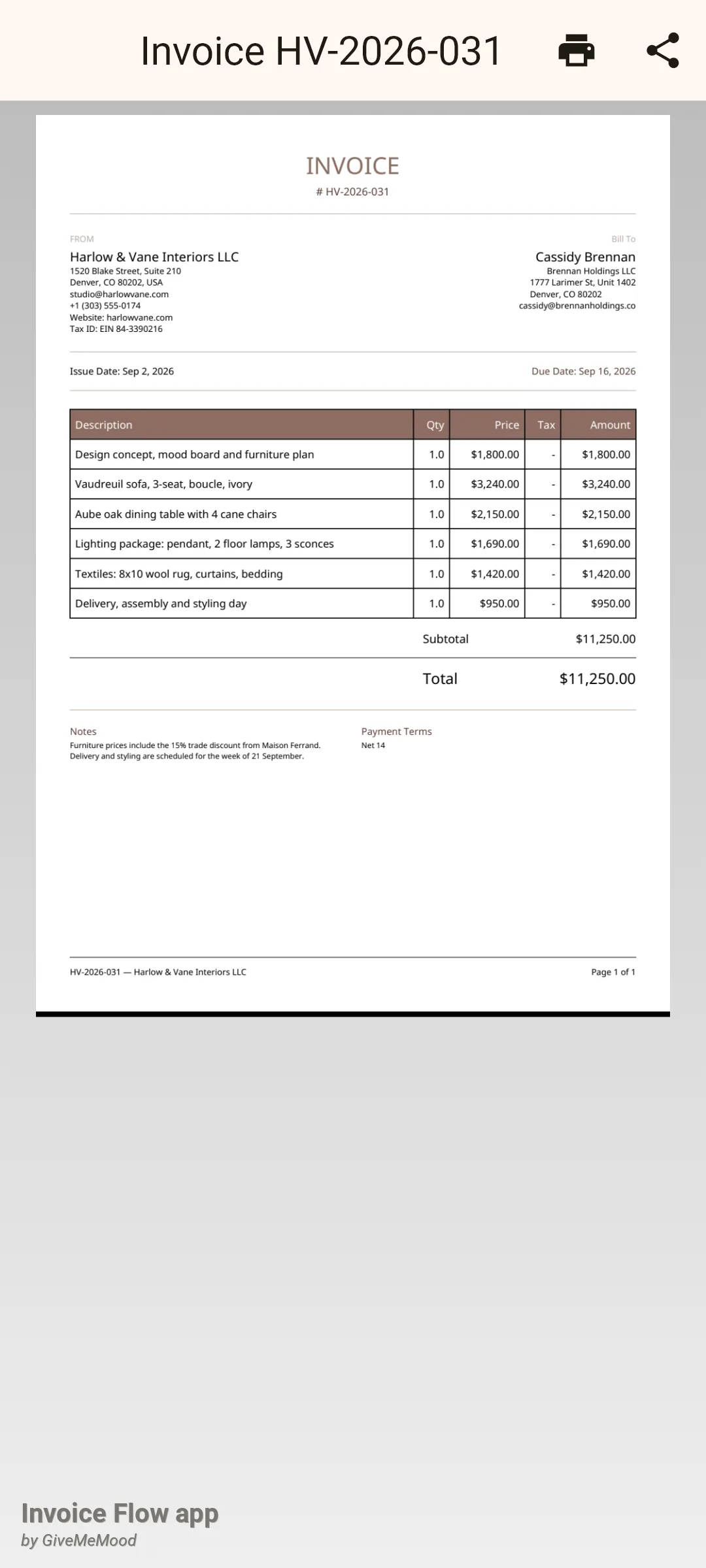
The preview screen is titled with the document type and number, for example Invoice HV-2026-031 (an estimate reads Estimate followed by its number). Its top bar has two icons, a printer and a share arrow, and for drafts only a third overflow menu with a single entry, Share & Mark as Sent. The body is the rendered page on a grey background; pinch to zoom and scroll through pages. The page you see is generated fresh every time the screen opens, from the current invoice data, the template and palette chosen for that invoice, your document font settings and the invoice language. There is no separate “save to file” button here: sharing is how a PDF leaves the app, and the Android share sheet includes file managers and cloud drives as targets.
The PDF Editor is not tied to invoices. It sits on the Tools tab as a card with a red PDF icon and opens a list of imported documents. Each document is a card with its name, a status pill (Imported, Editing or Complete), a three-dot menu with Edit PDF, Rename, Share and Delete, and three small thumbnails labelled Original (blue frame), Highlighted (amber) and Final (green). The amber and green thumbnails stay greyed out with a PDF icon until you have applied at least one edit. A round + button in the corner imports a new PDF.
How to print or share an invoice
- Open the invoice and tap Preview PDF. Wait for the page to appear; the print and share icons stay disabled until the file is generated.
- Check the page. If a line item, the address or the palette looks wrong, go back, fix it and reopen the preview; it is regenerated each time.
- To print, tap the printer icon. The Android print dialog opens with the PDF, where you pick a printer or "Save as PDF" if your phone offers it.
- To send, tap the share icon. The app writes the file as HV-2026-031.pdf and opens the share sheet with the subject Invoice HV-2026-031 from Harlow & Vane Interiors LLC and a short greeting body already filled in.
- Pick the target. Mail apps pick up the subject and body; messengers show the body as the message text; a file manager or cloud drive simply saves the PDF.
How to share a draft and mark it as sent in one step
A draft has no sent date and does not count as outstanding. When you share it from the preview, the app can flip the status for you.
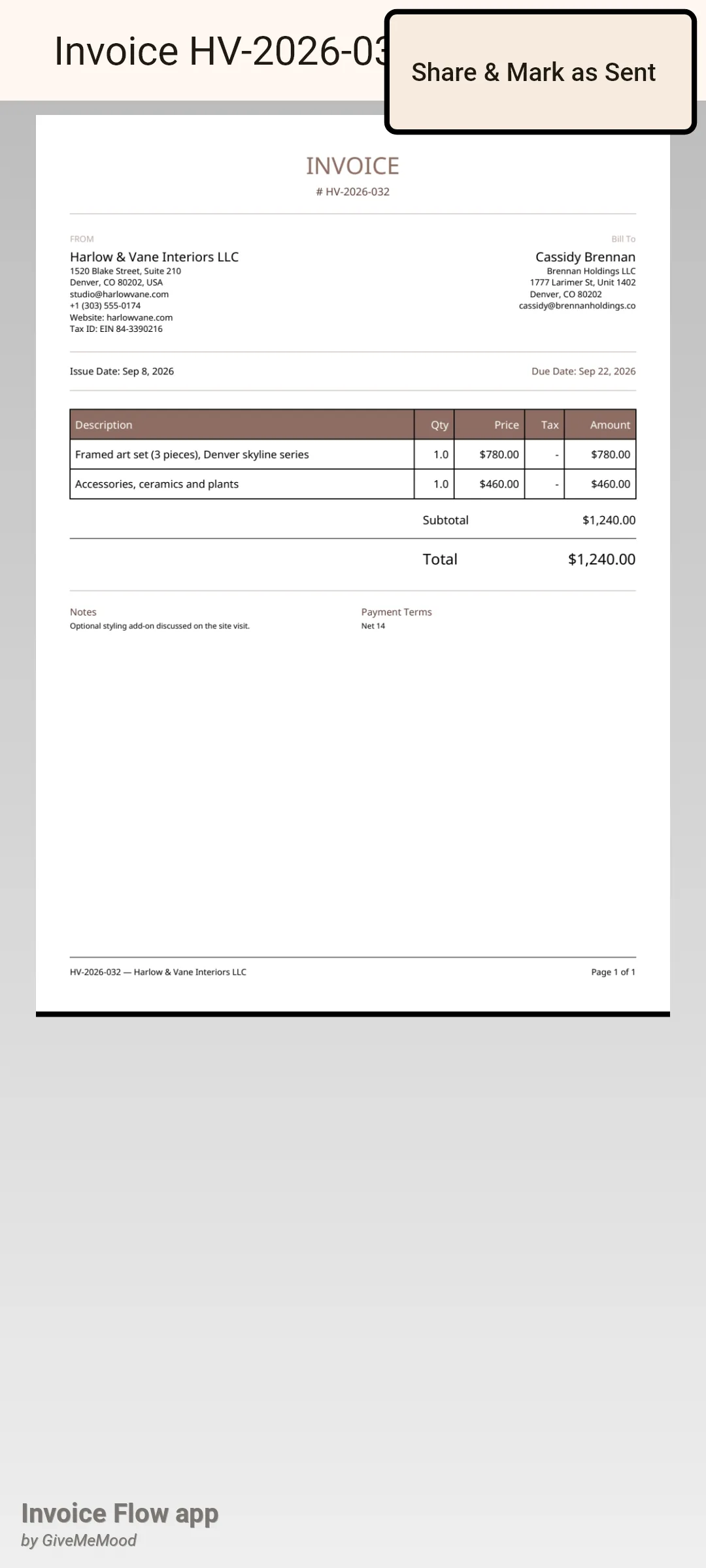
- Open the draft, in Odette's case HV-2026-032, and tap Preview PDF.
- Tap the three-dot menu in the top-right corner. It contains one entry, Share & Mark as Sent; the menu only exists while the document is a draft.
- Tap it and complete the share sheet as usual.
- When the share sheet closes, the status changes to Sent and a message Invoice marked as sent (or Estimate marked as sent) appears at the bottom. The invoice now shows a sent date and its due date starts to matter for reminders and late fees.
How to check the invoice from the client’s side
View as client is a read-only page inside the app. It creates no link and sends nothing; it restates the invoice the way a recipient reads it, a useful last check of the amount due after partial payments.
- On the invoice detail screen tap the three-dot menu and choose View as client.
- Read the green banner Preview only — not a real shareable link; it reminds you that nothing here can be forwarded.
- Check the greeting line. It names the client and states the amount still due and the due date, for example You have a payment of $7,250.00 due on Sep 16, 2026.
- Check the card below: the invoice number, the full total in large type and, when money has already come in, Paid so far with the amount received.
- Scroll through Line Items, Notes and Payment Terms, then use the back arrow to return.
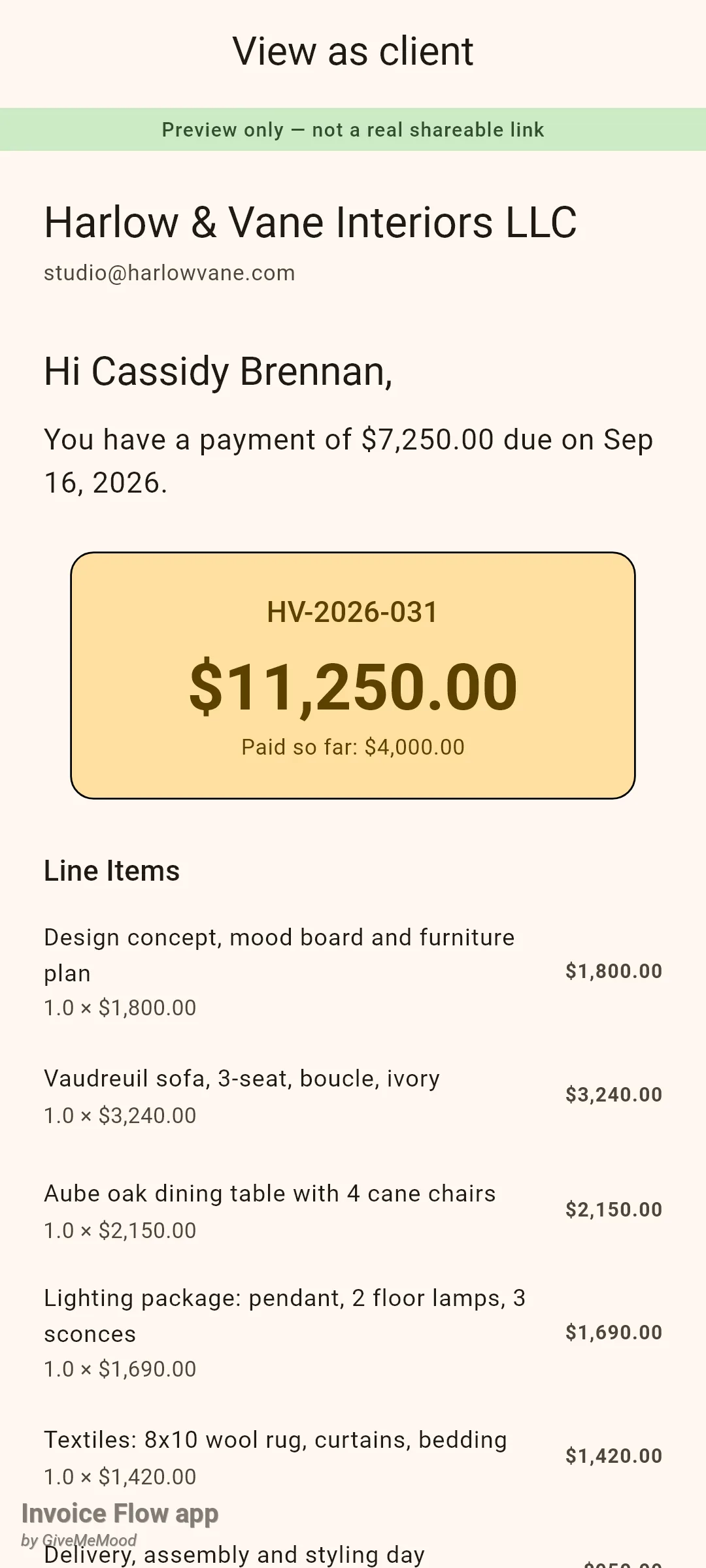
Note the difference from the PDF: the invoice templates print the invoice total and do not list payments already received, so the 4,000 dollar deposit appears on this screen and in the payments section of the detail screen, not on the printed page.
How to correct a word in an imported PDF
The PDF editor works at word level: you tap a word, type its replacement, and on apply the app paints a white box over the original and draws the new text in its place. Neighbouring words never move, so it suits fixing a date, a status, a name or a price, not rewriting paragraphs.
- Open Tools, tap PDF Editor and tap +. The system file picker opens filtered to PDF files; the chosen file is copied into the app and opens in the editor at once.
- Look at the bar under the title. It shows the page pager 1 / 1, a word counter such as 78 words, and a red pill No text found if the page is a scan with no extractable text.
- Tap the word you want to change. Each word sits under a translucent box; the eye icon in the top bar hides or shows these boxes.
- In the edit bar that slides up, type the replacement into the field with the hint New text.... Watch the percentage pill on the right: it compares the new text's width with the original box and turns red when the replacement is wider than the space it has.
- Adjust if needed: Size: steps the font from 4 to 72 pt, Spacing: tightens or loosens letters in 0.5 steps, Color: offers seven text colours, BG: seven light fills for the white-out box, and Style: toggles bold, italic, underline and strikethrough.
- Tap the check icon (Replace). The counter pill now reads 1 edit(s) pending and an Apply Edits button appears in the top bar. Repeat for other words; the undo icon (Revert) restores a single word, the menu entry Clear all edits drops them all.
- Tap Apply Edits. After the message Edits applied successfully the document's status becomes Complete and its Highlighted and Final thumbnails become active.
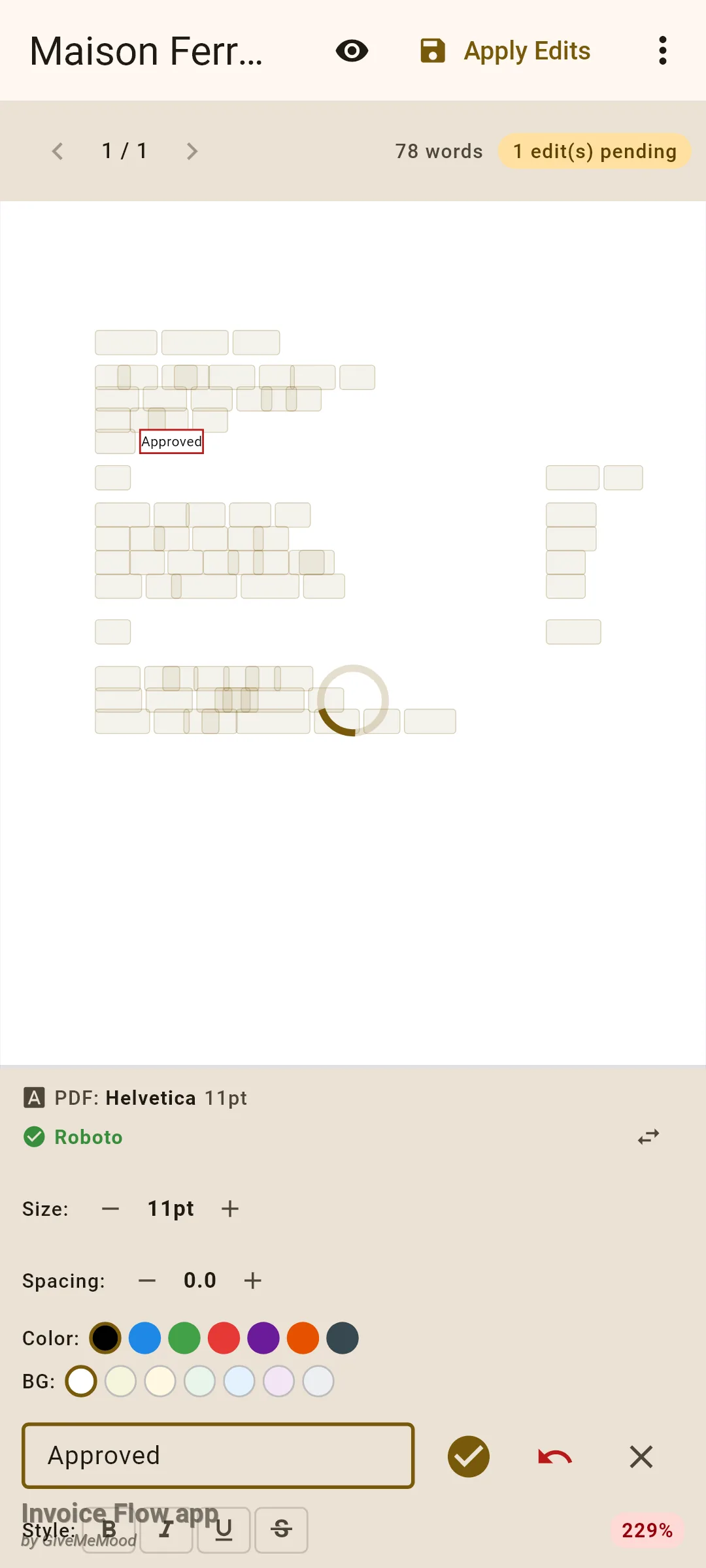
In this screenshot the page behind the word boxes has not rendered: the editor draws it with a native PDF renderer our screenshot harness cannot run, so only the loading spinner shows. On a phone the quotation page is visible under the boxes. The page below is the actual Final file the editor wrote for this quotation.
How to change the font of a replacement
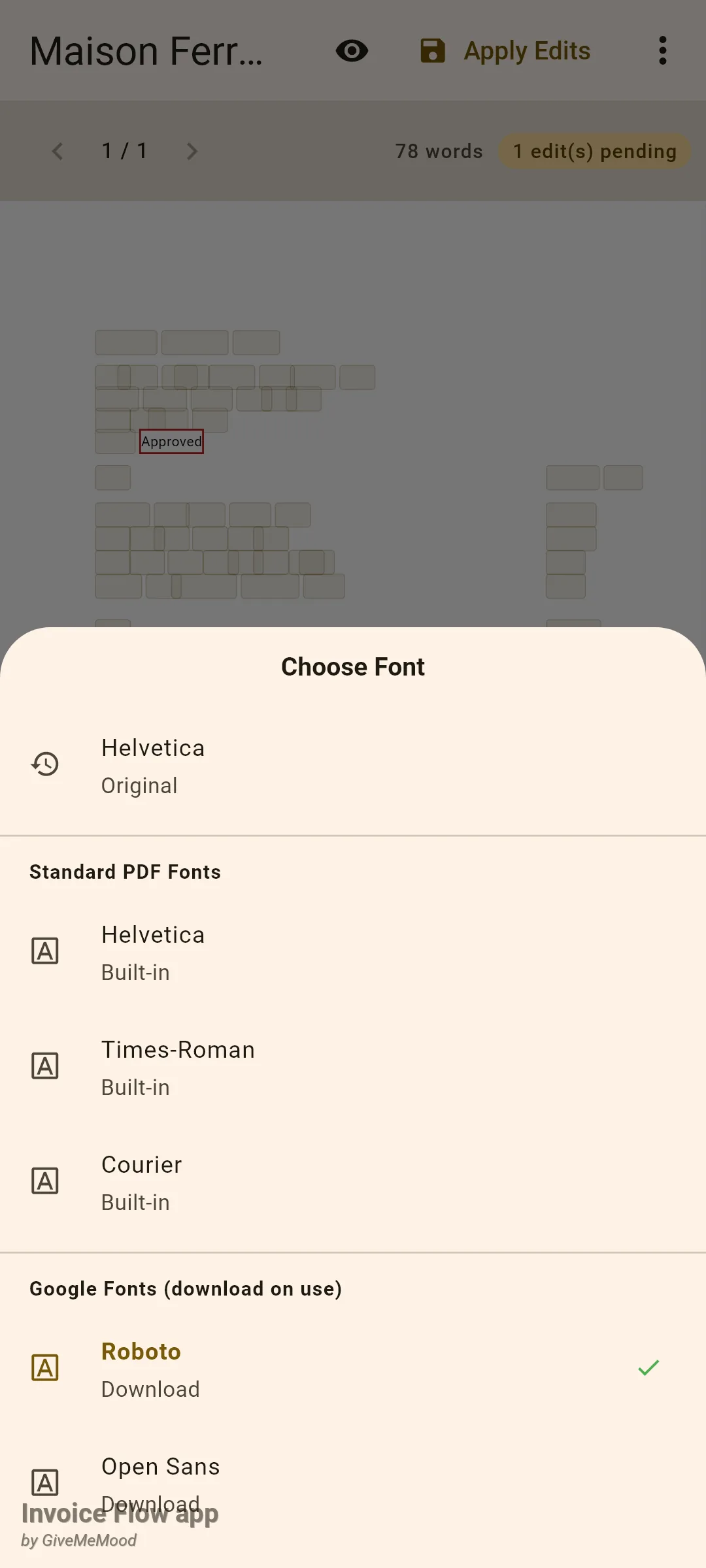
The edit bar’s first line reports the original font (for example PDF: Helvetica 11pt); the second names the font actually used for the new text. A green check means it is ready on the phone; an orange warning with “(recommended)” means the app mapped the original to a Google font it still needs to download, with a small download button beside it.
- With a word selected, tap the swap icon at the right end of the font line (Change font or Choose other).
- In the Choose Font sheet pick from three groups: Original keeps the PDF's own font name, Standard PDF Fonts offers Helvetica, Times-Roman and Courier, which are built into every PDF reader and need no download, and Google Fonts (download on use) lists Roboto, Open Sans, Lato, Montserrat, Poppins, Inter and others. A green check marks fonts already cached.
- Tap a font. A Google font that is not cached yet is downloaded first (Downloading Roboto...), which needs an internet connection; once done it is applied to the selected word.
- Confirm the replacement with the check icon as before and apply.
How to edit the PDF’s properties
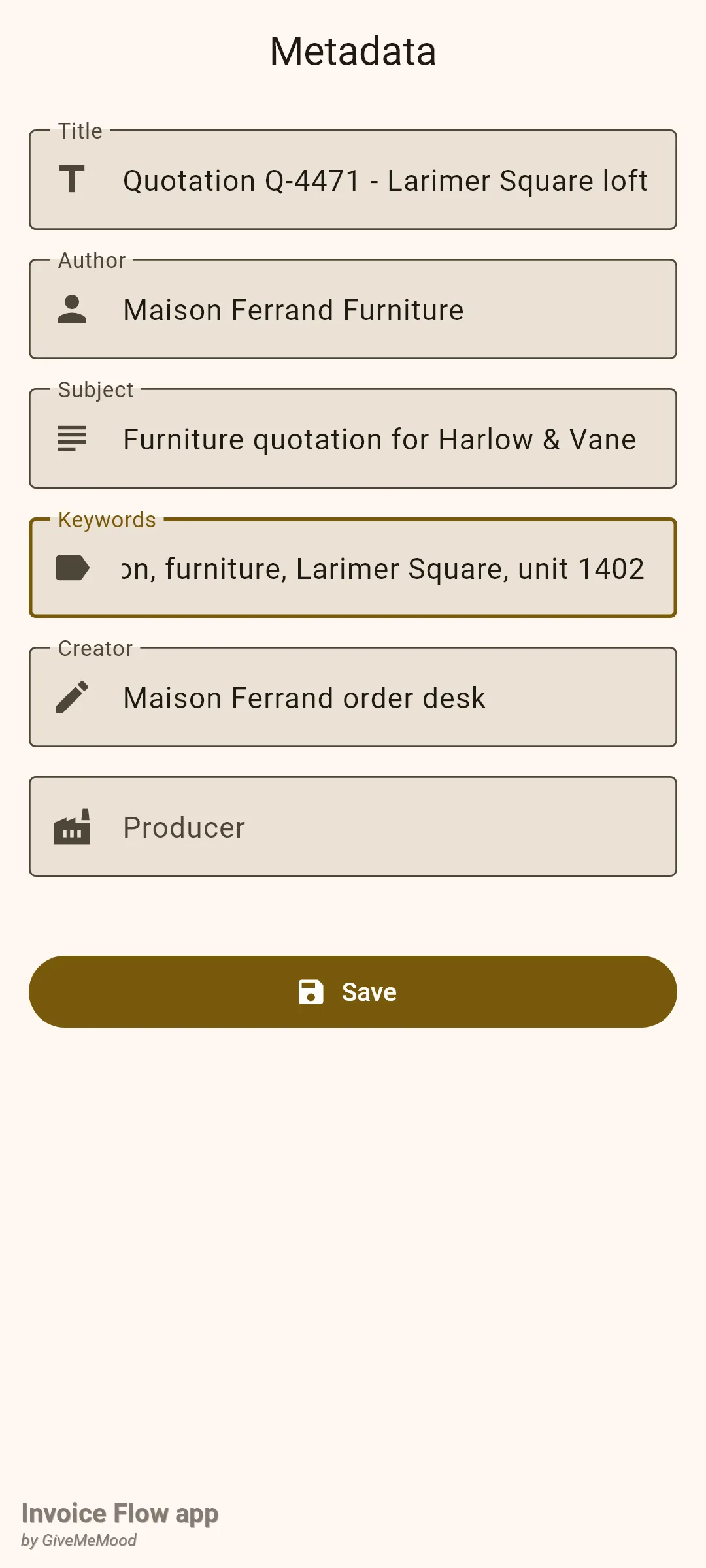
Every PDF carries embedded properties (title, author, subject, keywords, creator, producer) that mail clients and file managers show instead of the file name.
- Open the document in the editor and choose Metadata from the three-dot menu, or open it in the viewer by tapping a thumbnail and tap the info icon.
- The screen Metadata shows six fields prefilled from the file: Title, Author, Subject, Keywords, Creator and Producer. Odette's quotation arrived with a title, author, subject and creator set by the supplier.
- Change what you need, for example add quotation, furniture, Larimer Square, unit 1402 to Keywords.
- Tap Save. After Metadata saved the screen closes; the values are written into the Final file.
Rules and details
Preview and share
- The preview is regenerated on every open from the current invoice, its template, palette, custom template if any, your document fonts and the invoice language. Photos attached to the invoice are drawn as small thumbnails in a section of the page.
- Print and share require full access (active trial or subscription); without it they open the subscription screen. The preview itself is not gated.
- Share pre-fills the subject Invoice {number} from {company} and a body of the form “Hi {client}, Please find attached invoice {number} from {company}. Thank you!”. The receiving app decides whether to use them.
- Share & Mark as Sent first shares, then sets the status to Sent. It is offered for drafts only; sent, paid or overdue documents show just the two icons.
- The PDF templates print the invoice total. Amounts already received appear on the detail screen and in View as client, not on the page.
View as client
- Offline and read-only; nothing is uploaded and no link exists. The headline amount is the remaining balance, the big number is the full total, and Paid so far appears only when a payment is recorded. Notes and Payment Terms show only when the invoice has them.
PDF editor
| Action | Needs full access | Result |
|---|---|---|
| Import a PDF (+ button) | Yes | Copy stored inside the app, status Imported |
| Open the editor, replace words, apply | No | Highlighted and Final files, status Complete |
| Edit metadata | No | Values written into the Final file |
| Share from the list or the viewer | Yes | Sends the Final file, or the original if no edits exist |
- Edits are word replacements only. Images, logos, graphics and scanned pages cannot be edited; a scan shows No text found. There are no drawing, annotation, signature or page tools.
- Applying produces two files: Highlighted, with a box around every change for your review, and Final, the clean copy to send.
- Reopening a completed document restores earlier replacements by matching page, word and position, so you can keep correcting the same file.
- Font size can be stepped between 4 and 72 pt; letter spacing moves in 0.5 steps in either direction; each of these has a Reset link once changed.
- Google fonts are downloaded on first use and cached in the app’s storage. Without a connection choose a built-in font, or the app falls back to Helvetica.
- Metadata is read from the original file unless you have saved values before, in which case your saved values are shown. Saving writes into the Final file (creating it from the original if there is none). Empty fields are skipped, so you cannot blank out a property that the file already carries.
- Delete asks for confirmation and cannot be undone.
Tips
Related guides
- The invoice editor: where the line items, template and language on the previewed page come from.
- Sending invoices by email: the in-app email flow with templates, an alternative to the share sheet.
- Payments and amount due: recording the deposit that View as client shows as “Paid so far”.
- PDF templates, palettes and fonts: changing how the previewed page looks.