 EN
EN  العربية
  Български
  Čeština
  Dansk
Dansk  Deutsch
  Ελληνικά
  Español
  Suomi
Suomi  Français
  עברית
עברית  हिन्दी
  Bahasa Indonesia
  Italiano
  日本語
日本語  한국어
한국어  Bahasa Melayu
  Nederlands
  Norsk
Norsk  Polski
  Português
  Română
  Русский
  Svenska
  Kiswahili
  ไทย
ไทย  Türkçe
  Українська
  Tiếng Việt
  中文
中文 User guide
Contracts and delivery notes
Keep supply agreements with their dates, status and linked invoices in one place, and log every shipment as a delivery note that moves from draft to delivered.
Invoices tell you what a client owes. Two other pieces of paper explain why and whether the goods actually arrived: the contract that set the terms, and the delivery note that went out with the van. Invoice Flow keeps both as side documents next to your invoices. A contract belongs to one client, carries a start and end date, a status and the full wording, and can be linked to any number of invoices. A delivery note belongs to exactly one invoice and records what was shipped, by whom, with which tracking number, and how far along the shipment is.
Neither of them is a printable document. The app stores and tracks contracts and delivery notes for your own records, but there is no PDF preview or share action for either; only invoices and estimates render to PDF. If a cafe asks for a signed copy of the agreement, that still happens outside the app.
The examples follow Kirsten Lund, who runs Lund Hearth Bakery, a wholesale bakery in Leeds that bakes overnight and delivers to cafes twice a week. She has a yearly supply agreement with each regular customer and raises one invoice per delivery run, in pounds. A delivery note accompanies every run so that a missing tray of croissants can be traced to a date and a driver.
What you see on the screen
Both features live under the Tools tab of the bottom navigation, in the Documents section: the Contracts card opens the contracts list and the Delivery Notes card opens the delivery notes list. Contracts also have a second home: the Documents tab has a three-way switch reading Invoices, Estimates and Contracts, and the New button there offers Contracts in its Choose document type sheet. Delivery notes are not part of the Documents tab at all; you reach them through Tools or from an invoice that already has one.
The Contracts screen has a row of chips, All, Draft, Sent, Signed and Expired, and a card per contract. Each card carries a coloured bar on the left, the title, a status pill, the client name, the period written as start → end, and a bold note about the remaining term: 19 days left for a running contract or Expired 14 days ago in red for a lapsed one. A contract that ends within the next 30 days gets an amber Soon pill next to its status.
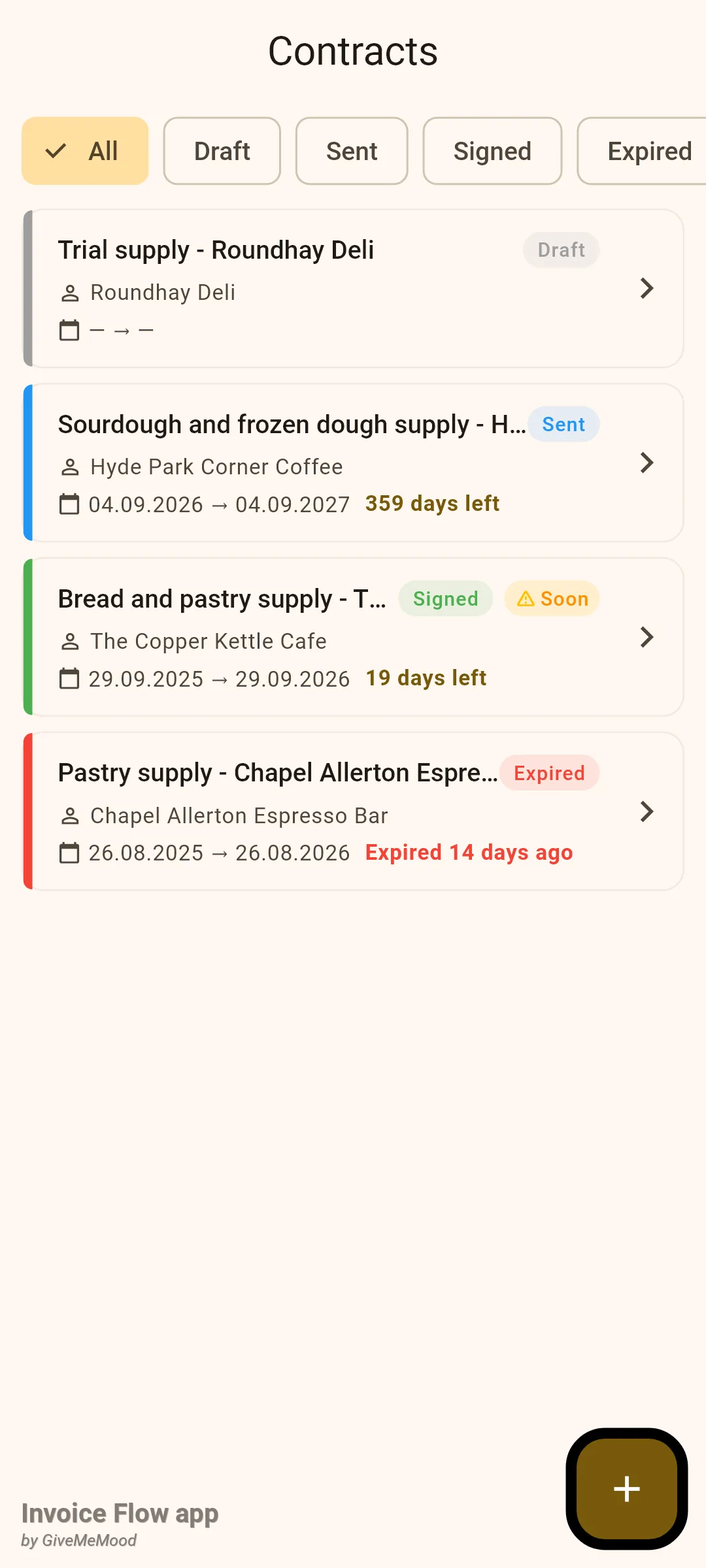
Tapping a card slides up a detail sheet. Long-pressing opens a short action menu. Swiping a card from right to left offers to delete it. The + button in the corner opens the editor.
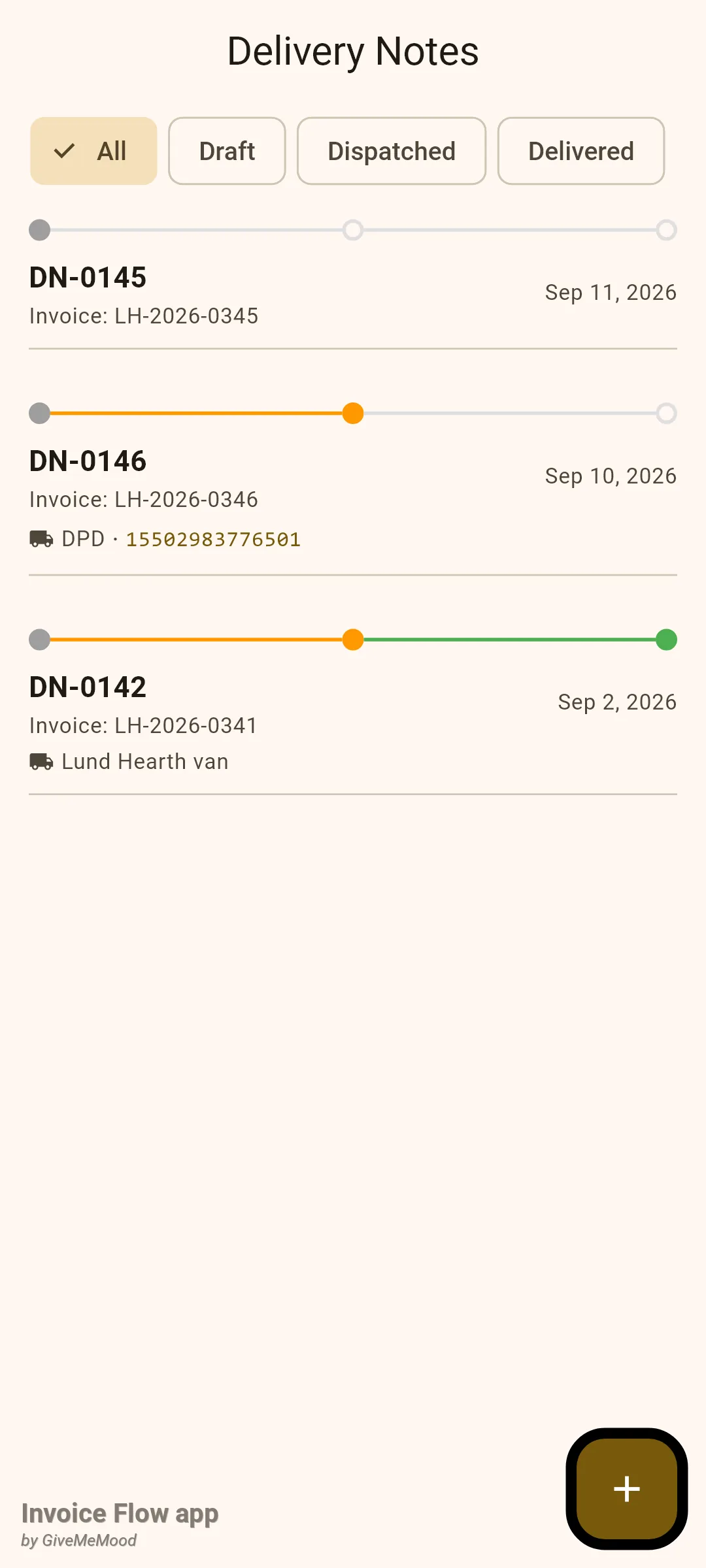
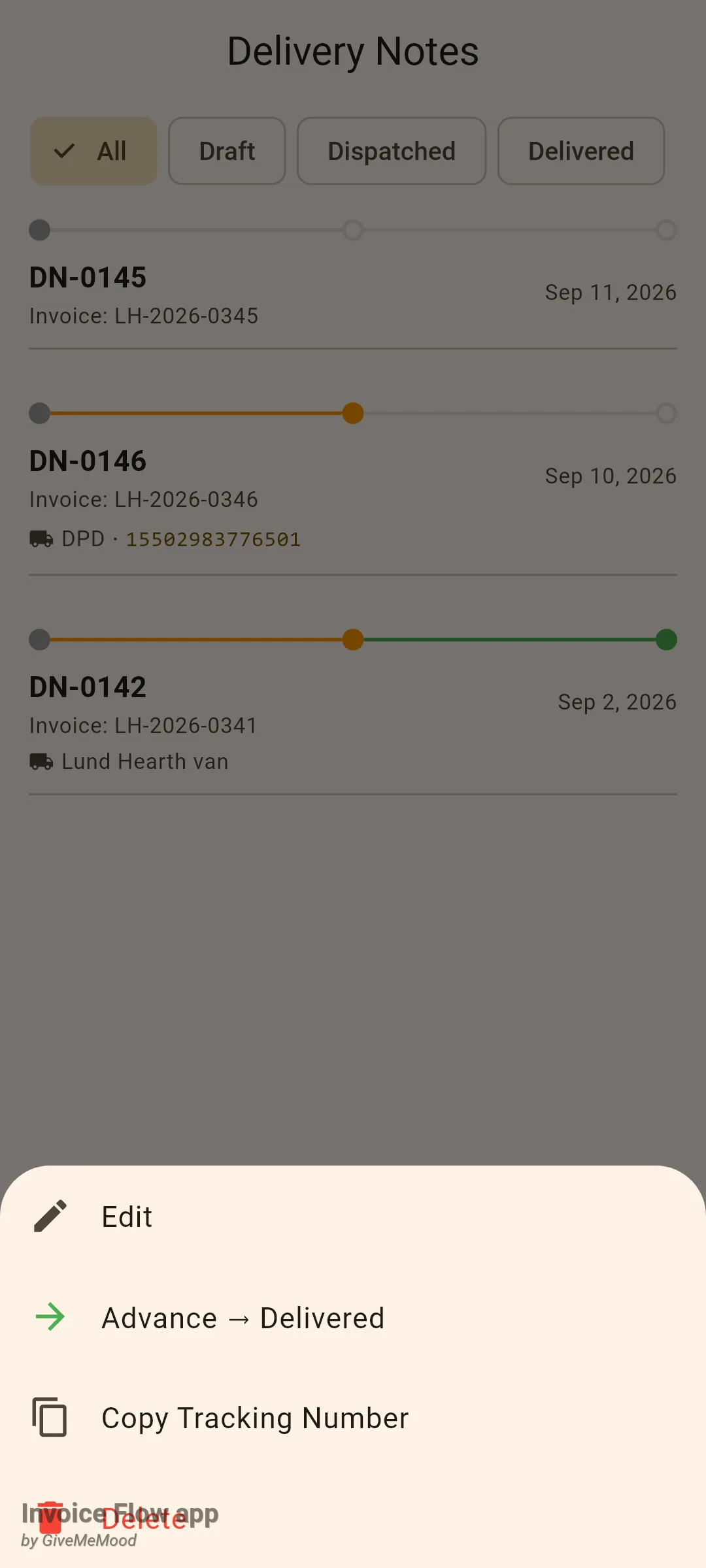
The Delivery Notes screen is simpler: chips for All, Draft, Dispatched and Delivered, then one row per note. Each row starts with a three-dot stepper (grey, orange, green) that shows how far the shipment has got, followed by the note number in bold, Invoice: and the invoice number, the delivery date on the right, and, if set, a truck icon with the carrier and the tracking number. There is no detail page; a tap does nothing, a long-press opens the actions, and a swipe deletes.
How to create a contract from a template
Kirsten is starting a four-week trial with Roundhay Deli and wants the standard supply wording on file before the first delivery.
- Open Tools, then tap Contracts under Documents.
- Tap the + button. The editor opens with the title New Contract.
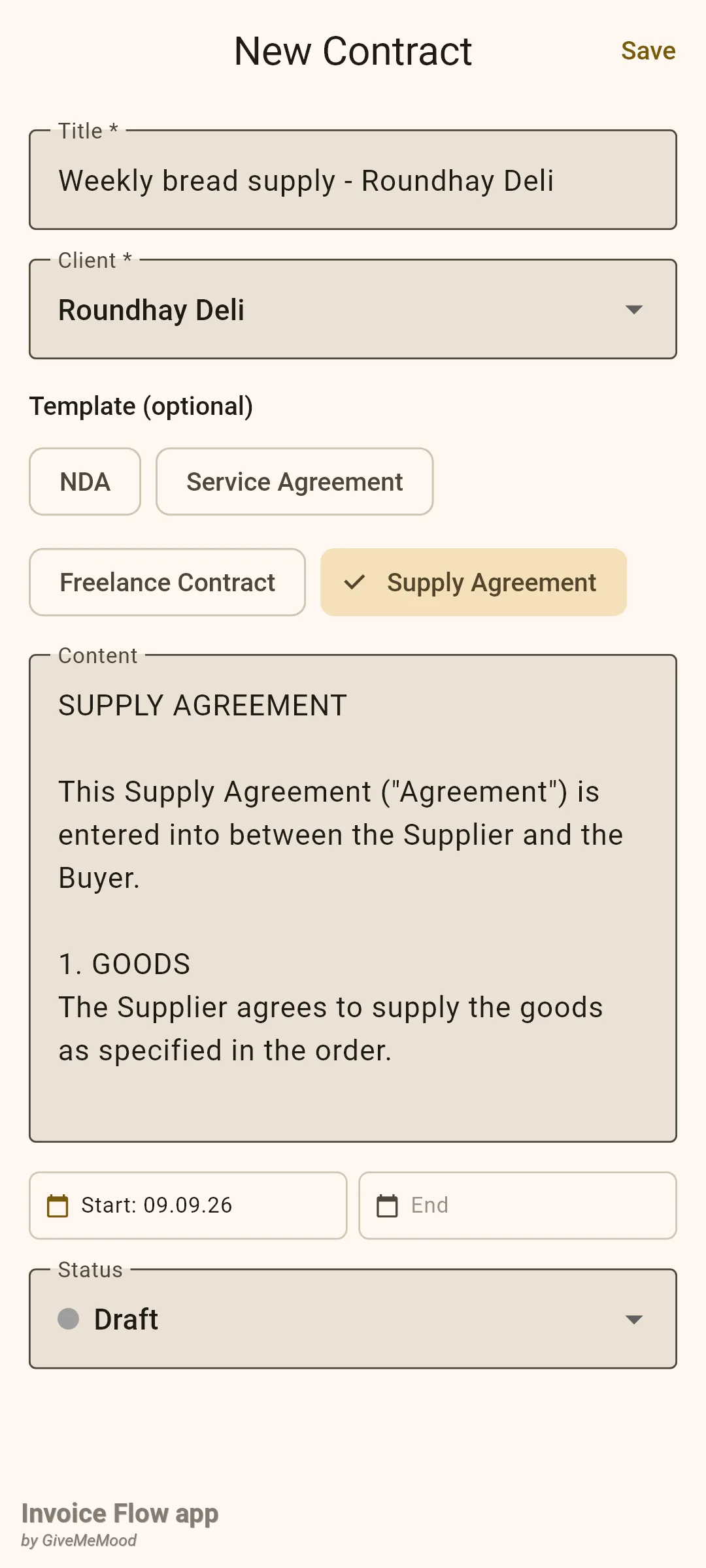
- Type a name in Title *, for example "Weekly bread supply - Roundhay Deli". If you leave the title empty, the template you pick in the next step fills it with the template name.
- Open the Client * dropdown and choose the customer. Only existing clients are listed; there is no way to add one from here.
- Under Template (optional) tap one of the four chips: NDA, Service Agreement, Freelance Contract or Supply Agreement. The Content box is filled with that template's clauses.
- Edit the wording in Content as you like. The box scrolls when the text is longer than ten lines.
- Tap Start and pick the first day of the agreement; tap End and pick the last day. Both are optional, but the remaining-term note and the progress bar only appear when the end date is set.
- Leave Status on Draft or pick another value, then tap Save in the top-right corner.
How to move a contract through its statuses and link invoices
The Copper Kettle Cafe has signed its agreement, and Kirsten wants the weekly invoices tied to it so she can see at a glance which billing belongs to which deal.
- In the Contracts list, long-press the contract's card. A sheet appears with Edit, Change Status, Link Invoice and Delete.
- Tap Change Status and pick Signed. The app records today as the signing date.
- Long-press the card again and tap Link Invoice.
- In the Link Invoices dialog, tick every invoice that belongs to this agreement. The list shows all your invoices with their totals.
- Tap Save.
- Tap the card to open the detail sheet and check the Linked Invoices section.
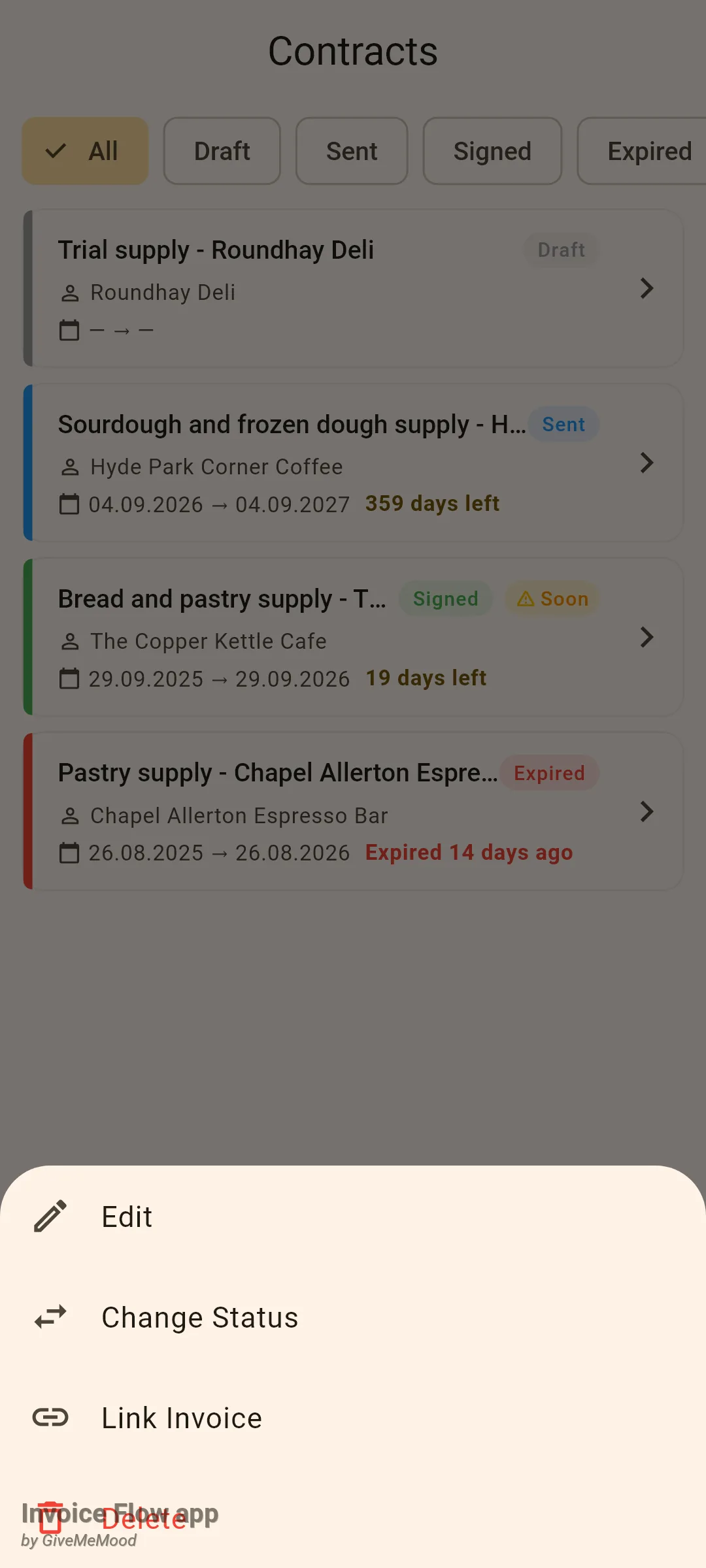
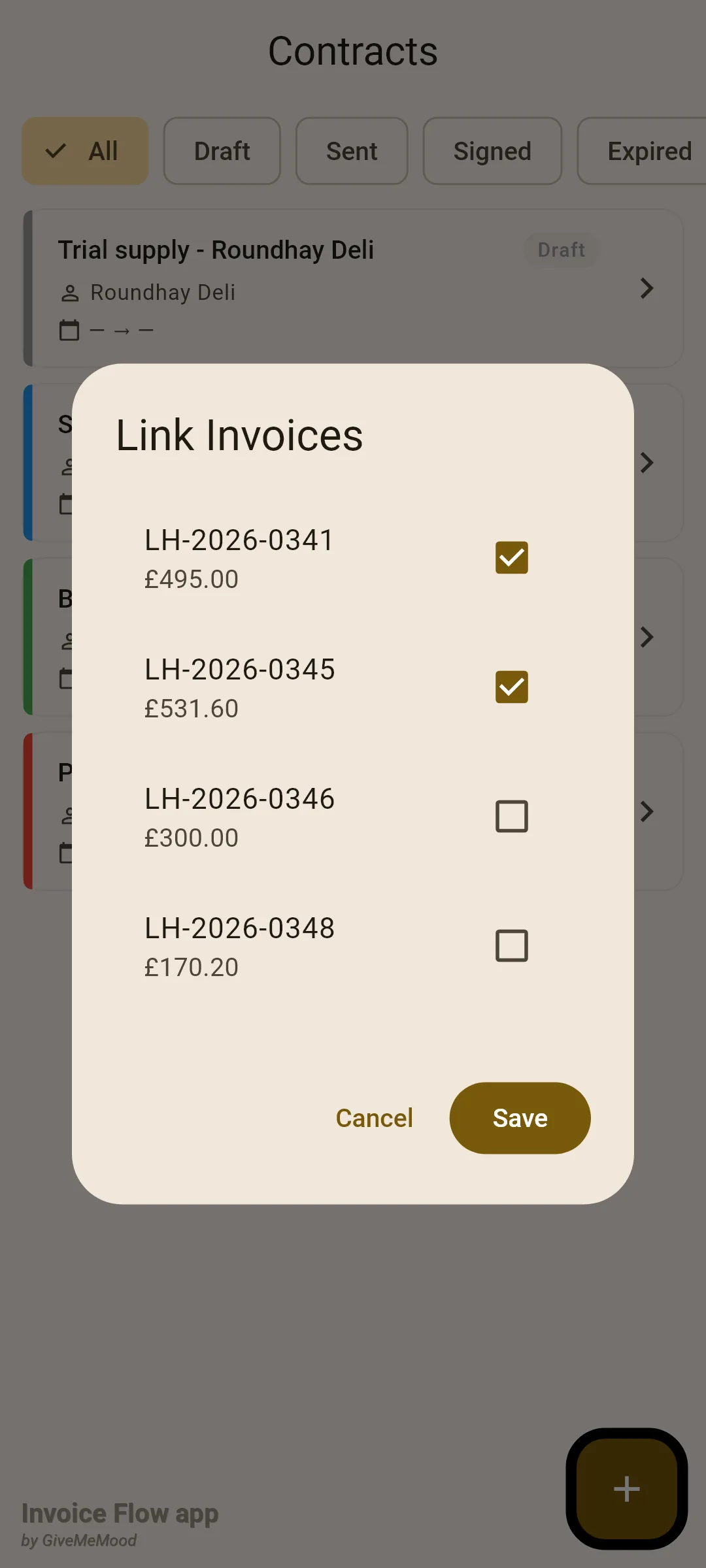
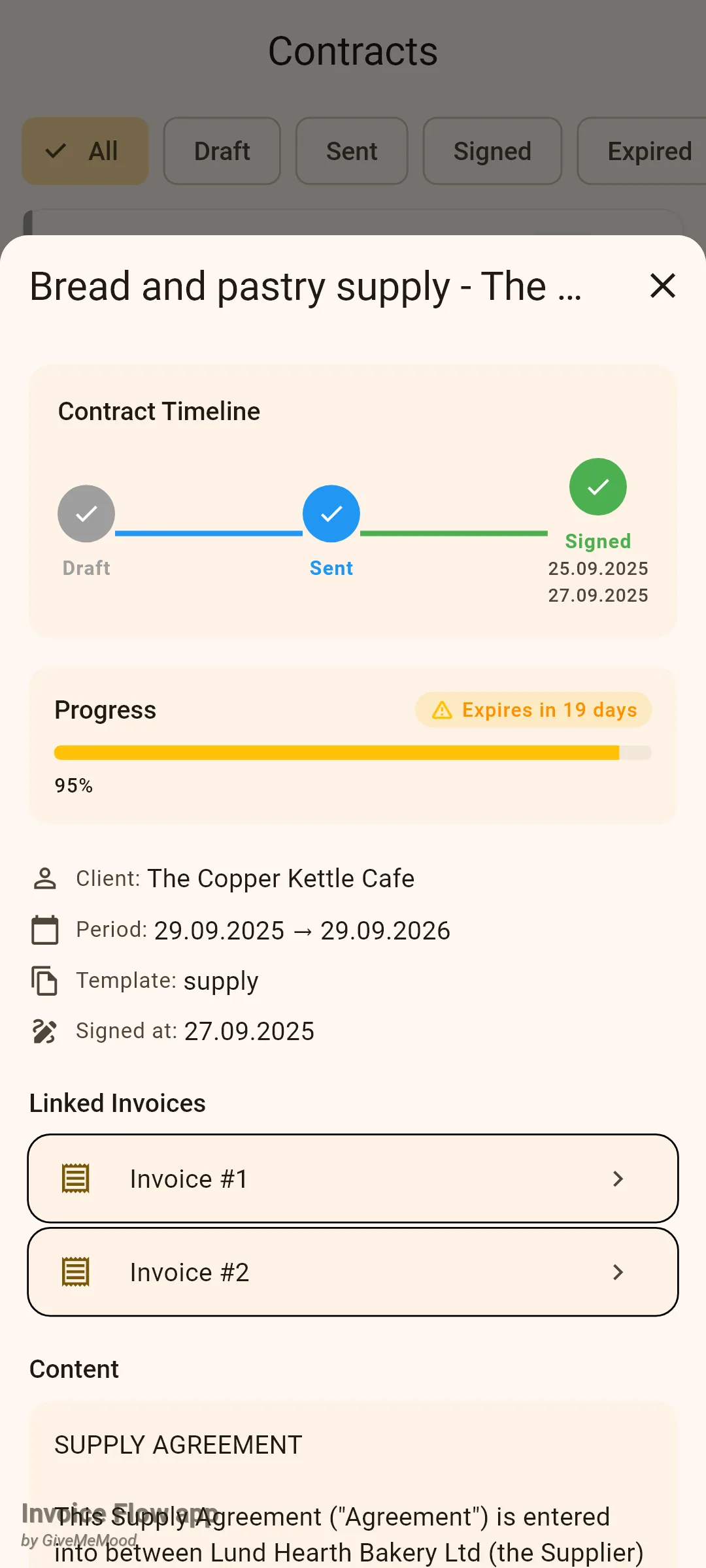
The detail sheet is where the contract’s life is summarised. A Contract Timeline card shows three steps, Draft, Sent and Signed, with a tick on every step already reached and the creation and signing dates under the relevant steps. When both dates are set, a Progress card draws how much of the term has elapsed; inside the last 30 days the bar turns amber and a pill reads Expires in 19 days. Below that come the Client, Period, Template and Signed at rows, the Linked Invoices list, and the full Content. Tapping a linked invoice opens that invoice.
How to create and track a delivery note
Friday’s run to The Copper Kettle Cafe has been invoiced. Kirsten writes the delivery note that the driver will have on his phone.
- Open Tools and tap Delivery Notes, then tap +. A sheet titled New Delivery Note slides up.
- Open Invoice * and pick the invoice this shipment fulfils. Every invoice and estimate is listed with its number and total.
- Keep or change the number in Delivery Note Number. The app proposes one in the form DN-1234 with a random four-digit part.
- Tap Delivery Date and pick the day the goods leave or arrive.
- Fill in Shipping Address if it differs from what is on the invoice.
- Start typing in Carrier. A list of suggestions narrows as you type, from global couriers such as DHL, FedEx and UPS to national posts and regional services. Tap one, or type your own text such as "Lund Hearth van".
- Paste the parcel reference into Tracking Number if the carrier gave you one.
- Under Items, tap Add once per line and fill in Description and Qty. Lines are not copied from the invoice; you type what physically went into the van.
- Add anything the driver should know in Notes, then tap Save.
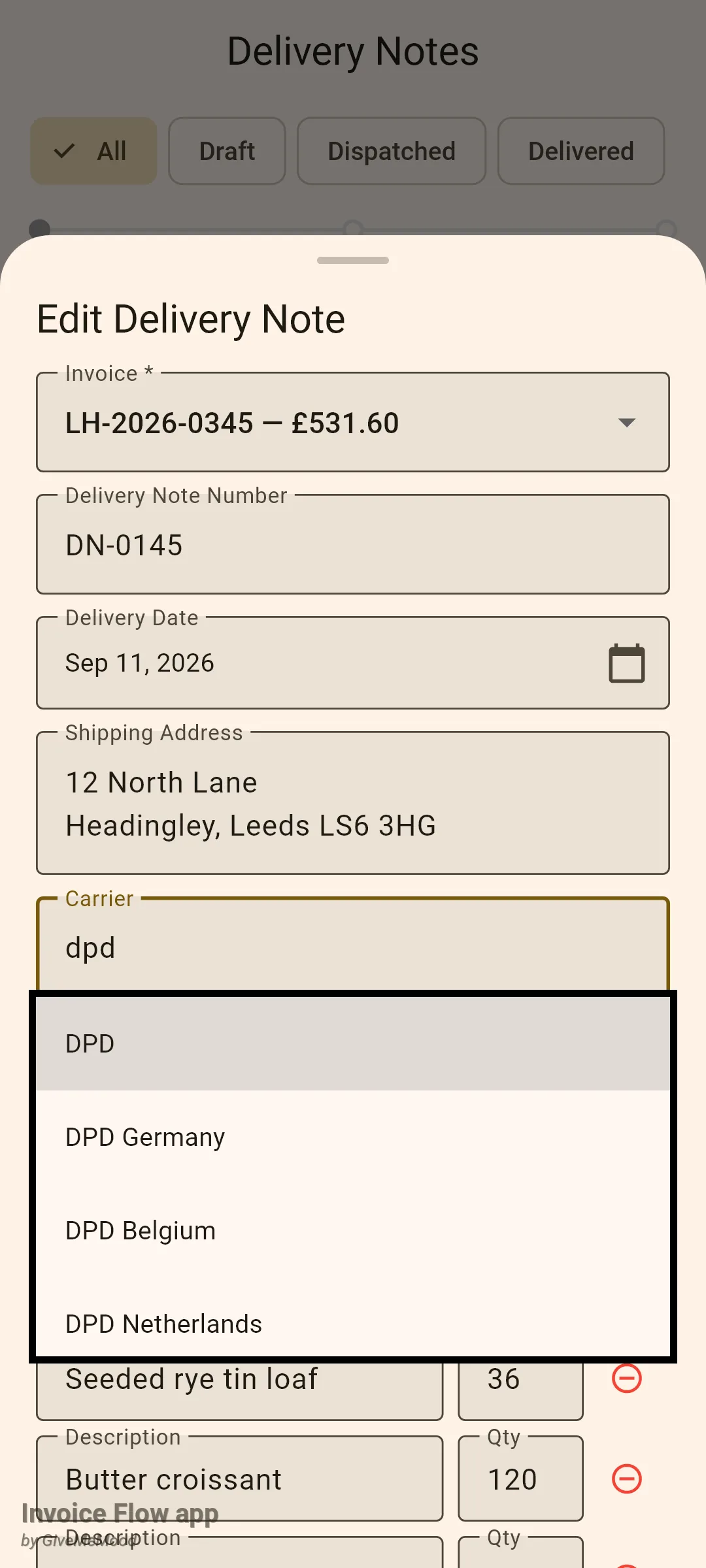
A new note always starts as Draft. To move it on, long-press its row and tap Advance → Dispatched; when the cafe confirms receipt, long-press again and tap Advance → Delivered. The same sheet has Edit, Copy Tracking Number (only when a tracking number exists) and Delete.
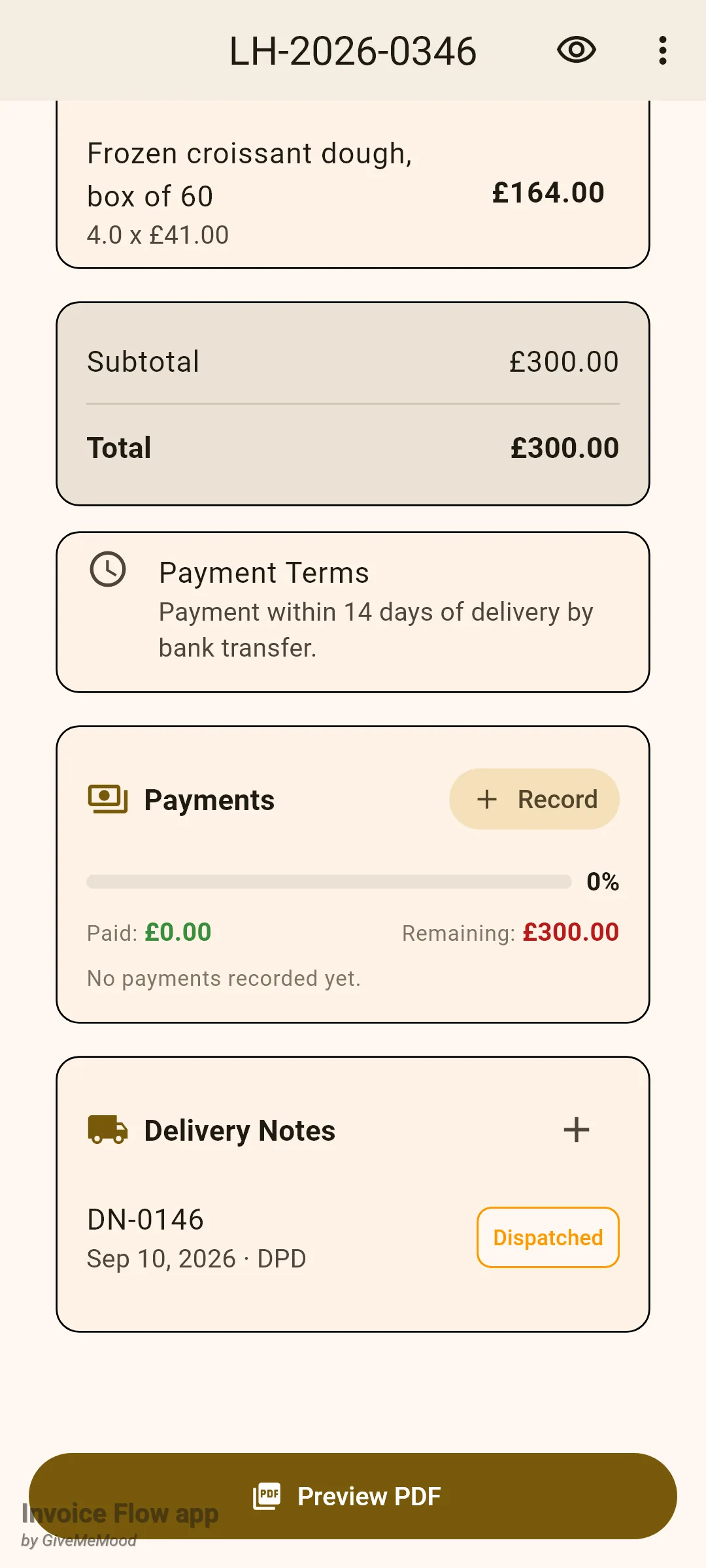
Once an invoice has at least one delivery note, its detail screen gains a Delivery Notes card under Payments. It lists each note with its date and carrier and a status chip, and both the rows and the small + in the card’s header take you to the delivery notes list.
Rules and details
Where the Pro line is. Opening the contract editor from the Contracts list, whether with + or through Edit, and opening the delivery note editor with + or Edit require an active trial or a Pro subscription; without one you land on the paywall. Viewing, changing a contract’s status, linking invoices, advancing a delivery note, copying a tracking number and deleting are available to everyone.
Contract statuses. A contract can be Draft (grey), Sent (blue), Signed (green), Expired (red) or Cancelled (blue-grey). Statuses are set by hand, in the editor’s Status dropdown or through Change Status; the app never changes them for you. Marking a contract Signed stamps the signing date once; going back to Sent and forward to Signed again keeps the original date. The chip row has no Cancelled chip, so cancelled contracts are only visible under All.
Expiry is computed, not stored. “Expired 14 days ago” on the card and the red colouring come from comparing today with the end date. A signed contract whose end date has passed is displayed as lapsed but keeps the status Signed until you change it. The amber Soon pill and the amber progress bar appear when fewer than 30 days remain and the contract is neither expired nor cancelled. The Expiring Contracts widget on the dashboard uses the same 30-day window.
Contract fields. Title and client are required; the content may be empty. The start date cannot be cleared once set (only the end date has a clear icon), and the app does not check that the start is before the end. The template name is remembered as a short key and shown as such in the detail sheet: supply, service, nda or freelance.
Linked invoices. The link is a list of invoice references stored on the contract. The invoice side knows nothing about it: an invoice’s detail screen does not show its contract, and the same invoice can be linked to several contracts. The detail sheet labels linked rows by the invoice’s internal number (Invoice #2), not its printed number, and the Link Invoices dialog offers estimates as well as invoices.
Delivery note fields. The invoice is required and the number must be unique across all delivery notes; everything else is optional, and empty address, carrier, tracking and notes fields are stored as empty. Quantities are whole numbers; anything that does not parse becomes 1. Items are stored as free text with a quantity and are not tied to your product catalogue or to the invoice’s line items.
Delivery note statuses are one-way. Draft, Dispatched, Delivered, in that order and only forward. There is no status field in the editor and no way to step back; if a parcel is returned, delete the note or record it in Notes.
Deletion. Deleting an invoice removes its delivery notes with it. Deleting a client removes that client’s contracts. Deleting a contract does nothing to its invoices; deleting an invoice that a contract links to leaves a dangling reference in the contract’s list.
Dates and formats. Contract dates are always shown as dd.MM.yyyy regardless of the app language; delivery dates follow the language’s short date format, for example “Sep 11, 2026” in English. Both lists are ordered newest first by creation time.
Nothing is sent or printed. Contracts and delivery notes have no PDF, no email action and no signature capture. The contract table has room for a signature image, but no screen in the app writes to it.