 EN
EN  العربية
  Български
  Čeština
  Dansk
Dansk  Deutsch
  Ελληνικά
  Español
  Suomi
Suomi  Français
  עברית
עברית  हिन्दी
  Bahasa Indonesia
  Italiano
  日本語
日本語  한국어
한국어  Bahasa Melayu
  Nederlands
  Norsk
Norsk  Polski
  Português
  Română
  Русский
  Svenska
  Kiswahili
  ไทย
ไทย  Türkçe
  Українська
  Tiếng Việt
  中文
中文 User guide
Estimates, quotes and converting them to invoices
Write a quote in the Estimates tab, track whether the client accepted it, then turn all of it or only some line items into a draft invoice with its own number.
An estimate is the document you send before any money changes hands: a priced list of what you propose to deliver. In Invoice Flow it is built with the same editor as an invoice, printed with the same PDF templates and stored in the same Documents list, but it has its own numbering series, its own set of statuses and one thing an invoice does not have: a conversion action that produces the real invoice for you, in full or one line item at a time.
The examples follow Martin Hollis, who runs Hollis & Oak Furniture, a one-man workshop in Portland, Oregon. He has quoted a walnut dining set to Claire and Tom Bergstrom: a table, six chairs, a bench and delivery, $8,410 in total. The couple want the table first and the seating later, so he will bill the table and delivery now and the rest when it leaves the shop.
What you see on the screen
Estimates live in the Documents tab of the bottom navigation. At the top of that screen a three-way switch reads Invoices, Estimates and Contracts; tap Estimates and the list shows only quotes. Below the switch sit the status chips All, Draft, Sent, Paid and Overdue. Each row shows the estimate number, a status badge, the client and issue date, and the total. An empty tab says No estimates yet with the hint Create your first estimate to get started.
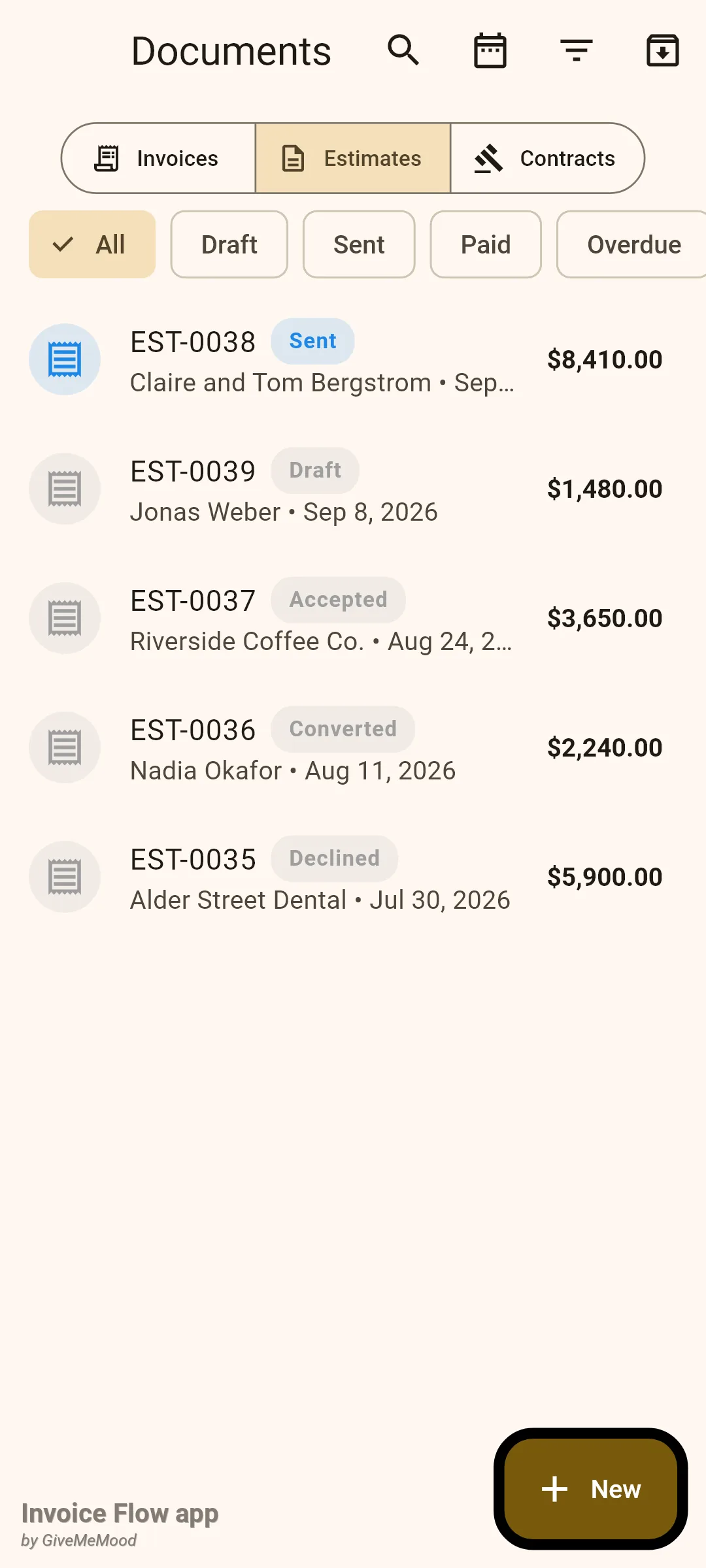
The badges an estimate can carry are Draft, Sent, Accepted, Declined, Cancelled, Converted and Partially converted. A sent estimate whose due date has passed is displayed as Overdue, exactly like an invoice. Note that the chip row has no chip for Accepted, Declined or Converted; those quotes appear under All, or through the funnel icon’s advanced filter.
Tapping a row opens the estimate detail: a header card with the badge, total, Issued and due dates, the client card, the line items, the totals, any notes and payment terms, and a Preview PDF button. There is no Payments card on an estimate, because nothing is collectable until it becomes an invoice. All the estimate-specific actions hide behind the three-dot menu in the top-right corner.
The New button at the bottom of the Documents list opens a sheet titled Choose document type with four tiles: Invoice, Estimate, Contracts and From text. Picking Estimate opens the editor with the title New Estimate.
How to create an estimate
Martin is quoting a set of floating shelves for a new client. The steps are the same as for an invoice; only the numbering and the title differ.
- Open Documents and tap New.
- In the Choose document type sheet, tap Estimate.
- Check the Invoice Number card. It already shows the next number from your estimate series, EST-0040 here. Tap it only if you need a different number by hand.
- If you keep more than one estimate series, an Invoice Series card appears above the number; tap it to switch, for example from Quotes to Commercial quotes.
- Tap Client and pick the customer from the Select client dialog, or choose Add new client.
- Adjust the Issued and Due dates. An estimate has no separate validity field, so the due date is the date you want an answer by.
- Add line items with Product / Service, Time, Expenses or Custom, then fill in notes and payment terms further down.
- Tap Save Draft.
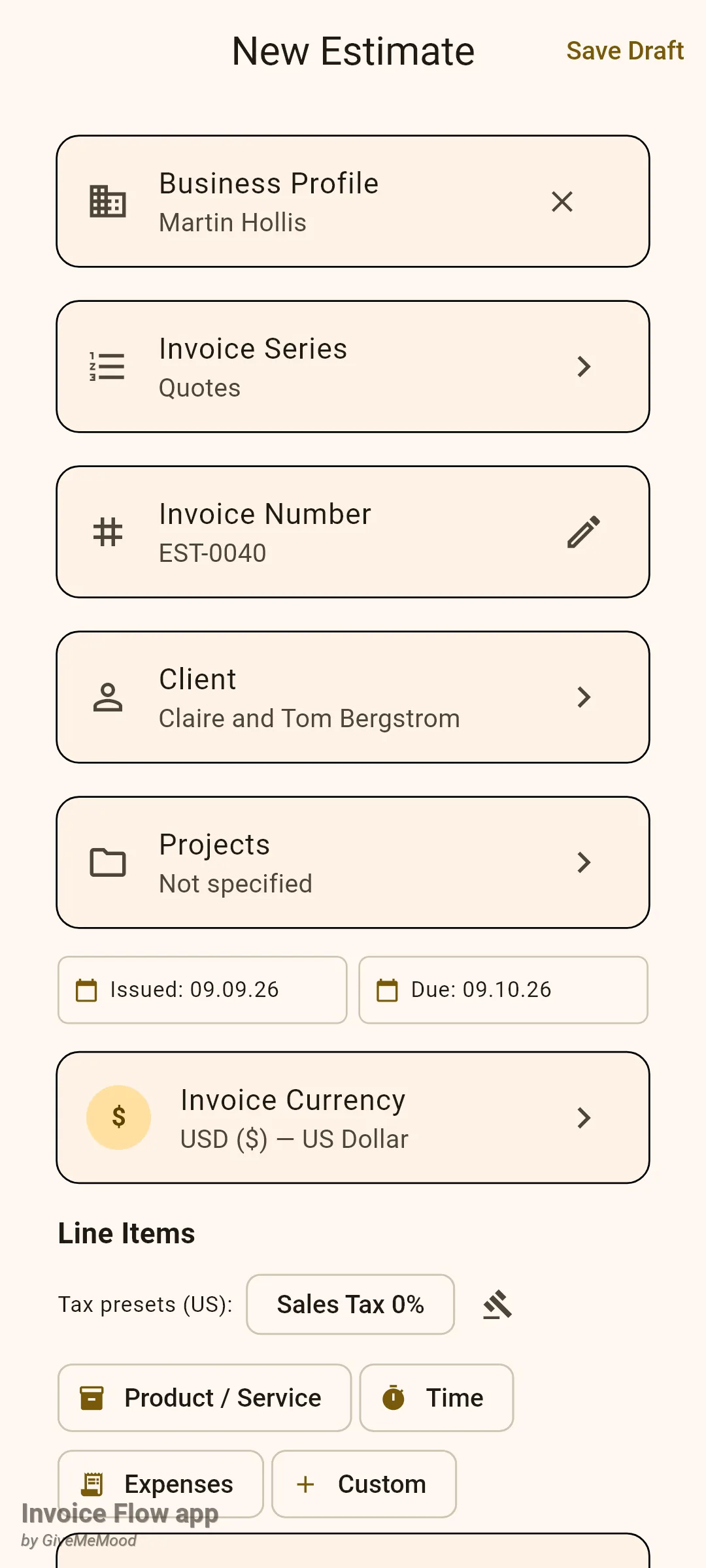
The editor hides one card that invoices have: the early-payment discount offer. Everything else, including taxes, discounts, currency, signature and photo attachments, works the same way as in the invoice editor.
How to send it and record the client’s answer
Once the draft is ready, open it from the list and use the three-dot menu. Mark as Sent asks you to confirm and warns that from now on every change is written to the change log. After that the pencil icon in the top bar is replaced by an eye icon, and the editor opens in View-only mode with the hint that a sent estimate must be duplicated to be changed. To actually send the PDF, use Email client or Share as web page in the same menu, or Preview PDF and share from there.
When the Bergstroms reply, Martin records the outcome from the same menu.
- Open the estimate and tap the three-dot menu.
- Scroll down to the block after View as client.
- Tap Mark as Accepted or Mark as Declined. The badge changes immediately, with no confirmation prompt.
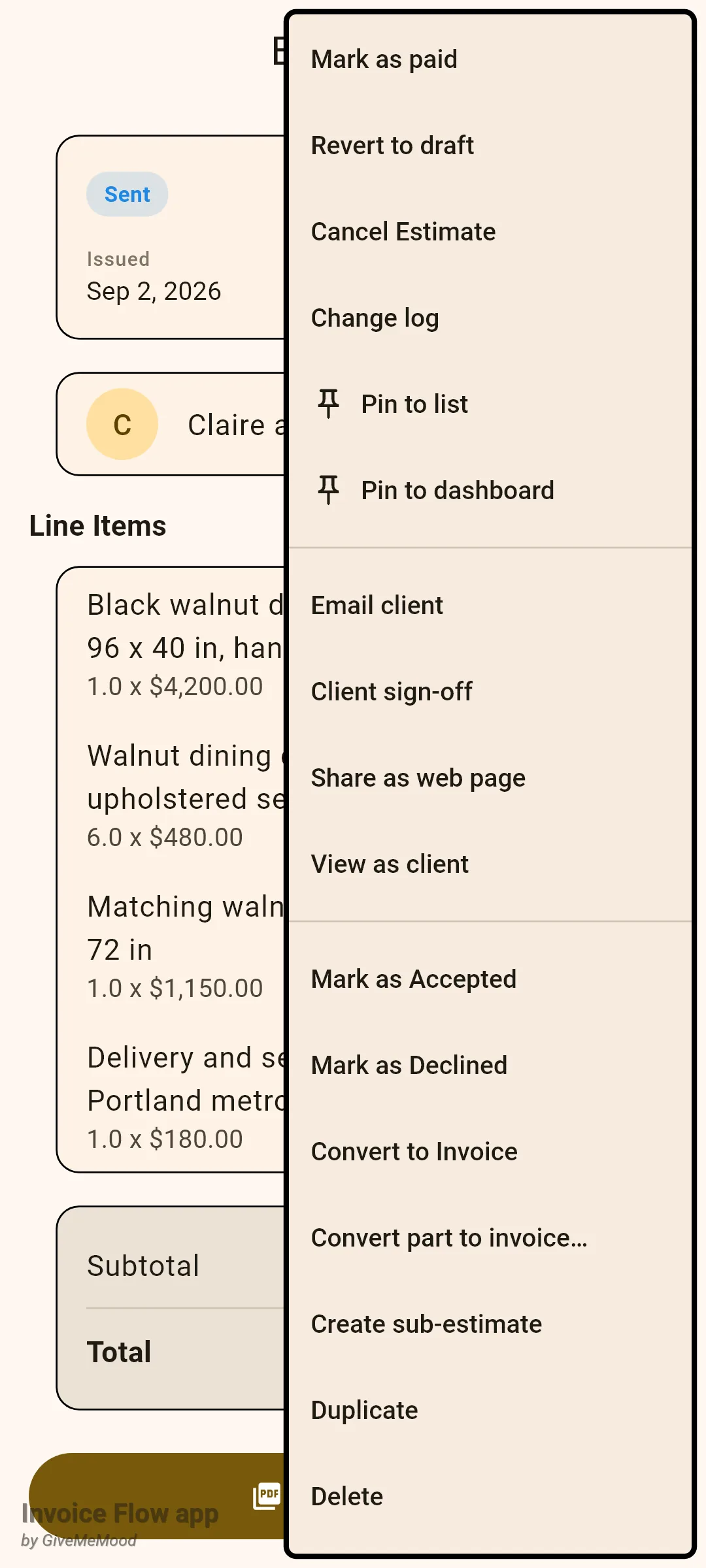
Accepted and declined are bookkeeping states, not locks. A declined estimate can still be converted if the client changes their mind, and an accepted one can be cancelled with Cancel Estimate. If you need a revised version, Create sub-estimate clones the line items into a fresh draft with the next number in the estimate series and opens it in the editor; Duplicate also makes an unlinked copy, but see the numbering table below before relying on it for quotes.
How to convert the whole estimate
When the client wants everything at once, one tap produces the invoice.
- Open the estimate and tap the three-dot menu.
- Tap Convert to Invoice.
- Read the Convert to invoice? dialog and tap Convert to Invoice to proceed, or Cancel.
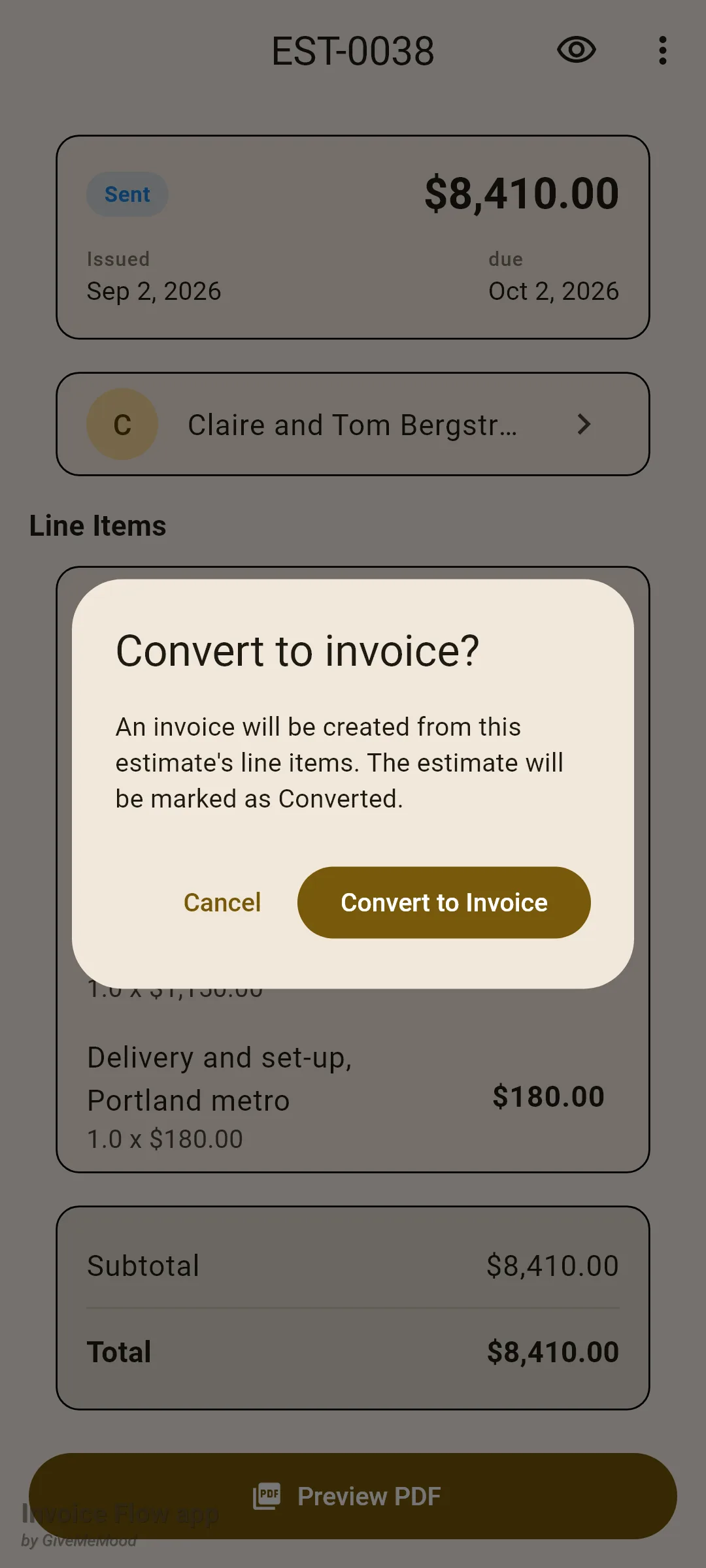
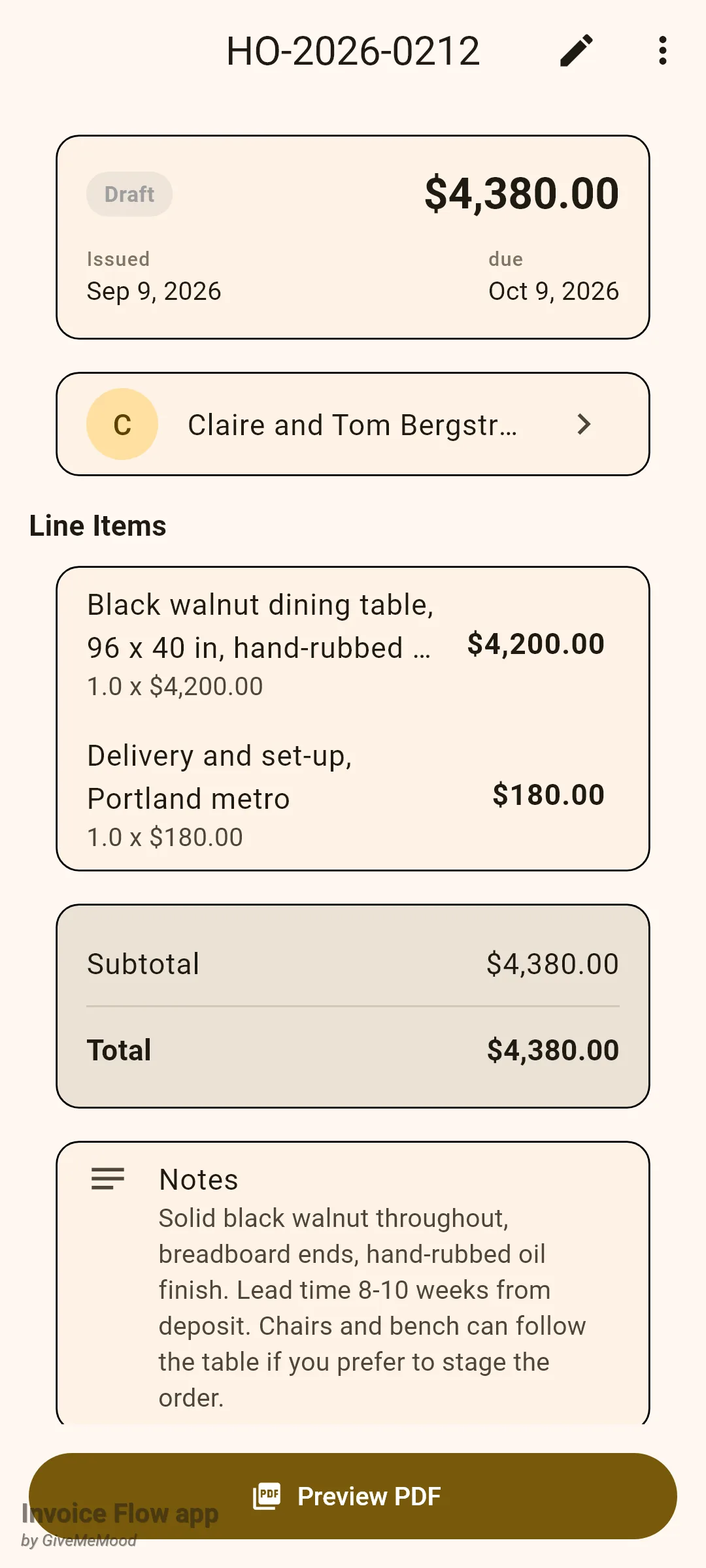
The app copies every line item, the discount, the notes, the payment terms, the template, the colour palette, the currency and the exchange rate into a new invoice. That invoice is a Draft, issued today with a due date 30 days out, and its number comes from your default invoice series, never from the estimate series. The estimate’s badge becomes Converted and the conversion block vanishes from its menu, so the same quote cannot be invoiced twice. You land on the new invoice, where you can edit it like any other draft before marking it sent.
How to convert only some of the line items
The Bergstroms want the table delivered before the chairs and bench are finished. Martin bills the table and delivery now.
- Open estimate EST-0038 and tap the three-dot menu.
- Tap Convert part to invoice….
- On the Select line items to convert screen, untick the items that will wait. Every item starts ticked on a first conversion.
- Check the counter and running total in the header, 2 / 4 and $4,380.00 here.
- Tap Convert to Invoice in the top-right corner. The button is greyed out while nothing is selected.
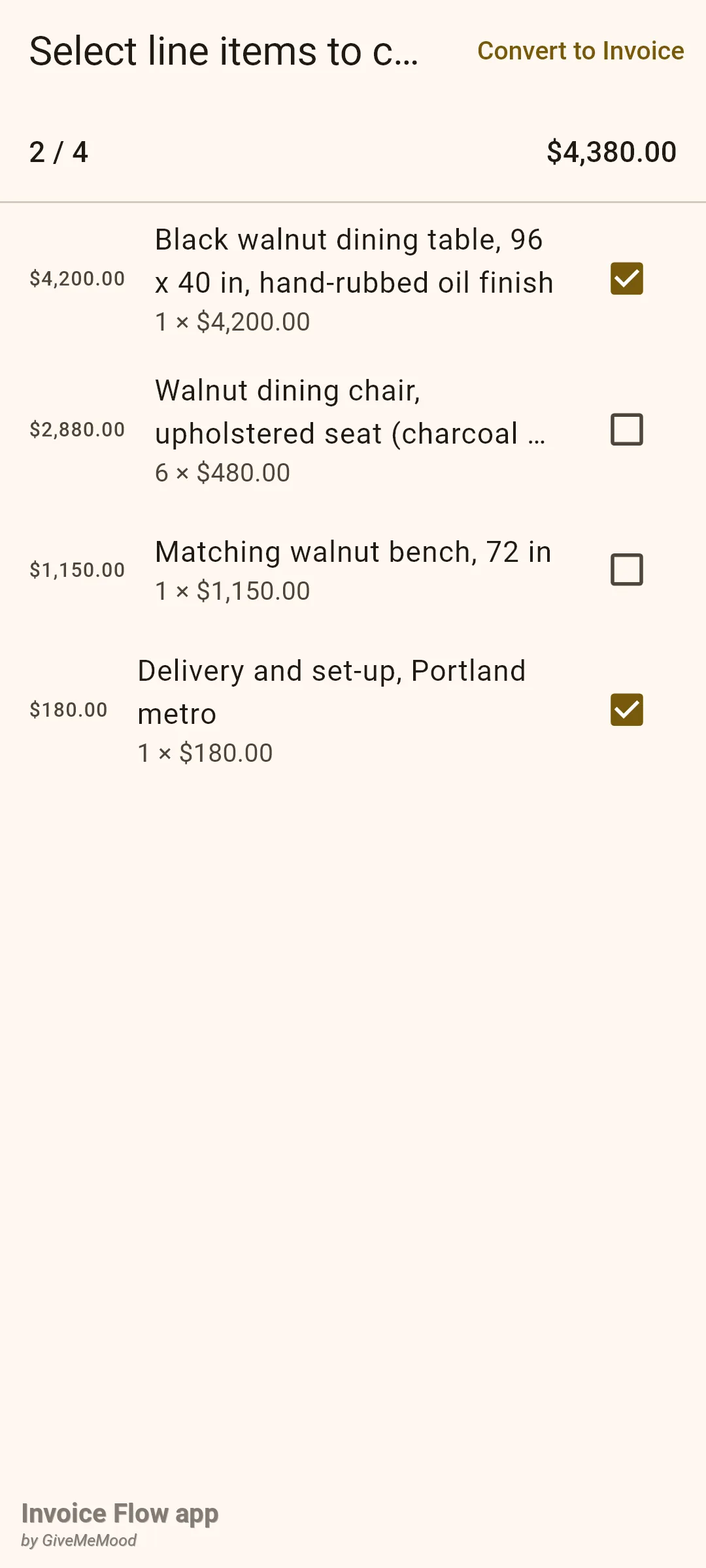
The screen returns you to the estimate, now badged Partially converted, and the new draft invoice waits in the Invoices tab. Unlike full conversion, the app does not open the invoice for you.
Weeks later the seating is ready. The menu entry now reads Convert remaining… instead of Convert part to invoice…, and the selection screen already knows what has been billed.
- Open the partially converted estimate and tap the three-dot menu.
- Tap Convert remaining….
- Confirm that the lines already billed are struck through and labelled already converted, and that the outstanding lines are pre-ticked.
- Tap Convert to Invoice.
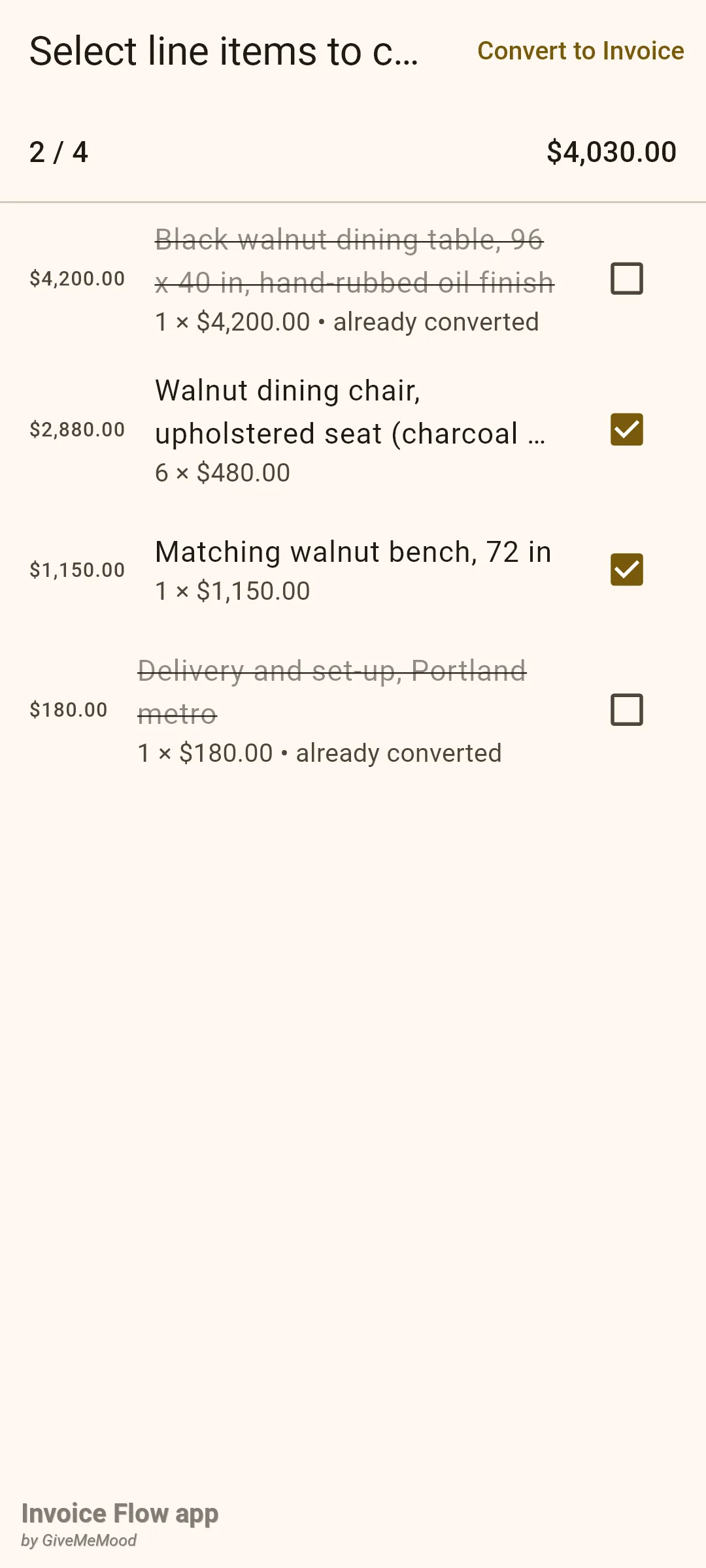
If this second pass ticks every remaining line, the estimate’s badge changes to Converted and the conversion block leaves the menu. If you leave something unticked again, it stays Partially converted and you can come back a third time.
Numbering per document type
Invoices and estimates count separately. In Settings, Business Profile, the Invoice Series section lists series of two kinds, Invoices and Estimates, each with a Series name, Number template, Next number, Digits and a Reset counter policy (Never, Every year, Every month or Every quarter). A new profile gets one of each: an invoice series with prefix INV and an estimate series with prefix EST, both using the template {prefix}-{SEQ:0000}, so the first documents are INV-0001 and EST-0001. Martin renamed his to HO-{YYYY}-0000 for invoices and kept EST-0000 for quotes.
| Situation | Number comes from |
|---|---|
| New estimate | Default series of kind Estimates (EST-0040 above) |
| Sub-estimate | Same estimate series, next number |
| Full conversion | Default series of kind Invoices (HO-2026-0212) |
| Partial conversion, each pass | Default series of kind Invoices, one number per invoice created |
| Duplicate of an estimate | Default series of kind Invoices (the copy stays an estimate, but its number is drawn from the invoice counter in the current version; prefer Create sub-estimate for a correctly numbered revision) |
The number template accepts the tokens {prefix}, {YYYY}, {YY}, {MM}, {DD}, {Q}, {WW}, {SEQ} or {SEQ:0000}, {client}, {currency}, {kind} and {kind:short} (which prints INV or EST), among others. Numbers must be unique within a business profile; if you override one by hand and it collides, the editor moves to the next free number when you save.
How the estimate PDF looks
Tap Preview PDF on the estimate detail to render it. The preview’s title bar reads Estimate EST-0038, and the snackbar after sending says the estimate was marked as sent. The document itself uses whichever of the twelve templates and palettes you chose in the editor, with the same header, item table, totals, notes and payment terms as an invoice would print.
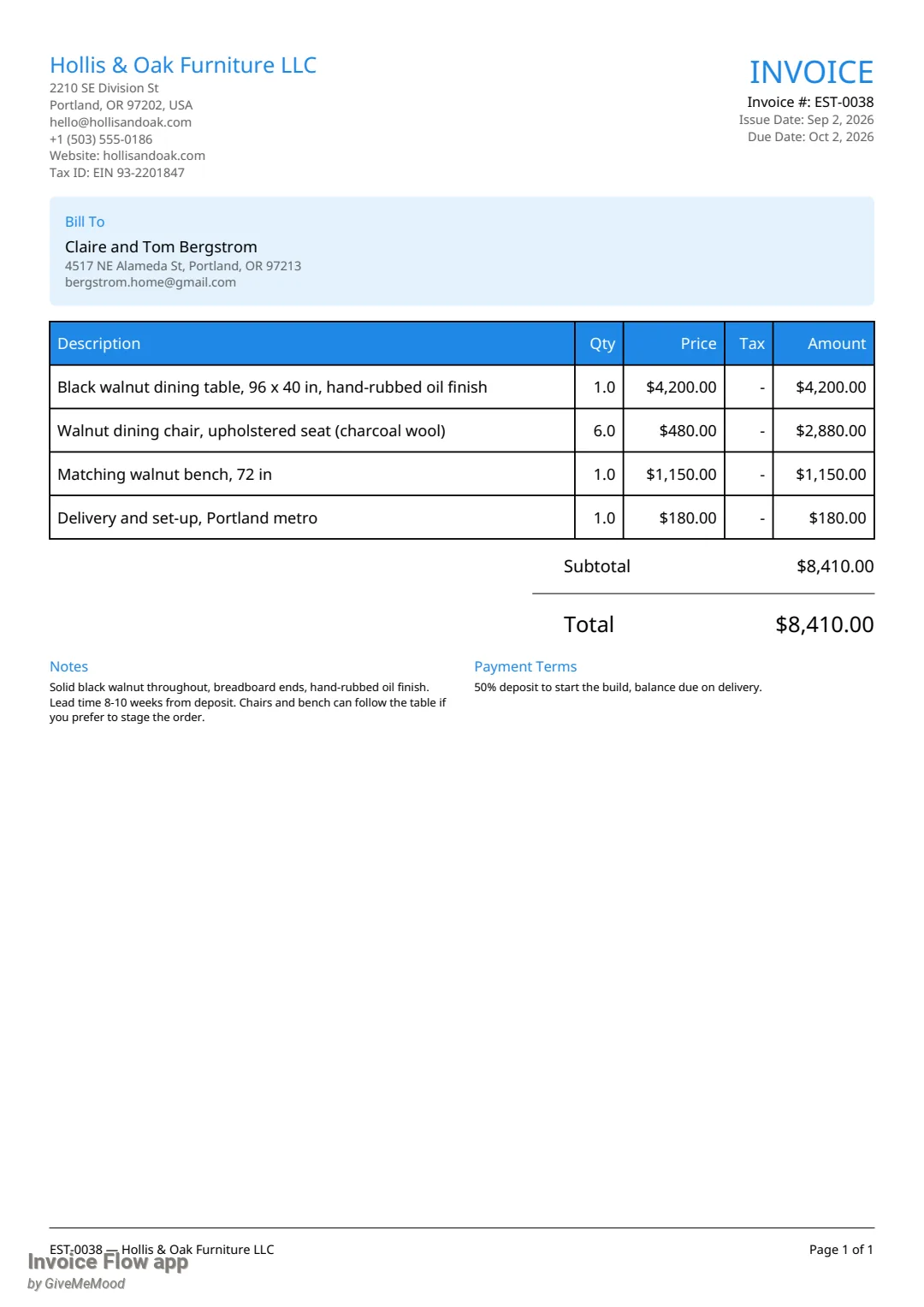
The only estimate-specific difference in the PDF is that the early-payment discount line, which can appear under the total of an unpaid invoice, is never printed on an estimate.
Rules and details
- Estimates and invoices are stored as the same kind of record with a different document type. Anything that works on an invoice detail, such as pinning, the change log, client sign-off, View as client or sharing, also works on an estimate.
- Convert to Invoice, Convert part to invoice…, Convert remaining…, Create sub-estimate, Duplicate, Email client, Client sign-off, Share as web page and the edit pencil are Pro features. Without an active subscription or trial they open the upgrade screen. Mark as Accepted, Mark as Declined, the other status changes, Preview PDF and Delete are free.
- Conversion is allowed from any status except Converted: draft, sent, accepted, declined and cancelled estimates all show the conversion entries.
- A full conversion copies the discount exactly. A partial conversion cannot, so it stores a pro-rated discount amount instead: the estimate’s discount ratio applied to the selected subtotal, with tax reduced by the same ratio and rounded to cents. The resulting invoice shows a fixed discount amount rather than a percentage.
- The converted invoice is always a draft issued today and due in 30 days, whatever the estimate’s dates were. Change the dates in the editor if your terms differ.
- The estimate keeps all its line items after a partial conversion. The “already converted” mark is a best-effort match on description, unit price and quantity against invoices spawned from that estimate; two identical lines will both be marked once one is billed, and you can always tick a struck-through line again.
- Converting an estimate that belongs to a project updates that project’s totals.
- There is no visible link on the invoice back to its estimate, and none on a sub-estimate to its parent; use the notes or the invoice number to keep track.
- Mark as Sent, Revert to draft, Cancel Estimate and Reactivate each show a confirmation with estimate-specific wording. Mark as Accepted and Mark as Declined do not.
- Deleting an estimate asks for confirmation under the title Delete Estimate and does not touch any invoice already created from it.
- Estimates never show the Payments card or late-fee options, and they are not counted as revenue in analytics until converted.