 EN
EN  العربية
  Български
  Čeština
  Dansk
Dansk  Deutsch
  Ελληνικά
  Español
  Suomi
Suomi  Français
  עברית
עברית  हिन्दी
  Bahasa Indonesia
  Italiano
  日本語
日本語  한국어
한국어  Bahasa Melayu
  Nederlands
  Norsk
Norsk  Polski
  Português
  Română
  Русский
  Svenska
  Kiswahili
  ไทย
ไทย  Türkçe
  Українська
  Tiếng Việt
  中文
中文 User guide
Time tracker and hourly billing
Time work sessions live or log them by hand, set an hourly rate per session, and turn unbilled hours into invoice lines without billing anything twice.
If you sell your time, the invoice is only as good as the record behind it. Invoice Flow’s Time Tracker keeps that record on the phone: each work session is stored with its client, a project name, a description, a start and end time and an hourly rate. When it is time to bill, you pick the sessions, the app writes one invoice line per session with the hours as the quantity and the rate as the price, and the sessions are marked as invoiced so they can never be picked again.
This guide follows Inês Carvalho, a freelance translator in Lisbon who bills in euros. She charges Editora Horizonte EUR 45 an hour for literary translation, Bramble & Co. Solicitors in London EUR 55 an hour for legal work, and Vinhos do Tejo EUR 40 an hour for catalogue and website copy. Some sessions she times live, some she enters after the fact, and once a fortnight she turns the open hours into invoices.
You need the tracker whenever your price is expressed per hour. If you quote fixed prices per job, you can still use it as a private log of where the day went, but nothing in the app forces you to.
What you see on the screen
The tracker is a full-screen tool, not a tab. Open the Tools tab in the bottom bar, look under Productivity and tap the blue Time Tracker card. From the dashboard there is a shortcut too: the quick-action chip labelled Timer, and, when a timer is running, a Timer Running card that opens the tracker when tapped.
The screen has four parts stacked top to bottom:
- The timer card. When nothing is running it shows 00:00:00 and two buttons, a filled Start and an outlined Manual. While timers are running there is one tinted card per timer, and the buttons below them change to Add Timer and Manual.
- A summary strip with three figures for the current day: total time under Today, money under Earned, and the number of sessions under Entries. Only finished sessions that started today are counted; a timer that is still running is not.
- A filter row with the chips All, Uninvoiced and By Client. Choosing By Client adds a dropdown of your clients to the right of the chips.
- The session list, grouped under Today, Yesterday, This week and, further back, the calendar date. Each row shows a round icon on the left, the project name in bold (or the description if there is no project name), then the client, duration and money earned, and the start time on the right.
In the app bar sits To Invoice with a red badge. The number in the badge is how many finished sessions have not been billed yet, and it is the single most useful figure on the screen when you are deciding whether it is invoice day.
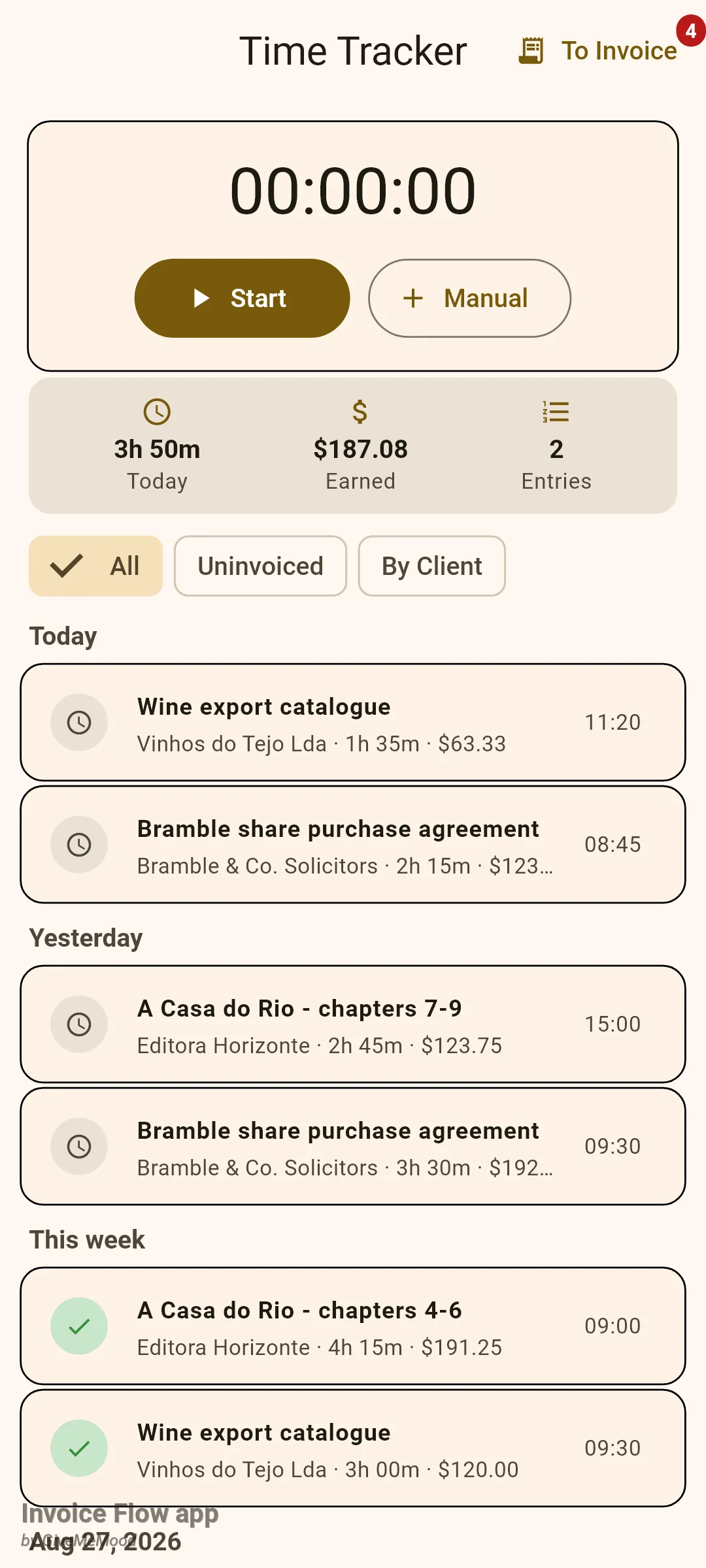
The round icon on each row is the invoiced flag. A grey clock means the session is still open and will appear in the invoice pickers. A green tick means it has already been placed on a saved invoice. There is no separate billable switch on a time entry: every finished session is billable until it lands on an invoice, and the only way to keep private hours out of the pickers is to leave them out when you select sessions, or to delete them.
How to time a session live
Starting a timer takes one sheet. Fill it in once and the tracker remembers the client, project, description and rate for the next timer you start in the same visit.
- Open Tools, then Time Tracker.
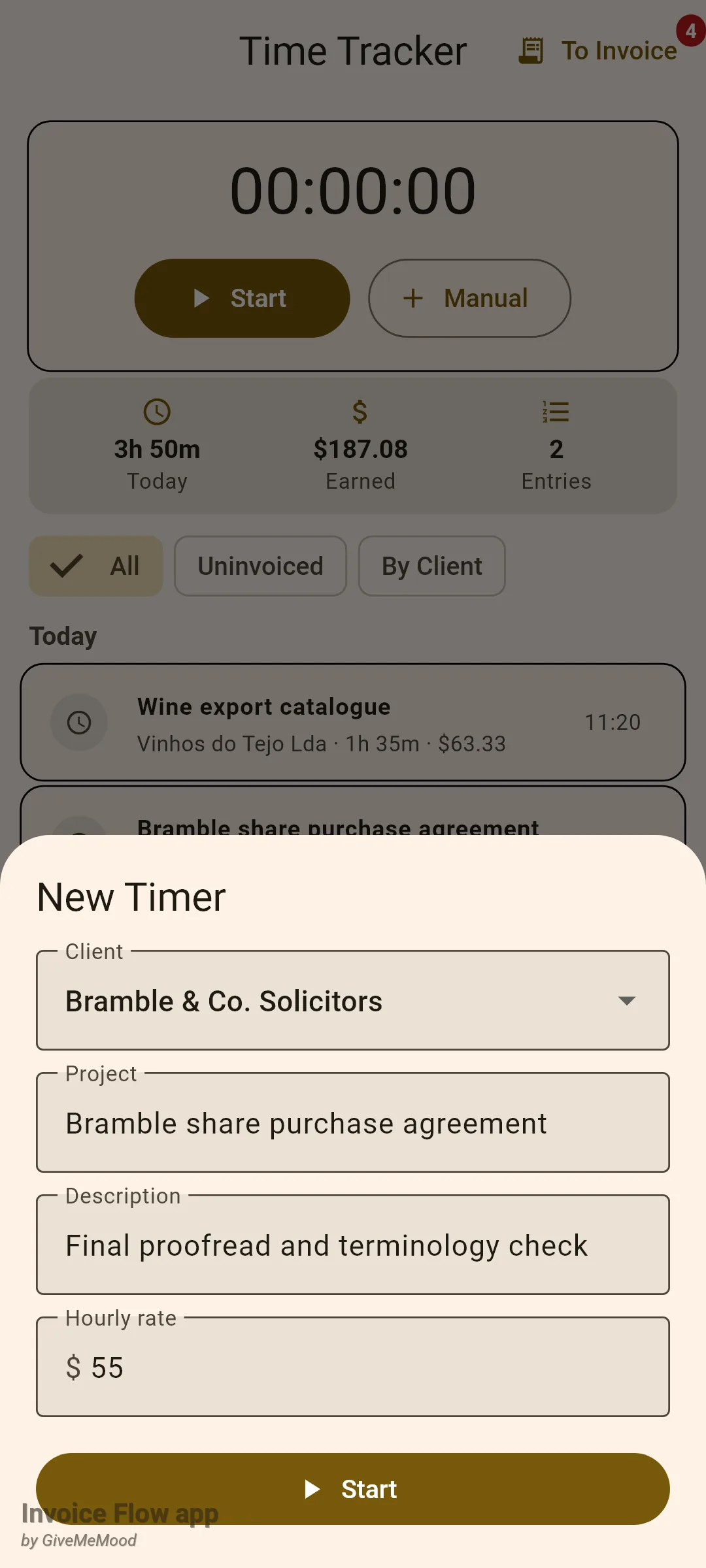
- Tap Start on the timer card. The New Timer sheet slides up.
- Choose the Client from the dropdown, or leave it on No client for unbillable work.
- If you have created projects for this profile, a Projects dropdown also appears; pick one to link the session, or leave Not specified.
- Type a Project name and a short Description. Together they become the invoice line text later, so write them as you would want the client to read them.
- Enter the Hourly rate as a number, for example 55.
- Tap the Start button at the bottom of the sheet. The clock begins immediately.
The running card replaces the idle card. It shows the elapsed time in hours, minutes and seconds, the project name, the client and a live earned figure that climbs as the seconds pass. Two round buttons sit on the right: pause and a red stop.
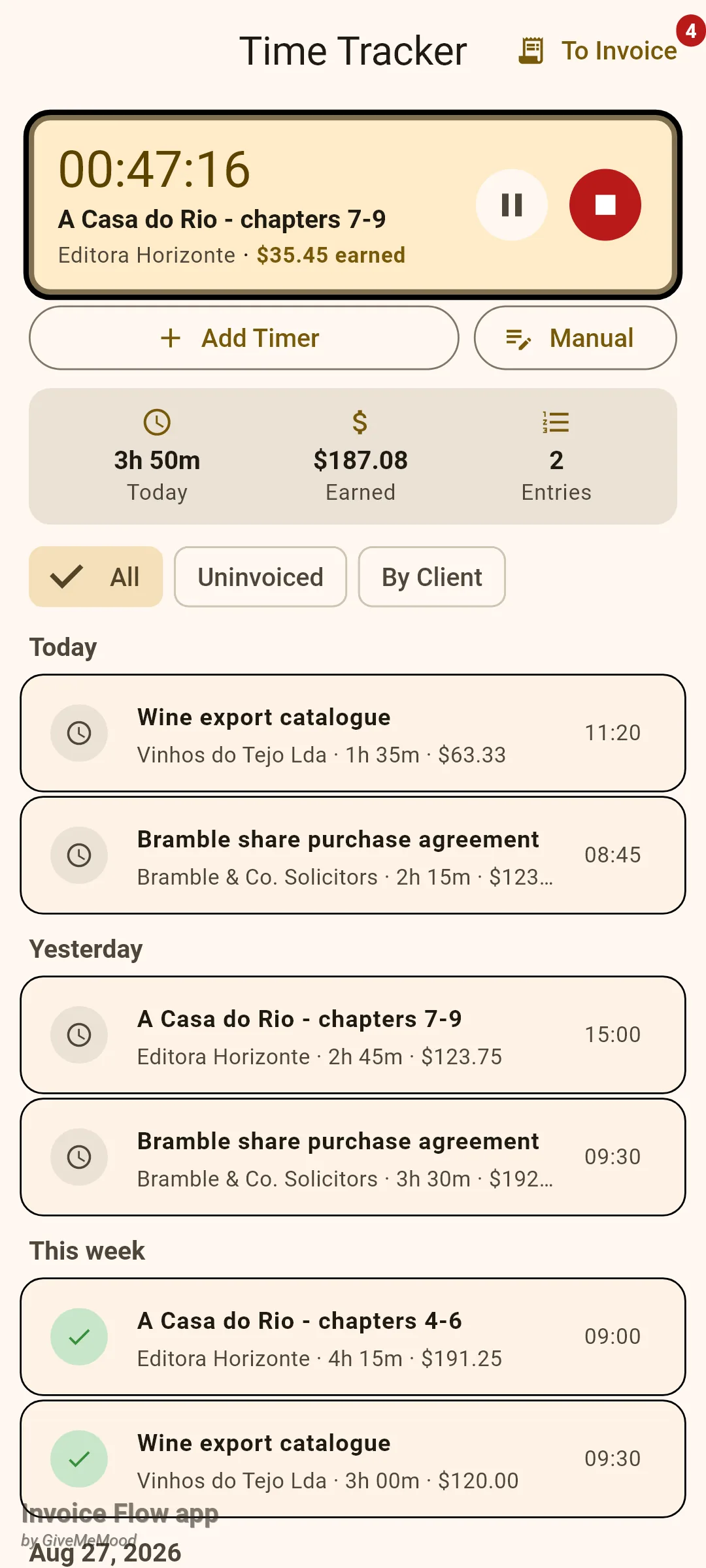
Tap the red stop button when you are done. The app writes the end time and the duration, and the session drops into the list under Today. You can run more than one timer at a time with Add Timer, which is handy when a client call interrupts a translation job: start a second timer for the call, stop it when the call ends, and the first one keeps going.
How to log a session by hand
Sessions you forgot to time, or work done away from the phone, go in through the Manual button.
- Tap Manual on the timer card (or under the running cards). The Add Entry dialog opens.
- Pick the Client and, if shown, the Projects link.
- Fill in Project name, Description and Hourly rate.
- Tap Date to choose the day. The calendar allows any date from 2020 up to tomorrow.
- Tap Start time and End time and set both with the clock picker. The Duration line under the pickers recalculates as you go.
- Tap Save.
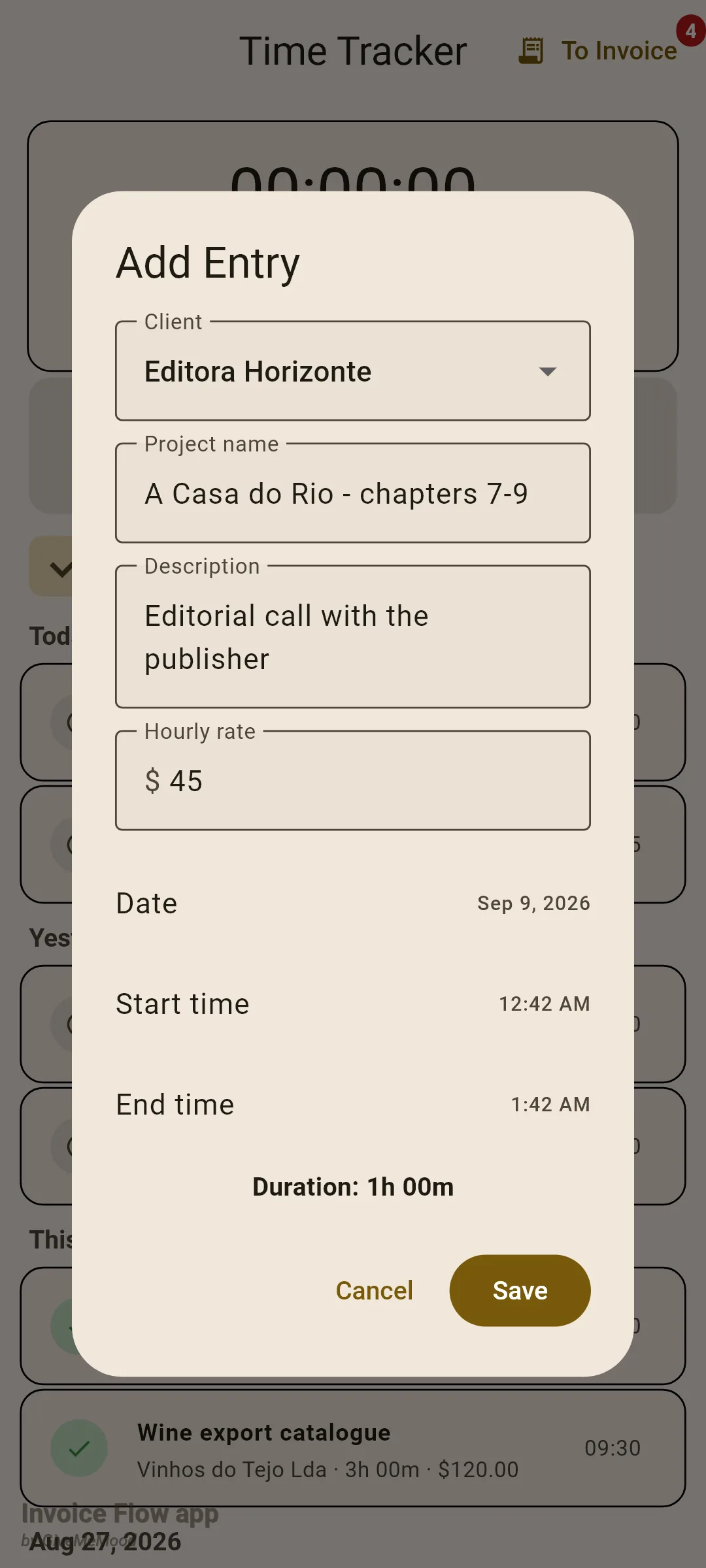
The same dialog is used for editing. Tap any row in the list to open it as Edit Entry with the stored values, change what you need and tap Save. A long press on a row shows a small menu with Edit, Duplicate and Delete; a swipe from right to left on a row also deletes it, after a confirmation that names the entry.
How to invoice tracked hours
There are two doors into the same result. You can start from the tracker and let it open a new invoice, or start from the invoice editor and pull sessions in. Which you use depends on where you are standing.
From the tracker
- Tap To Invoice in the app bar. The Create Invoice dialog lists every finished session that is not yet on an invoice, newest first, with the client, duration and amount.
- Tick the sessions to bill. The button at the bottom counts them, for example Create Invoice (2).
- Tap Create Invoice (2). A new invoice opens with one line per session already in place.
- Check the lines, add VAT if you charge it, then tap Save Draft.
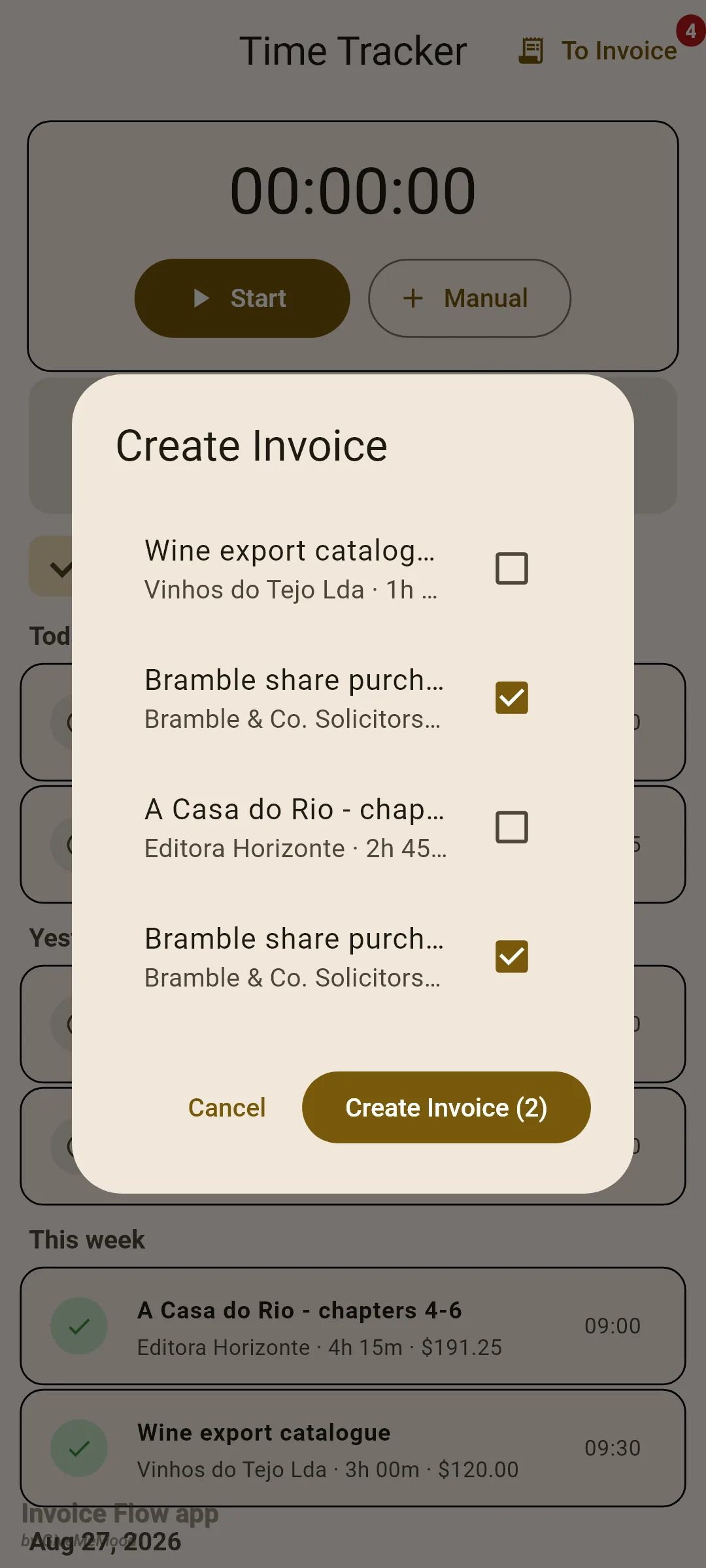
If every session you ticked belongs to the same client, that client is preselected on the new invoice. Mix clients and the invoice opens with no client, which you then have to choose by hand, so it is worth filtering by one client first.
From the invoice editor
- Create a new invoice and pick the client under Select client.
- Scroll to Line Items and tap the Time chip next to Product / Service.
- In Add Time Entries, tick the sessions and tap Add (2).
- Continue with the rest of the invoice and save.
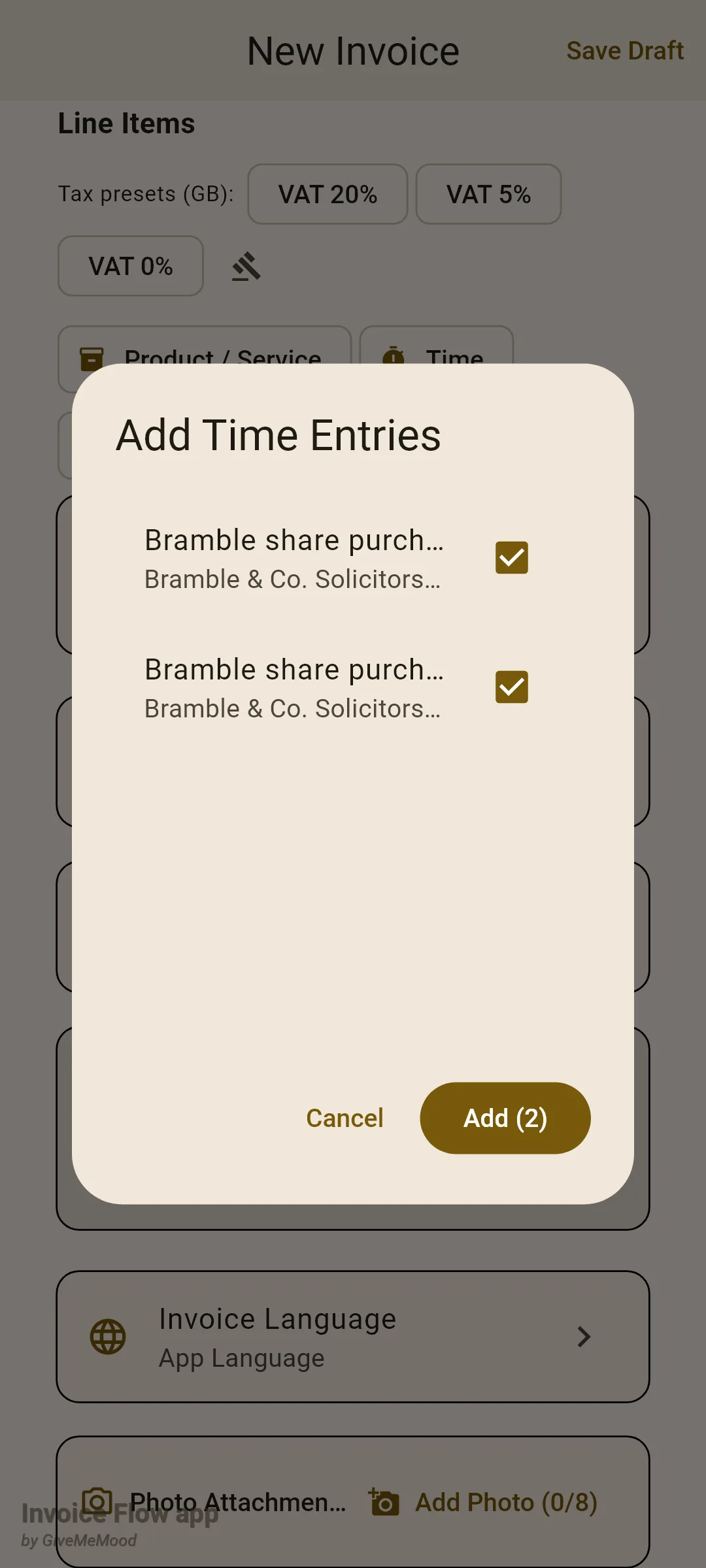
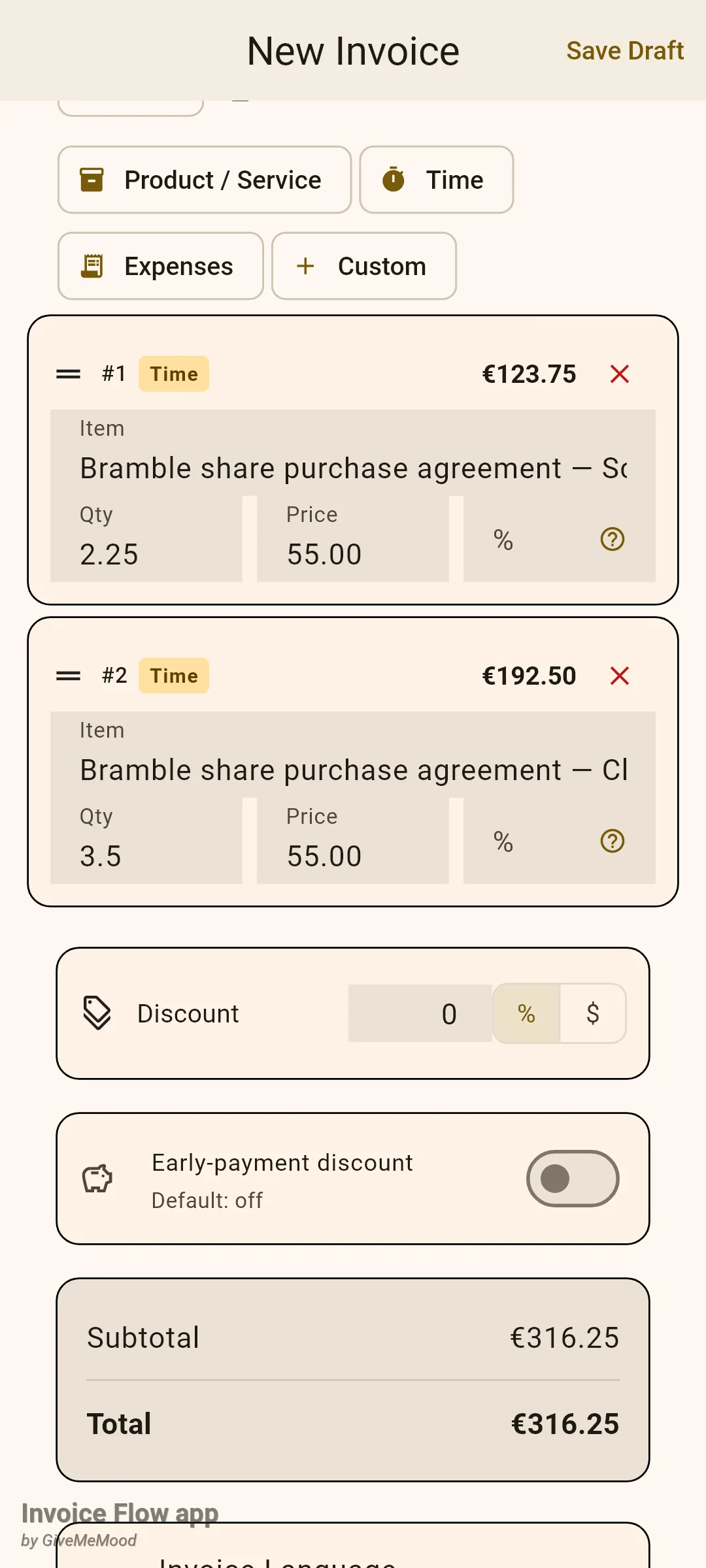
The editor’s picker is stricter than the tracker’s: once a client is selected it shows that client’s open sessions plus sessions with no client, and nothing else. If there is nothing to show you get a short message instead of an empty dialog, such as No entries for this client (2 for others).
Each generated line has the text “Project name — Description” (or just Services if both were empty), the duration in hours rounded to two decimals as Qty, the session’s rate as Price, and a small Time tag on the card. The tax rate is left at zero, so Inês taps the percent field and applies 23% VAT on lines for Portuguese clients. You can edit the description, the quantity and the price freely before saving; the link back to the session survives the edits.
What happens to the sessions
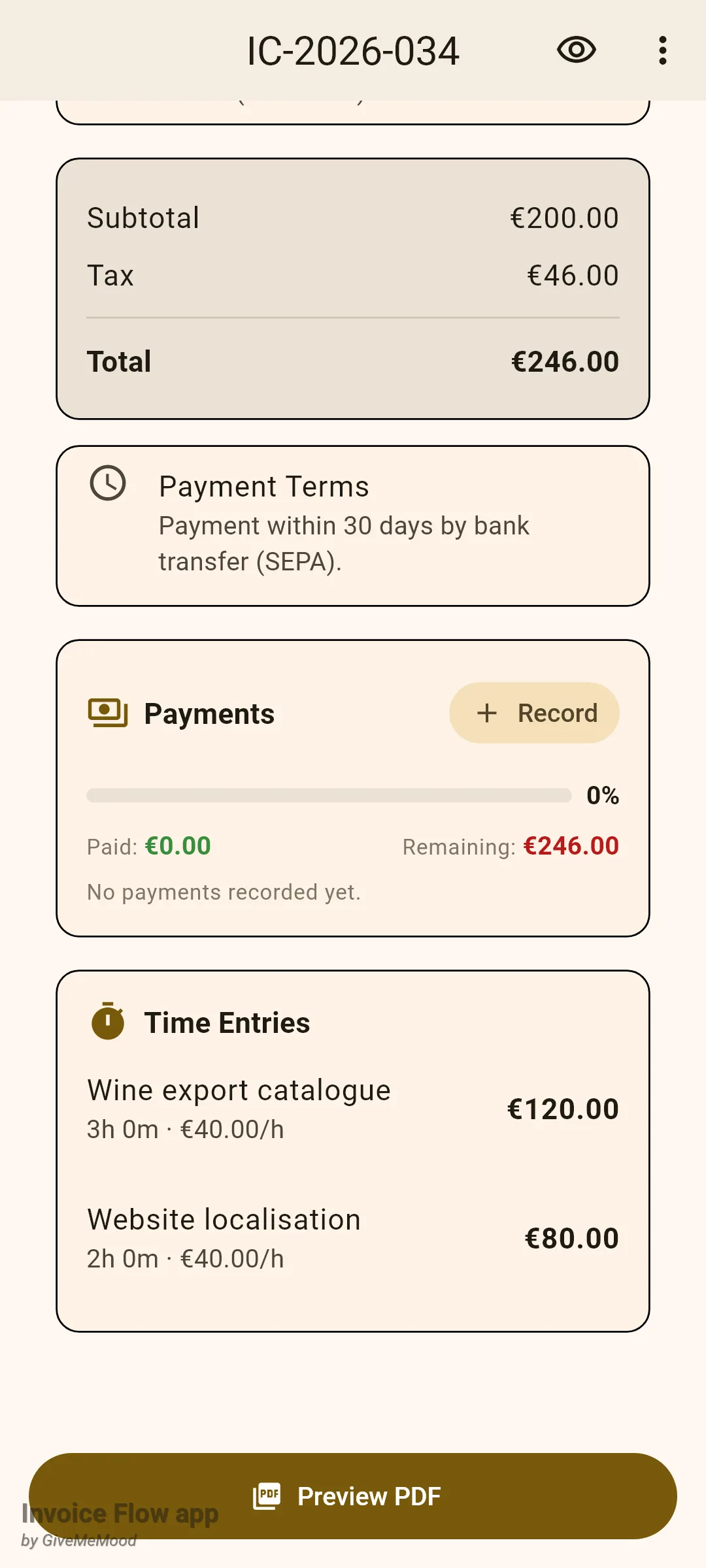
The invoiced flag is set at the moment the invoice is saved, not when you tick a session in a picker. Cancel the editor and every session you selected stays open and keeps its grey clock. Save it, and each linked session is marked invoiced, gets a green tick in the tracker, disappears from both pickers and from the To Invoice badge count, and remembers which invoice it went on. The invoice detail screen shows the connection from the other side: a Time Entries card near the bottom lists the sessions billed on that document with their duration, rate and amount in the invoice currency.
Rules and details
Pro features. Starting a timer, adding or editing an entry by hand, duplicating an entry and the final step of To Invoice all require Pro or an active trial; tapping them without access opens the paywall. Looking at the list, filtering, pausing, stopping a running timer and deleting entries work on the free tier.
Nothing is mandatory. The timer sheet and the entry dialog have no required fields. A session with neither project name nor description shows an empty title in the list, and an empty or non-numeric rate is stored as zero, in which case the row shows duration only and the invoice line gets a price of 0.
Rates are per session. The hourly rate is copied into each entry when you create it. Changing your mind later means editing the entry, or the invoice line. There is no rate stored on the client or the project. The tracker does remember the last rate you typed until you leave the screen.
Timers survive restarts. A running timer is a database row with a start time; the elapsed figure is recomputed from the clock, so closing the app or rebooting the phone does not lose the session. Running timers are excluded from the list, the summary strip and both invoice pickers until you stop them.
Manual durations. The dialog computes end minus start on the same date. If the end time is earlier than the start time, the duration is stored as 0 rather than rejected, so double-check overnight sessions; split them into two entries, one per day.
Duplicate. The long-press Duplicate action copies client, project, description, rate and duration into a new entry that starts now, so it lands under Today. The project link from the Projects dropdown is not copied.
Delete is permanent. There is no bin. Deleting an invoiced session does not touch the invoice; the line stays on the document, only the Time Entries card on the invoice detail loses the row.
Grouping and filters. Sessions are grouped by their start date: Today, Yesterday, This week for anything less than seven days old, then the date. By Client does nothing until you have at least one client and defaults to the first one alphabetically.
| Where | What it lists | Client rule |
|---|---|---|
| Tracker, To Invoice | All finished, uninvoiced sessions | Client preselected on the new invoice only if all ticked sessions share one client |
| Editor, Time chip | Finished, uninvoiced sessions | If a client is chosen: that client’s sessions and sessions with no client |
Tips
Related guides
- Invoice editor - line items, tax rates, discounts and saving.
- Projects and milestones - the projects that appear in the timer’s Projects dropdown.
- Expenses and receipts - the other kind of billable record that can be pulled into an invoice.