 EN
EN  العربية
  Български
  Čeština
  Dansk
Dansk  Deutsch
  Ελληνικά
  Español
  Suomi
Suomi  Français
  עברית
עברית  हिन्दी
  Bahasa Indonesia
  Italiano
  日本語
日本語  한국어
한국어  Bahasa Melayu
  Nederlands
  Norsk
Norsk  Polski
  Português
  Română
  Русский
  Svenska
  Kiswahili
  ไทย
ไทย  Türkçe
  Українська
  Tiếng Việt
  中文
中文 User guide
Backup, restore, export and bank import
Back up everything to a ZIP or JSON file, move it to a new phone, import a bank statement to mark invoices paid, and export for Xero, QuickBooks or 1C.
Invoice Flow keeps every client, invoice, payment and receipt on the phone itself. There is no account to log into and no server that holds a copy for you, which is good for privacy and bad for the day the phone falls into the sink. The Backup & Restore screen is how you protect yourself: it writes the whole database to a file you can put anywhere, and it reads that file back on the same phone or a new one.
This guide follows Nadia Brennan, who runs Brennan Bookkeeping from a small office in Cork and bills a dozen local businesses in euro every month. She is about to replace her phone, so she needs a complete copy of two years of invoices before the old handset goes in a drawer. Once the new phone is set up she also wants to reconcile last week’s bank statement against the invoices that are still open, and send her own accountant a Xero-friendly list of everything she has issued this year.
What you see on the screen
Open the Settings tab and scroll to the Data section. The single row there, Backup & Restore with the subtitle Export or import your data, opens the screen. If your trial has ended, the paywall’s Export Data button brings you to the same place, because you can always take your data with you.
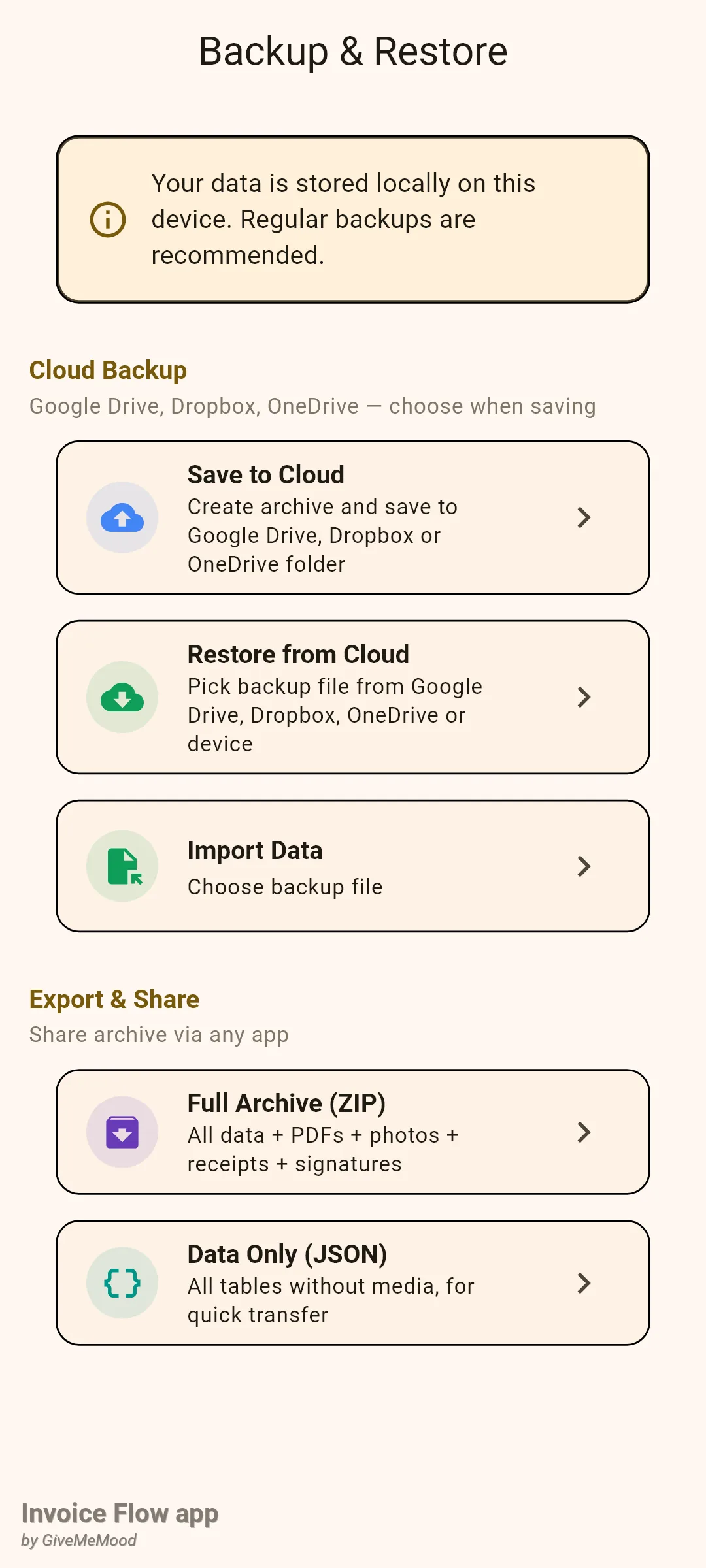
The screen has a reminder card at the top, Your data is stored locally on this device. Regular backups are recommended., and two groups of tiles.
Cloud Backup holds three tiles. Save to Cloud builds the full archive and then opens the Android “save file” dialog so you can drop the ZIP into a Google Drive, Dropbox or OneDrive folder, or anywhere else on the phone. Restore from Cloud and Import Data are the same action with two labels: both open a file picker for a .json or .zip backup and restore it.
Export & Share holds two tiles. Full Archive (ZIP) creates the complete archive and hands it to the Android share sheet. Data Only (JSON) writes a lighter file with every table but no PDFs or images and shares that instead.
While any of these runs, a small spinner and a status line appear under the info card (for example Creating archive…, Exporting… or Importing…), and all tiles are disabled until the job is done.
One thing the screen does not offer is a schedule. There is no automatic or timed backup in the app; a backup exists only when you tap one of these tiles. The word “cloud” here means the folder you choose in the system picker. The app never signs in to Google, Dropbox or Microsoft on your behalf, so there is no login to configure and no sync running in the background.
How to make a full backup before switching phones
Nadia does this on the old phone the evening before the new one arrives. The ZIP is the right choice here because it carries the PDFs, logos, receipts and signatures along with the database.
- Open Settings, scroll to Data and tap Backup & Restore.
- Tap Save to Cloud. The status line steps through Exporting database..., Exporting profiles..., Exporting clients..., then one line per invoice such as Invoice 7/40: BB-2026-0107, then expenses, signatures and Finalizing....
- When the status changes to Choose where to save... the Android save dialog opens with the file name already filled in, in the form InvoiceFlow_Export_2026-09-08T21-14-05.zip. Pick your Drive, Dropbox or OneDrive folder, or a folder on the phone, and confirm.
- Wait for the snackbar Backup saved!.
If you would rather send the file somewhere directly, use Full Archive (ZIP) instead. It builds the same file and opens the share sheet, so you can mail it to yourself, drop it into a chat with your accountant or push it to any app that accepts files. Data Only (JSON) works the same way but produces a much smaller file that is enough to restore all records; it just will not carry invoice photos or receipt images.
How to restore on the new phone
Install Invoice Flow on the new phone, get the backup file onto it (open it from Drive, download it from your mail, or copy it over USB), and then bring it in. Nadia does this before entering anything else, because a restore replaces whatever is already in the app.
- Open Settings > Backup & Restore and tap Import Data (or Restore from Cloud; they do the same thing).
- Read the Import Data dialog. It says the import will REPLACE all current data and cannot be undone. Tap OK to continue or Cancel to back out.
- In the file picker titled Choose backup file, select the .zip or .json file.
- Wait while the status line shows Importing.... When it finishes you get a snackbar like Imported: profiles: 1, clients: 12, invoices: 40, ... listing how many rows of each kind came in.
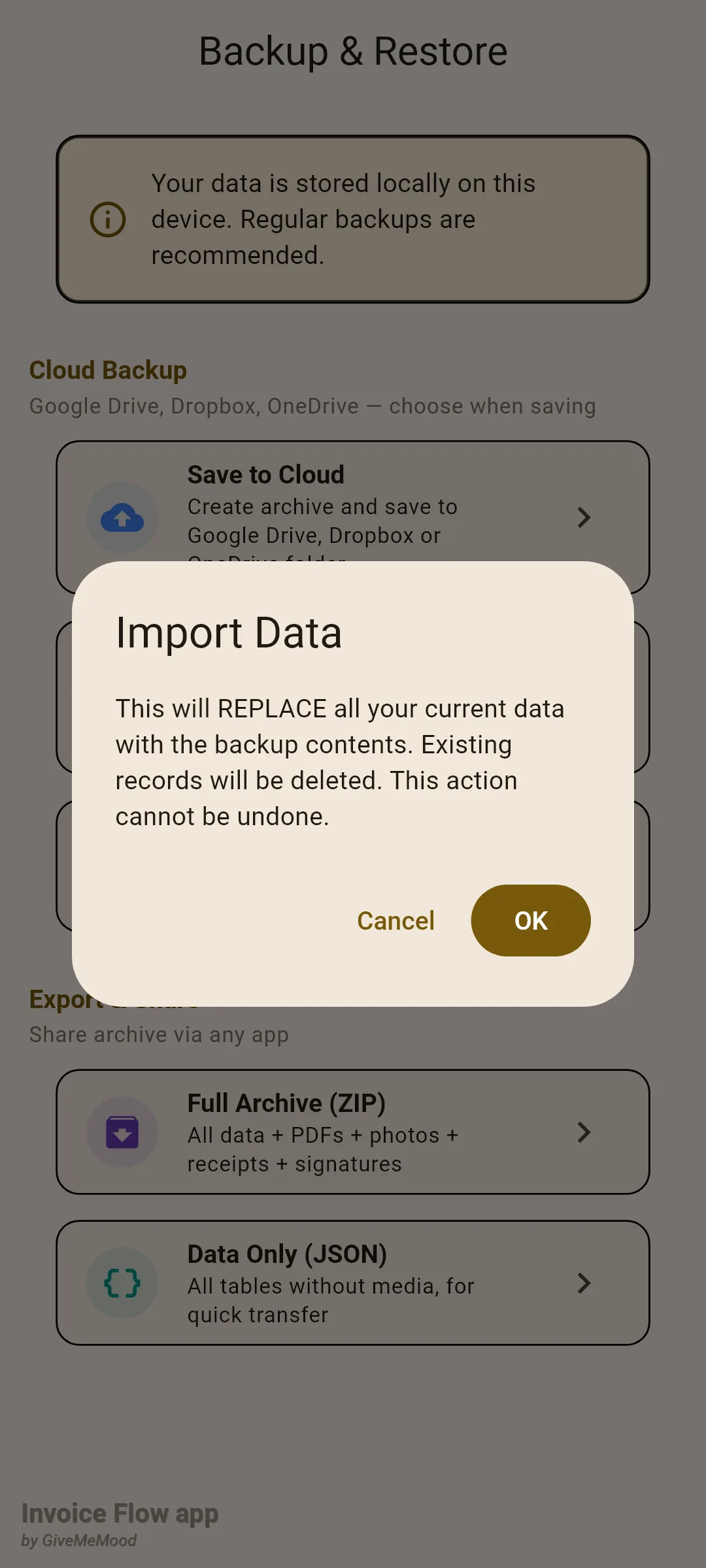
The restore runs as one database transaction. The app first clears every table, then inserts the backup’s rows, assigning fresh IDs and rewiring every link (invoice to client, item to invoice, milestone to project and so on) as it goes. If anything in the file fails to load, the whole transaction rolls back and your previous data is untouched; you will not be left with a half-empty database. The failure snackbar reads Import failed: followed only by the type of error, not its contents, so nothing from the file or the database is shown on screen.
How to import a bank statement and mark invoices paid
A week into the month Nadia downloads a CSV of her business account from online banking. Rather than opening five invoices one by one, she lets the app match the incoming transfers to open invoices by their numbers.
The screen lives under Settings > Invoice Settings > Import bank statement.
- Tap Choose CSV file and pick the statement (.csv or .txt).
- Under Map columns, check the three dropdowns Date column, Amount column and Reference / description column. The app pre-selects them from the header row when it recognises the names; if a dropdown is empty, choose the right column yourself.
- Set Date format to match your bank. It defaults to yyyy-MM-dd; Nadia's Irish bank writes 04/09/2026, so she types dd/MM/yyyy.
- Tap Find matches. The button stays disabled until all three columns are mapped.
- Review the list under N matching invoice(s) found. Each card shows the invoice number, the amount from the statement and the transaction date.
- Tap Mark N invoice(s) as paid. The snackbar Applied N payment(s) confirms and the screen closes.
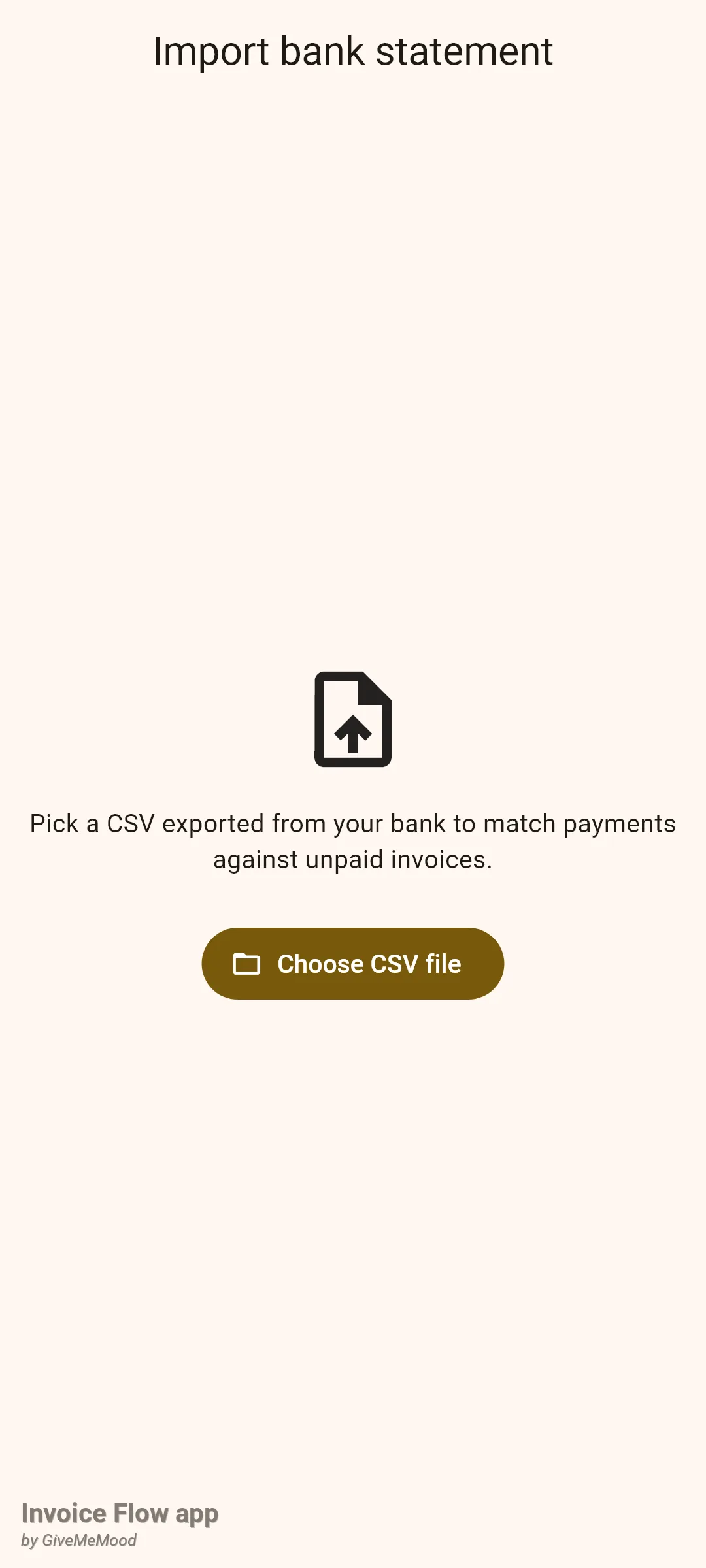
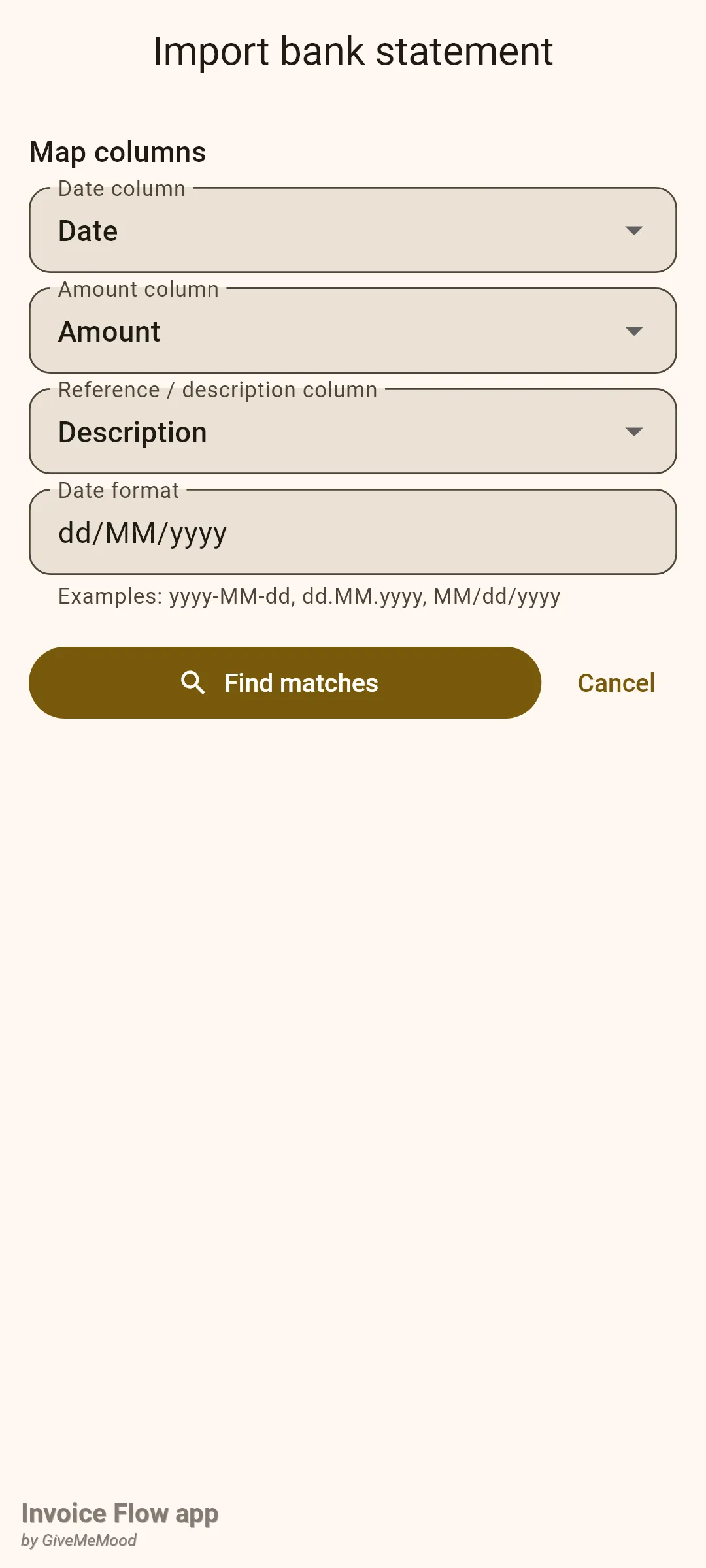
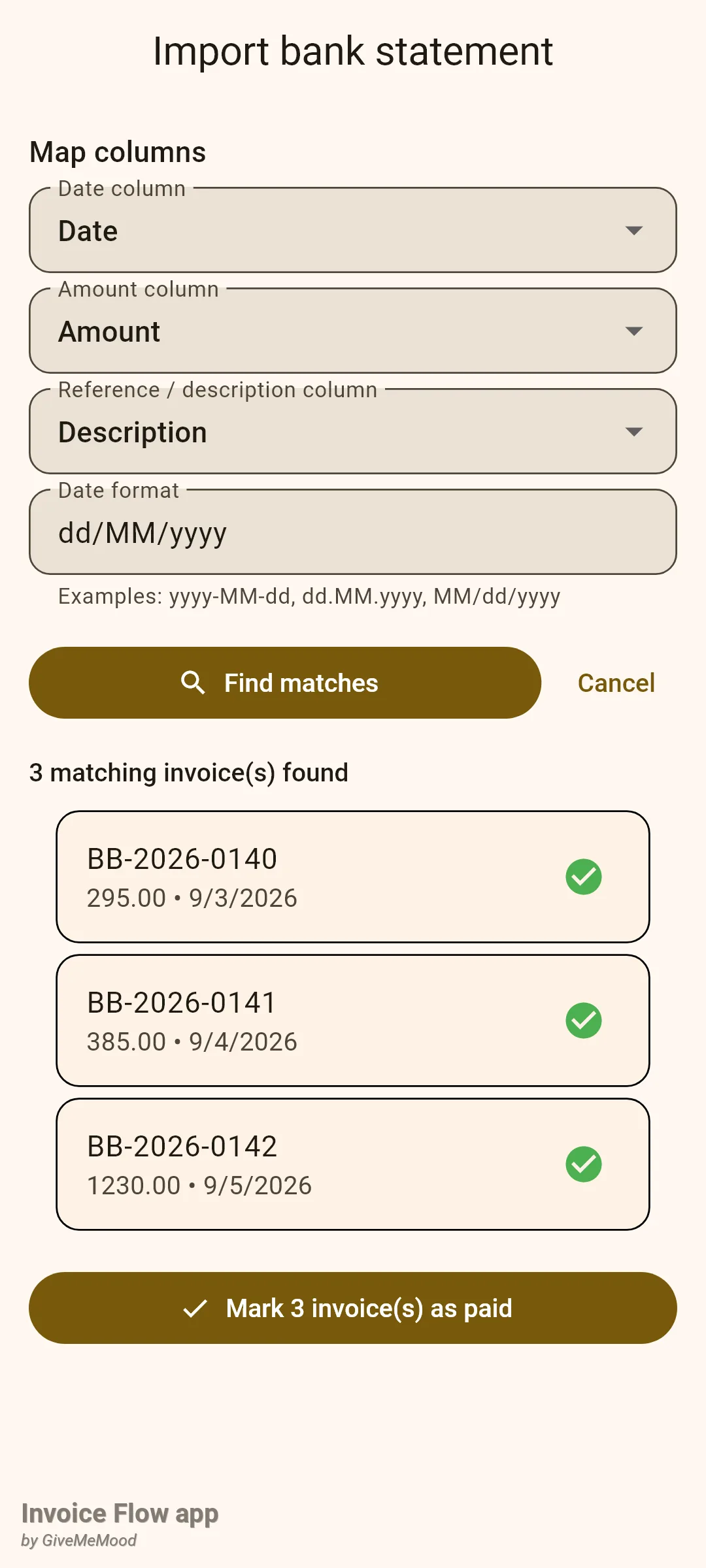
In Nadia’s statement seven rows came in. Two were outgoing payments (an electricity direct debit and a card purchase) and were skipped because their amounts are negative. One transfer referenced BB-2026-0139, which was already paid, so it was ignored. One transfer said “INV 0143” rather than the full invoice number and therefore did not match; she records that payment by hand. The remaining three matched and became payments.
For each match the app inserts a payment with the method bank_transfer, the statement amount, the statement date and a note reading Bank import: followed by the full description, then sets the invoice status to paid. The payment appears in the invoice’s payment history like any other.
How to export for your accountant’s software
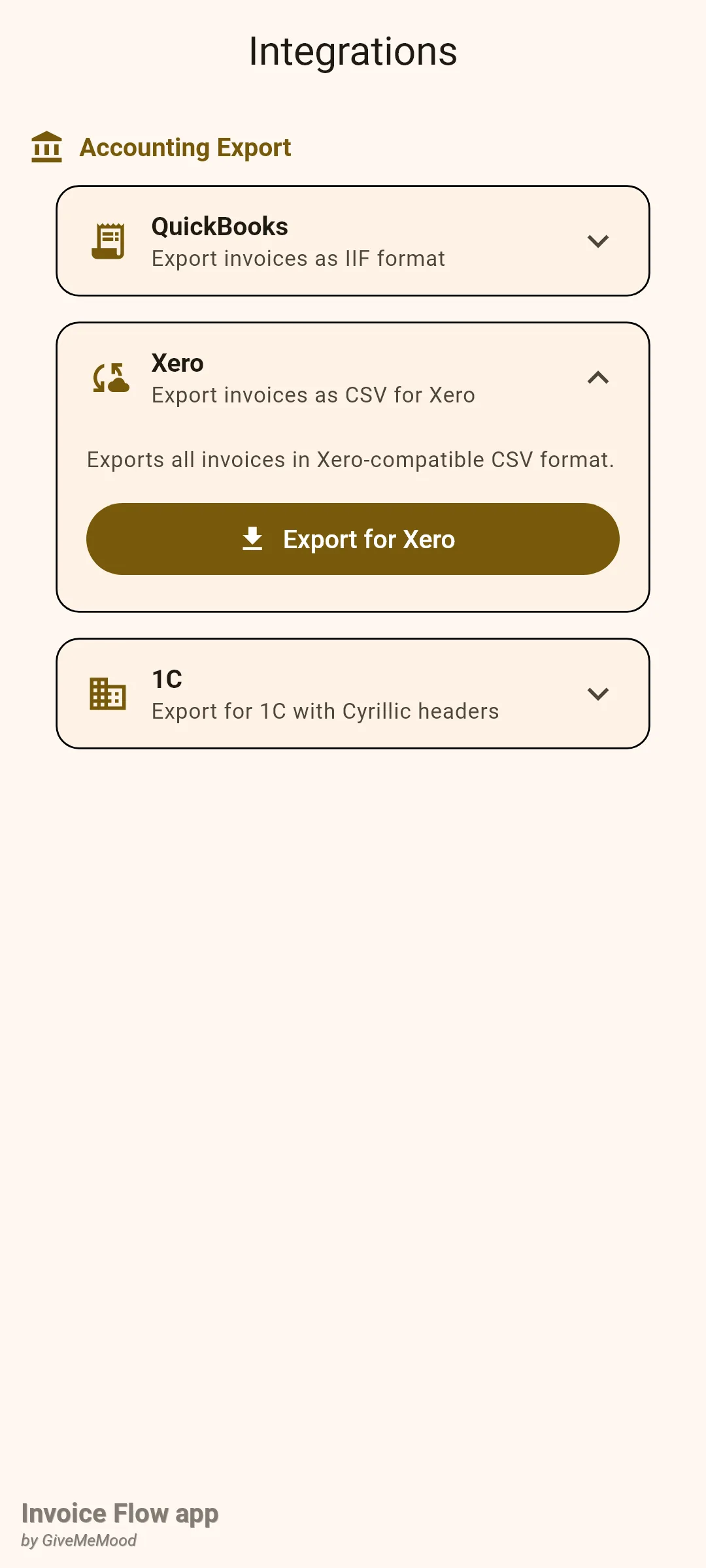
The Integrations screen is under Settings > Automation > Integrations (subtitle Connect external services). Despite the name, nothing here connects anywhere: each card produces a file you share. There are no logins, tokens or sync.
- Tap the card for your accounting package: QuickBooks, Xero or 1C. The card expands to show a one-line description and a button.
- Tap Export for Xero (or Export for QuickBooks / Export for 1C).
- Pick the destination in the share sheet: mail, a cloud folder, a messaging app.
| Card | File | Format | Columns / content |
|---|---|---|---|
| QuickBooks | invoices_quickbooks.iif | Tab-separated IIF for QuickBooks Desktop | One TRNS line to Accounts Receivable and one SPL line to Sales Income per invoice, memo “Invoice NNN” |
| Xero | invoices_xero.csv | Comma-separated CSV | ContactName, EmailAddress, InvoiceNumber, InvoiceDate, DueDate, Total, TaxTotal, Currency, Status |
| 1C | invoices_1c.csv | Semicolon-separated CSV with Russian headers | Invoice number, issue date, due date, counterparty, email, total, VAT, currency, status |
All three include every invoice in the app, in every status. There is no date-range or profile filter, so if you only want one quarter, filter the file in a spreadsheet after export.
Rules and details
What a backup contains. The app_backup.json file (which is also the content of the Data Only (JSON) export) is a version 3 backup and carries: business profiles with their addresses, phones, emails, links, tax IDs, payment terms and invoice number series; clients, client groups and group memberships; products and inventory transactions; invoices, invoice items, payments, credit notes, delivery notes, invoice snapshots and late-fee events; estimates and contracts; expenses; time entries; projects and milestones; recurring schedules; exchange rates; automation rules and the alerts they have raised; email templates; custom PDF templates and their profile links; tax rate overrides; signatures and signature profiles; and pending reminders. Logos and signature images are embedded in the JSON as base64, so they survive even the JSON-only path.
Two things are not in the JSON. Invoice photos and expense receipts are stored as files, and the JSON only holds their paths; the physical images travel only inside the ZIP, under invoices/by_status/<status>/<number>_<client>_<date>_photos/ and receipts/. And of the app’s own settings, only the inventory automation configuration is written to the backup’s settings block and restored with it. Your notification preferences (whether invoice reminders are on, and the “days before due” / “days after due” values), the app language, theme, PDF font settings and onboarding state are not backed up; set them again on the new phone. Reminders that have already fired are not exported either, only those still waiting to be sent.
What the ZIP adds. Besides app_backup.json, the archive has business_profiles/<id>_<name>/profile.json with the logos as image files, clients/clients.json and clients.csv, invoices/by_status/<status>/<number>_<client>_<date>.pdf for every invoice rendered with your chosen template, palette and fonts and without a trial watermark, invoices/all_invoices.json, receipts/, signatures/ as PNGs and a README.txt explaining the layout. The file name is InvoiceFlow_Export_<timestamp>.zip. Only app_backup.json is read on restore; the PDFs and CSV are for you and your accountant.
Restore rules. The picker accepts .json and .zip. A ZIP without app_backup.json fails with app_backup.json not found in archive. A backup whose version number is higher than the app understands is refused with a message asking you to update the app first; older backups are accepted. Restore always replaces: there is no merge option, and the confirmation dialog is your only checkpoint. Restore is never Pro-gated.
What is Pro. Save to Cloud, Full Archive (ZIP) and all three Integrations exports go through the access check and open the paywall when the trial has ended and there is no subscription. Data Only (JSON), both restore tiles and the bank import are always available.
Bank import matching rules. The separator is auto-detected: a semicolon if the first line contains one, otherwise a comma. Header names are matched case-insensitively against a short keyword list (date/datum/fecha, amount/betrag/importe/value, ref/desc/memo/note, plus Russian and German equivalents); anything else you map by hand. Amounts have spaces removed and commas turned into dots, and rows with an amount of zero or less are skipped. A date that does not fit the format falls back to today’s date rather than failing. A row matches the first invoice whose status is not paid and whose exact number appears anywhere in the reference text, case-sensitive. The statement amount is recorded as the payment even if it differs from the invoice total, and the invoice is set to paid regardless; there is no partial-payment handling, no currency check and no protection against importing the same statement twice. MT940, BAI2 and other bank formats are not supported; export CSV from your bank.
Data safety. Backup files are plain, unencrypted JSON or ZIP and contain your clients’ names, addresses, tax IDs and email addresses. Treat them like the paper equivalent: keep them in a folder only you can open and delete old copies you no longer need.
Tips
Related guides
- Payments and amount due for recording partial and manual payments the bank import cannot handle.
- Reminders and automation rules to set up your notification preferences again after a restore.
- Settings, navigation and Pro for what the trial and subscription unlock.