 EN
EN  العربية
  Български
  Čeština
  Dansk
Dansk  Deutsch
  Ελληνικά
  Español
  Suomi
Suomi  Français
  עברית
עברית  हिन्दी
  Bahasa Indonesia
  Italiano
  日本語
日本語  한국어
한국어  Bahasa Melayu
  Nederlands
  Norsk
Norsk  Polski
  Português
  Română
  Русский
  Svenska
  Kiswahili
  ไทย
ไทย  Türkçe
  Українська
  Tiếng Việt
  中文
中文 User guide
Settings, navigation and Pro
Learn where every feature of Invoice Flow lives, what each Settings group controls, how to change theme and language, and what the trial and subscription unlock.
Invoice Flow packs a lot into a phone screen: invoices, estimates, contracts, clients, products, expenses, time tracking, recurring billing, analytics and a PDF editor. Most of it is two taps away once you know which of the five tabs holds it. This guide is the map. It walks the bottom navigation, lists what sits under each Settings heading, shows the Tools hub, explains the theme and language switches, and describes exactly what the free trial and the Pro subscription do and do not change.
The screenshots follow Marisol Vega, who runs Paws & Polish Grooming, a small dog-grooming salon in Austin, Texas. She invoices in US dollars, has a mix of private owners and a boarding kennel as clients, and numbers her invoices PP-2026-0139 onwards.
What you see on the screen
On a phone the app is organised around a bottom bar with five tabs. From left to right:
| Tab | What lives there |
|---|---|
| Dashboard | Four figures at a glance (Outstanding, Overdue, Paid This Month, Total Invoices), the Recent Invoices list with View All, and the New Invoice button. The icons in the top-right corner open Filter by date and Dashboard widgets. |
| Documents | One list with three segments at the top: Invoices, Estimates and Contracts. Status chips, search and advanced filters sit above the list; the plus button creates a new document of the selected kind. |
| Clients | Your client list with search and filters, plus the icons that open Client Groups and the Archive. Client detail pages link to that client’s documents and projects. |
| Tools | A grid of tiles for everything that is not a client or a document: time tracker, expenses, recurring, contracts, delivery notes, PDF editor, signatures, analytics, inventory and late fees. |
| Settings | Your business profile, appearance, invoice defaults, library, backup, automation, subscription, help, about and legal links. |
On a tablet the same five entries move to a vertical rail on the left edge, and on a desktop-sized window the rail expands to show its labels next to the icons. The order and the destinations never change, so everything in this guide applies to all three layouts.
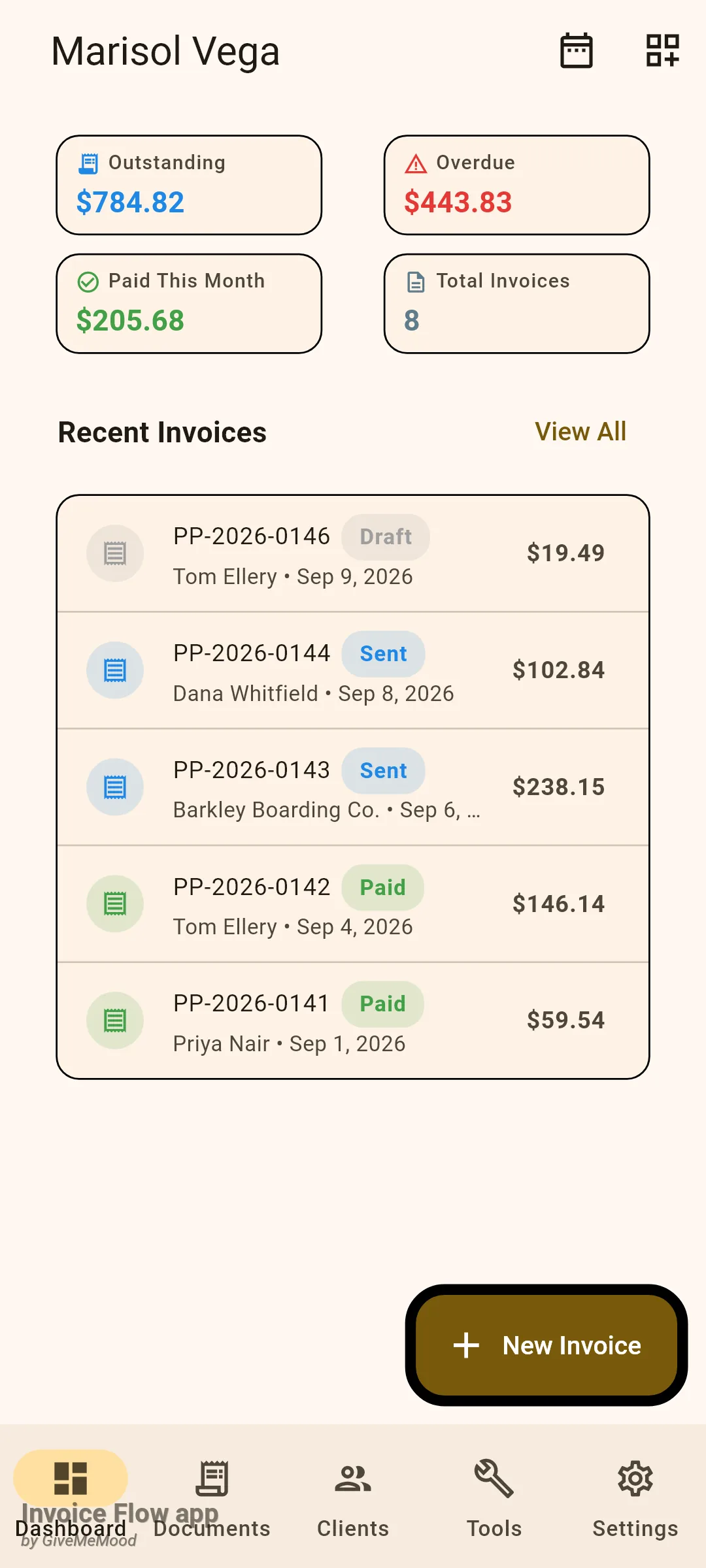
The Dashboard is where the app opens after onboarding. It is also where the What’s new in 2.1.0 dialog appears once after an update, and where the daily trial reminder shows up if you are still on the free trial.
The Tools tab
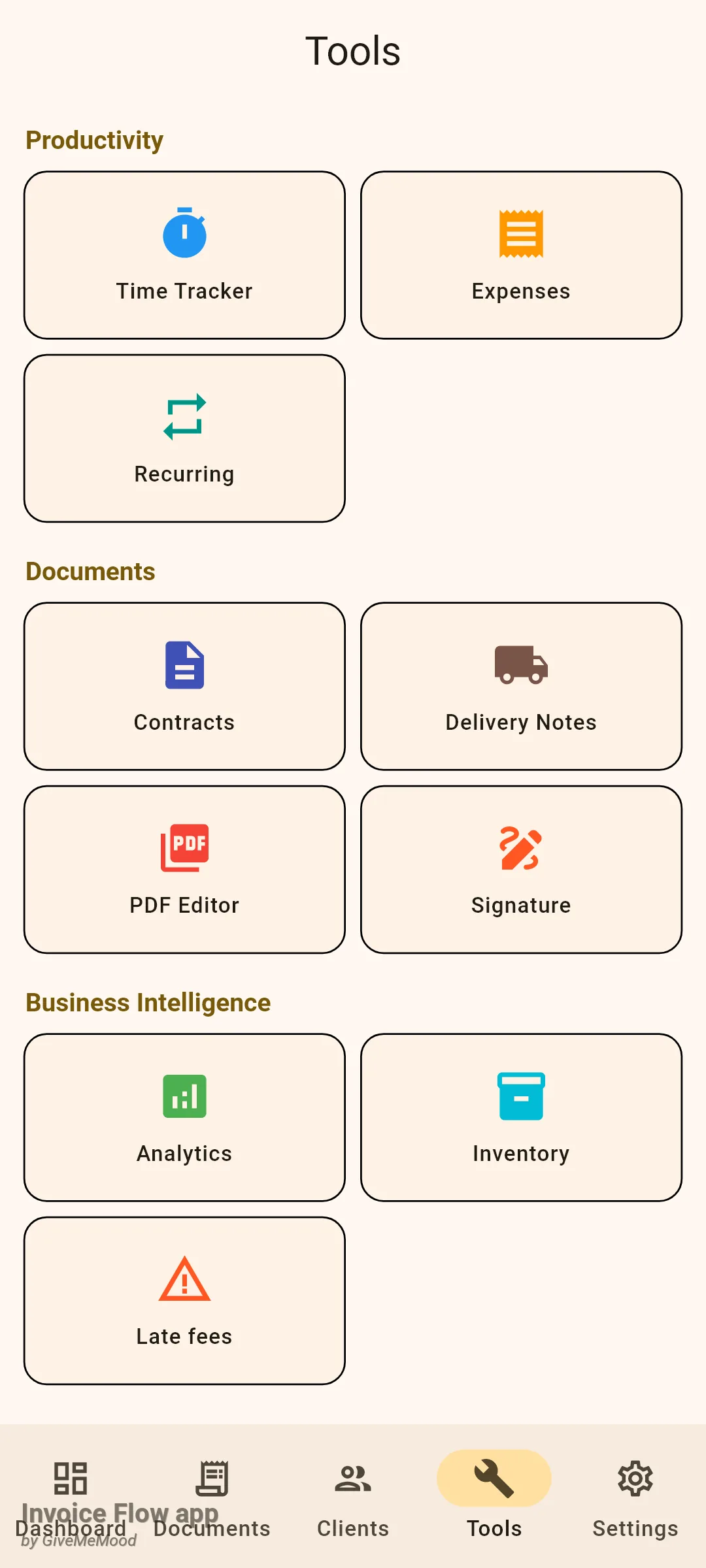
The Tools screen is a two-column grid in three groups. Productivity holds Time Tracker, Expenses and Recurring. Documents holds Contracts, Delivery Notes, PDF Editor and Signature. Business Intelligence holds Analytics, Inventory and Late fees. Each tile opens a full screen with its own list and add button. Contracts appear both here and as a segment under the Documents tab; both routes lead to the same records.
The Settings tab
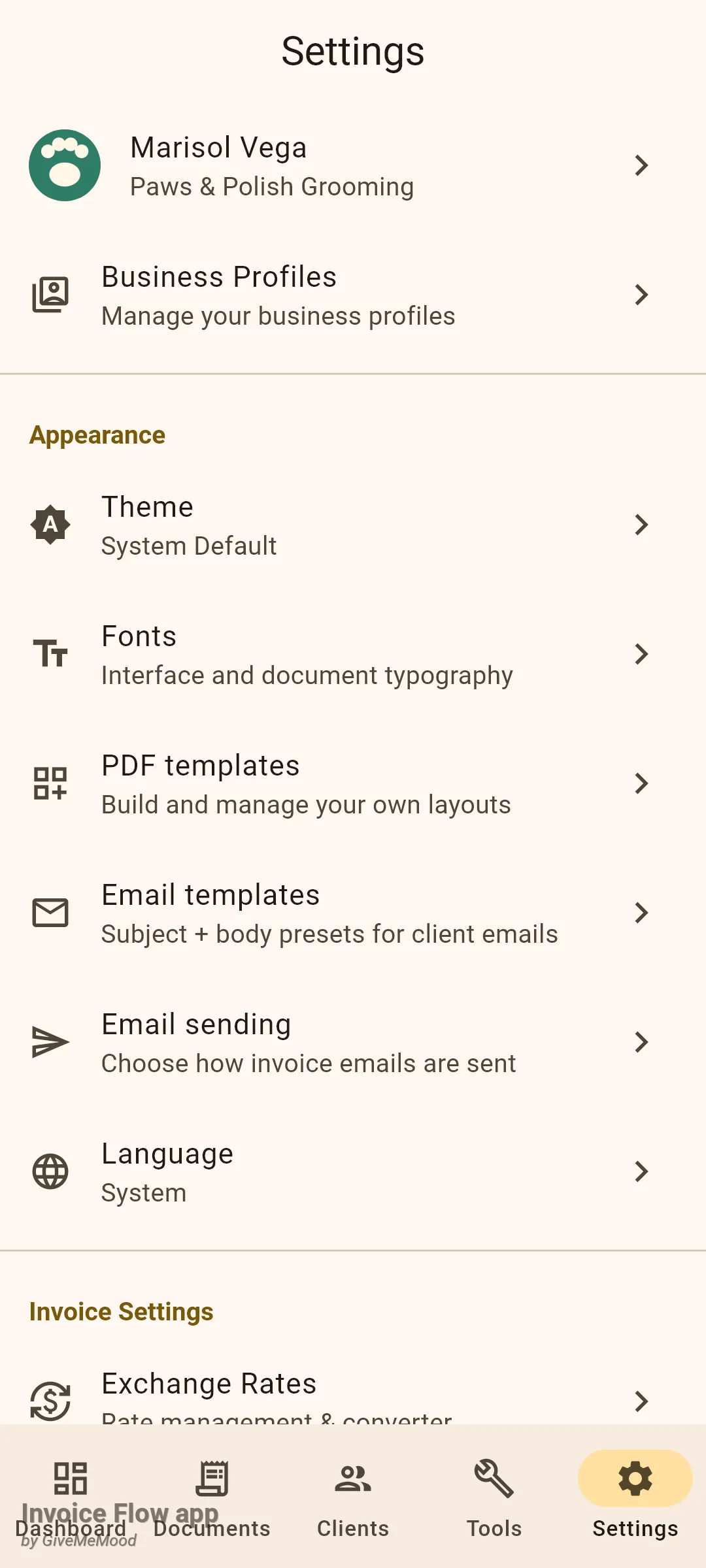
Settings is one long list. The first tile shows your active profile with its square logo, your name and your company; tapping it opens the profile editor. Below it, Business Profiles manages several profiles. The rest is grouped under headings:
- Appearance: Theme, Fonts, PDF templates, Email templates, Email sending, Language.
- Invoice Settings: Exchange Rates, Reports, Import bank statement.
- Library: Products & Services, Stock automation.
- Data: Backup & Restore.
- Automation: Automation Rules, Integrations, Tax presets by country, Notifications, and the Usage analytics switch.
- Subscription: Upgrade to Pro.
- Help: How to Use InvoiceFlow, the built-in step-by-step guide.
- About: About InvoiceFlow with the installed version underneath.
- Legal: Terms of Service and Privacy Policy, which open in the browser.
- Last row: Manage Subscription, which opens your Google Play subscriptions page.
How to find a feature quickly
If you remember one rule, make it this: anything you send to a client is under Documents, anything about a person or company you bill is under Clients, anything that helps you produce those documents is under Tools, and anything you configure once is under Settings.
- To write, send or check an invoice, estimate or contract, open Documents and pick the segment at the top.
- To add or edit a client, a client group or a project, open Clients. Projects are reached from the client screens and from the project list.
- To log hours, record a receipt, set up a repeating invoice, sign a document or look at charts, open Tools and tap the tile.
- To change what prints on your documents, which currency or tax applies by default, or how emails go out, open Settings.
- To manage products and stock, go to Settings, Products & Services; stock levels are also visible under Tools, Inventory.
- To restore a backup or export everything, go to Settings, Backup & Restore.
How to change the colour scheme
The app ships with seven presets. Three follow a brightness only (light, dark, or whatever the phone is set to) and four are tinted schemes with their own accent colour.
- Open Settings and tap Theme under Appearance.
- In the sheet titled Choose app color scheme, tap one of System Default, Light, Dark, Emerald, Sunset, Purple Night or AMOLED Black. The swatch on the left previews the accent colour; a dark swatch background means a dark scheme.
- The sheet closes immediately and the whole app repaints. The row's subtitle now shows the preset you chose.
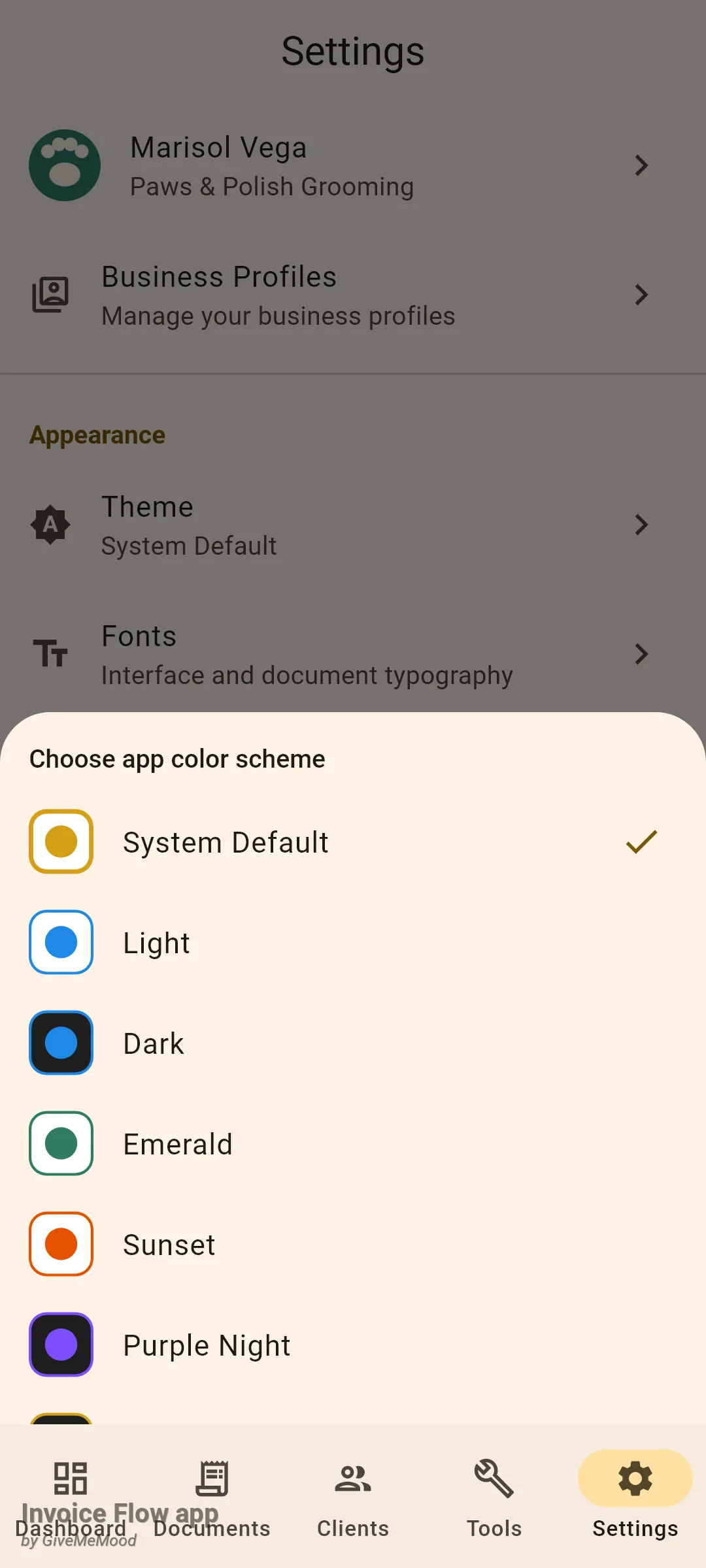
System Default is the only preset that switches between light and dark automatically. Light, Emerald and Sunset are always light; Dark, Purple Night and AMOLED Black are always dark. The theme changes the app interface only; PDF colours come from the template and palette you pick per document, which is covered in the templates guide.
How to switch the interface language
The app is translated into 65 languages. By default it follows the phone’s language; when the phone is set to a language the app does not have, pick one explicitly here.
- Open Settings and tap Language. The subtitle reads System until you pick something.
- In the Language sheet, type in Search language.... You can search by the native name, the English name (typing "German" finds Deutsch) or the two-letter code.
- Tap the language. The sheet closes, every screen re-renders in the new language, and the subtitle shows the flag and the name.
- To go back to following the phone, open the sheet again and tap System at the top.
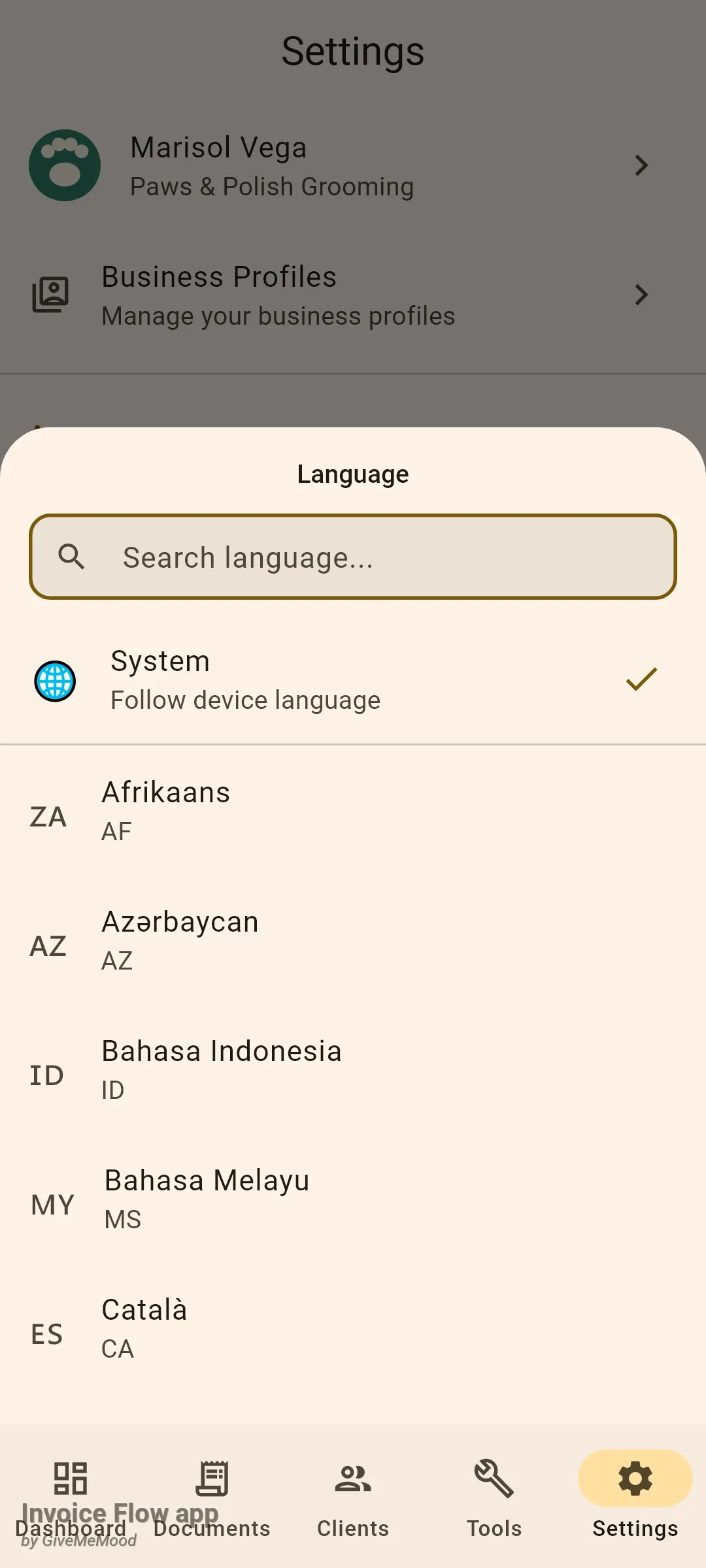
Changing the language does not touch your data or your PDFs. Document text such as “Invoice”, “Due date” and the totals block is translated by the template at print time according to the document language you choose in the editor, so you can keep the app in Spanish and still send English invoices.
How to control notifications and analytics
The bottom of the Automation group has two rows that people ask about most.
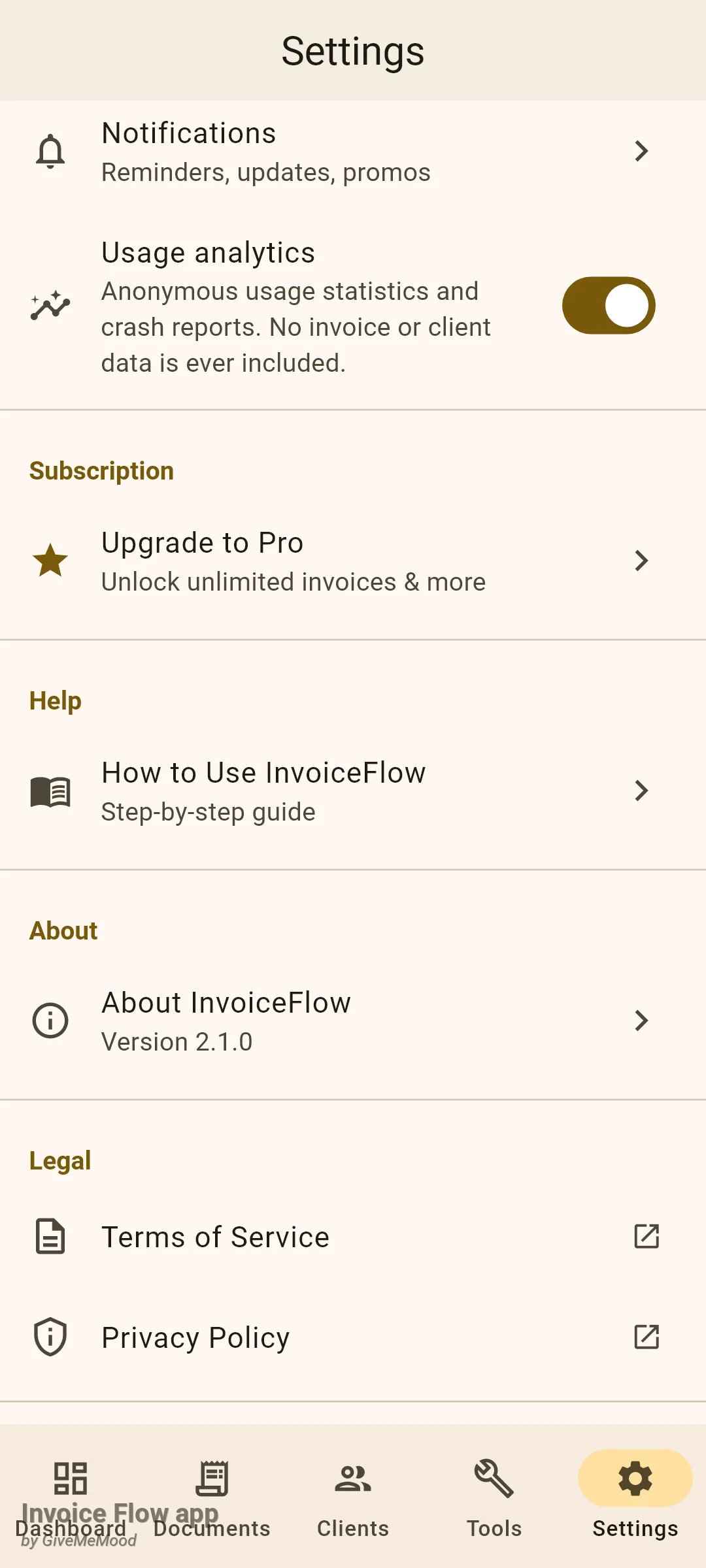
- Tap Notifications to open the reminder screen. Invoice reminders is on by default and covers due dates, overdue invoices and recurring runs; below it you choose how many days before the due date and how many days after it the reminder fires. The App updates, Offers & promotions and Tips & tutorials switches control push messages from the developer and are off except for updates.
- Flip Usage analytics off if you do not want anonymous usage statistics and crash reports sent. The choice is saved immediately and re-applied every time the app starts.
How the trial and Pro work
Invoice Flow does not have a permanently free tier with fewer features. Instead, every new install starts a 7-day trial with everything unlocked, and after that a Google Play subscription keeps everything unlocked. There is one access check in the code, and it passes when either the trial is still running or a subscription is active.
While the trial is running, the app reminds you once a day with a dialog on the Dashboard. It tells you how many days are left and offers Later or Subscribe Now. Tapping Later simply closes it; it will not come back until the next calendar day.
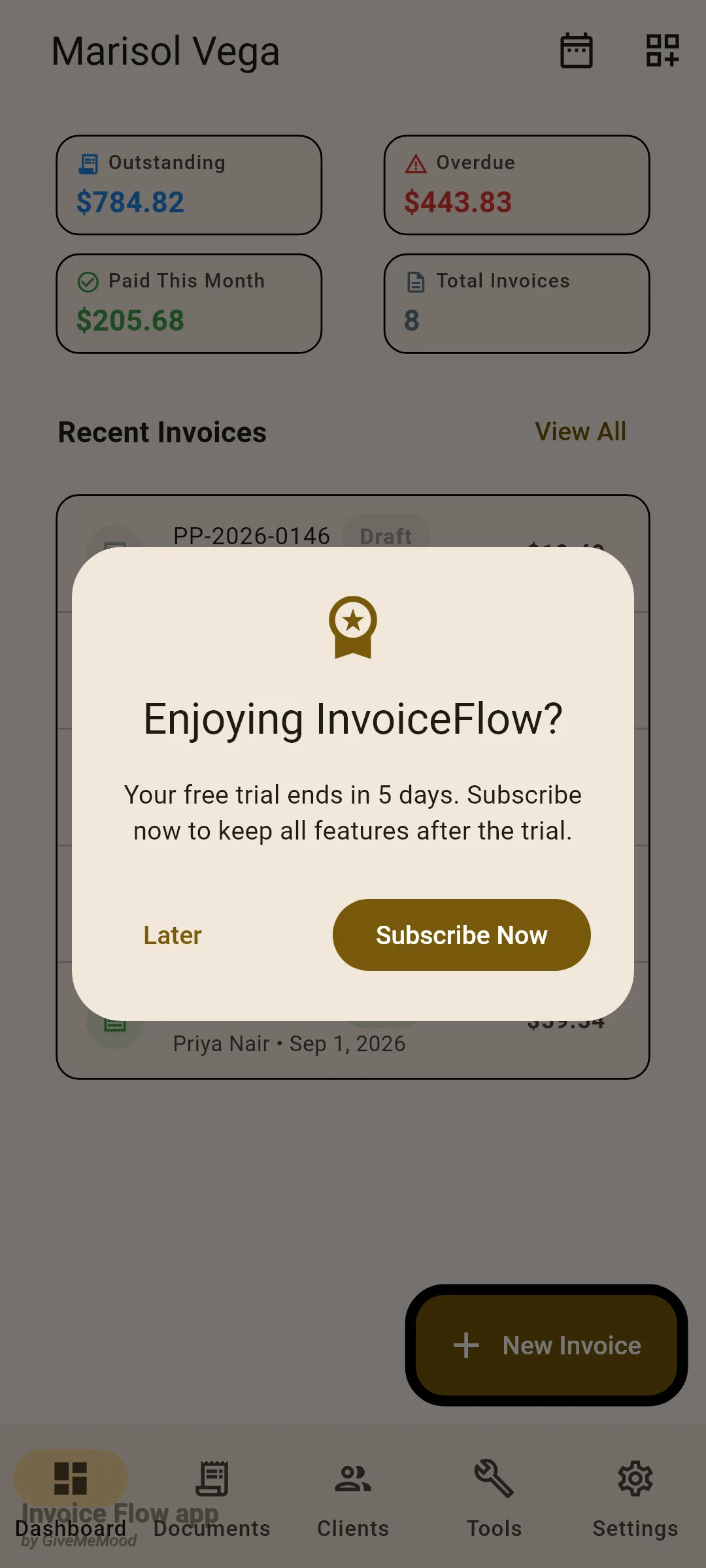
- Open Settings and tap Upgrade to Pro, or tap Subscribe Now in the daily reminder. The same Subscription screen also opens automatically whenever you tap a gated action after the trial has ended.
- Choose the Annual card or the Monthly card and tap Subscribe Now under it. The prices come from Google Play for your country and are shown on the cards; Google's purchase sheet handles payment.
- If you reinstall the app or change phones, open the same screen and tap Restore in the top-right corner. The app asks Google Play for your active purchases and confirms with "Purchases restored".
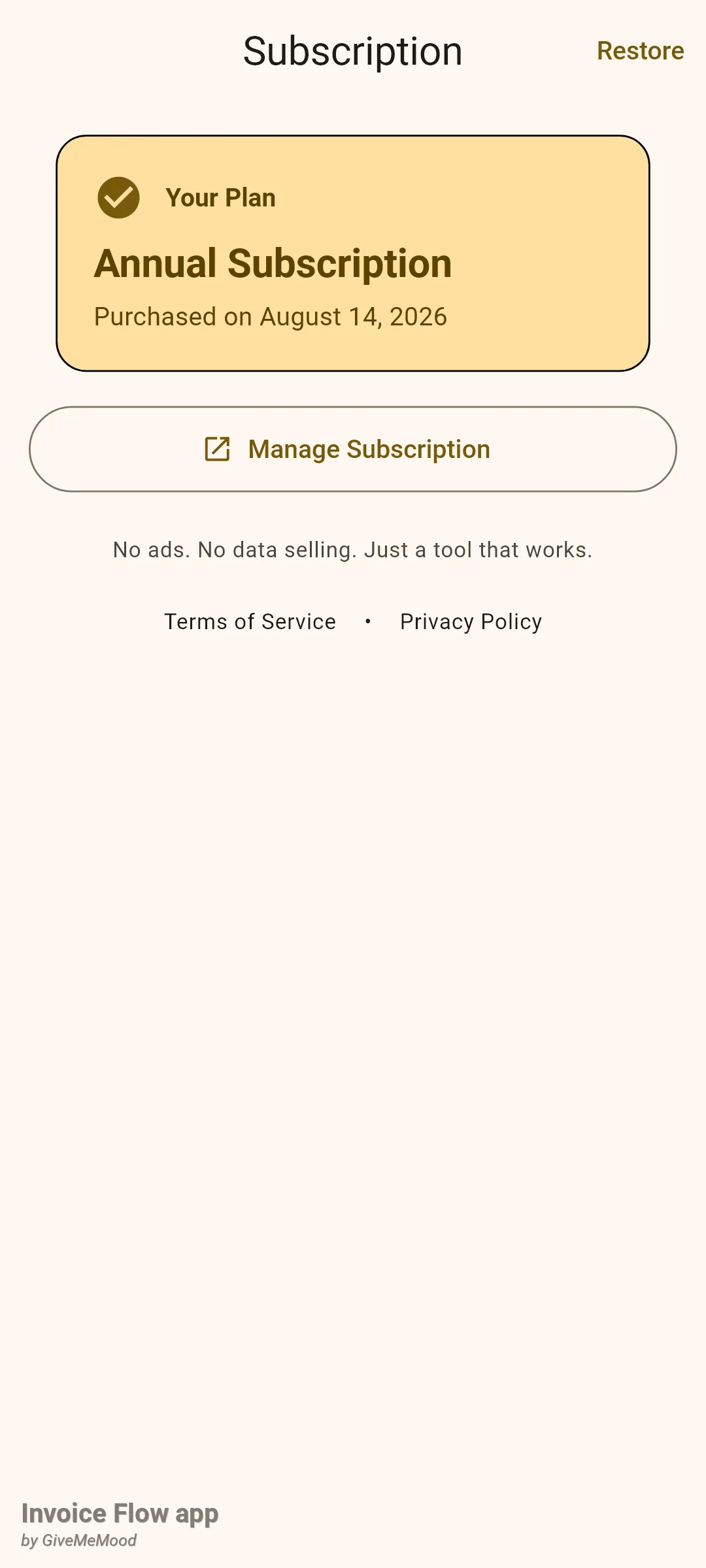
- Once subscribed, the screen changes to a Your Plan card showing Annual Subscription or Monthly Subscription and the purchase date, plus a Manage Subscription button that opens Google Play, where you cancel or switch plans.
Rules and details
What the trial and Pro unlock. The Subscription screen lists the headline items: unlimited invoices, all templates, multiple business profiles, time tracking, expense tracking with receipt OCR, multi-currency support, unlimited clients and PDFs without a watermark. In practice the gate is broader than that list: 35 screens run the same check before a create, edit, share or export action.
What still works after the trial ends without a subscription. Nothing is deleted and nothing is hidden. You can open every list and every record, read every invoice and its history, and change invoice statuses (for example mark an invoice paid). Restoring a backup is also allowed, so you can always get your data back onto a phone.
What is blocked after the trial ends. Creating or editing invoices, estimates, contracts, clients, products, projects, expenses, time entries and recurring schedules; editing the business profile, exchange rates, tax presets, automation rules and integrations; sharing or printing PDFs; the full-archive export and cloud save under Backup & Restore. Any of these taps opens the Subscription screen instead. PDFs you preview in this state carry a watermark. The Subscription screen also gains an Export Data button when the trial has expired, which takes you to Backup & Restore.
Trial length. The trial is 7 calendar days counted from the day you completed onboarding, and it ends at local midnight after the seventh day, not 7 times 24 hours after the exact minute. Rolling the phone’s clock backwards ends the trial immediately.
Subscription state is cached. The last confirmed subscription is stored on the phone, so the app does not lock you out while Google Play is slow to answer or while you are offline. The expiry recorded at the last store check is honoured until the next successful check.
Theme and language are device settings. Both are stored on the phone, not inside the backup archive. After a restore on a new phone you set them again.
Language and notifications. Picking a language also re-subscribes the phone to the update and promotion push topics in that language, if you have those switches on.
Prices. The app carries a fallback price for each plan only for the moment before Google Play answers; the amount you are actually charged is always the one Google shows on the cards and in its purchase sheet.