 EN
EN  العربية
  Български
  Čeština
  Dansk
Dansk  Deutsch
  Ελληνικά
  Español
  Suomi
Suomi  Français
  עברית
עברית  हिन्दी
  Bahasa Indonesia
  Italiano
  日本語
日本語  한국어
한국어  Bahasa Melayu
  Nederlands
  Norsk
Norsk  Polski
  Português
  Română
  Русский
  Svenska
  Kiswahili
  ไทย
ไทย  Türkçe
  Українська
  Tiếng Việt
  中文
中文 User guide
App language and invoice language
Switch the Invoice Flow interface between 65 languages, print each invoice in the client's language, and get country-aware address hints and RTL layouts.
Invoice Flow keeps two language choices apart. The app language is what you read on screen: menus, buttons, status badges, date formats. The invoice language is what your client reads on the PDF: the headings such as “Invoice”, “Bill To”, “Subtotal” and “Total”, plus the country name in the address block. You pick the first once for your phone; you pick the second per document, because a translator in Vienna may well send one invoice to Berlin, the next to Tokyo, and a third to Dubai in the same afternoon.
This guide follows Lena Auer, who runs Auer Sprachdienst from Vienna and bills in euros. Her phone runs in German, her Berlin publisher wants German invoices, her Tokyo client expects Japanese headings, and she occasionally checks what the app looks like in Arabic before sending a right-to-left layout job to a client in the UAE.
What you see on the screen
The app language lives in Settings, in the Appearance section, as the tile labelled Language. Its subtitle tells you the current choice: System when the app follows the phone’s language, otherwise the language name in its own script, for example Deutsch or العربية. Tapping the tile opens a bottom sheet with a search box, a System row (“Follow device language”) and 65 languages sorted by their native name, each with its two-letter code underneath. The same sheet appears on the welcome screen the first time you open the app, minus the System row.
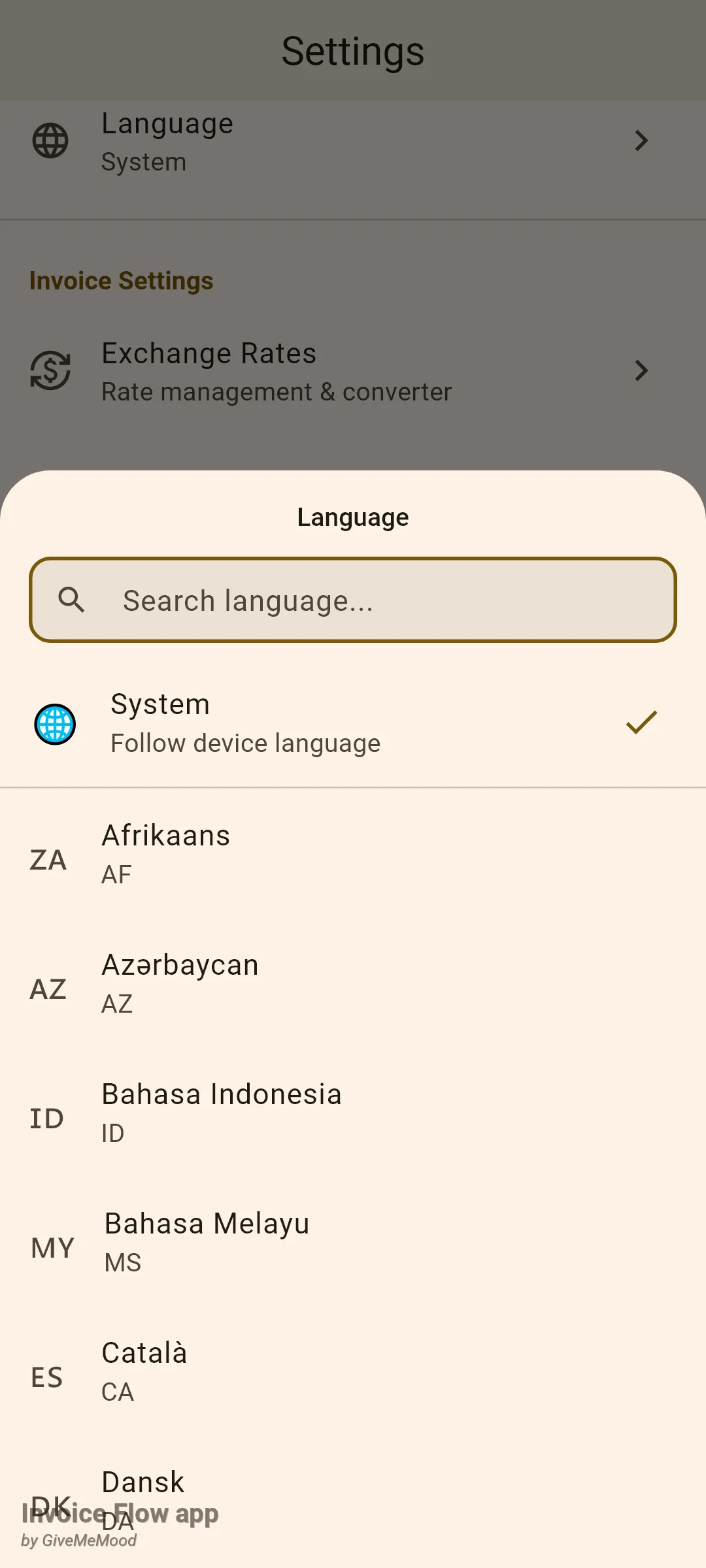
The invoice language lives inside the document itself. Open any invoice in the editor and scroll past the line items and the totals card; the next card is Invoice Language with a globe icon. Its subtitle reads App Language until you choose something else, after which it shows the chosen language, for example Deutsch. The tile sits right below the totals (or below the Exchange Rate card when the invoice is in a foreign currency) and above Photo Attachments.
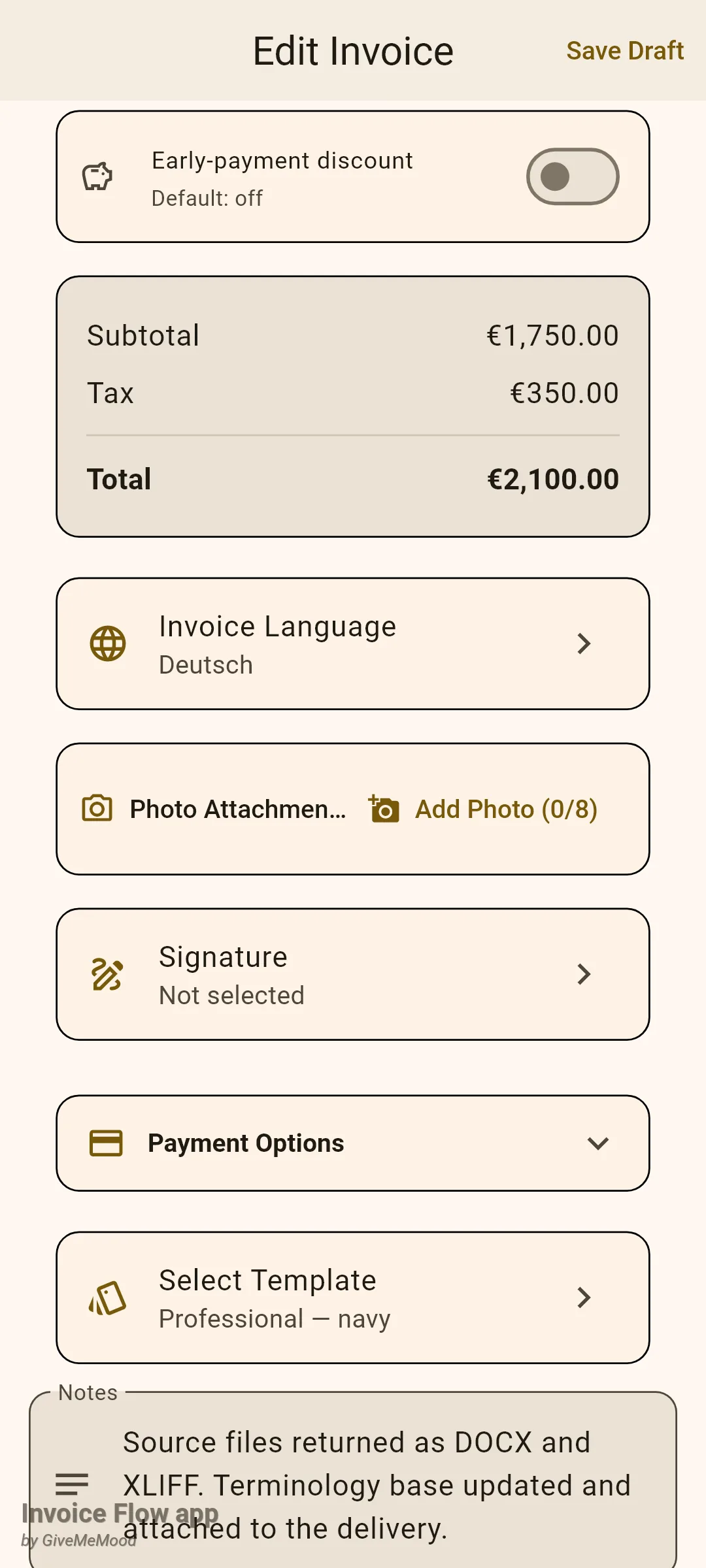
How to change the language of the app
- Open the Settings tab and find the Language tile in the Appearance section.
- Tap it. The sheet opens with the keyboard ready in the search field.
- Type part of the name in any form you know: German, Deutsch or, if your phone is already in Russian, немецкий. The two-letter code works too.
- Tap the language. The sheet closes and the whole interface redraws in the new language immediately; there is nothing to restart.
- To go back to following the phone, open the sheet again and tap System.
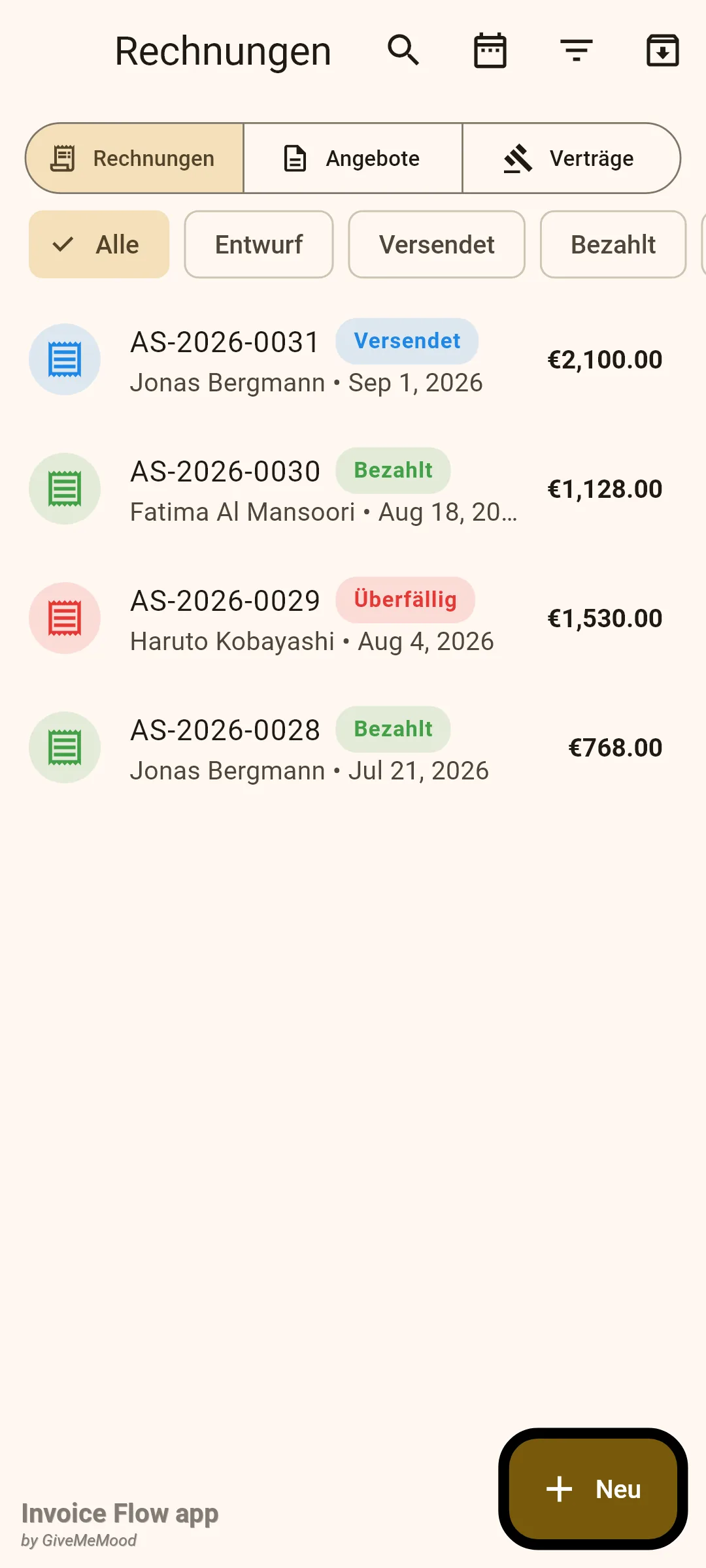
The choice is stored on the device, not in a business profile, so it stays the same whichever profile is active. Lists, filters, tabs and status badges all follow, as the German invoice list below shows. Dates are the one thing that keep their shape: an issue date reads “Sep 1, 2026” in every interface language, on screen and on the PDF.
Note what does not change: your own data. Client names, item descriptions, notes and payment terms are printed exactly as you typed them. Invoice numbers keep their format. Currency symbols come from the invoice currency, not from the language.
How to set the language of one invoice
- Open the invoice in the editor (a new one, or an existing one via Edit).
- Scroll down past the line items and the totals card to the Invoice Language tile.
- Tap the tile. A sheet lists App Language at the top, then sixteen languages: English, Русский, Deutsch, Français, Español, Italiano, Português, Nederlands, Polski, 日本語, 한국어, 中文, العربية, हिन्दी, Türkçe and Українська.
- Tap the language your client reads. The tick moves and the tile's subtitle updates.
- Tap Save (or Save Draft). The choice is stored with this invoice only.
- Open the preview to check the result; the PDF headings are now in the chosen language.
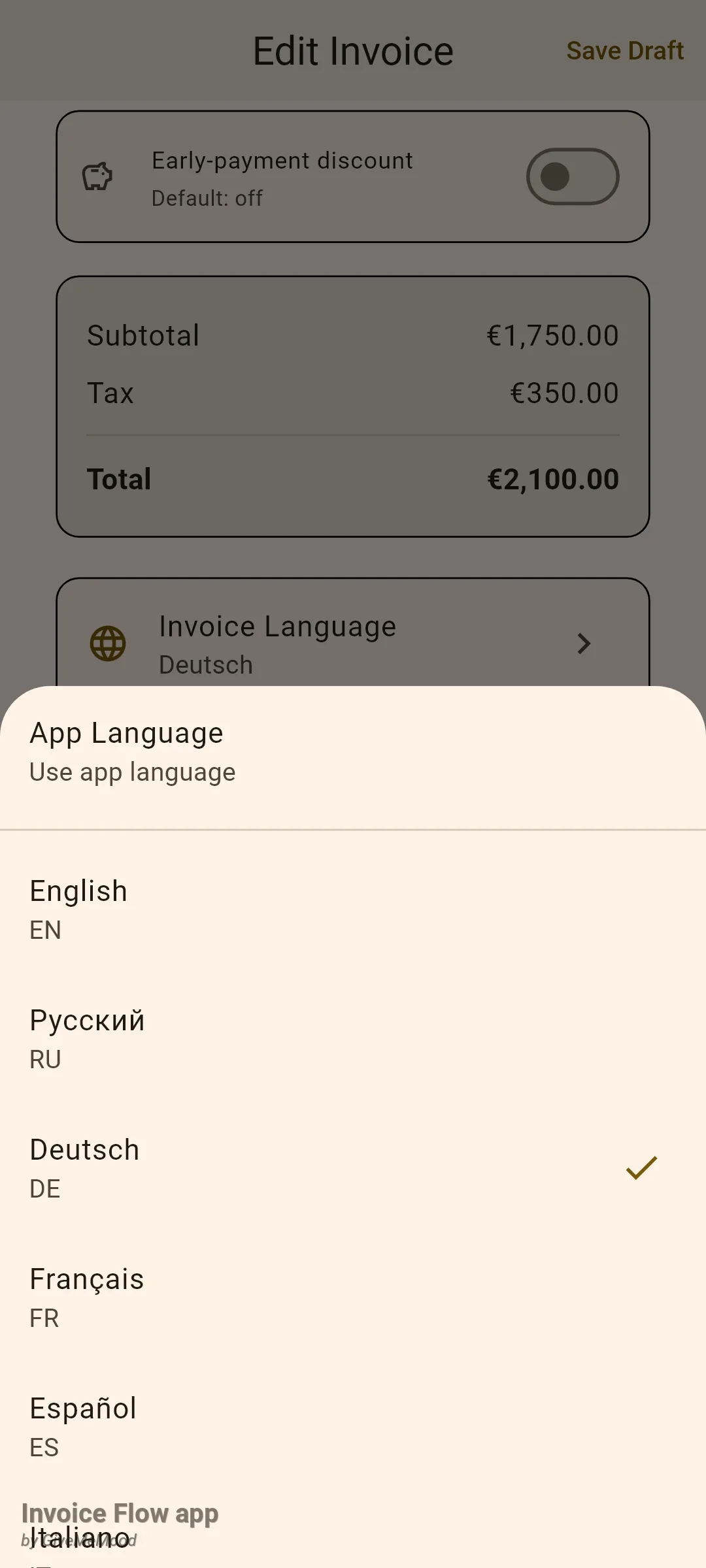
There is no profile-wide or client-wide default for the document language. Each new invoice starts at App Language and you set it when needed. The setting does travel with the document, though: when you convert an estimate into an invoice, split it into a partial invoice, create a sub-estimate or duplicate a document, the copy inherits the language of the original. For a client who always gets the same language, duplicating last month’s invoice is the quickest route.
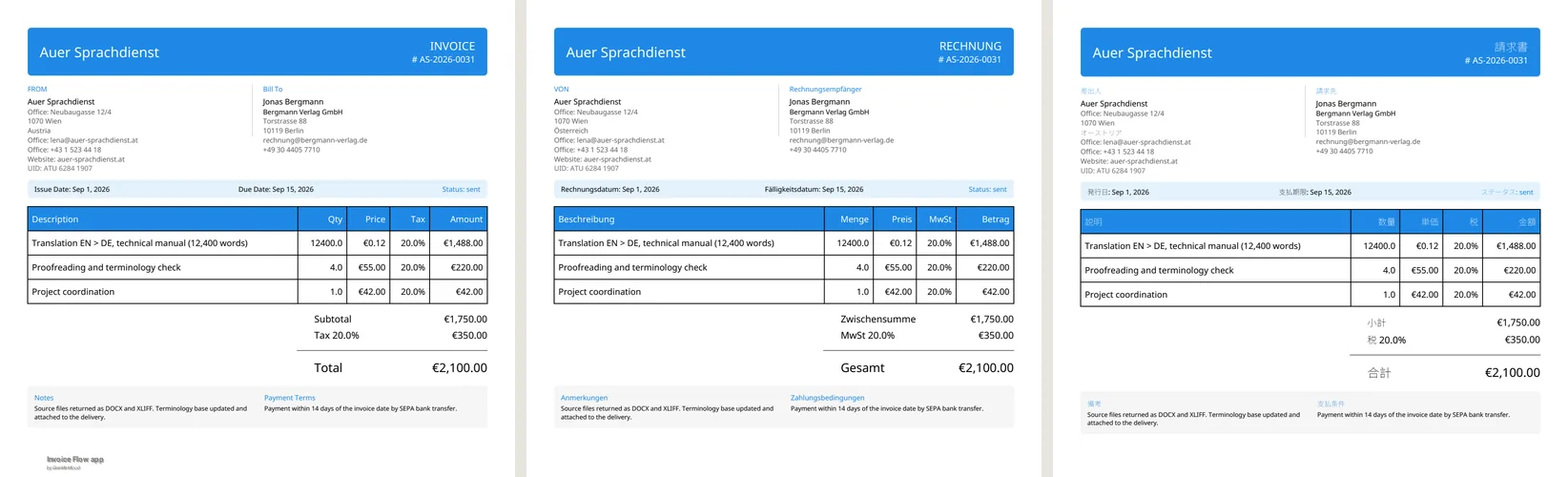
Here is Lena’s invoice AS-2026-0031 generated three times from the same data, with the invoice language set to English, German and Japanese. The headings, the column titles, the totals labels, the “Page 1 of 1” footer and even the country line under her Vienna address (“Austria”, “Österreich”, “オーストリア”) follow the language; her line items, notes and payment terms stay in the English she typed.
How to get the right address example for a country
Address placeholders adapt to the country you choose, both in the client editor and in the address rows of your business profile. The app ships hand-written examples for 199 countries: a real-looking street, a city, a region if the country uses one, and a postal code in the local format. The example also decides which script you see.
- In the client editor, tap the Country field and pick the country.
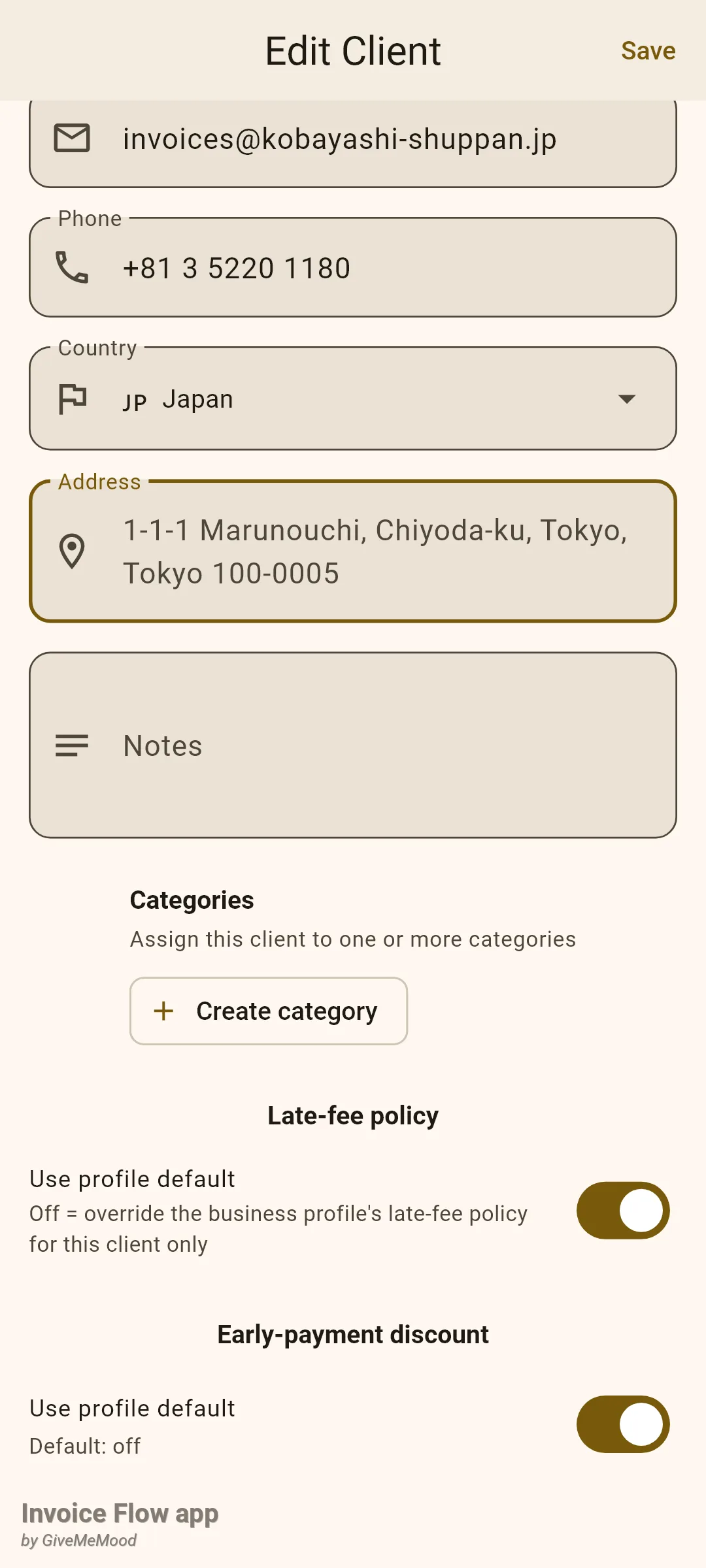
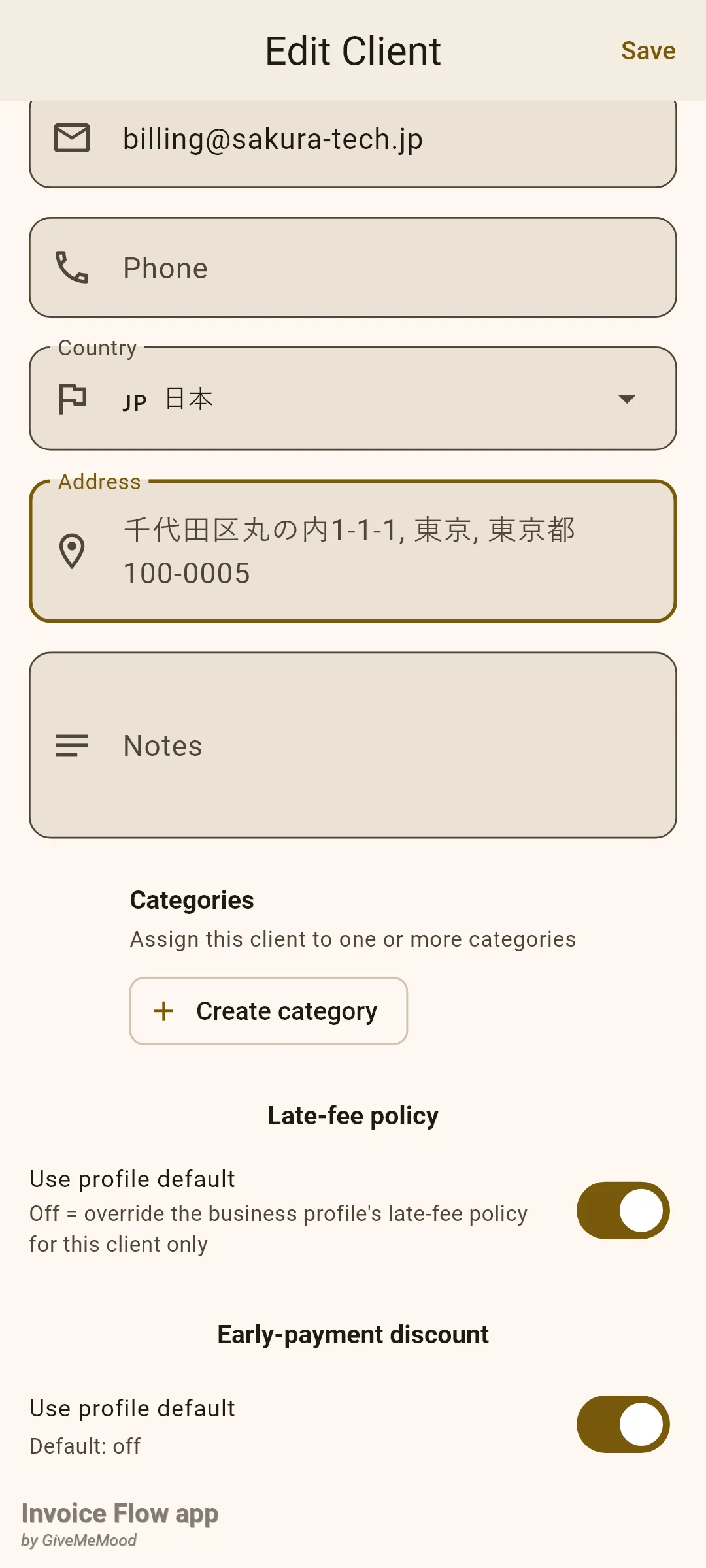
- Type the country name in the alphabet you want to write the address in. Picking Japan gives Latin-letter examples; picking 日本 gives Japanese-script examples.
- Tap into the empty Address field. The placeholder shows the full example on one line, for instance "1-1-1 Marunouchi, Chiyoda-ku, Tokyo, Tokyo 100-0005".
- Type the real address over it; the example disappears as soon as you enter text.
In your business profile the address is split into separate fields, and there the country also renames the fields: Germany and Austria show PLZ and Bundesland, the United States shows ZIP code and State, Russia shows «Индекс» and «Область». Countries without a region field (Singapore, Hong Kong, the UAE) hide it, and countries without postal codes (the UAE again) hide that field too, so you are never asked for data the local postal service does not use.
How the interface behaves in right-to-left languages
Arabic, Hebrew, Persian and Urdu are among the 65 interface languages. Choose one of them and the whole layout mirrors: the navigation icons move to the right, tiles start from the right edge, chevrons point left and lists read from right to left. You do not switch anything else on; the mirroring comes with the language.
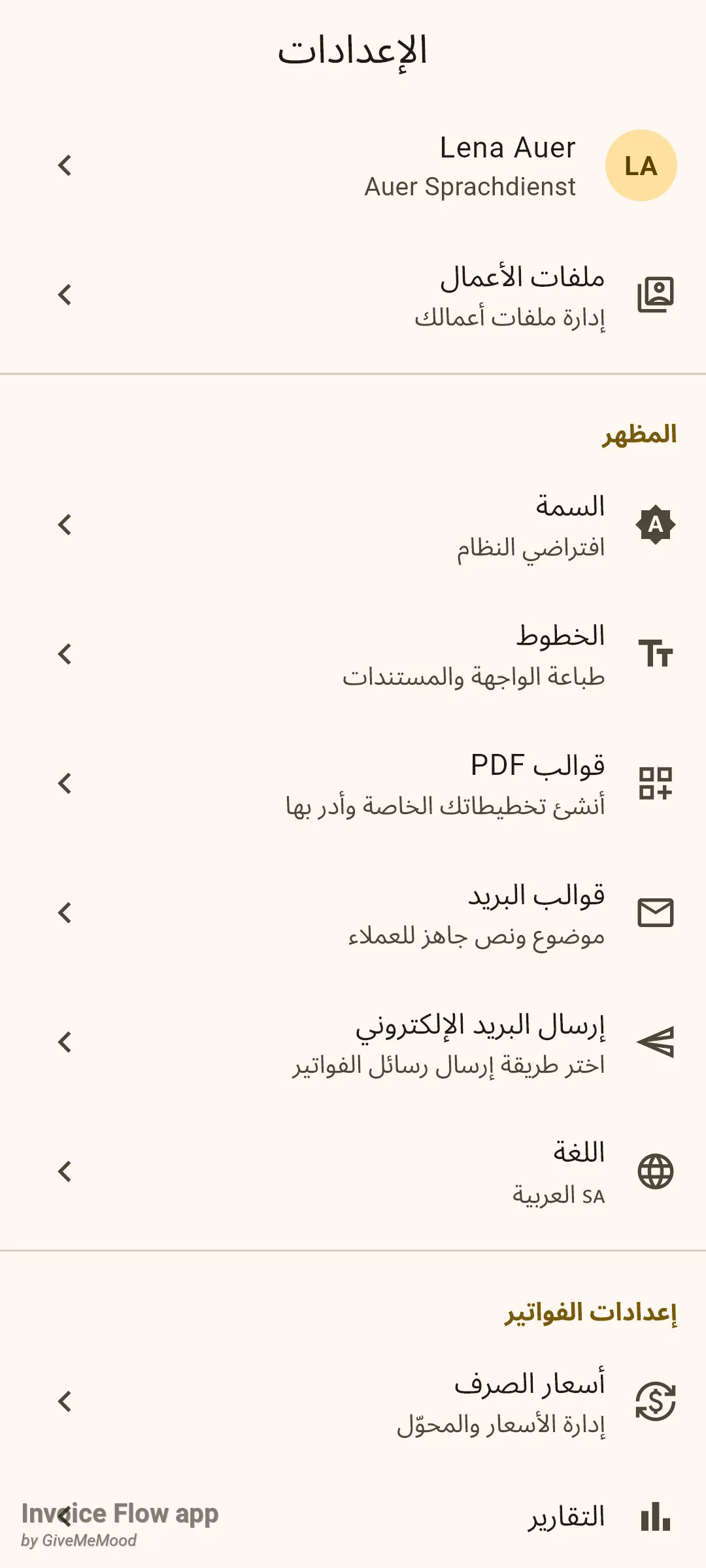
The PDF templates, by contrast, keep a fixed left-to-right page structure for every language. Your sender block stays on the left, the client block on the right, and amounts are right-aligned in the table no matter which document language you choose.
Rules and details
- 65 interface languages, 16 document languages. The Settings sheet lists every locale the app is translated into. The Invoice Language sheet offers a fixed list of sixteen. Translated PDF label sets exist for all 65, but only the sixteen in the sheet can be selected from the editor.
- App Language on the PDF means English headings. When the invoice is left at App Language, the PDF prints the English label set regardless of the interface language. To get German headings on a German phone, set the invoice language to Deutsch explicitly.
- What the document language translates: the template’s own words (INVOICE, FROM, Bill To, Issue Date, Due Date, Description, Qty, Price, Tax, Amount, Subtotal, Discount, Total, Notes, Payment Terms, the payment-options block and the page footer) and the country name in each address, which is re-translated from the country code. Everything you typed, including the status word shown in the header strip, prints unchanged.
- Dates are not localised by either setting. Issue and due dates print in the “Sep 1, 2026” form in the lists and on the PDF whatever the app or invoice language. Numbers and currency symbols follow the invoice currency.
- Fonts are built in. PDFs embed Noto Sans with per-character fallbacks for Arabic, Devanagari, Simplified Chinese, Japanese and Korean, so a Japanese heading, a Cyrillic client name and a Latin item description can share one page without missing glyphs. The Fonts tile in Settings can swap the Latin face; the script fallbacks stay.
- Email and HTML previews use the same choice. The HTML version of the invoice takes its labels from the invoice language and marks the document with that language code.
- Number templates can include the language. A numbering template that contains
{lang}inserts the invoice language code (for examplede) into the invoice number; when the invoice uses the app language the token is empty. - The language survives conversion. Estimate to invoice, partial conversion, sub-estimates and duplicates all copy
Invoice Languagefrom the source document. - Address hints are placeholders only. They never fill anything in and are not saved; they vanish the moment you type. The Latin variant exists for 37 countries whose primary script is not Latin; a country picked with a non-Latin name whose native examples are nevertheless Latin (a Russian interface picking «Молдова») falls back to neutral examples such as “123 Main St”.
- Nothing here is Pro-only. Both language pickers, the address hints and the multilingual fonts are available on the free plan.
Tips
Related guides
- Currencies, exchange rates and taxes covers the other half of international invoicing: billing in the client’s currency and applying local tax presets.
- PDF templates, palettes and fonts explains the twelve built-in layouts the translated labels are printed into.
- Getting started: business profile shows the profile address rows where the country-specific field labels appear.