 EN
EN  العربية
  Български
  Čeština
  Dansk
Dansk  Deutsch
  Ελληνικά
  Español
  Suomi
Suomi  Français
  עברית
עברית  हिन्दी
  Bahasa Indonesia
  Italiano
  日本語
日本語  한국어
한국어  Bahasa Melayu
  Nederlands
  Norsk
Norsk  Polski
  Português
  Română
  Русский
  Svenska
  Kiswahili
  ไทย
ไทย  Türkçe
  Українська
  Tiếng Việt
  中文
中文 User guide
Currencies, exchange rates and taxes
Bill clients in several currencies, keep exchange rates current or fix them by hand, apply the right tax rate per line, and print the PDF in your client's language.
If every client pays in the same currency at the same tax rate, you can leave this area alone. The moment one client wants dollars, another sits in a country with a different VAT regime, or someone asks for the invoice in their own language, you need three things working together: a currency per document, a rate to bring foreign totals back into your home currency for reporting, and a tax rate on every line that fits the client’s country. Invoice Flow does all three on the phone, offline, with one online refresh of rates per day when you ask for it.
This guide follows Jonas Weber, a software consultant in Berlin whose profile runs in euros. He invoices a Berlin agency in EUR with 19% MwSt., a London firm in GBP under the reverse-charge rule, and an Austin start-up in USD with no German VAT. He also needs the euro value of each foreign invoice, because the dashboard and analytics add up one currency only.
What you see on the screen
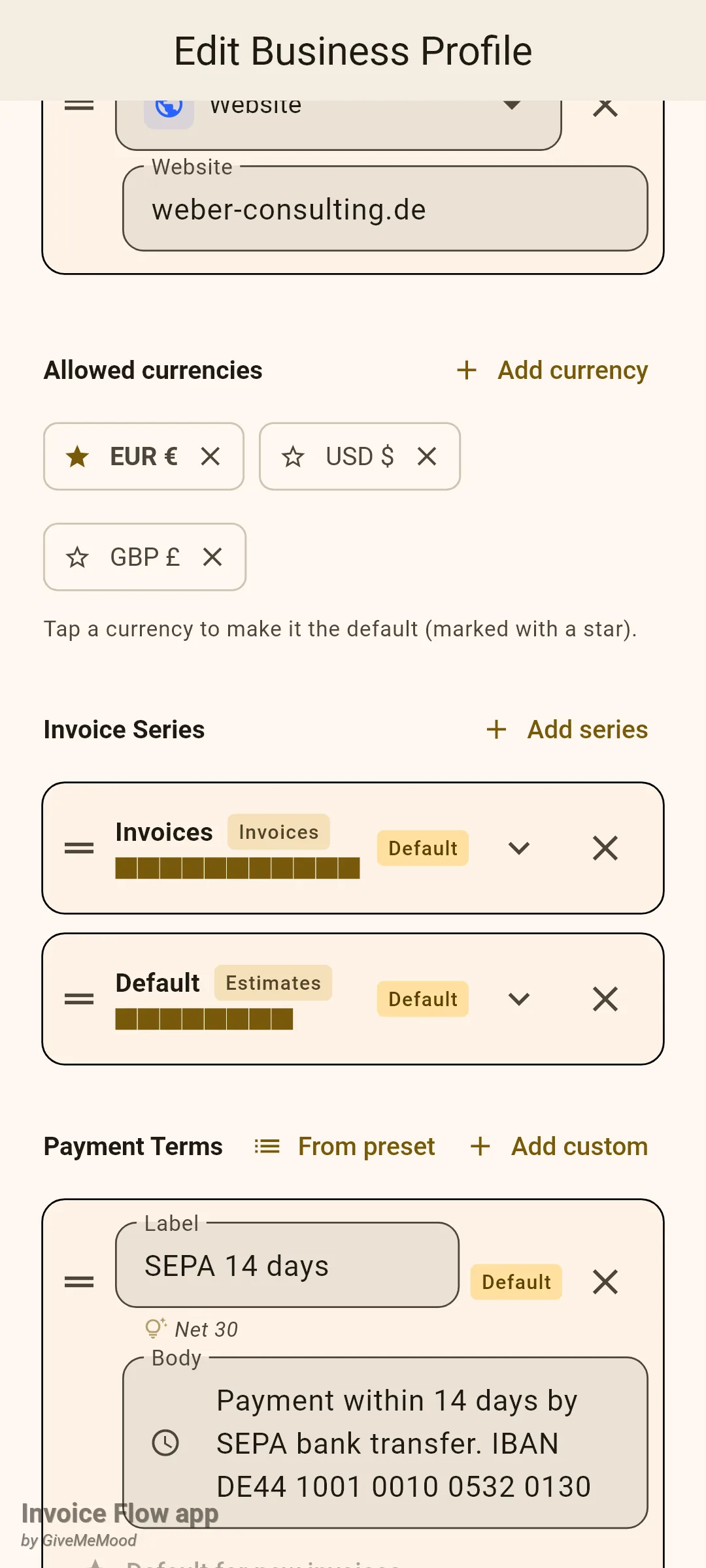
Business profile. Open Settings, tap your profile, and scroll to the Allowed currencies block. Each currency is a chip; the starred chip is the default for new documents. If you leave the block empty, the currency picker on every invoice offers the full ISO list instead.
Exchange Rates screen. From Settings, under Invoice Settings, tap Exchange Rates (subtitle “Rate management & converter”). The top card is a Converter with an Amount field and two currency dropdowns. Two grey captions give the base currency and the update rule, then the saved rates follow, one card per pair, with the rate to four decimals, the fetch time, and the words Manual rate (plus a green avatar) on rows you entered yourself. The refresh icon in the app bar is Update all rates; the small + button at the bottom right is Add manual rate.
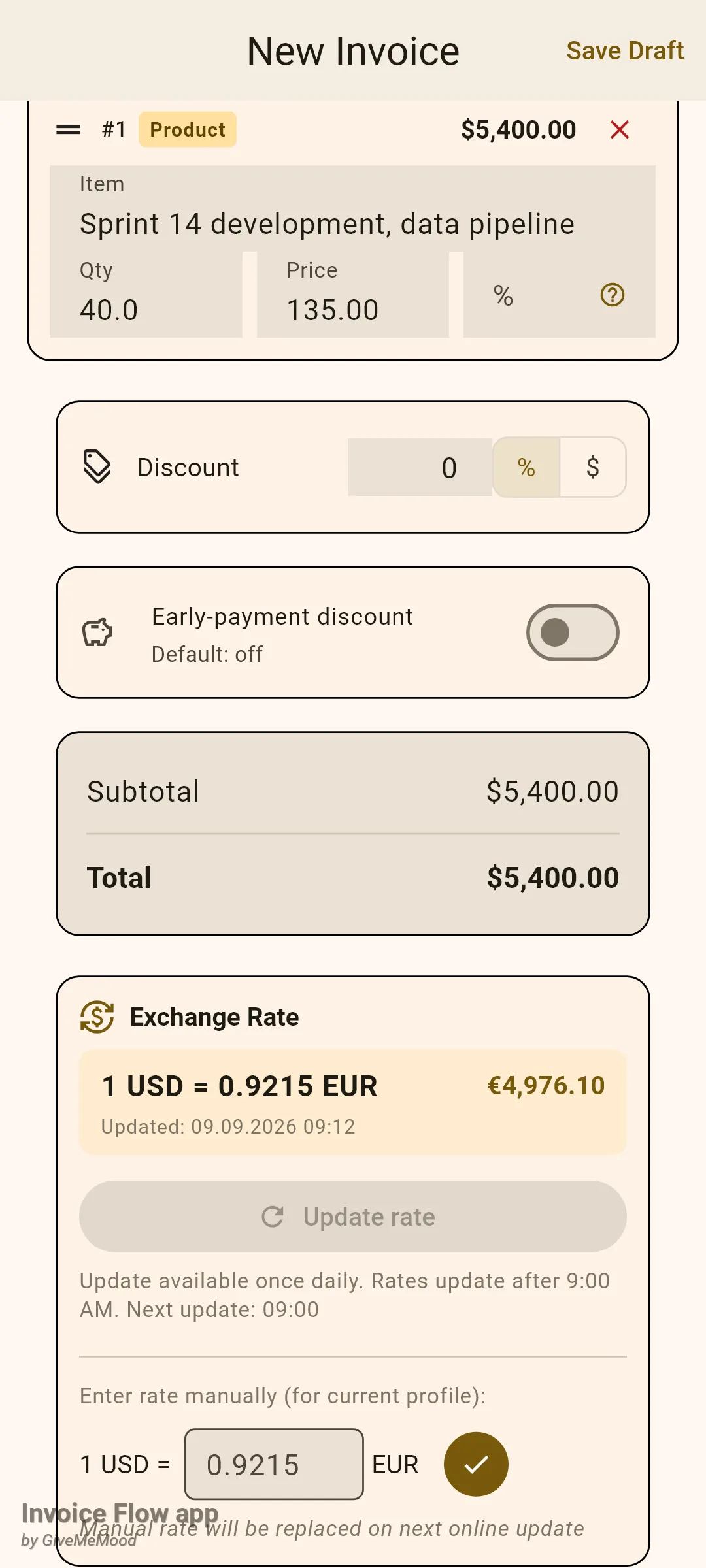
Invoice editor. The Invoice Currency tile sits between the dates and the line items. When the chosen currency differs from the profile’s base currency, an Exchange Rate card appears right under the totals block with the current rate, the converted total, an Update rate button and a field for entering a rate by hand. Above the line items, when the client’s country is in the built-in dataset, a row of chips labelled Tax presets (DE): appears with a gavel icon for legal notes. Every line has its own % field. Further down, the Invoice Language tile picks the language of the PDF labels.
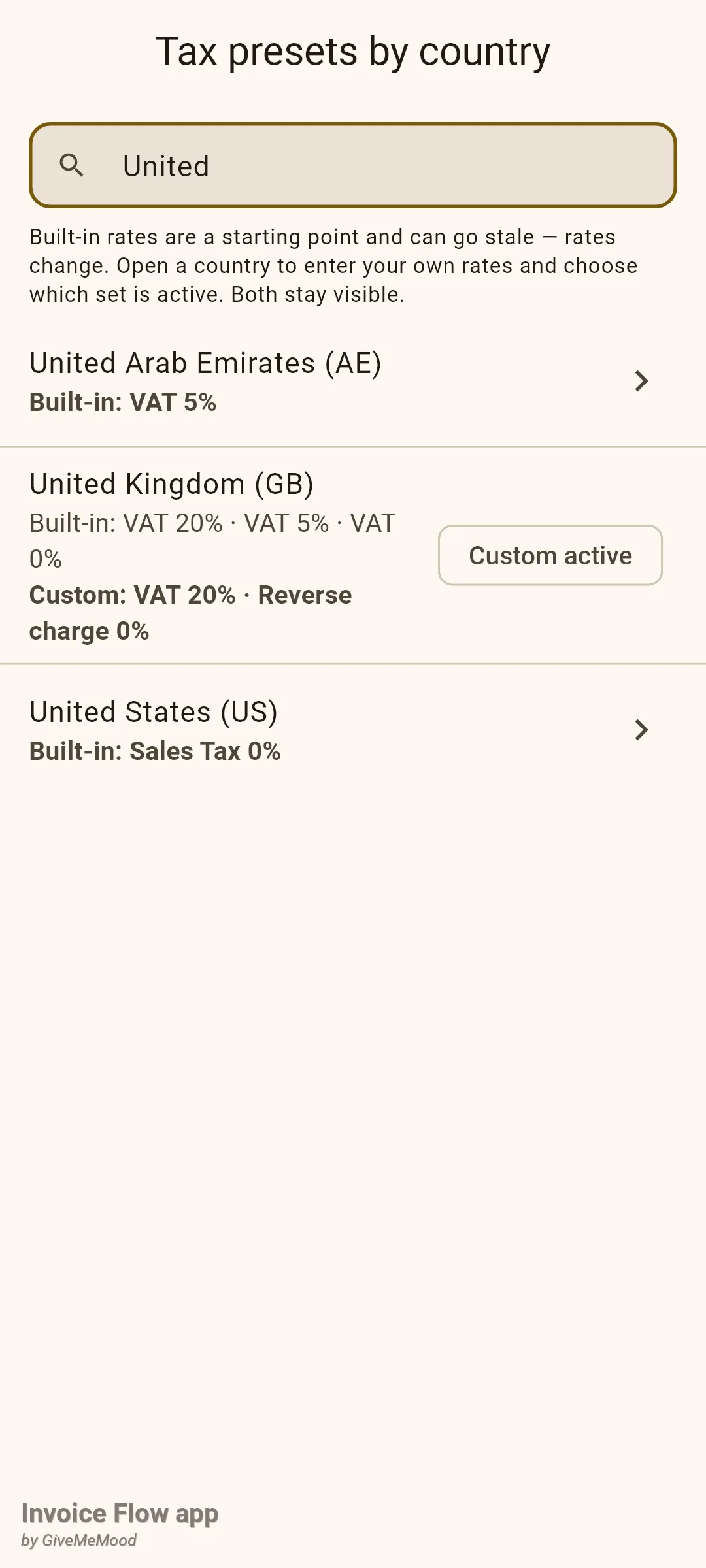
Tax presets by country. From Settings, under Automation, tap Tax presets by country: a searchable country list with built-in rates; open one to enter your own and choose which set is active.
How to bill a client in a foreign currency
Jonas is invoicing Northwind Analytics in Austin. The invoice must be in US dollars, but his reports need the euro figure.
- Open the invoice editor and pick the client. New documents start in the profile's default currency (EUR here).
- Tap Invoice Currency. Because the profile restricts currencies, the picker shows only EUR, USD and GBP; tap USD ($).
- Add your line items as usual; prices are now in dollars.
- Scroll to the Exchange Rate card under the totals. If a rate for USD to EUR is already stored, the highlighted box reads "1 USD = 0.9215 EUR" with the converted total in euros on the right and the time the rate was fetched underneath.
- To refresh the rate, tap Update rate and confirm Update rate in the dialog. The dialog warns that the rate is shared by all business profiles and that you need an internet connection.
- If the button is greyed out, read the caption under it: you already updated today, or it is before 9:00 in your time zone. Use the manual field instead (next section) or keep the stored rate.
- Save the invoice. The rate and the euro total are stored with the document and used by the dashboard and analytics.
If no rate exists yet, the card shows a red-tinted box reading “No rate set. Update online or enter manually.” You can still save, but the invoice then has no base-currency total and stays out of the dashboard sums until you add a rate and save again.
How to set a rate by hand
Some contracts fix the conversion rate, and some days you have no signal. Both cases use a manual rate, which belongs to the current profile only and beats the online rate for that pair.
From the invoice editor:
- In the Exchange Rate card, find the row "1 USD = [field] EUR" under the caption Enter rate manually (for current profile):.
- Type the rate, for example 0.9180, and tap the round check button.
- The snackbar confirms "Manual rate saved for current profile. Will be replaced on next online update." The converted total recalculates immediately.
From the Exchange Rates screen:
- Open Settings, then Exchange Rates.
- Tap the + button (tooltip "Add manual rate").
- In the dialog, choose the foreign currency from the dropdown (it lists every currency except your base one) and type the rate in the Rate field, which is shown as "1 USD = ... EUR".
- Tap the filled button to save. Its label currently reads Save Payment; that is a leftover label, and it saves the rate.
- To change any rate later, tap the pencil icon on its row. Editing an online row creates a manual copy for your profile; the online row stays untouched for other profiles.
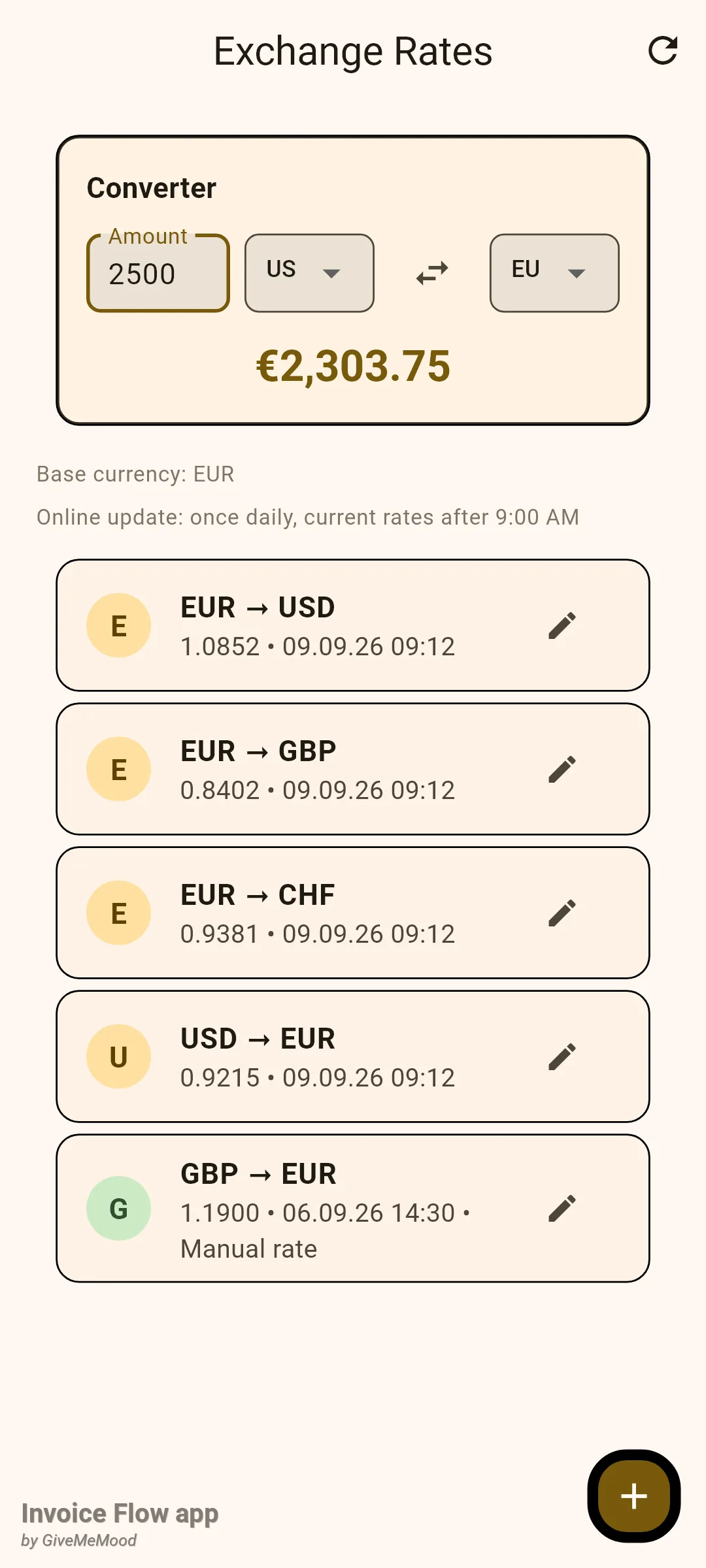
The Converter card is handy for quoting on the phone: type an amount, pick the two currencies, and the result updates as you type, using the same rate priority an invoice would.
How to apply the right tax rate
Tax in Invoice Flow lives on each line item, never on the document as a whole. The % field on a line holds the rate; the editor sums the tax of every line into the invoice’s tax total. Prices are always net, and tax is added on top. There is no switch to mark a price as tax-inclusive, so if a client wants gross prices, type the net figure and let the rate do the work.
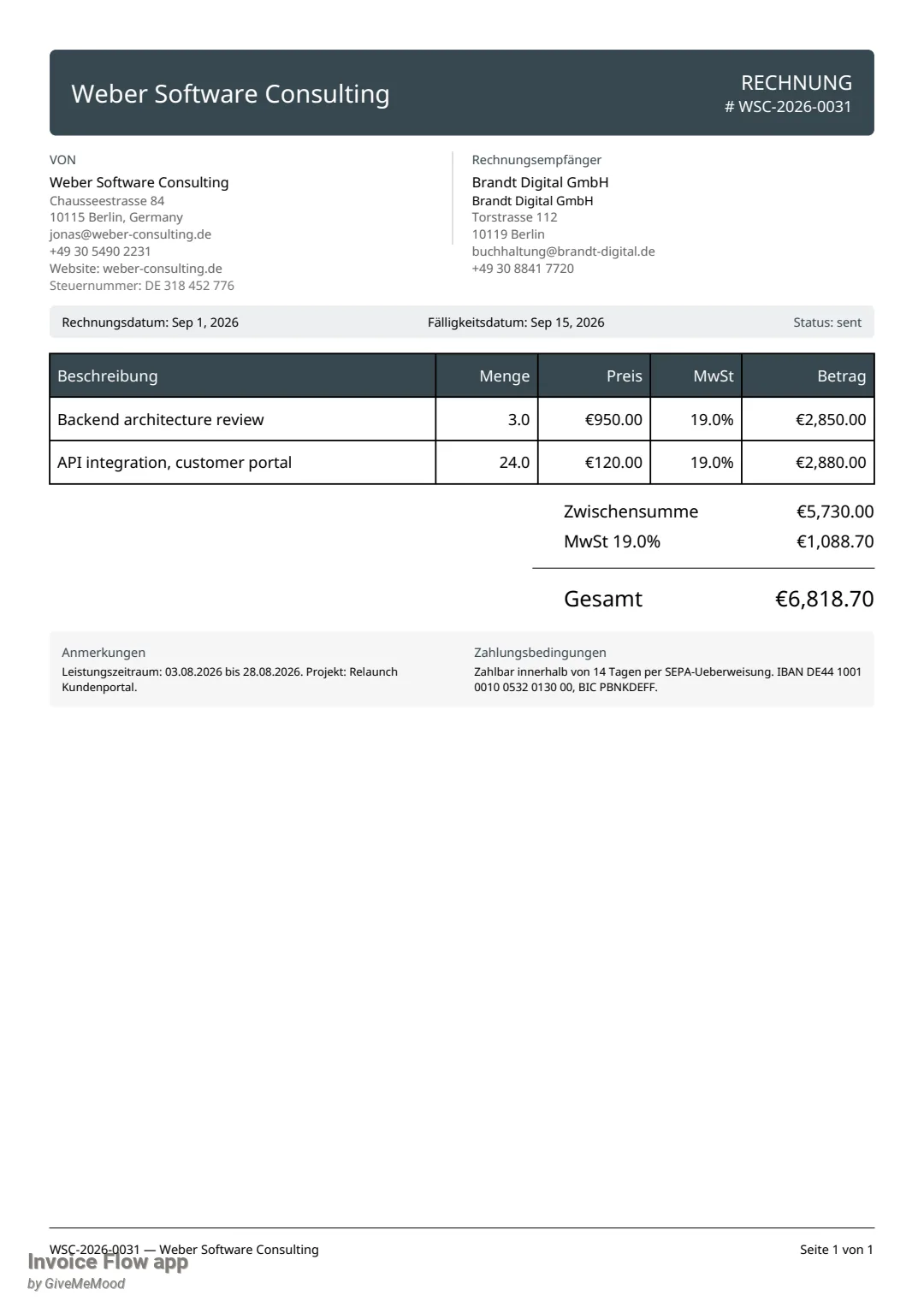
For the Berlin agency, Brandt Digital, Jonas needs 19% on both lines:
- Make sure the client has a country set in the client editor. Tax chips key off the client's country code.
- In the invoice editor, look above the line items for the row Tax presets (DE): followed by chips such as MwSt. 19%, MwSt. 7% and MwSt. 0%.
- Tap MwSt. 19%. Every line item's % field is set to 19 and a short snackbar confirms the rate applied.
- If one line needs a different rate (a reduced-rate item, for instance), edit that line's % field afterwards. Mixed rates are fine; the PDF switches to a per-rate breakdown automatically when it finds more than one non-zero rate.
- For a legal wording such as the small-business exemption or the reverse-charge sentence, tap the gavel icon next to the chips (tooltip Insert legal note) and pick a line; it is appended to the invoice notes.
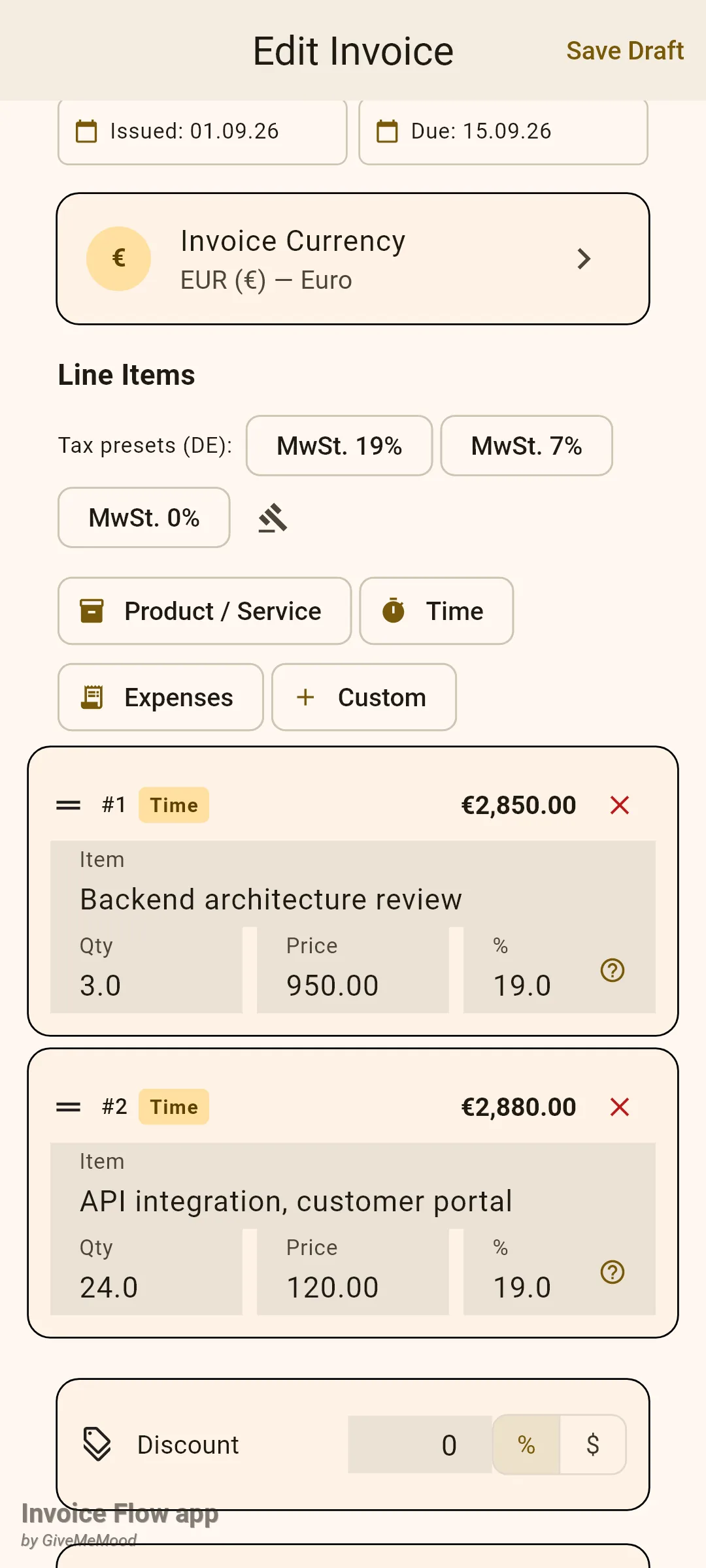
A line added from your product list inherits the product’s tax rate. The help icon inside the % field opens a Tax Rate Reference sheet with a searchable country table; it carries a disclaimer, so treat it as a reminder rather than advice.
How to correct a country’s preset rates
Built-in rates go stale, and the label can matter as much as the number. Jonas wants a chip that says “Reverse charge” for his London client.
- Open Settings, scroll to Automation, and tap Tax presets by country.
- Type part of the name or the two-letter code into Search country...; matching is against the English name.
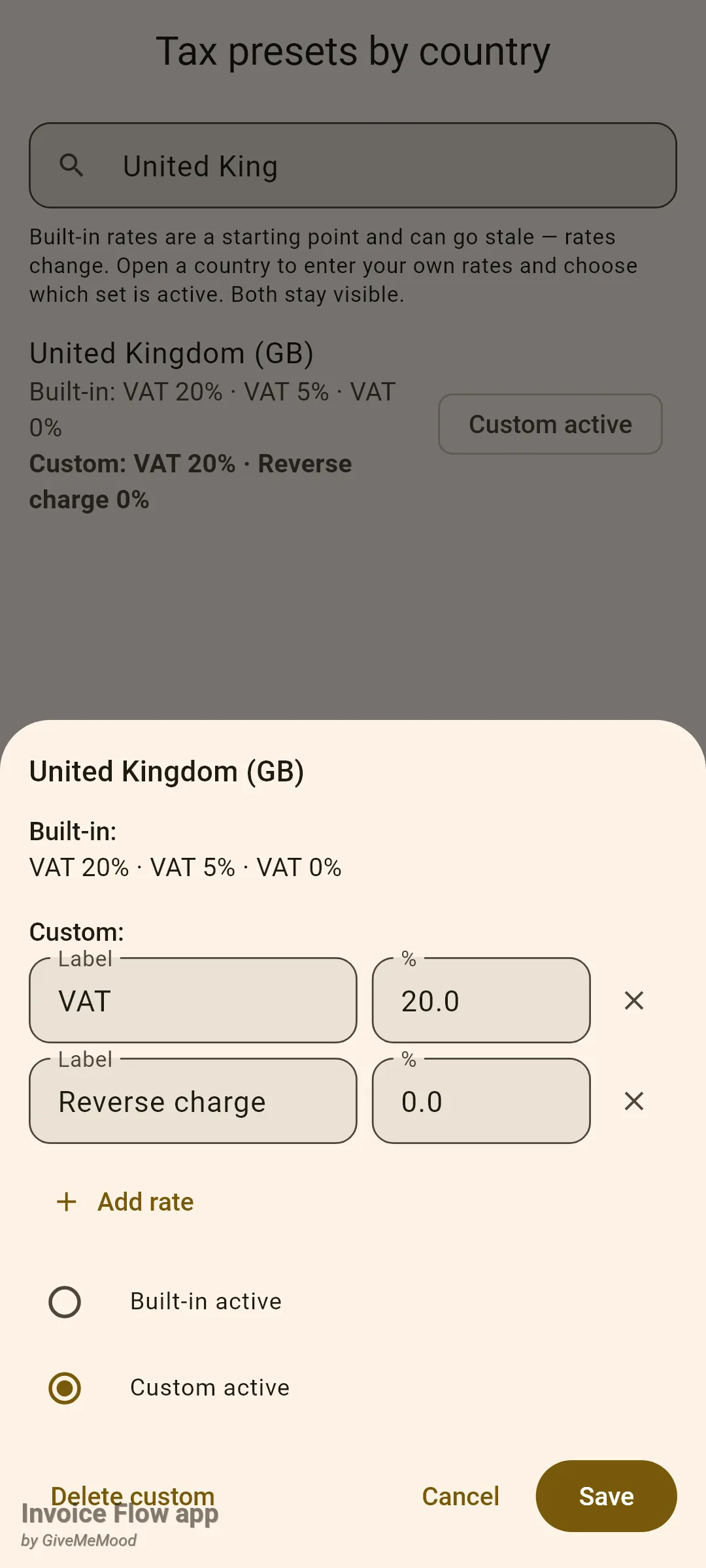
- Tap the country row. The sheet shows the Built-in: rates as read-only text and a Custom: list pre-filled with the same values.
- Edit a row's Label and %, remove rows with the x, or tap Add rate for another. The x is disabled when only one row is left.
- Choose Custom active so your set drives the chips in the editor, or Built-in active to keep your edits without using them yet.
- Tap Save. The list now shows both lines under the country, the active one in bold, with a chip reading Custom active or Built-in active on the right.
- To throw your set away and return to the built-in rates, reopen the country and tap Delete custom.
How to print the PDF in the client’s language
The app language and the document language are separate choices; Jonas uses the app in English but sends German invoices to German clients.
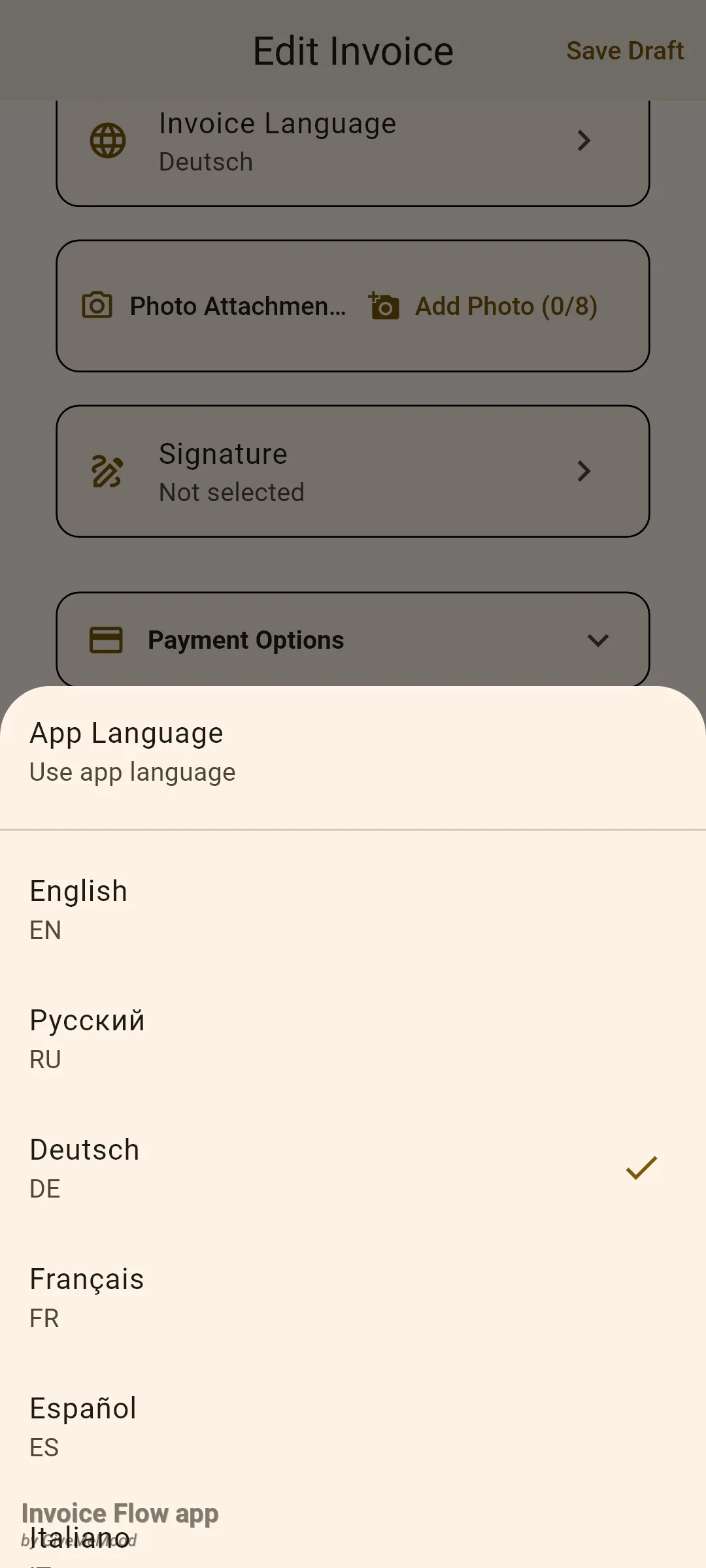
- In the invoice editor, scroll to the Invoice Language tile below the totals (and below the Exchange Rate card, if there is one). Its subtitle shows the current choice, App Language by default.
- Tap the tile. A bottom sheet lists App Language first, then sixteen fixed languages: English, Russian, German, French, Spanish, Italian, Portuguese, Dutch, Polish, Japanese, Korean, Chinese, Arabic, Hindi, Turkish and Ukrainian, each labelled in its own script with the code underneath.
- Tap Deutsch. The tile now reads "Deutsch", and the choice is saved with the invoice.
- Save and open the PDF preview. Headings, column titles, totals and the footer's page counter come out in German; your own text (item descriptions, notes, payment terms) prints exactly as typed.
Rules and details
Base currency and reporting. Each business profile has a base currency, set when the profile is created: the first allowed currency if you restricted the list, otherwise the default currency. Every dashboard card and analytics chart adds up figures in that currency only. An invoice in another currency is included when it carries a base-currency total (the total multiplied by the rate saved with it); without a rate it is silently skipped so that a 12,000-dollar invoice never shows up as 12,000 euros.
Which rate wins. For a conversion the app checks, in order: a manual rate for the current profile, the global online rate for the pair, the inverse of the online rate for the reverse pair, and finally 1.0. A rate of exactly 1.0 between different currencies is treated as “no rate” in the editor.
Online updates. Rates are fetched from a public exchange-rate API with a second API as fallback and a ten-second timeout. The per-invoice Update rate button is allowed once per calendar day and never before 09:00 local time; after a successful fetch the button stays disabled until the next 09:00. Update all rates on the Exchange Rates screen ignores that limit and pulls every rate for your base currency in one go; if the request fails you see “Failed to update rates. Check your internet connection.” and nothing is changed.
Manual rates. A manual rate must be greater than zero; anything else is ignored without a message. One manual value is kept per pair per profile, so saving again overwrites it. An online refresh rewrites only the online row, so despite the caption “Manual rate will be replaced on next online update”, a manual rate keeps winning until you delete or change it. Adding or editing manual rates is Pro-only; viewing, converting and Update all rates are not.
Currency restriction. The Allowed currencies list only limits the picker; existing invoices keep their currency if you remove it later.
Taxes. Rates are stored per line as a percentage; the invoice’s tax total is the sum over lines. There is no tax-inclusive mode and no second tax column. Applying a preset chip overwrites the rate on every line, including lines you set individually, so use chips first and adjust single lines afterwards. Country presets need a country code on the client; no code, no chips. The PDF prints a “Multi-Tax Breakdown” (one line per rate) automatically when an invoice has two or more distinct non-zero rates, or when you choose that layout variant in the template selector.
Preset overrides. Labels are trimmed and an empty label becomes “Tax”; a row whose percentage is not a number is dropped on save. Overrides are per country, shared by every profile on the device. Opening a country sheet requires Pro.
Invoice language. The value is saved on the document (empty means “use the app language”). It affects the printed labels and the language used to render country names in addresses; it does not translate your item descriptions, notes or terms. Dates and the status word in the header of the built-in templates are currently printed in English regardless of the chosen language.
Tips
Related guides
- Getting started: business profile - where the base currency and the allowed-currency list are set.
- Invoice editor - line items, discounts and the totals block the exchange-rate card sits under.
- Analytics, dashboard and reports - how base-currency totals turn into charts.