 EN
EN  العربية
  Български
  Čeština
  Dansk
Dansk  Deutsch
  Ελληνικά
  Español
  Suomi
Suomi  Français
  עברית
עברית  हिन्दी
  Bahasa Indonesia
  Italiano
  日本語
日本語  한국어
한국어  Bahasa Melayu
  Nederlands
  Norsk
Norsk  Polski
  Português
  Română
  Русский
  Svenska
  Kiswahili
  ไทย
ไทย  Türkçe
  Українська
  Tiếng Việt
  中文
中文 User guide
Late fees on overdue invoices
Set a late-fee policy once, tighten it for one habitual late payer, then forgive, bill or record each fee from the overdue invoice and track the totals.
A late fee is the small surcharge you are entitled to charge when an invoice sits unpaid past its due date. Invoice Flow computes that surcharge for you, but it never adds it to an invoice on its own. The app watches your unpaid invoices, works out what has accrued under your policy, and shows the amount on the overdue invoice as a decision you still have to make: forgive it, add it to the invoice, or record that the client paid it. That split, automatic calculation and manual decision, is deliberate. It keeps the numbers honest without turning a good client’s one-off slip into a fight.
This guide follows BrightNorth Commercial Cleaning, a janitorial company in Denver that invoices monthly in US dollars. Most of its clients pay on time. One of them, Summit Ridge Office Park, pays late almost every month, so the owner keeps a gentle default policy for everyone and a stricter, per-day policy just for that one account.
What you see on the screen
Late fees live in four places in the app.
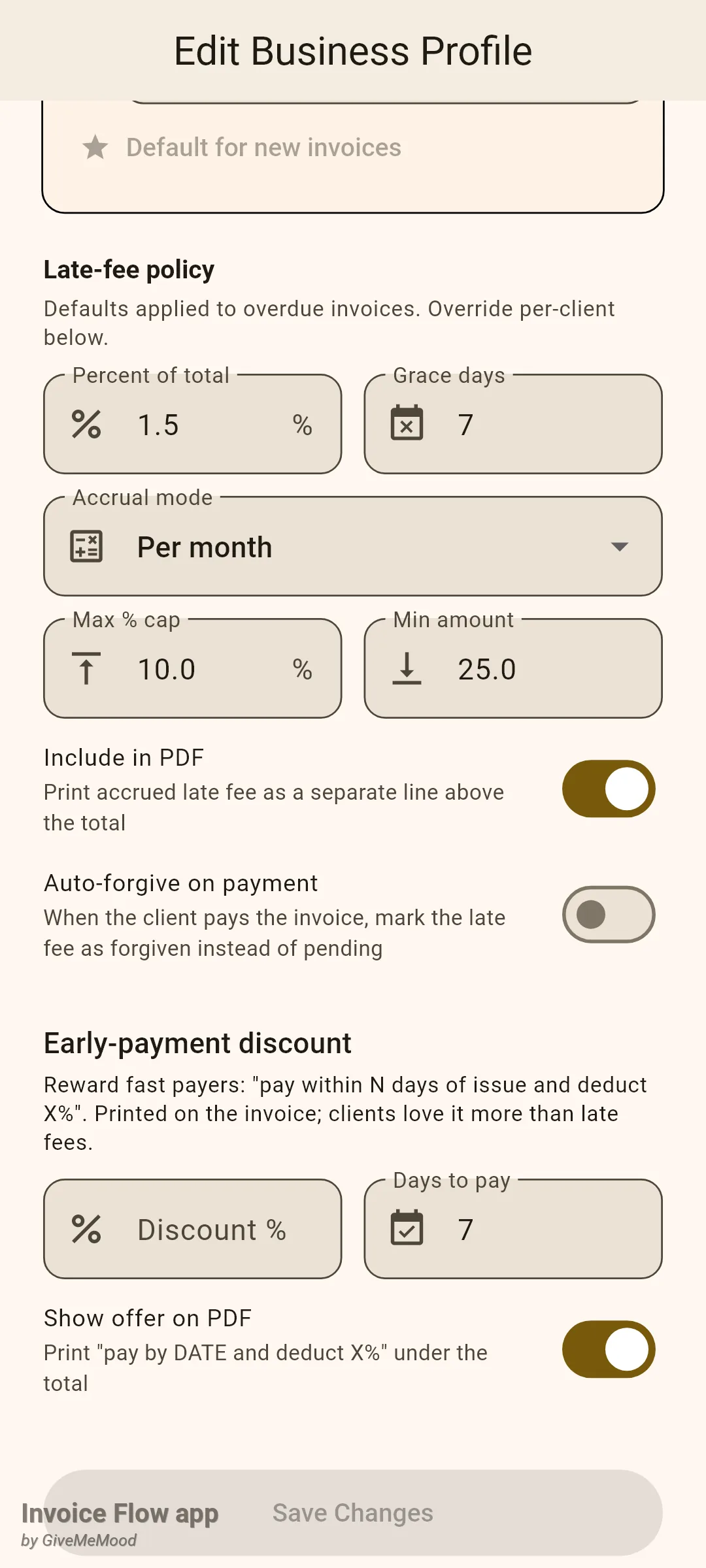
The policy itself sits in the business profile. Open Settings, tap Business Profiles, open the profile, and scroll down to the section Late-fee policy. It comes right after the payment-terms block and just before Early-payment discount. Here you enter Percent of total, Grace days, the Accrual mode dropdown, Max % cap, Min amount, and the two switches Include in PDF and Auto-forgive on payment.
A client can carry its own version of that policy. In the client editor (Clients tab, open the client, tap edit) the same Late-fee policy heading appears near the bottom with a switch labelled Use profile default. Turn it off and the override fields unfold beneath it.
The third place is the invoice itself. When an invoice is overdue and a fee has accrued, a coloured Late fee card appears directly under the status header on the invoice detail screen, with the amount on the right and action buttons underneath. The invoice’s overflow menu also contains Add late fee… for one-off manual charges.
Finally, the totals. Open the Tools tab, find the Business Intelligence section and tap the Late fees card. That screen groups every fee by outcome and offers Export CSV in the app bar.
How to set the default policy
Start with the numbers that should apply to everyone. BrightNorth charges 1.5% per month, gives a week of grace, and caps the fee at 10% of what is owed.
- Open Settings, tap Business Profiles and open your profile.
- Scroll down to Late-fee policy.
- Type the rate in Percent of total, for example 1.5. Leaving it empty or at 0 switches late fees off for this profile.
- Enter Grace days, the number of days after the due date during which nothing accrues.
- Pick an Accrual mode: One-time charge, Per day or Per month.
- Optionally set Max % cap and Min amount. Both accept 0 to mean "no limit".
- Switch on Include in PDF if the accrued amount should be printed on the invoice document.
- Decide on Auto-forgive on payment, then tap Save Changes.
The three accrual modes differ only in how time enters the formula. The base in every case is the outstanding balance, not the face value of the invoice, so a client who has already paid 80% only accrues on the remaining 20%.
| Mode | What accrues | Example on a 2,480.00 balance at 1.5% |
|---|---|---|
| One-time charge | base × percent, once; never grows | 37.20, whether the invoice is 5 or 50 days past grace |
| Per day | base × percent × days past grace | 37.20 per day; 744.00 after 20 days, before any cap |
| Per month | base × percent × 30-day periods past grace, rounded up | 37.20 for days 1–30, 74.40 from day 31 |
“Per month” uses fixed 30-day periods rather than calendar months, and the first day past the 30-day mark already counts as a second period.
How to give one client a different policy
A per-client policy is the right tool when one account deserves either more patience or less. BrightNorth’s problem client gets 0.1% per day after only 3 days of grace, capped at 8%.
- Open the Clients tab, tap the client, then tap the edit icon.
- Scroll to Late-fee policy near the bottom of the form.
- Switch off Use profile default.
- Fill in Percent of total, Grace days, Accrual mode and Max % cap for this client.
- Set Auto-forgive on payment if it should differ from the profile.
- Tap Save.
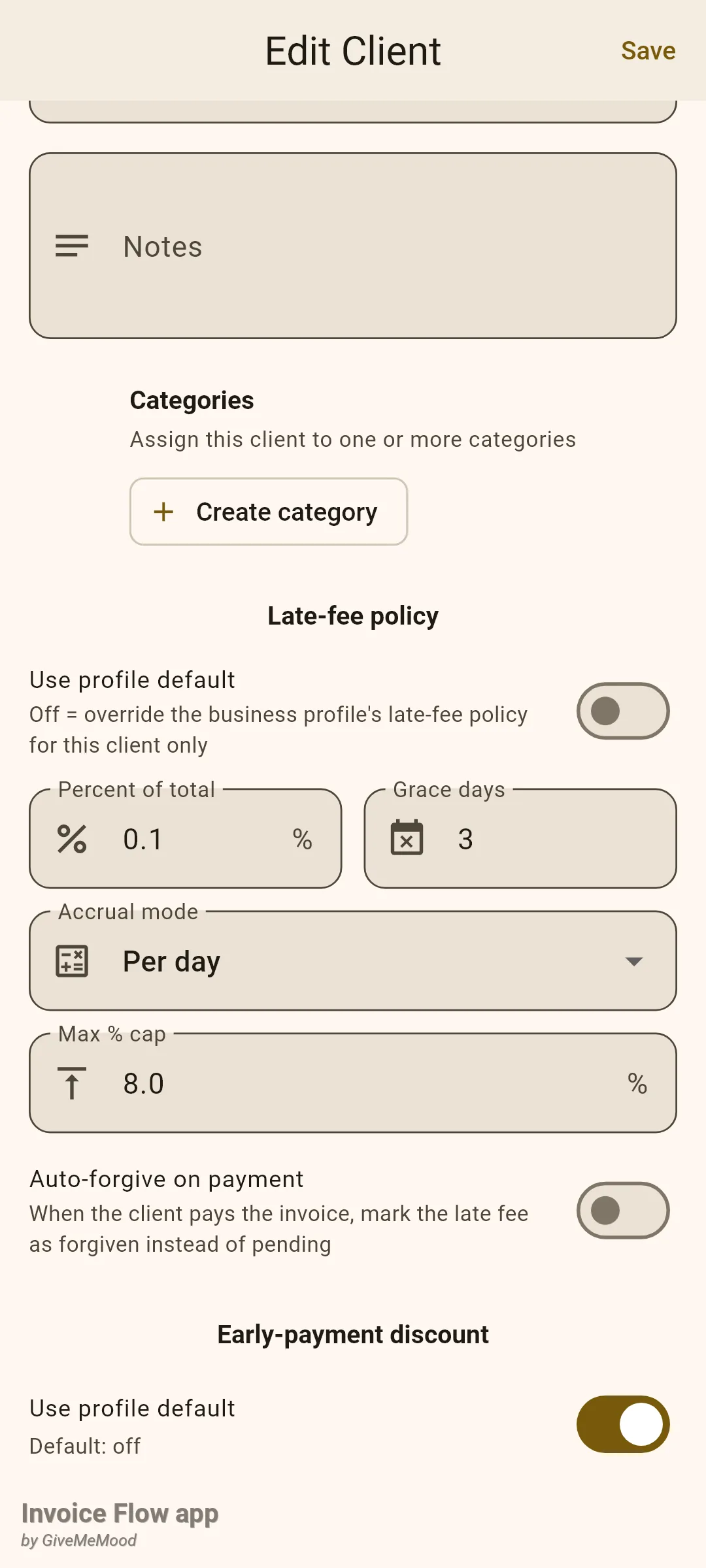
Each override field falls back to the profile on its own. If you set only the grace days for a client and leave the percent blank, that client gets the profile’s percent with its own grace window. Two settings have no client-level version: Min amount and Include in PDF always come from the profile. Switching Use profile default back on clears every override for that client when you save.
How to act on a fee that has accrued
Invoice Flow recomputes fees each time the app starts cold. When an invoice with status Sent is past its due date plus grace, a fee appears and the invoice gets a red Late fee card labelled Pending — choose what to do. BrightNorth’s July invoice to Summit Ridge, 2,480.00 due 24 days ago, has accrued 21 days at 0.1%, so the card shows 52.08.
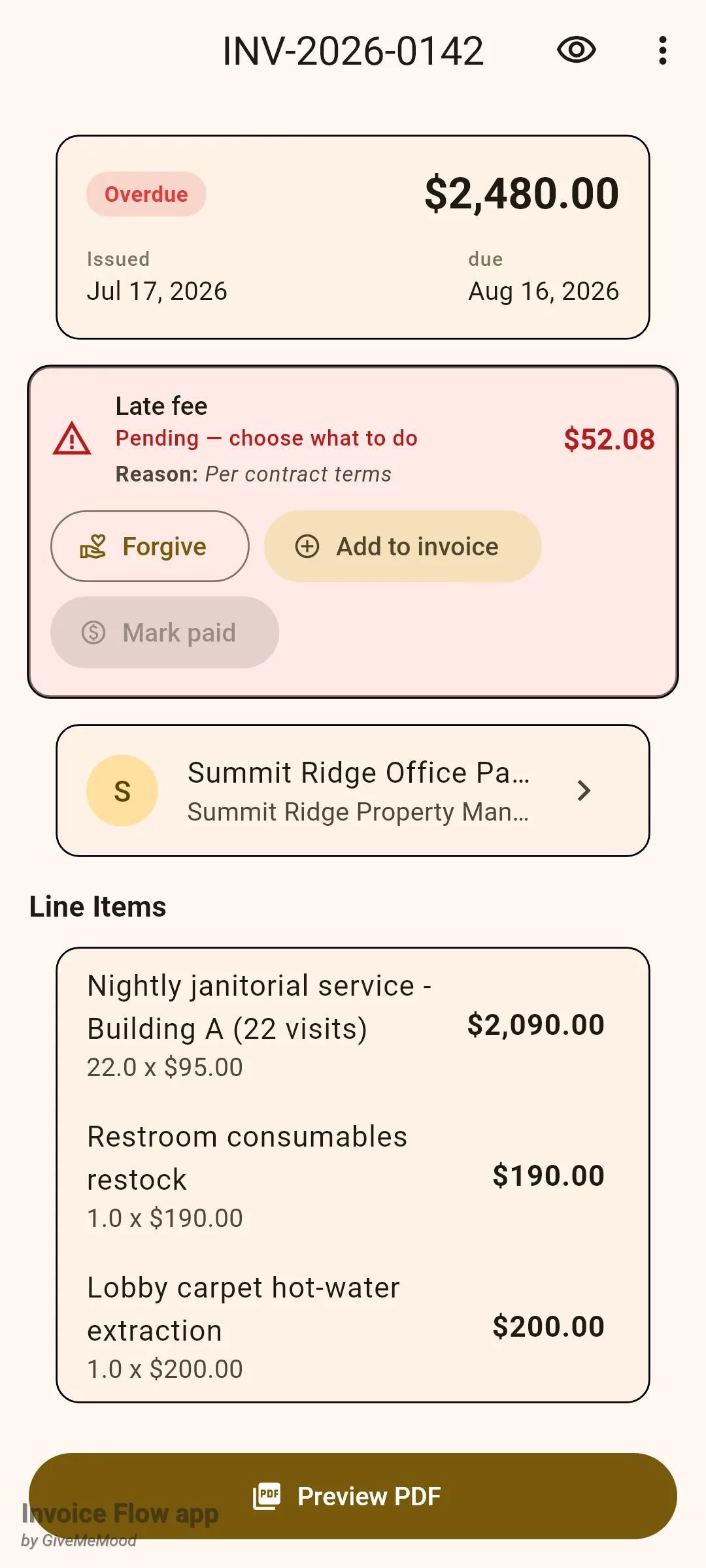
You have three buttons. Mark paid stays disabled until the invoice itself is paid, with the tooltip “Invoice must be paid first”, because the surcharge cannot be settled before the principal.
To bill the fee:
- Open the overdue invoice from the Documents tab.
- On the Late fee card tap Add to invoice.
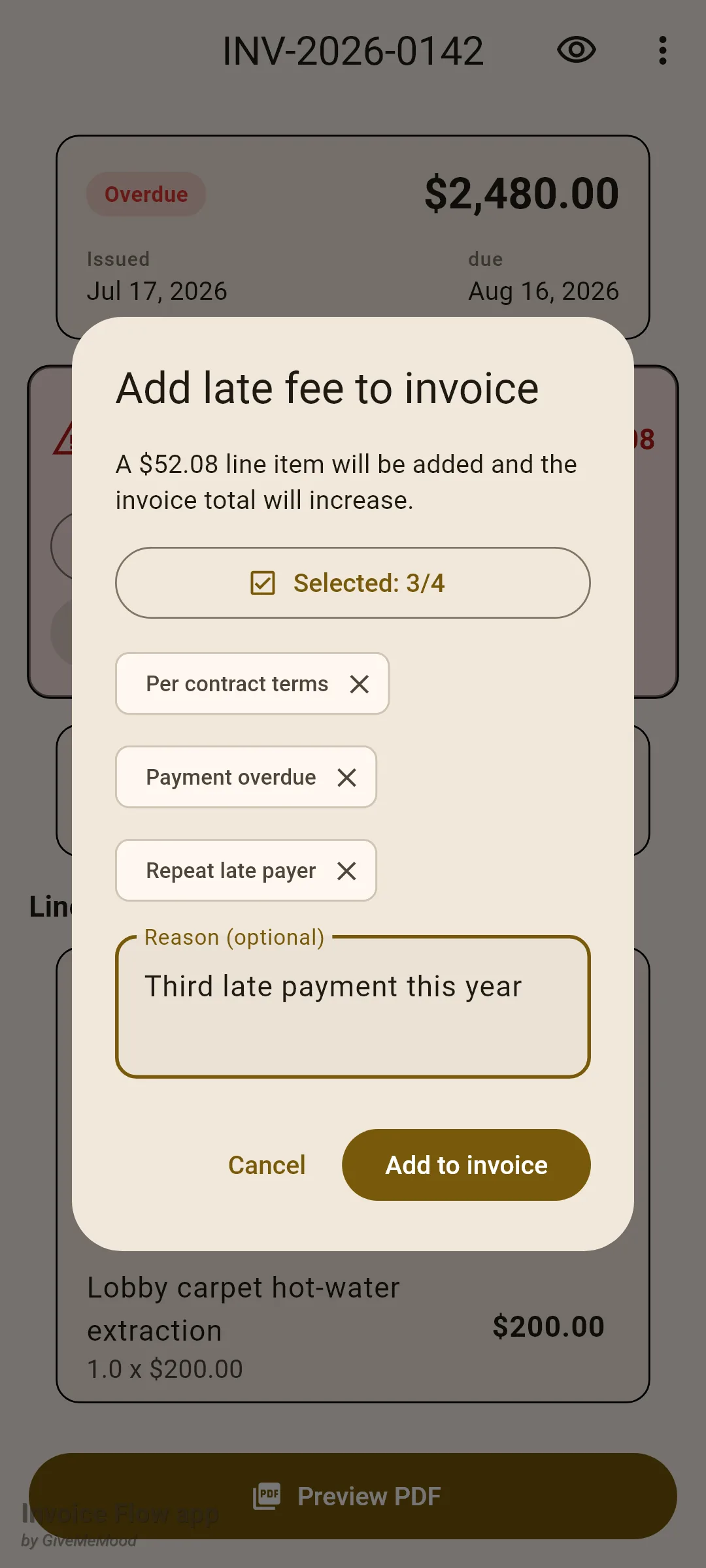
- In the Add late fee to invoice dialog tap Choose reasons and tick up to four presets such as Payment overdue or Repeat late payer, then tap Done.
- Optionally type a note in Reason (optional).
- Tap Add to invoice to confirm.
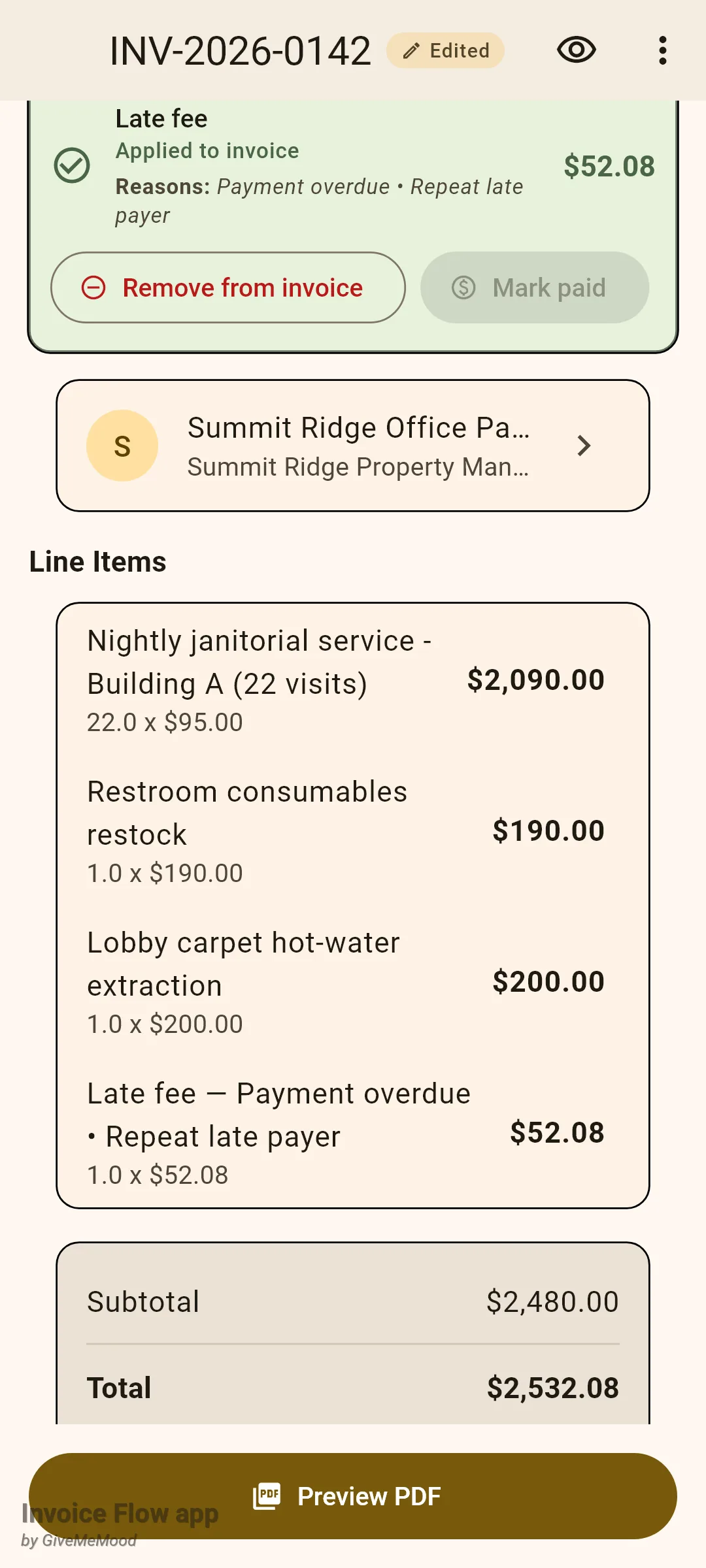
Applying inserts a line item named “Late fee” followed by your reasons, quantity 1, no tax, at the very end of the item list, and raises the invoice total and amount due. The card changes to Applied to invoice and now offers Remove from invoice, which deletes the line item and lowers the total again. An applied amount is frozen: the app stops recomputing it, so the fee you billed is the fee the client sees, and it is never used as a base for further accrual.
To waive the fee instead:
- On the pending card tap Forgive.
- In Forgive late fee tap Choose reasons and pick up to four, for instance Bank transfer delay or First-time courtesy.
- Add a free-text note if you want one.
- Tap Forgive.
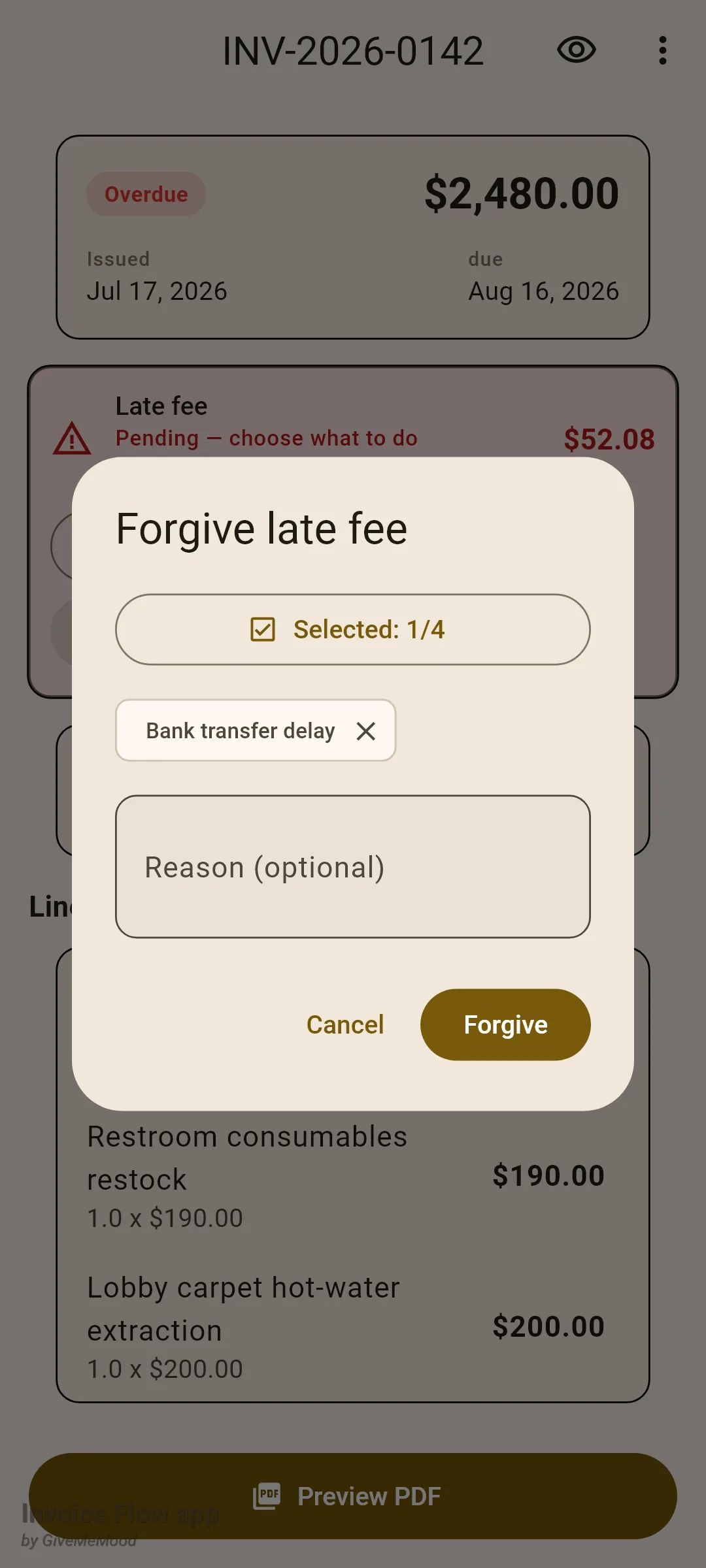
The card turns grey and reads Forgiven. Tapping it later reopens the dialog in edit mode, with a Forgiveness history list of every previous decision and a Revert to pending button if you change your mind.
When the client finally pays, mark the invoice paid as usual. If a fee is still pending or applied at that moment, a prompt titled Late fee — what about it? asks whether the client paid the surcharge too, with the choices Forgive, Not paid yet and Paid too. Choosing Paid too records the amount as collected.
How the fee appears on the PDF
With Include in PDF switched on in the profile, a pending fee is printed in the totals block as an informational row, “Late fee (due)”, followed by your reason if you set one. The row sits above the Total, and the Total itself does not change, because nothing has been added to the invoice yet. Once the fee is marked paid the same row reads “Late fee (paid)”.
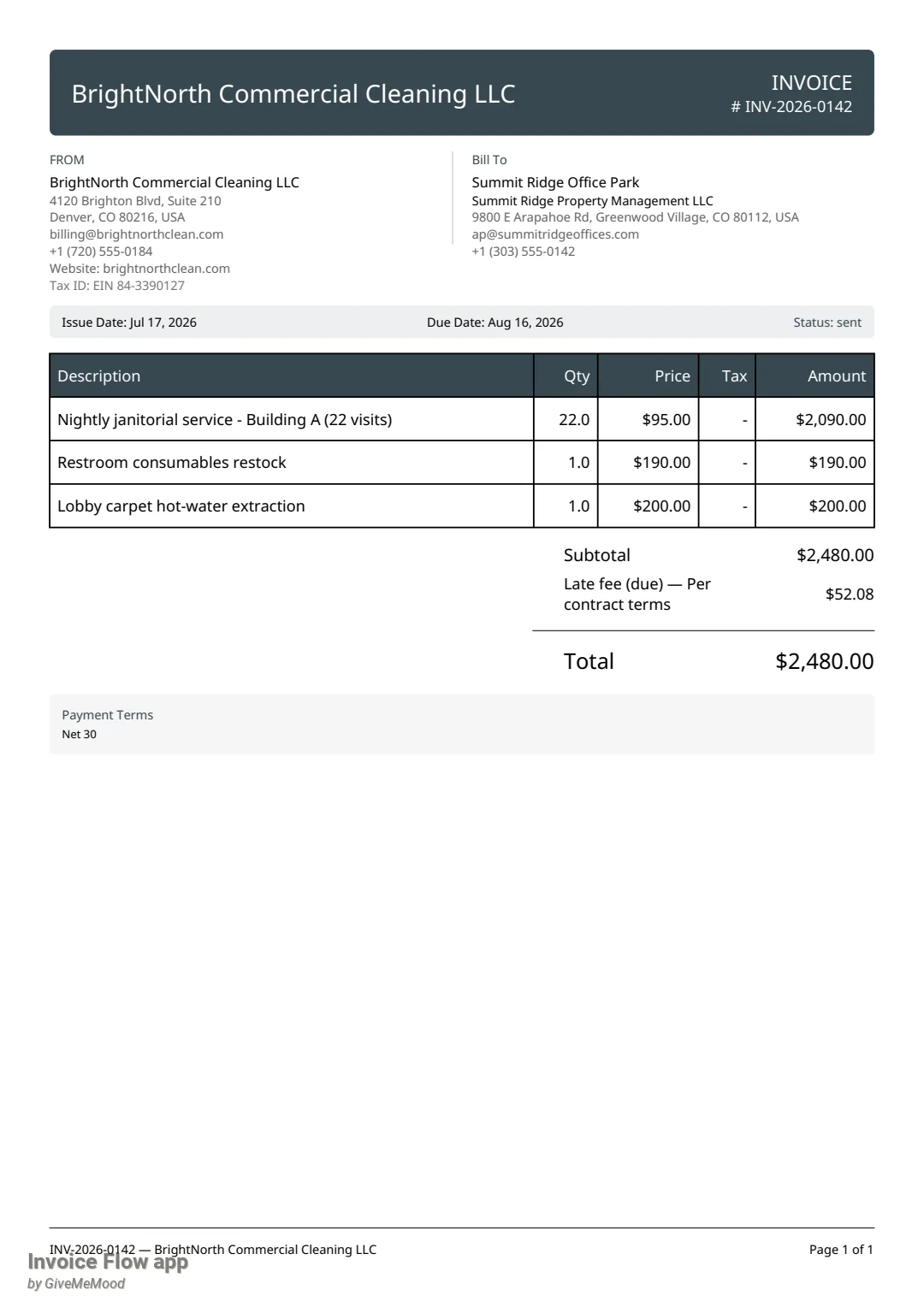
An applied fee needs no special row: it is already a normal line item and prints in the item table like any other. Forgiven fees never appear on the document.
How to review late fees across the business
The Late fees screen under Tools answers the question every owner eventually asks: how much have I actually charged, and how much have I let go?
- Open the Tools tab.
- Under Business Intelligence tap Late fees.
- Read the four cards: Pending — choose what to do, Applied to invoice, Paid by client and Forgiven. Each shows the number of invoices on the right and a sum per currency.
- Tap the download icon (Export CSV) to share a spreadsheet of every invoice with a fee.
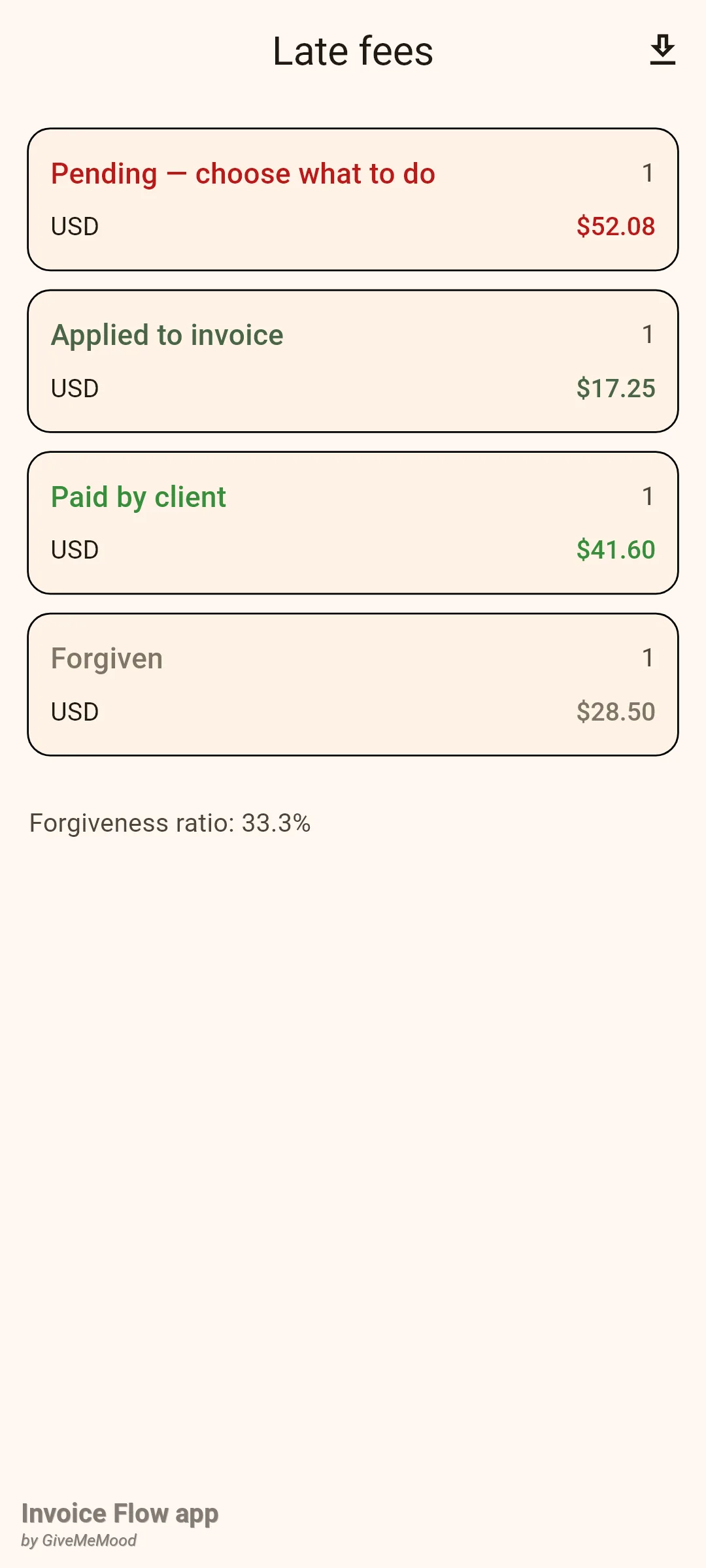
The footer line Forgiveness ratio is the number of forgiven fees divided by forgiven plus applied plus paid. It is count-based on purpose: sums in different currencies cannot be added together meaningfully. Pending fees are not part of the ratio because no decision has been made about them yet.
Rules and details
- Accrual starts strictly after the due date plus grace days. At least one full day past that point must have elapsed before anything accrues.
- The base is the outstanding balance: invoice total, minus an already applied fee, minus payments received. If the balance is zero or negative nothing accrues.
- Min amount is applied before the cap and only when the invoice currency equals the profile’s base currency. The cap is applied last, so it is an absolute ceiling even when the floor would push above it. Results are rounded to cents.
- Only invoices with status Sent (or Overdue), not archived, of document type invoice accrue. Drafts never accrue; a stale pending fee on a draft is cleared. Estimates, contracts and delivery notes are not touched.
- Recalculation happens once per cold start of the app. There is no background job, and opening the app from the recents list does not trigger it. Fees do not change while the app is running.
- In Per-day and Per-month modes a pending amount grows over time; each change writes a “Late fee recomputed” entry. If the amount drops to zero, for instance because you extended the due date or the client paid the balance, the fee returns to none rather than lingering as a pending 0.00.
- Applied, forgiven and paid fees are never changed by the recalculation.
- The first recalculation on a device is silent. After that, up to two new accruals raise a notification each (“Late fee accrued”); more than two are collapsed into one summary notification.
- Auto-forgive on payment only acts on fees that are still pending when the invoice is marked paid. The reason recorded is “Auto-forgiven on payment”.
- The late-fee card is shown only while the invoice displays as Overdue. Once the invoice is paid or cancelled the card disappears; the outcome remains visible in the change log, in the Late fees screen and in the CSV.
- Every decision is logged in the invoice’s change log (overflow menu, Change log): accrued, recomputed, forgiven, forgiveness edited or reverted, added to invoice, removed from invoice, marked paid, charge reason edited. Any user action also shows the Edited badge next to the invoice number.
- Up to four preset reasons can be selected in any reason dialog; the free-text note is unlimited.
- Pro is required for two actions: the manual Add late fee… menu item and Export CSV on the statistics screen. Viewing the statistics, forgiving, applying, removing and marking paid are available on the free tier.
- The Documents filter sheet has a Late-fee status dropdown (Any, Pending, Applied, Forgiven, Paid) and a Has late fee switch; the Clients filter has Custom late-fee settings to find clients with an override.
Tips
Related guides
- Payments and amount due — how partial payments change the balance the fee is computed on.
- Invoice statuses, list and history — the Overdue state, the change log and the late-fee filters.
- Reminders and automation rules — chase the invoice before a fee ever becomes necessary.