 EN
EN  العربية
  Български
  Čeština
  Dansk
Dansk  Deutsch
  Ελληνικά
  Español
  Suomi
Suomi  Français
  עברית
עברית  हिन्दी
  Bahasa Indonesia
  Italiano
  日本語
日本語  한국어
한국어  Bahasa Melayu
  Nederlands
  Norsk
Norsk  Polski
  Português
  Română
  Русский
  Svenska
  Kiswahili
  ไทย
ไทย  Türkçe
  Українська
  Tiếng Việt
  中文
中文 User guide
Signatures and on-the-spot client sign-off
Draw your signature once, attach it to any invoice, and let a customer sign on your phone so both signatures print side by side on the PDF.
A signed invoice settles arguments before they start. When you finish a job at someone’s house and hand over the bill, a signature from you says “this is what I did and what I charge”, and a signature from the customer says “I saw the work and I accept it”. Invoice Flow handles both halves on the phone you already have in your pocket: you draw your own signature once and reuse it, and the customer can sign the invoice with a finger right there in the driveway.
This guide follows Ray Delgado, who runs a one-van mobile auto repair business in Austin. He replaces brake pads and rotors on a customer’s Honda in her driveway, opens the invoice on his phone, taps his saved signature onto it, and asks her to sign before he packs up. The PDF she gets a minute later carries both signatures with her name, the date and the place.
There are two different things called “signature” in the app, and it helps to keep them apart:
| Your signature | Client sign-off | |
|---|---|---|
| Who draws it | You (the business owner) | The customer, on your phone |
| Where it is stored | The Signatures library, and optionally on the business profile | Directly on that one invoice |
| Reused? | Yes, on as many invoices as you like | No, it belongs to one invoice only |
| Where it prints | Bottom of the PDF, left, under “Authorized Signature” | Bottom of the PDF, right, under “Accepted by client” |
What you see on the screen
Your signatures live in a small library. Open the Tools tab, scroll to the last row of cards and tap Signature. The Signatures screen has three tabs: By Profile, Uncategorized and a third tab with a trash-can icon.
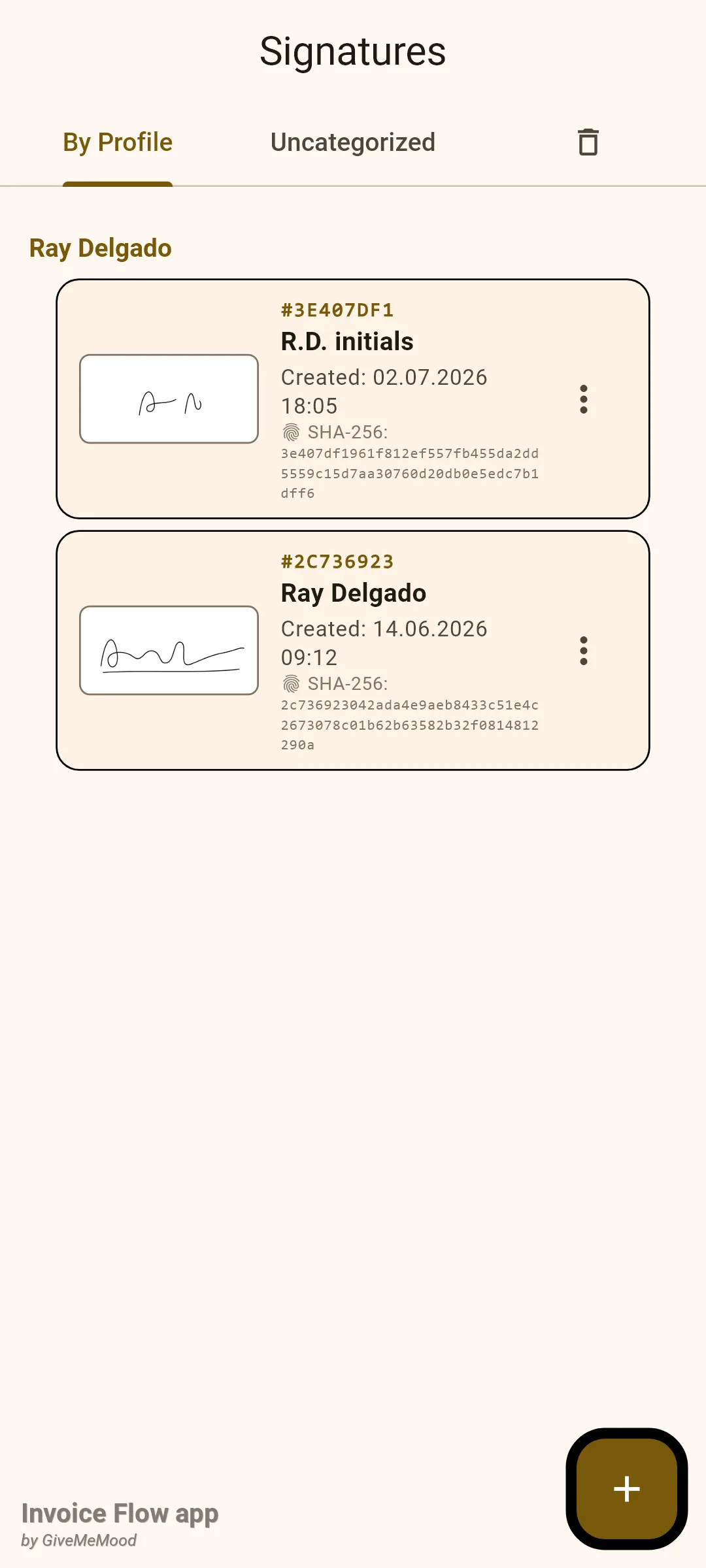
Each signature card shows a white thumbnail of the drawing, a short code such as #2C736923, the name you gave it, the date and time it was created and the full SHA-256 hash of the image in small monospace text. The three-dot button on the right opens the actions for that card, and tapping anywhere else on the card opens its detail screen. The + button in the corner starts a new signature.
By Profile lists every business profile that has at least one signature; a profile without signatures simply does not appear. Uncategorized shows signatures that are not linked to any profile, which is where signatures drawn on the fly from the invoice editor end up. The trash tab keeps signatures you have removed, in case you need one back.
The other places a signature appears are inside the documents themselves: a Signature card in the invoice editor, a Signature box in the business profile editor, and a Client sign-off entry in the overflow menu of an invoice’s detail screen.
How to draw and save your signature
Ray sets his signature up once, on a quiet evening, so it is ready before the first job.
- Open Tools and tap the Signature card.
- Tap the + button at the bottom right.
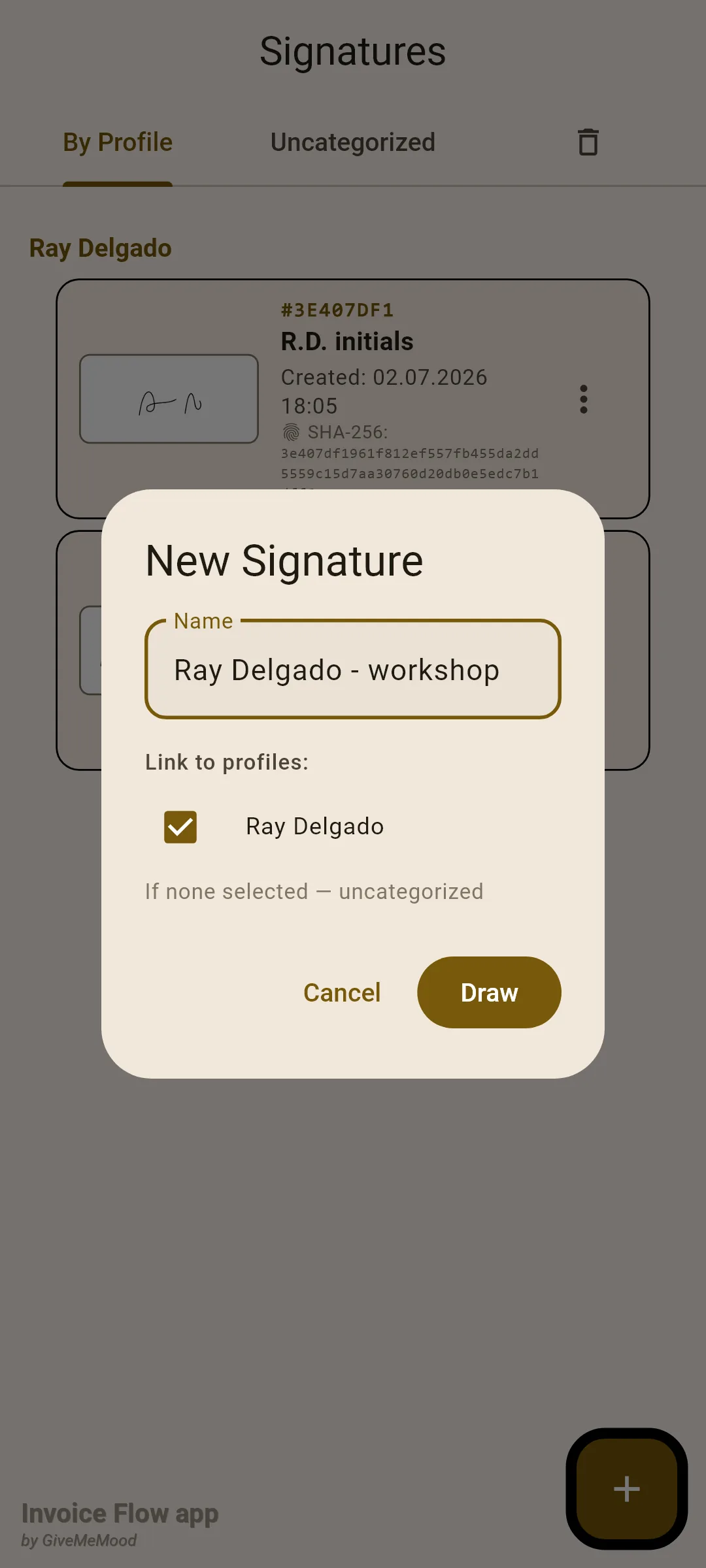
- In the New Signature dialog type a name into Name, for example your full name or "Workshop stamp". If you leave it empty the app names it after the current date and time.
- Under Link to profiles: tick the business profile this signature belongs to. When you have only one profile it is ticked for you already. Leaving every box empty files the signature under Uncategorized.
- Tap Draw.
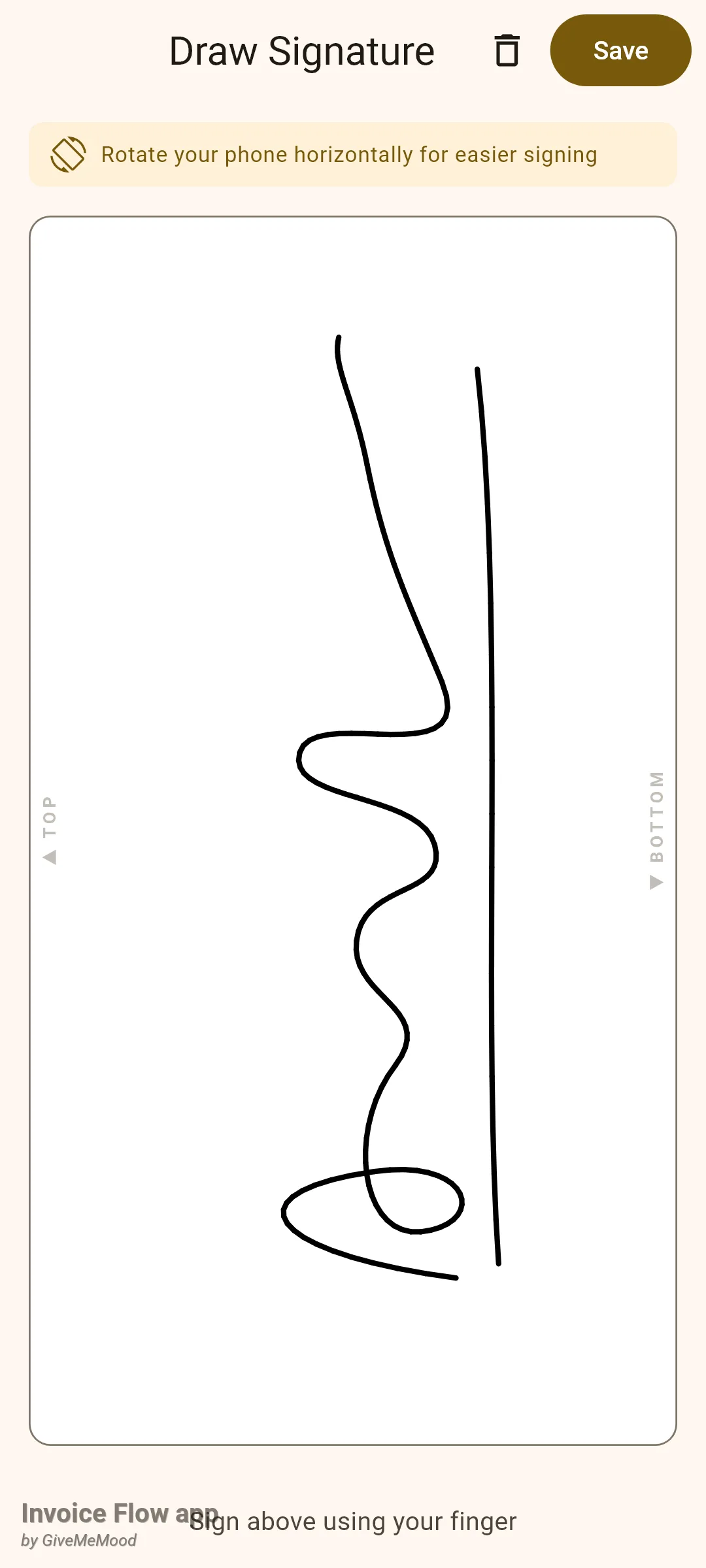
The Draw Signature pad opens. It is designed for a phone held in portrait: the white canvas is tall, with a faint TOP marker on the left edge and BOTTOM on the right. Turn the phone sideways so the left edge points up and sign as you normally would; the app rotates the drawing back when it saves. A banner at the top reminds you of this.
- Turn the phone so the TOP marker is at the top and sign with your finger on the white area. You can lift your finger and add more strokes, dots or an underline.
- If you are not happy, tap the trash icon in the top bar to clear the canvas and start again.
- Tap Save. The button only becomes active once you have drawn something.
After saving, the new card appears under the profile you linked it to. The stored image is a 600 by 200 pixel PNG on a white background: the app crops to the strokes you drew, rotates them, and scales them to fit with a small margin, so a signature drawn small in one corner of the canvas still fills the image.
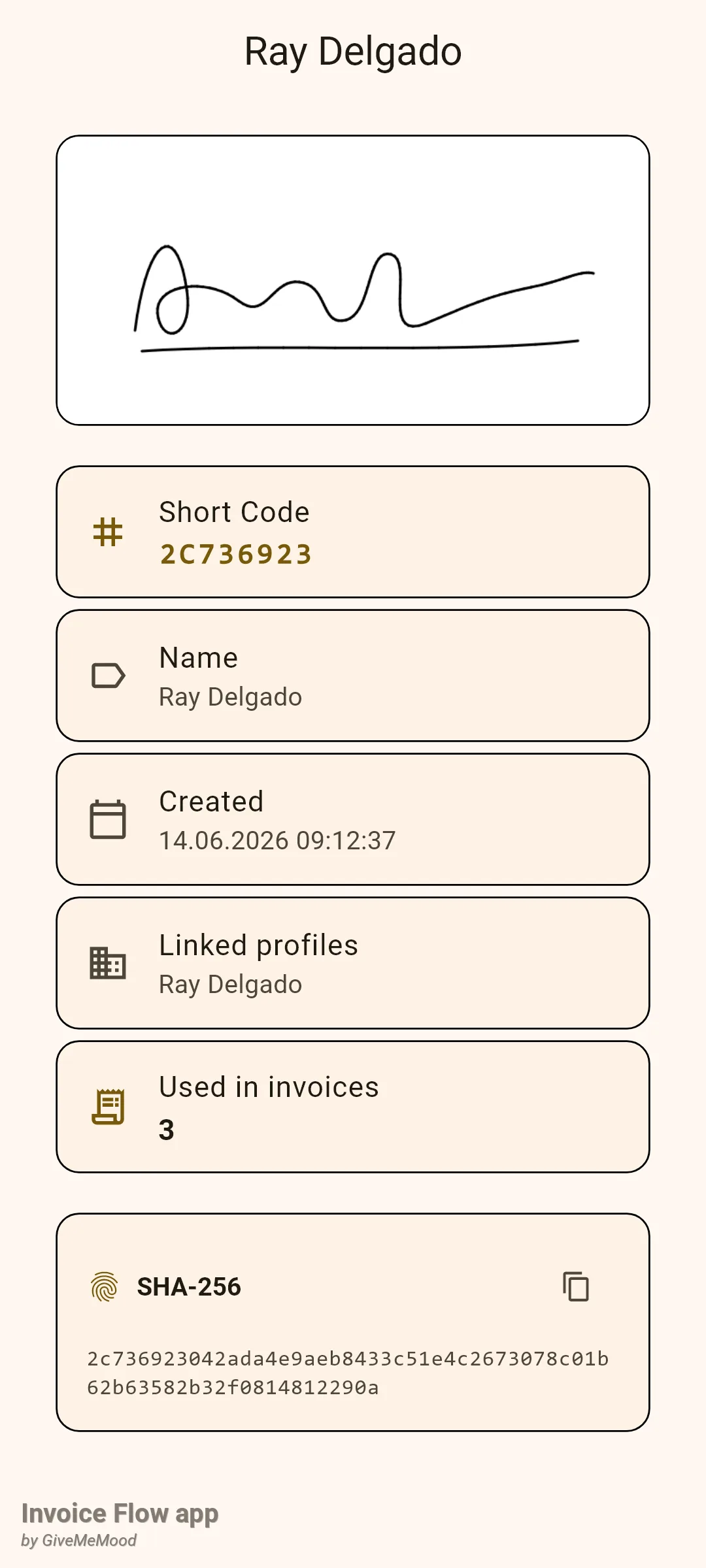
Tap the card to open its detail screen. Besides the picture you will see the Short Code, the Name, the exact Created timestamp, the Linked profiles, a Used in invoices count, and the full SHA-256 hash with a copy button. Ray’s main signature has been used on three invoices so far.
How to put your signature on an invoice
A signature is attached per invoice, not globally. Ray does this for every invoice he hands out, and the app remembers the choice with the invoice.
- Open the invoice in the editor (create a new one or tap Edit on an existing one).
- Scroll down past the line items, totals and photo attachments to the Signature card. It reads Not selected until you pick one.
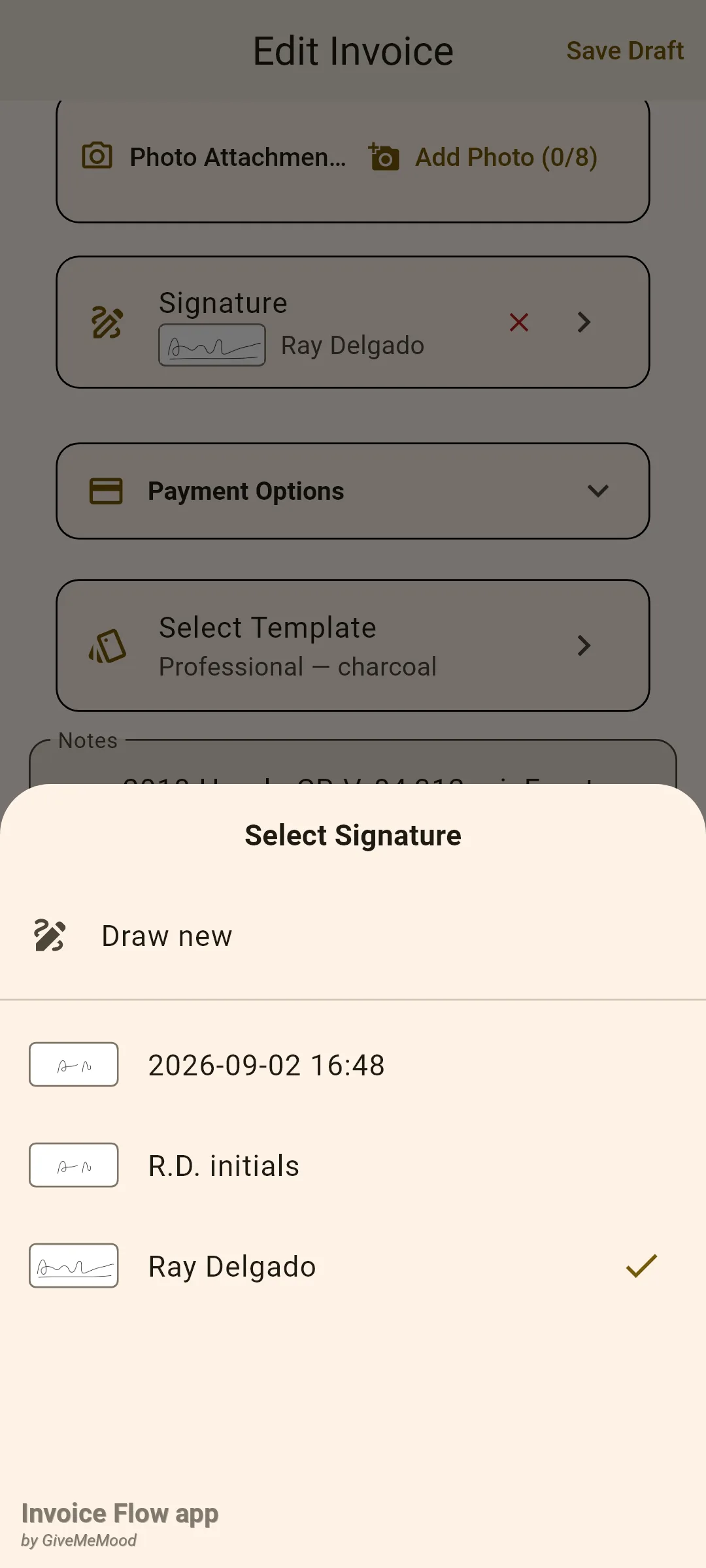
- Tap the card. The Select Signature sheet slides up.
- Tap a saved signature to attach it, or tap Draw new to open the pad and sign right now.
- Save the invoice with Save Draft or the send action at the bottom.
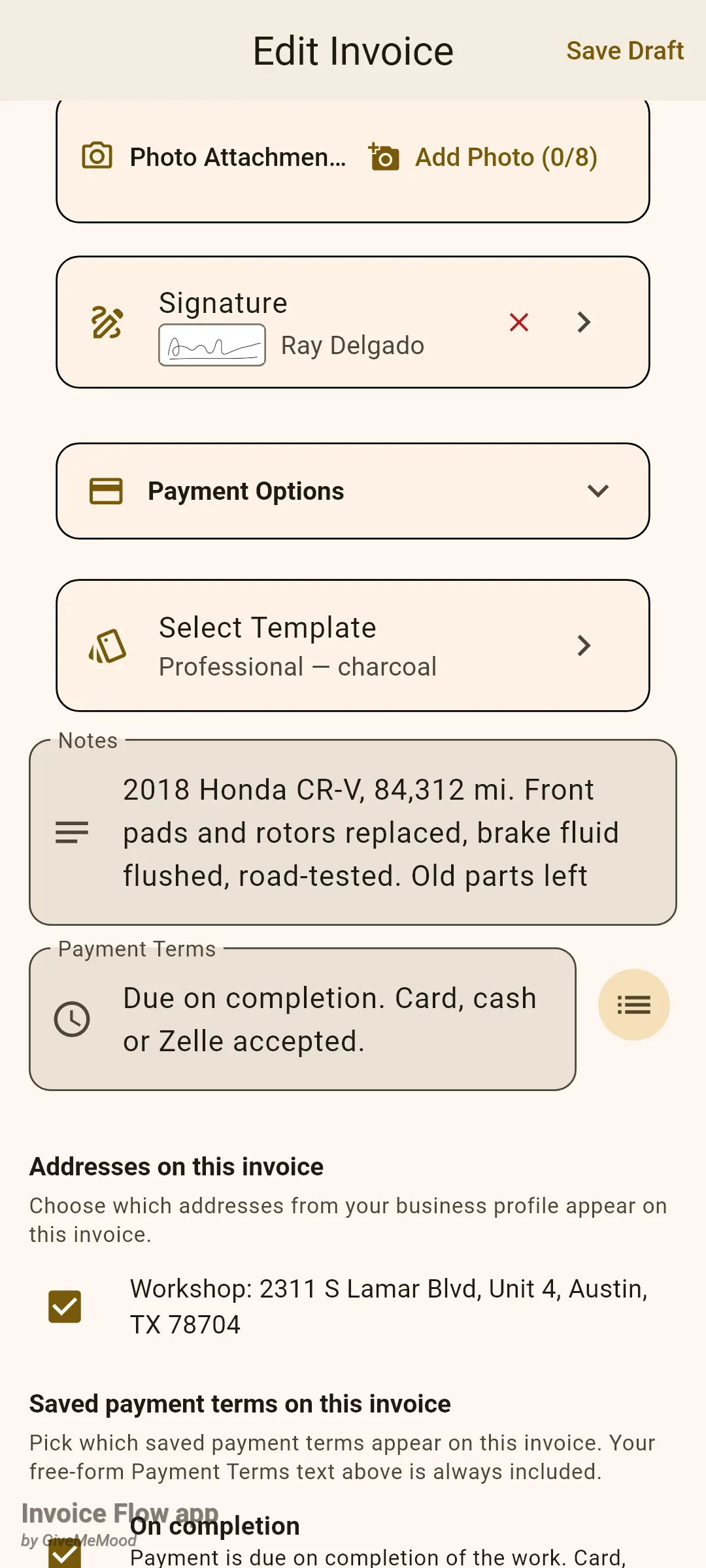
Once a signature is attached, the card shows a small thumbnail and the name, plus a red x. Tapping the x asks Remove signature? and, after Remove, detaches it from this invoice only; the signature stays in your library.
Draw new from this sheet is the quick route: the pad opens, you sign, and the app saves the drawing as a new library entry named after the current date and time (for example “2026-09-02 16:48”) and attaches it immediately. Because nothing was linked, it lands in the Uncategorized tab. You can rename it and link it to a profile later from the Signatures screen.
How to set the signature on your business profile
The business profile editor has its own Signature box near the top, right under the logo pickers. Ray keeps his main signature there so it is visible whenever he checks his profile details.
- Open Settings, then your business profile, to reach Edit Business Profile.
- Tap the white Signature box. If it is empty, the drawing pad opens; sign and tap Save.
- If a signature is already there, the box opens a Your signature view instead, with a single Remove signature button. Removing asks you to confirm twice.
- Scroll to the bottom and tap Save changes. Nothing is written until you do.
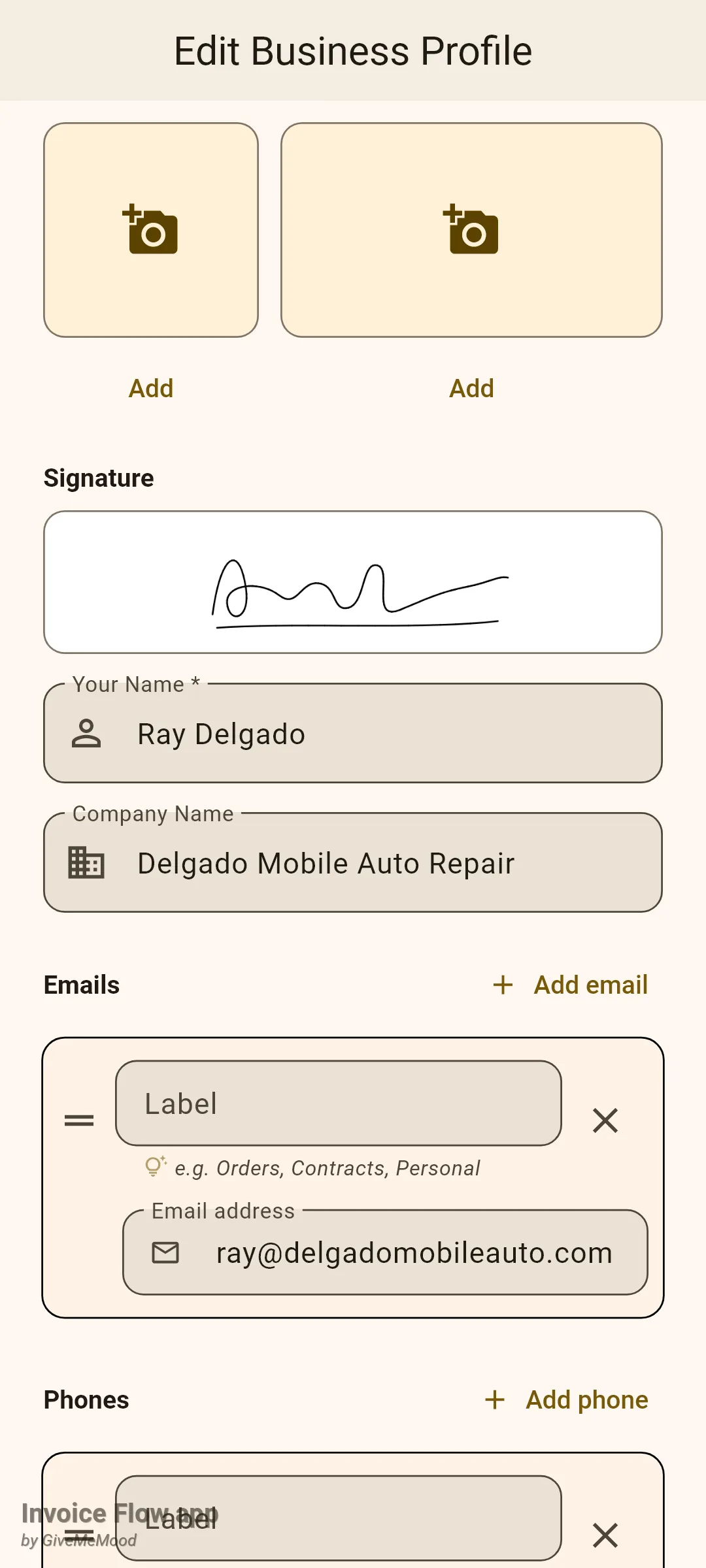
The profile and the library stay in sync. When you draw a signature here and save the profile, the app either updates the library entry already linked to that profile or creates a new one named ”
How to get the client’s sign-off on the spot
This is the part Ray uses at the end of every driveway job. The customer signs the finished invoice on his phone, and her name, the date and the place are stamped onto the document.
- Open the invoice from the documents list so you are on its detail screen.
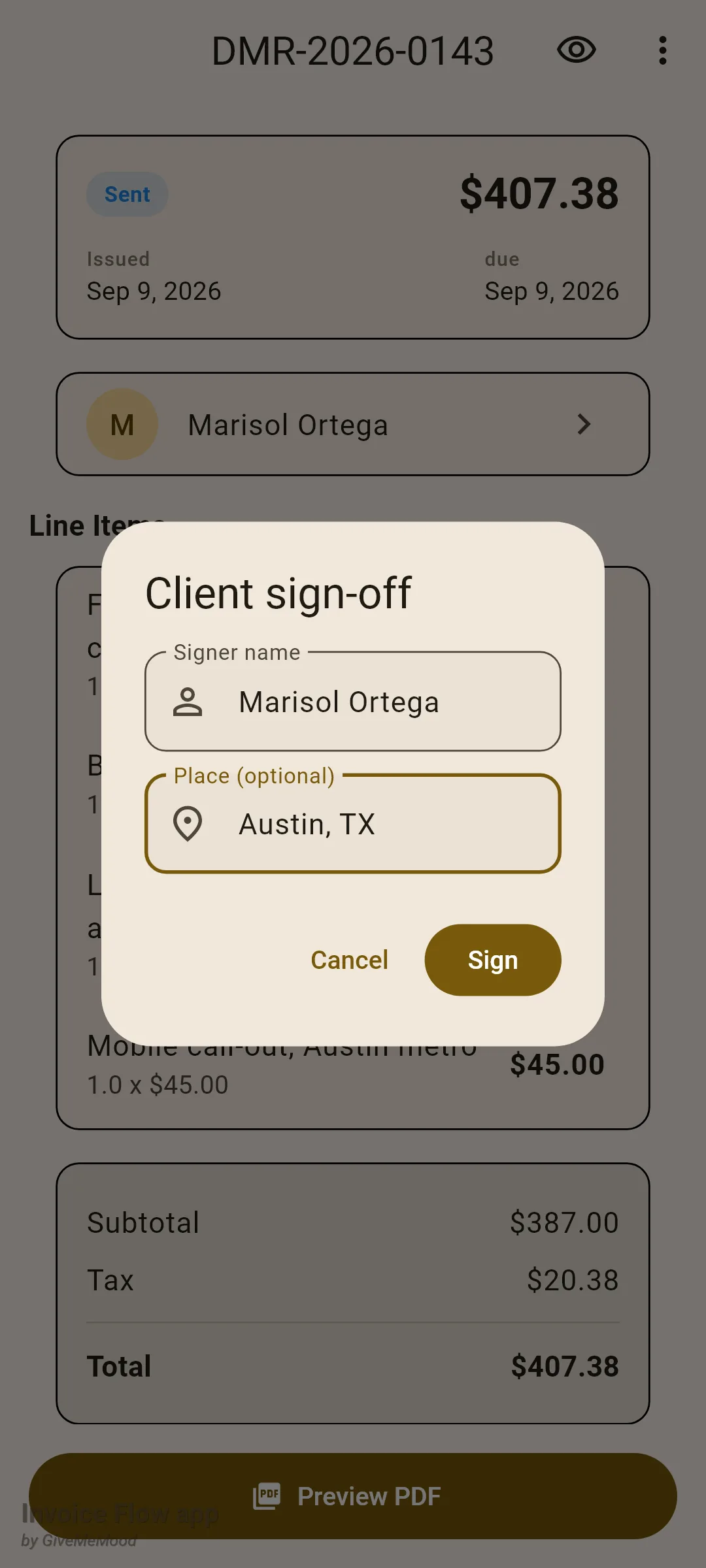
- Tap the three-dot menu at the top right and choose Client sign-off.
- Type the customer's name into Signer name and, if you want it on the PDF, the location into Place (optional).
- Tap Sign and hand the phone to the customer. The same drawing pad opens; they sign sideways and tap Save.
- A Client sign-off saved message confirms it. The menu entry now reads View client sign-off.
Tapping View client sign-off later shows the drawn signature with a line like “Karen Whitlock · 08.09.2026 · Austin, TX”, a Close button and a Remove sign-off button. Removing clears the signature, name, date and place from the invoice in one go, with no second confirmation, so treat it with care.
How the signatures print on the PDF
Both signatures are placed by the PDF templates in a block at the bottom of the document, under a thin divider. Your signature sits on the left at roughly 150 by 50 points with the caption “Authorized Signature” beneath it. The client’s signature sits on the right with the caption “Accepted by client” and a line made from the signer name, the date in day.month.year form and the place, joined by dots. Parts you did not enter are left out of that line. If the invoice has only one of the two, only that side is printed; if it has neither, the block is omitted entirely.
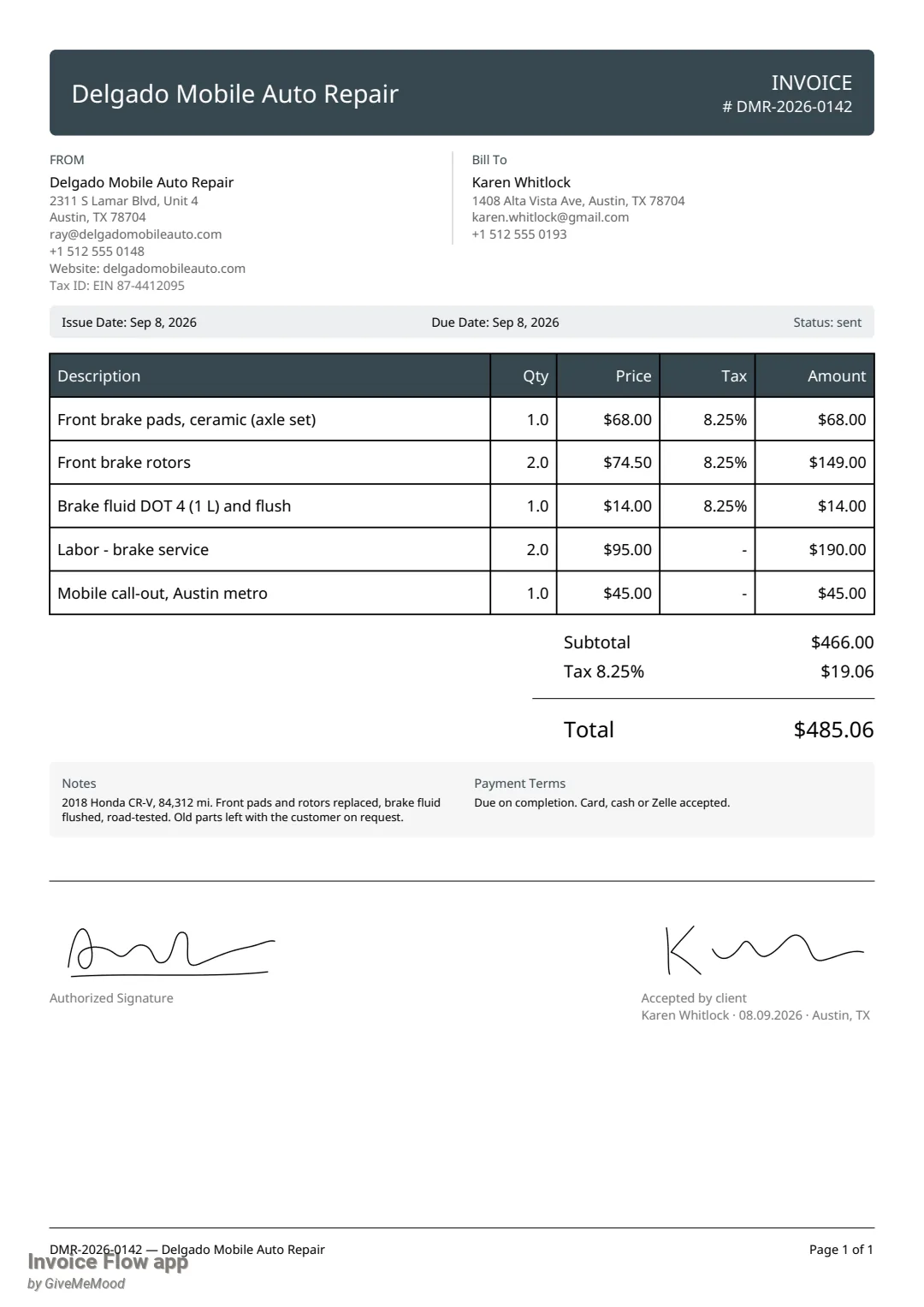
Both captions follow the invoice language you chose in the editor, so a Spanish invoice gets “Aceptado por el cliente” rather than the English wording. The signature that prints is the one attached through the invoice editor’s Signature card; the profile signature is a convenience for the profile editor and does not stand in for it.
Rules and details
- Pro: creating a signature from the + button on the Signatures screen is a Pro action. Renaming, linking, viewing details, trashing, restoring and permanent deletion are not gated on their own. The invoice editor and the profile editor carry their own access rules.
- Pen and canvas: strokes are black, three pixels wide, on a white canvas, regardless of the app theme. A single tap leaves a dot. The saved image is always 600 by 200 pixels with a 20 pixel margin.
- Rotation: the pad expects you to sign with the phone turned so the left edge is up. If you sign normally in portrait, the saved image will come out rotated. Clear and redraw if that happens.
- Save is disabled until at least one point has been drawn. If encoding the image fails, you see “Failed to save signature” and stay on the pad.
- Names: an empty name in the New Signature dialog becomes the current date and time. Rename later with Rename from the card’s menu; an empty new name is ignored.
- Short code and hash: the hash is the SHA-256 of the PNG bytes, computed when the signature is created or its image is replaced; the short code is its first eight characters in upper case. Two different drawings never share a code. The app shows them as a reference for you; it does not verify signatures against them later.
- Linking is many-to-many: one signature can be linked to several profiles through Manage profiles. From the By Profile tab, the red action is Remove from this profile, which only unlinks; a signature with no links left moves to Uncategorized, not to the trash. From the Uncategorized tab, the red action is Move to trash.
- Delete confirmations are deliberate: the dialog shows a random five-digit code and the Delete button stays disabled until you type it exactly.
- Trash: a trashed signature is hidden from the invoice editor’s picker and from the profile tabs, but invoices that already use it keep printing it. Restore brings it back; Delete permanently removes it and clears the signature from every invoice that referenced it, so those PDFs will print without an authorized signature from then on.
- Invoice count on the detail screen is the number of invoices currently pointing at this signature, including archived ones.
- Client sign-off is stored with the invoice only, never in the library, and there is one per invoice. Saving stamps the current date and time. It survives edits to the invoice and is included in backups together with the invoice.
- Duplicated or converted documents start without a client sign-off; the acceptance belongs to the document the customer actually saw.
Tips
Related guides
- Invoice editor — where the Signature card lives among the other invoice fields.
- PDF preview, share and editor — check the signature block before sending the document.
- Getting started: business profile — the profile editor that holds your owner signature.